
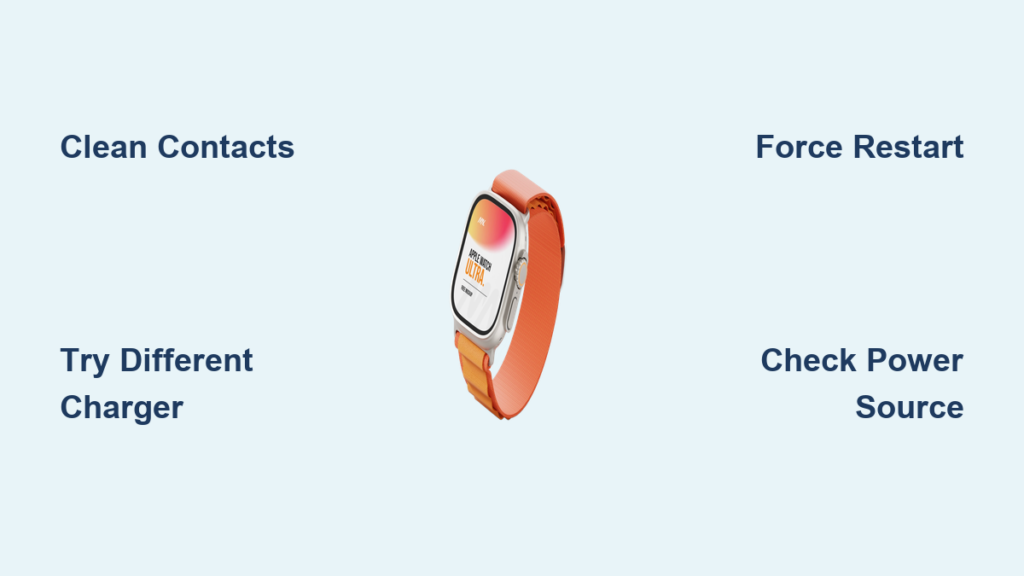
Your Apple Watch Ultra isn’t charging. The screen is dark. No green lightning bolt. No vibration. Even after an hour on the charger, it’s still dead. If you’re relying on your Ultra for workouts, dives, or outdoor adventures, this is more than frustrating—it’s disruptive. You’re not alone. Hundreds of users report sudden charging failures, often after a watchOS update or heavy use in extreme conditions. The good news? In over 90% of cases, the issue isn’t permanent hardware damage. Most problems stem from dirty contacts, faulty cables, software glitches, or misalignment. This guide delivers fast, proven fixes—from simple cleaning steps to advanced resets—and shows you when to contact Apple for a replacement. You’ll learn how to diagnose the real cause, whether it’s a red lightning bolt, a stuck battery percentage, or total unresponsiveness, and get your Apple Watch Ultra back up and running—often in under 15 minutes.
Test Your Charger and Power Source First
Before assuming your watch is broken, rule out the most common culprit: a failed or underpowered charging setup. Even genuine Apple accessories degrade over time, especially with frequent use.
Try a Different Apple Charger
The Apple USB-C Magnetic Fast Charging Cable included with the Ultra has a known failure rate within the first year. If your watch won’t charge, test it with a known-working charger:
- An older Apple Watch magnetic cable (USB-A or USB-C)
- A MacBook USB-C charger (often more reliable)
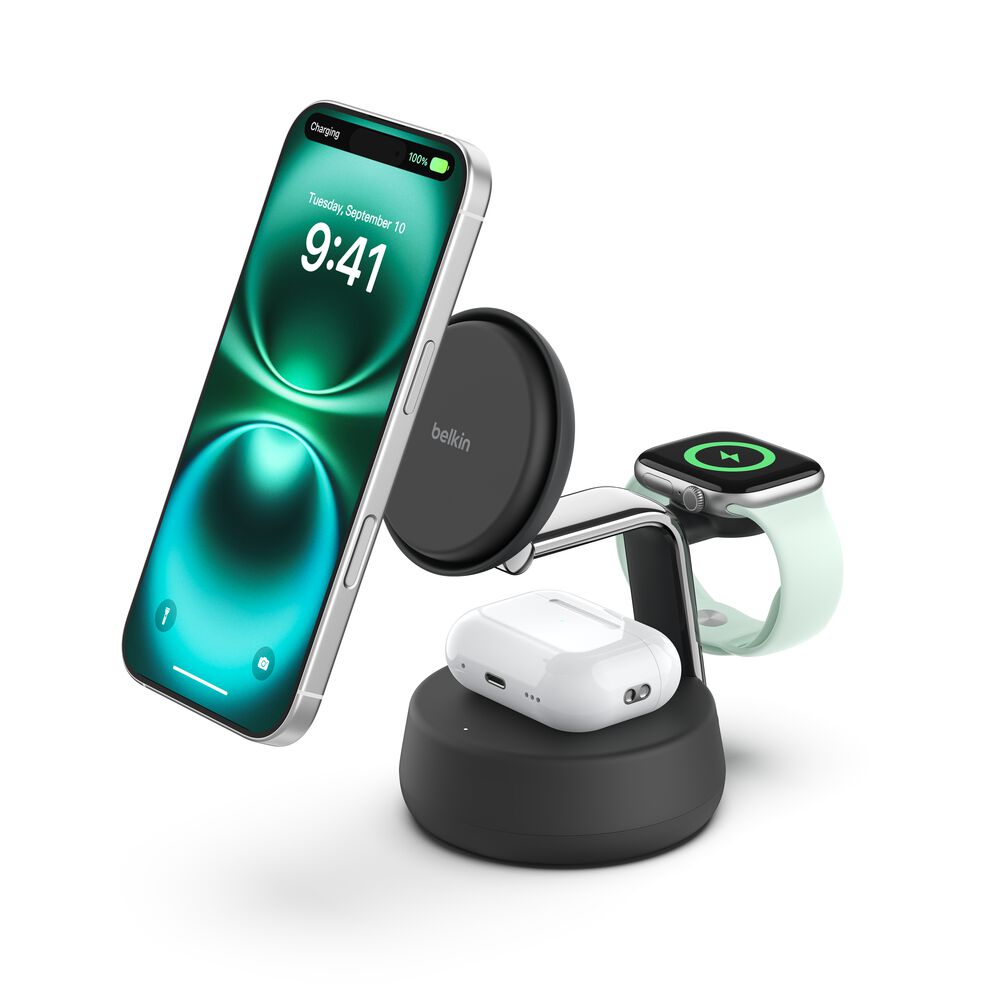
- A certified third-party dock (like the Belkin 3-in-1)
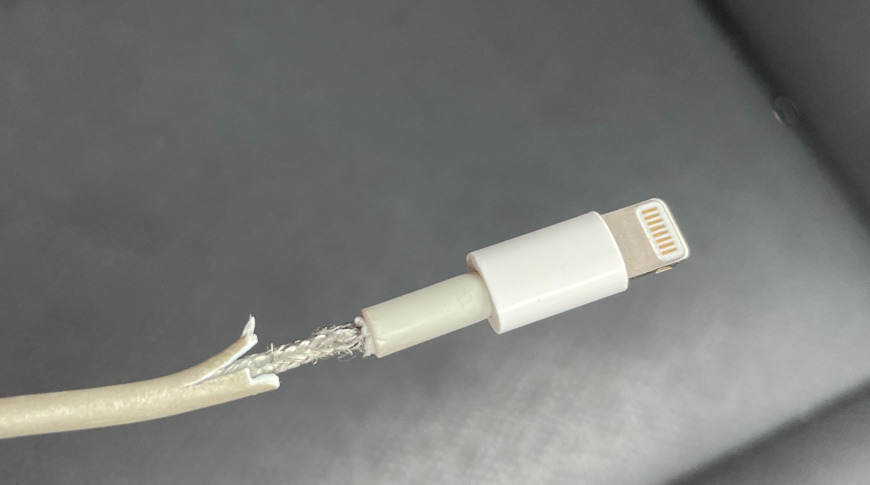
If the watch starts charging with a different cable, the original is likely defective. Apple has replaced these cables under warranty—no questions asked—when users reported sudden charging failures.
Confirm Your Power Source Is Strong Enough
A weak adapter or dead outlet can mimic a dead battery.
- Plug into a different wall socket
- Use a 20W or higher USB-C adapter (Apple’s 20W adapter is ideal)
- Try connecting directly to a MacBook’s USB-C port
If the watch charges via your MacBook but not the wall, the issue is with the adapter or outlet, not the watch. Avoid low-output adapters (under 12W)—they can’t deliver enough power for fast charging.
Clean the Charging Contacts Thoroughly

Dirt, salt, sweat, or sand on the charging contacts is a top cause—especially for Ultra users who swim, dive, or hike.
Wipe Both Watch and Charger Surfaces
- Power off the Apple Watch
- Use a dry microfiber cloth (never liquids or compressed air)
- Gently clean the metal pins on the back of the Ultra
- Wipe the magnetic charging puck where it connects
Do not use alcohol, soap, or sharp tools. These can damage the protective coating and lead to corrosion.
Pro Tip: After saltwater exposure, rinse the watch with fresh water and dry completely before charging. Salt residue blocks electrical contact and can cause long-term damage.
Fix Magnetic Alignment Issues
The Ultra’s 49mm case is larger and heavier, requiring precise magnetic alignment for a stable connection.
Position the Charger Correctly
- Lay the charging puck flat on a surface
- Place the watch so the crown aligns with the charger’s curve
- Rotate slightly until the magnets snap securely into place
If using a charging dock or MagSafe Duo:
- Remove the band before charging
- Ensure the dock is level and not tilted
- Try charging without the band to improve contact
Visual Cue: A solid green ring means charging. A flashing green light means the connection is unstable or misaligned.
Force Restart Your Apple Watch
A software glitch—especially after a watchOS update—can block charging entirely.
Perform a Hard Reset
- Remove the watch from the charger
- Press and hold both the side button and Digital Crown
- Hold for 10–15 seconds until the Apple logo appears
- Release and wait for the watch to restart
Then, place it back on the charger.
Why This Works: A force restart resets the power management system. Many users fix “charging loops” this way—no tools or cables needed.
Update or Re-pair watchOS
Software bugs, especially in beta versions, can disable charging functionality.
Install the Latest watchOS Update
- On your iPhone, open the Watch app
- Go to General > Software Update
- Download and install any pending updates
Ensure the watch is on the charger and connected to Wi-Fi during the update.
Unpair and Re-pair (For Beta Users)
If you’re on watchOS 11 beta and charging fails:
- Back up your watch data
- Unpair it in the Watch app
- Re-pair and restore from backup
Some users resolved persistent charging issues—even with 100% battery health—using this method.
Diagnose the Red Lightning Bolt Screen
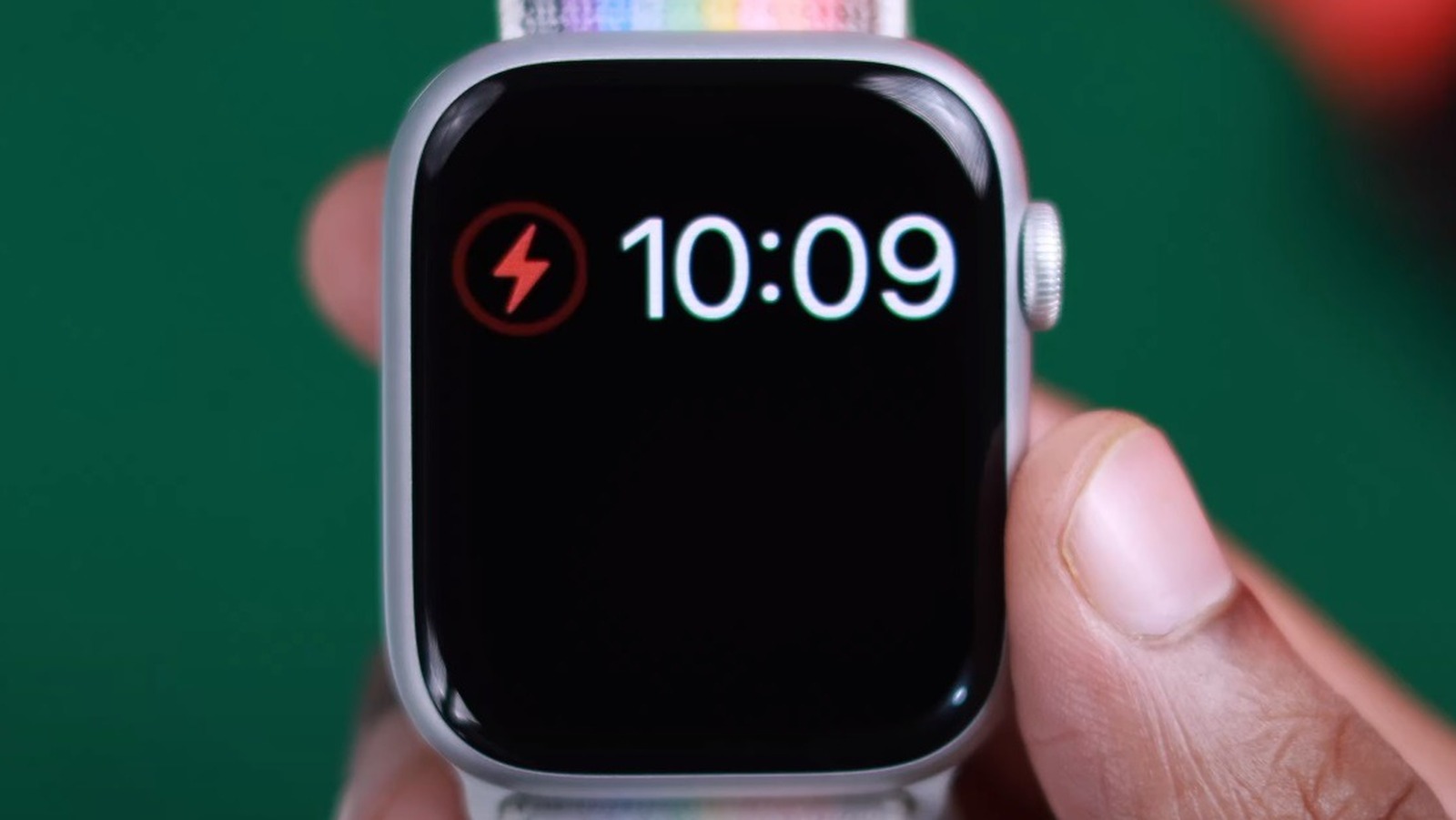
A red lightning bolt on a black screen means the battery is too low to power on.
Charge Before Expecting a Response
- Use a 20W+ Apple USB-C charger
- Wait at least 30 minutes before checking
- Do not force restart during this time
If the red bolt remains after 30+ minutes, test with a different cable. If still unresponsive, hardware failure is likely.
Warning: Leaving a dead Ultra on a weak charger overnight often fails. Use a high-output source.
Spot Signs of Hardware Failure
When software and accessories check out, the problem may be internal.
Look for These Red Flags
- No response after 30+ minutes with a known-good charger
- Force restart doesn’t trigger the Apple logo
- Charging cable flickers (green light on/off loop)
- Physical damage to the back case or charging pins
- Watch heats up but battery doesn’t increase
If multiple chargers and resets fail, the charging port or battery may be damaged.
Contact Apple for Service or Replacement
Apple will replace faulty components—often faster than you expect.
Reach Out to Apple Support
- Use the Apple Support app or visit support.apple.com
- Describe symptoms: “No charging, red lightning bolt, tried all cables”
- Request a charger replacement (free if under warranty)
Many users receive a new charger via overnight mail.
Visit an Apple Store or Authorized Provider
For hardware issues:
- Book a Genius Bar appointment
- Bring your original charger and watch
- Ask for diagnostics and component-level repair
If under warranty or AppleCare+, Apple may replace the entire watch.
User Report: One owner received a full replacement despite 100% battery health. Another got 10 extra days to buy AppleCare+ after a repair.
Prevent Future Charging Problems
Avoid repeat issues with smart habits and quality gear.
Use Genuine Apple Accessories Only
- Stick to the Apple USB-C Magnetic Fast Charging Cable
- Avoid uncertified third-party docks
- Replace cables every 12–18 months
Even high-end third-party chargers can deliver unstable power, damaging the charging circuit over time.
Follow Outdoor Use Best Practices
Ultra users face more contamination risks.
- Rinse after saltwater exposure
- Dry completely before charging
- Clean contacts weekly if used in extreme conditions
Never charge a wet watch. Water between contacts can cause short circuits.
Avoid Beta Software Risks
watchOS beta versions often introduce power bugs.
- Wait for stable releases unless testing is essential
- Monitor battery behavior after updates
- Keep your iPhone updated—outdated iPhones can block watch updates
Model-Specific Tips for Ultra, Ultra 2, and Ultra 3
The 49mm design changes how it charges compared to standard models.
Fast Charging Requirements
- Cable: USB-C Magnetic Fast Charging Cable (not USB-A)
- Adapter: 20W or higher USB-C charger
- Speed: 0% to 80% in about 45 minutes
Using an older USB-A cable limits speed and can cause timeouts.
Compatibility Table
| Charger Type | Works with Ultra? | Notes |
|---|---|---|
| Apple USB-C Fast Charging Cable | ✅ Yes | Required for fast charging |
| Apple Magnetic Charging Dock | ✅ Yes | Remove band for best alignment |
| MagSafe Duo | ✅ Yes | May need repositioning |
| WPT Charger (China/Indonesia) | ❌ No | Shows “country-specific” error |
Warning: Using a region-locked WPT charger triggers: “Unable to charge. This is a country-specific charger.”
When Nothing Works: Last Resorts
If all else fails, escalate quickly.
Try DFU Mode (Rare Cases)
For total unresponsiveness:
- Connect to charger
- Press and hold side button until power slider appears
- Don’t slide—keep holding until Apple logo flashes
- Release and wait
If the watch boots, charging may resume.
Request a Full Device Replacement
If Apple Support confirms hardware failure:
- Ask for a clean replacement (not refurbished)
- Confirm battery health is 100%
- Verify serial number is new
AppleCare+ covers this at $99. Without it, out-of-warranty cost is ~$599.
Final Note: Most Apple Watch Ultra charging issues are fixable—90% stem from cables, contacts, or software. Start with cleaning and a force restart. Test with a MacBook charger. If the red lightning bolt won’t go away, contact Apple immediately. Keep a backup Apple charger on hand. With fast action, you can avoid days without your Ultra.





