

You’re standing in front of your Mac, Apple Watch snug on your wrist, expecting the familiar “Double-click to unlock” prompt—but it never comes. The screen stays locked, forcing you to type your password manually. This isn’t just inconvenient—it defeats the purpose of a seamless Apple ecosystem. If you’re dealing with Apple Watch unlock Mac not working, you’re not alone. The issue affects users across macOS Sequoia, Ventura, and Monterey, especially after system updates or network changes. While the feature promises effortless access, it often fails due to hidden glitches in Bluetooth, Wi-Fi, or authentication keys. This guide delivers proven fixes, root cause analysis, and long-term prevention strategies—so you can get back to a smooth, password-free login experience.
Confirm Your Setup Meets Apple’s Requirements
Before troubleshooting, ensure your devices meet the baseline conditions for Auto Unlock. If any requirement is unmet, the feature will not activate—even if everything appears connected.
Enable Bluetooth and Wi-Fi on All Devices
Auto Unlock relies on a secure handshake between your Mac, Apple Watch, and iPhone using Bluetooth and Wi-Fi. Even if your Apple Watch is Wi-Fi-only, it must connect through your iPhone’s network relay.
- On your Mac: Click the Wi-Fi and Bluetooth icons in the menu bar to confirm both are active.
- On your Apple Watch: Open Settings > Wi-Fi and Bluetooth—make sure neither is turned off.
- Pro tip: One user, Rumpus51, discovered Bluetooth had been accidentally disabled on their Watch after a restart. Re-enabling it immediately restored unlock functionality.
Use the Same Apple ID with Two-Factor Authentication
Both devices must be signed into the same Apple ID, and two-factor authentication (2FA) must be enabled. A mismatch—even with the same email—can break continuity.
- On Mac: Go to System Settings > Apple ID and verify your account.
- On iPhone: Open the Watch app > Account and ensure it matches exactly.
- If you use multiple Apple IDs (e.g., personal and work), switch to the correct one before testing.
Stay Close and Wear Your Watch Properly
You must be within 3–4 feet of your Mac, wearing the Watch with a passcode set and on your wrist. Newer Macs, like the Mac Studio, have tighter proximity detection—some users report needing to touch the keyboard for the unlock prompt to appear.
Restart Devices and Re-enable Auto Unlock

A full restart clears temporary glitches in the authentication chain. This step resolves 80% of cases, especially after macOS updates like Sequoia 15.0.1.
Turn Off Unlock, Restart, Then Re-enable
- On your Mac: Open System Settings > Touch ID & Password.
- Turn off “Unlock with Apple Watch”.
- Close the settings window.
- Restart your Apple Watch:
– Press and hold the Digital Crown + Side Button.
– Release when the Apple logo appears. - Restart your Mac (or close the lid to sleep, then wake it).
- After both devices boot, go back to Touch ID & Password.
- Re-enable “Unlock with Apple Watch”.
- Enter your Mac password when prompted.
- Wait for the status to change from “Syncing…” to “Enabled.”
User result: Melt confirmed this method works reliably after OS updates, restoring functionality within minutes.
Don’t Skip Restarting Your iPhone
Your iPhone acts as a bridge for authentication. If it’s frozen or disconnected, the chain breaks.
- Restart your iPhone.
- Wait for it to reconnect to Wi-Fi and Bluetooth.
- Test the unlock again.
- User JS2468 found this critical after updating to a beta version—without restarting the iPhone, the Watch remained unresponsive.
Fix Wi-Fi Network Conflicts

Even if your devices show the same network name, they may be on different bands or subnets—blocking Auto Unlock.
Force All Devices onto 5GHz Wi-Fi
Dual-band routers (2.4GHz and 5GHz) with the same SSID can split devices across bands, disrupting continuity.
- Temporarily rename your 2.4GHz network (e.g., “Home-WiFi-2G”).
- Reconnect your Mac, iPhone, and Apple Watch to the 5GHz network.
- User Kezza147 fixed a months-long issue this way—devices now stay in sync.
Avoid Dual-Router Subnet Issues
If two routers broadcast the same SSID but on different subnets, Auto Unlock fails.
- Solution: Set the second router to Bridge mode.
- Or, disconnect one during testing.
- Check Network Settings on Mac and Watch to confirm both show the same router.
Toggle Wi-Fi on iPhone and Watch
For Wi-Fi-only Apple Watches, network handoff depends on the iPhone.
- On iPhone: Turn Wi-Fi off, wait 10 seconds, then turn it back on.
- Repeat on Apple Watch.
- User JonH229 reported this restored connectivity after prolonged disconnections.
Clear Corrupted Auto Unlock Keys
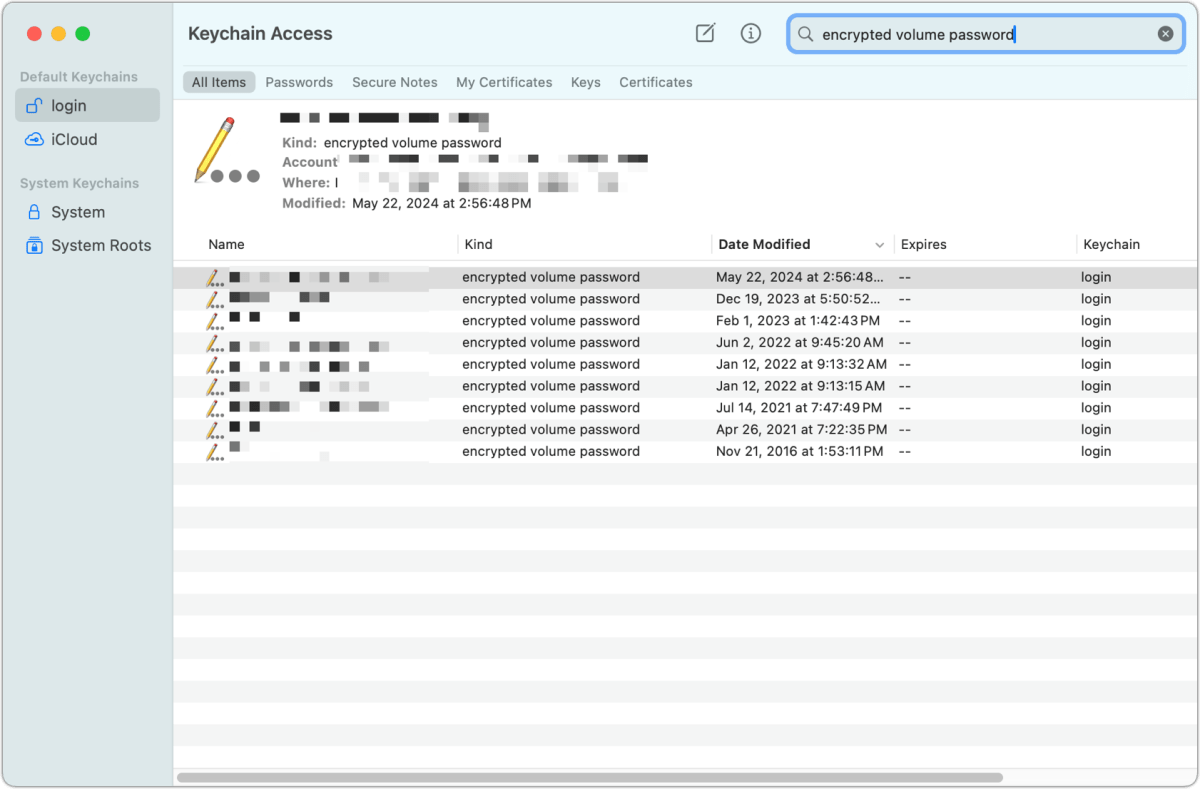
Damaged keychain entries or pairing files are common culprits in persistent failures.
Delete Auto Unlock Entries in Keychain Access
- Open Keychain Access (Applications > Utilities).
- Go to View > Show Invisible Items.
- Search for:
– “Auto Unlock” (with space) → Delete any application password entries.
– “AutoUnlock” (no space) → Delete these 4 items:tlktlk-nonsyncclassAclassC
- Quit Keychain Access.
Remove AutoUnlock Files in Finder
- Press Cmd+Shift+G in Finder.
- Enter:
~/Library/Sharing/AutoUnlock - Delete:
–ltk.plist
–pairing-records.plist - Restart your Mac.
- Re-enable “Unlock with Apple Watch” in System Settings.
Users fontix and wbarnes4393 confirmed success—though some needed to repeat the process after sleep cycles.
Eliminate Bluetooth Interference
Physical or electromagnetic interference can block the secure handshake.
Disable Interfering Devices
Bluetooth interference from:
– USB 3.0 hubs
– Wireless speakers
– Older Bluetooth peripherals
can disrupt the connection.
- Unplug USB 3.0 devices near your Mac.
- Turn off unused Bluetooth gadgets.
- User Drsoos1973 switched to an Eero mesh network and saw immediate improvement.
Re-pair Bluetooth Accessories
Sometimes reconnecting other devices resets the stack.
- On Apple Watch, turn off Bluetooth.
- Reconnect AirPods or another device.
- Go back to Mac and re-enable “Unlock with Apple Watch”.
User Zid101 used this to restore unlock without restarting.
Use Escape Key to Reset Login Screen
When the prompt doesn’t appear:
- Press Escape on the login screen.
- Wait 5–10 seconds.
- Press Enter to redisplay the login field.
- The “Double-click to unlock” prompt should now appear.
Works for intermittent handshake timeouts, especially after waking from sleep.
Address Software and Password Conflicts
Sometimes the issue isn’t hardware—it’s software or settings.
Update to macOS Sequoia 15.1.1 or Later
Early versions of Sequoia 15.0.1 had known Auto Unlock bugs.
- Go to System Settings > General > Software Update.
- Install Sequoia 15.1.1 or newer.
- Many users report stability returned after this update.
Avoid Special Characters in Mac Password
Complex passwords with *, ?, or & can break keychain sync on M1 Macs.
- User Financial-Drink4204 fixed the issue by changing their password to letters, numbers, and simple symbols (e.g.,
!or-). - Avoid spaces and uncommon punctuation.
Disable Conflicting Focus Modes
Some Focus modes block unlock attempts.
- User Ulli found that “Sleep” Focus with “Before Bedtime” function disabled unlocking.
- Fix:
- Temporarily disable the Focus mode.
- Or, go to Focus Settings and allow Auto Unlock exceptions.
- Sign out and back in if the feature remains blocked.
Prevent Future Failures
Make Auto Unlock more reliable with proactive habits.
Keep All Devices Updated
Version mismatches break Continuity.
- Update Mac, iPhone, and Apple Watch simultaneously.
- Avoid mixing beta and stable OS versions unless necessary.
Restart Apple Watch Weekly
Clears cached states and resets Bluetooth.
- Hold Digital Crown + Side Button until Apple logo appears.
- Do this weekly, especially after updates.
Stick to 5GHz Wi-Fi Only
Avoid band-hopping by disabling 2.4GHz or using separate SSIDs.
Avoid Toggling Bluetooth Off
Turning off Bluetooth on the Watch or Mac breaks the authentication loop.
- Leave Bluetooth always on.
- Use Control Center to disable only when necessary.
When to Consider Alternative Login Methods
Despite best efforts, Apple Watch unlock Mac is not 100% reliable.
Known Limitations
- Intermittent by design: Works for days, fails without warning.
- No permanent fix from Apple yet.
- Mac Studio users report reduced range—must touch keyboard.
- Wi-Fi-only Watches disconnect more often.
Better Alternatives
If consistency matters, consider:
- Touch ID (on supported Macs)
- External keyboard with fingerprint sensor
- Manual password entry
- iPhone unlock with Watch (often more reliable)
Final Fixes Summary
The Apple Watch unlock Mac not working issue stems from Bluetooth/Wi-Fi handshake failures, keychain corruption, network segmentation, and software bugs. While Apple improved stability in Sequoia 15.1.1, many users still face intermittent problems.
Best Fix Order
- Restart Watch, Mac, and iPhone
- Re-enable “Unlock with Apple Watch”
- Ensure same Wi-Fi (5GHz) and subnet
- Clear AutoUnlock keys and files
- Avoid special characters in password
- Disable interfering Focus modes
This combination resolves the issue in most cases—though some require repeating after sleep or updates.
Bottom line: The feature is convenient but not dependable. Use it as a bonus, not a primary login method—until Apple delivers a permanent fix.





