
You’re halfway through a morning jog, and even though you forgot to tap “Start” on your Apple Watch, it still logs your run. Or during a pool session, it automatically counts laps and identifies your stroke type. How does it know? The Apple Watch tracks workouts using a seamless blend of advanced sensors, intelligent algorithms, and real-time physiological monitoring to capture your effort—no manual input required.
Behind the scenes, your watch is constantly analyzing heart rate, motion patterns, GPS location, elevation, and arm movement to detect when you’re exercising, what kind of activity you’re doing, and how hard you’re working. Whether you manually launch a workout or let the watch auto-detect it, every step, stroke, or pedal revolution is recorded with precision. From closing your green Exercise ring with a brisk walk to tracking heart rate zones during HIIT, the Apple Watch transforms raw motion into meaningful fitness insights.
In this guide, you’ll learn exactly how the Apple Watch tracks workouts, including its sensor technology, workout detection methods, exercise credit rules, and performance metrics—all designed to keep your fitness journey accurate, motivating, and personalized.
Sensor Fusion: The Science Behind Accurate Tracking

The Apple Watch doesn’t rely on a single sensor. Instead, it uses multi-sensor fusion, combining data from several built-in components to create a precise picture of your activity.
Optical Heart Rate Sensor
Located on the back of the watch, this sensor uses photoplethysmography (PPG)—flashing green and infrared light into your skin to measure blood flow. By detecting changes in light reflection caused by each heartbeat, it delivers continuous heart rate readings.
- Monitors real-time heart rate during workouts.
- Helps determine exercise intensity—only elevated heart rates combined with movement count toward your Exercise ring.
- On Series 4 and later, supports ECG for heart rhythm analysis.
For best accuracy, wear the watch snugly—about one to two finger widths above your wrist bone. A loose fit or sweat buildup can interfere with readings.
Accelerometer and Gyroscope
These motion sensors work together to interpret how you move.
- The accelerometer measures linear motion—speed, direction, and stride length.
- The gyroscope detects rotation and orientation—helping distinguish between uphill effort and flat terrain.
Together, they identify movement patterns like:
– Running cadence (steps per minute)
– Arm swing during walking
– Stroke detection in swimming
During a run, the accelerometer tracks vertical motion and ground contact time, while the gyroscope helps refine pace and form metrics.
Built-In GPS (GPS + Cellular Models)
Available on GPS and GPS + Cellular models, this chip tracks:
- Distance traveled
- Pace (min/mile or km/h)
- Route map
- Elevation gain
Without GPS, distance is estimated using arm motion and stride length—less accurate, especially for outdoor runs.
Pro tip: Always enable GPS for outdoor activities to ensure precise pace and route tracking.
Barometric Altimeter
This sensor measures air pressure to detect changes in elevation.
- Counts flights climbed throughout the day.
- Tracks ascent during hiking or stair climbing.
- Adjusts for weather-related pressure shifts to avoid false readings.
It helps differentiate between flat walking and uphill effort—even if your heart rate is similarly elevated.
How Workouts Are Detected: Manual vs. Automatic
You can start a workout manually—or let the Apple Watch detect it automatically.
Start a Workout Manually
To begin tracking:
1. Open the Workout app.
2. Scroll with the Digital Crown.
3. Select your activity type.
4. Tap Start.
Before starting, set goals:
– Time (e.g., 30 minutes)
– Distance (e.g., 5 km)
– Calories (e.g., 250 kcal)
The watch will notify you when you’re ahead or behind pace.
Use Custom Workouts
Create structured routines with warm-up, intervals, and cooldowns.
Steps:
1. In Workout app, tap ⋯ > Custom > +
2. Add segments (e.g., 5-min warm-up, 20-min HIIT, 5-min cool-down)
3. Set duration, intensity, or reps
4. Save with a custom name
Perfect for Tabata, Fartlek, or triathlon brick workouts.
Automatic Workout Detection
Forget to start your run? The Apple Watch might catch it anyway.
Which Activities Are Detected?
Auto-detection works for:
– Outdoor Walk
– Outdoor Run
– Indoor Run
– Outdoor Cycle
It monitors:
– Heart rate elevation
– Arm swing
– Movement intensity
After about 7–10 minutes of sustained activity, it prompts:
“You’ve been moving for X minutes. Start a workout?”
If you accept:
– You get retroactive credit for up to 50 minutes before detection.
– All data is saved as a full workout.
Auto-Pause and Auto-End
During workouts:
– If you stop moving (e.g., at a red light), the watch pauses automatically.
– After 10 minutes of inactivity, it asks:
“End your workout?”
Ensures accurate time and calorie tracking.
Enable in Settings > Workout > Start/End Workout Reminder
How Exercise Minutes Are Earned
Closing the green Exercise ring requires brisk activity—but not all movement counts.
What Qualifies as Exercise?
Apple defines it as:
“Every full minute of movement that equals or exceeds the intensity of a brisk walk.”
But three factors must align:
-
Elevated Heart Rate
Must exceed a personalized threshold based on your age, fitness level, and resting heart rate. -
Arm Movement
The accelerometer must detect active motion (e.g., walking, running).
Sitting with a high heart rate (from stress or fever) won’t count. -
Minimum Speed (for Walking)
In “Outdoor Walk” mode, GPS speed must be ≥5 km/h (~3.1 mph) to earn credit.
Walk too slowly? The watch shows yellow or red pace indicators—you’re moving, but not briskly enough.
Why You Might Not Get Credit
Common reasons exercise minutes don’t accumulate:
- Pushing a stroller or shopping cart → restricted arm swing
- Cycling → minimal arm motion, unless upper body is engaged
- Loose watch fit → poor heart rate signal
- Using “Other” workout type → less accurate detection
- Indoor walking on a treadmill → no GPS, and stride estimation may lag
Fix: Wear the watch snugly, swing arms naturally, and choose the correct workout mode.
Real-Time Metrics During Workouts
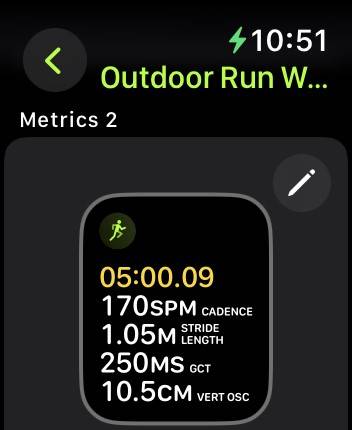
Depending on the activity, your Apple Watch displays key performance data—helping you stay on target.
Universal Metrics (All Workouts)
These appear in nearly every session:
– Duration: Elapsed time
– Active Calories: Energy burned above resting level
– Heart Rate: Real-time and average BPM
– Heart Rate Zones:
– Green: Warm-up
– Yellow: Fat Burn
– Orange: Cardio
– Red: Peak
– Distance: GPS-based or estimated
– Elevation: Flights climbed or meters ascended
Swipe left/right to toggle views.
Running-Specific Data
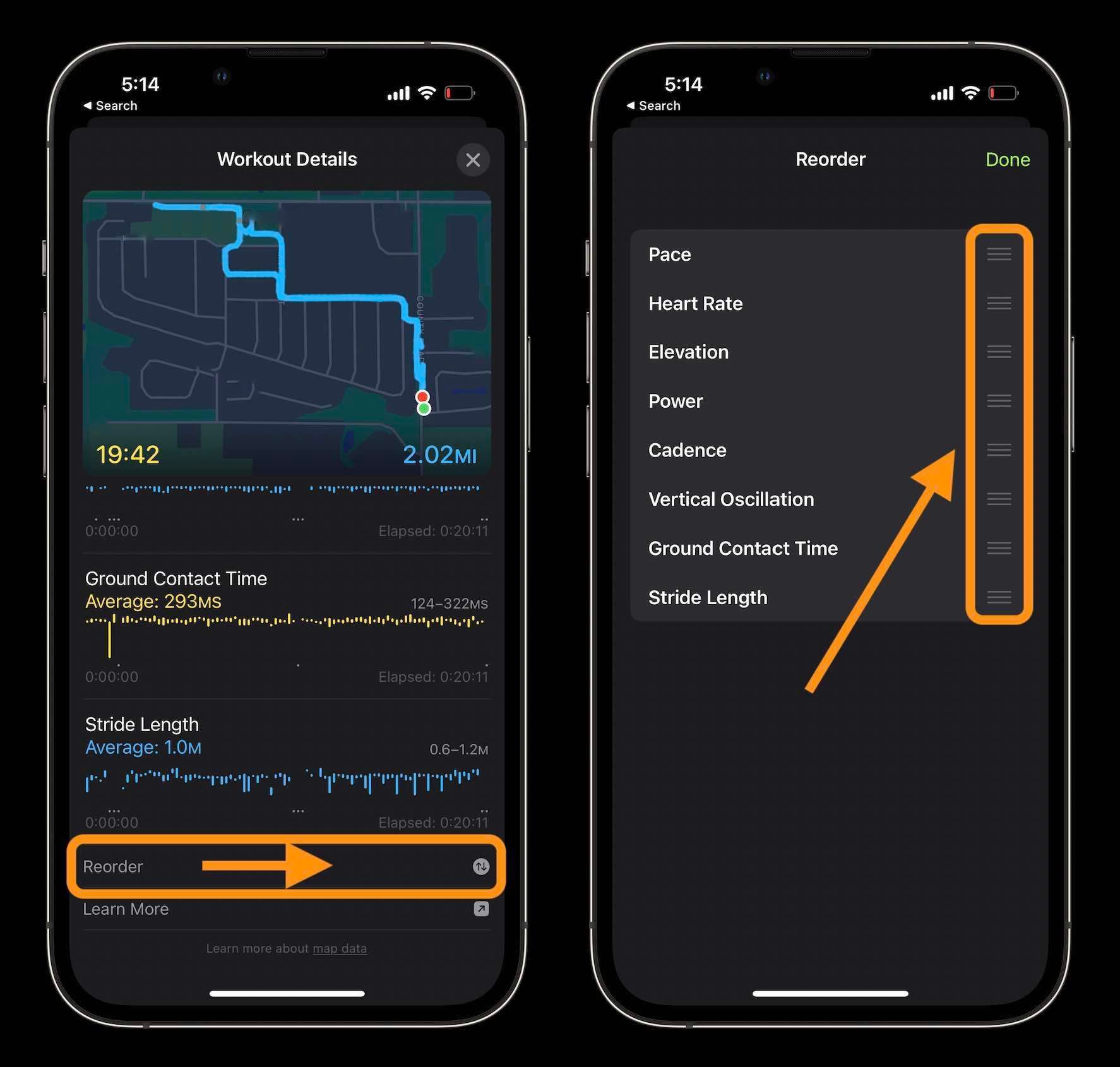
For runners, the Apple Watch delivers advanced biomechanics (Series 3 and later):
- Current Pace and Average Pace
- Rolling Mile Pace: Real-time average over the last full mile
- Cadence: Steps per minute (ideal: 160–180)
- Stride Length: Distance per step
- Vertical Oscillation: Bounce per stride (lower = more efficient)
- Ground Contact Time: How long foot touches ground (shorter = faster)
- Running Power (Series 6+): Watts of effort output
Use haptic pace alerts to maintain goal speed.
Cycling and Connected Sensors
Pair Bluetooth accessories for deeper insights:
– Speed/cadence sensors: Track RPM and wheel speed
– Power meters: Display watts, pedal smoothness, torque
– Smart trainers: Control resistance via apps like Zwift
Data syncs to the Workout app and Apple Fitness.
Swimming Efficiency Metrics
In Pool Swim mode:
– Stroke Type Detection: Auto-identifies freestyle, breaststroke, etc.
– Strokes per Length: Counts arm pulls
– SWOLF Score: Time + strokes per lap = efficiency score
– Lap Time: Split times for each length
After each turn, the watch vibrates to confirm lap detection.
Post-Workout Review and Trends
After your session ends, data syncs to your iPhone—where you can dive deeper.
Where to View Workout History
- Apple Watch: Open Activity app → scroll to workouts
- iPhone: Fitness app > Workouts tab
- Health app: Full historical data, including heart rate graphs
Tap any workout to see:
– Route map (if GPS used)
– Heart rate chart
– Pace and elevation profile
– Calories and duration
Analyze Long-Term Trends
In Fitness app > Trends:
– Compare last 90 days vs. previous year
– Track changes in:
– Exercise minutes
– Walking pace
– Stand hours
– Cardio fitness (VO₂ max estimate)
If trends decline, you’ll get personalized coaching tips, like:
“Walk an extra quarter-mile each day to boost your pace.”
Useful for spotting plateaus or overtraining.
Motivation: Rings, Challenges, and Awards
The Apple Watch turns fitness into a game—with real psychological impact.
Activity Rings System
Three rings = daily goals:
– Red Move Ring: Active calories
– Green Exercise Ring: Brisk activity minutes
– Blue Stand Ring: 1+ minute of movement in 12 of 16 waking hours
Closing all rings triggers celebration animations.
Users report: “If I don’t wear my watch, it feels like the workout didn’t happen.”
Compete With Friends
Challenge someone to a 7-day ring competition.
- Points based on % of rings closed
- Daily updates show who’s ahead
- Winner gets a badge and confetti animation
To start:
1. Open Fitness app > Sharing tab > +
2. Invite a contact
3. Accept on both devices
Great for accountability.
Earn Awards and Badges
Celebrate milestones with digital trophies:
– 7-day workout streak
– Close all rings on New Year’s Day
– Complete 365 days of activity
– Personal record (PR) in running or cycling
View in Activity app > Awards
Troubleshooting Common Issues
Even with advanced tech, tracking isn’t always perfect.
Exercise Minutes Not Counting?
Check these fixes:
- Walk faster: Aim for 5–6 km/h (3.1–3.7 mph)
- Swing arms freely: Avoid pushing strollers or keeping hands in pockets
- Wear the watch correctly: Snug, 1–2 finger widths above the wrist bone
- Clean the sensors: Wipe back of watch after workouts
- Use correct mode: Choose “Outdoor Walk,” not “Other”
- Update watchOS: Bugs affecting tracking are often fixed in updates
Some users noticed changes after watchOS 9.5—ensure software is current.
Inaccurate Distance or Pace?
Causes:
– No GPS signal (buildings, tunnels, dense trees)
– Cold weather slowing sensor response
– Un-calibrated treadmill
Fix:
– Use outdoor runs to calibrate treadmill (Apple suggests 20 minutes outside)
– Enable Fitness Tracking and Location Services
Limitations to Know
Despite its power, the Apple Watch has boundaries.
Not a Medical Device
- Heart rate, ECG, and VO₂ max are estimates.
- Do not use for diagnosing conditions.
- Always consult a doctor for health concerns.
Battery Life During Long Workouts
- Marathon runners or century cyclists may drain the battery.
- Low Power Mode (Series 9/Ultra 2) extends tracking.
- Pre-charge to 100% for events over 4 hours.
Sleep Tracking Trade-Off
- Native Sleep app requires overnight wear.
- Older models may not last the full night.
- Third-party apps (e.g., AutoSleep) offer deeper sleep staging.
Final Note: The Apple Watch tracks workouts with remarkable accuracy by combining sensor data, intelligent algorithms, and user customization. Whether you’re a casual walker or elite athlete, it adapts to your routine—automatically detecting effort, delivering real-time feedback, and turning fitness into a measurable, motivating journey. With the right settings and awareness of its limits, it becomes one of the most powerful personal fitness tools available.





