
You’re walking through the city, your phone tucked away, but a gentle tap on your wrist tells you a friend just sent a message. Without breaking stride, you reply with a voice command. Later, during a hike, your Apple Watch alerts you to an unusually high heart rate—prompting you to slow down. That evening, you tap your wrist at a café to pay for coffee, then check your sleep score before bed. This seamless experience isn’t magic—it’s engineering. The Apple Watch works by combining powerful sensors, wireless connectivity, intuitive gestures, and deep iPhone integration to act as a personal assistant, fitness coach, safety net, and communication hub—all from your wrist.
At its core, the Apple Watch is designed to keep you connected and informed with minimal distraction. It constantly monitors your health, tracks your activity, delivers notifications, and responds to voice commands—all while syncing seamlessly with your iPhone. Behind the sleek aluminum or titanium casing lies a sophisticated ecosystem of hardware and software that learns your habits and adapts to your lifestyle. Whether you’re swimming, sleeping, or sprinting to catch a train, the watch adjusts in real time.
In this guide, we’ll break down exactly how the Apple Watch functions—how it connects, navigates, tracks health, communicates, and automates your day—so you can unlock its full potential and understand the technology that turns your wrist into a command center.
Connectivity: How It Stays in Sync

The Apple Watch doesn’t work alone. It’s designed to stay connected across multiple networks, ensuring you’re reachable whether your iPhone is in your pocket or miles away.
Bluetooth: Primary iPhone Link
The foundation of Apple Watch connectivity is Bluetooth. Within about 30 feet (9 meters) of your iPhone, the watch uses a low-energy Bluetooth connection to sync notifications, health data, and app updates in real time. This mode is highly efficient, preserving battery while giving you full access to your iPhone’s cellular or Wi-Fi internet. Even on cellular models, Bluetooth remains the default when the iPhone is nearby because it consumes less power.
Pro Tip: If your watch stops receiving texts or calls, first check if Bluetooth is enabled on your iPhone and both devices are within range.
Wi-Fi: Internet Access Without iPhone
When your iPhone is out of reach—say, you left it at home while going for a run—the Apple Watch automatically connects to known Wi-Fi networks. It uses saved credentials, so no login is required. This allows you to:
– Receive iMessages and emails
– Stream Apple Music or podcasts
– Use Maps for directions
– Download app updates
Importantly, the Apple Watch does not use your iPhone’s personal hotspot. It connects directly to Wi-Fi, leaving your phone’s data and battery untouched.
Cellular: Standalone Calling & Data
Available on Series 3 and later (excluding first-gen SE), Series 10, and Ultra models, cellular adds true independence. With an active carrier plan:
– Make and receive phone calls
– Send SMS and iMessages
– Stream music and use Safari
– Get turn-by-turn navigation
It uses eSIM technology, eliminating the need for a physical SIM card. On compatible devices like the iPhone 14 and later (in the U.S.), you can even have separate cellular plans for your iPhone and watch.
Warning: Cellular use increases power draw. During active calls or streaming, expect 30–50% shorter battery life.
NFC: Tap-to-Pay & Smart Access
The Apple Watch includes NFC (Near Field Communication) for secure, contactless interactions:
– Apple Pay: Double-press the side button and hold near a terminal.
– Home Key / Car Key: Unlock compatible doors and vehicles.
– Hotel Key: Access rooms at supported chains.
– Transit Cards: Use Suica (Japan), Oyster (UK), OMNY (NYC) in major cities.
Each transaction uses a device-specific account number, not your real card details—keeping your financial data secure.
Power & Battery: How Long It Lasts
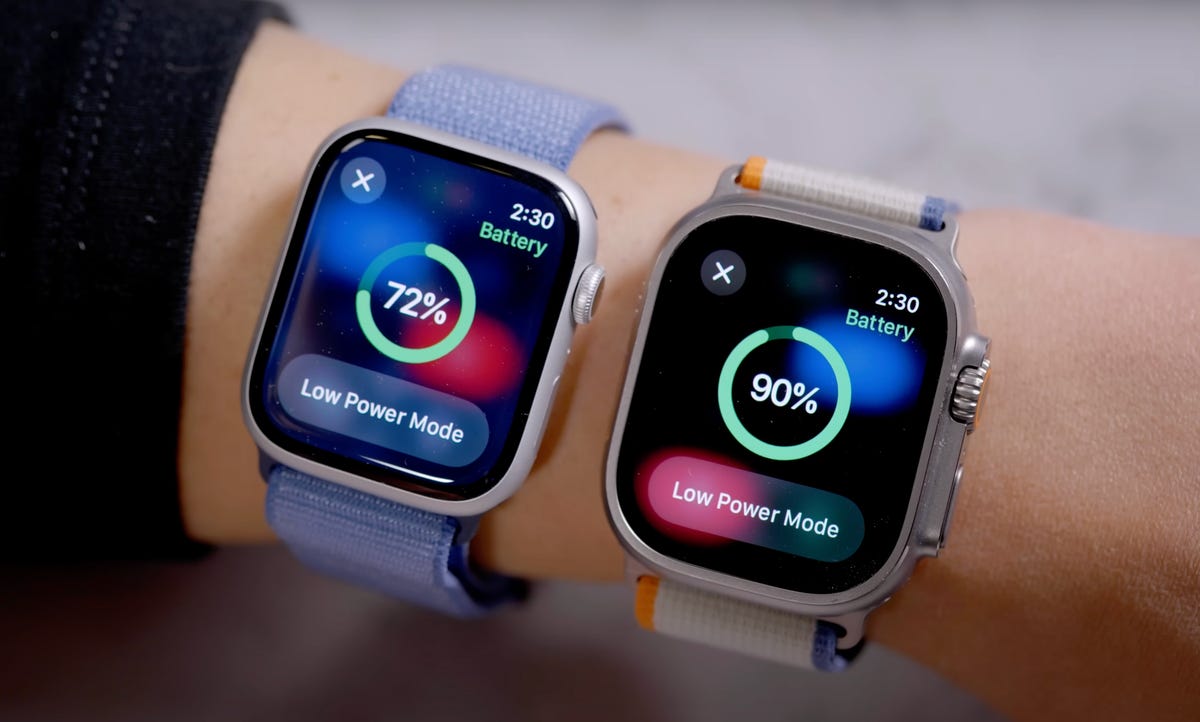
Apple Watch is engineered for about 18 hours of typical use, but actual battery life depends on connectivity and usage.
Battery Life by Mode
| Mode | Estimated Duration | Notes |
|---|---|---|
| Bluetooth (iPhone nearby) | Up to 18 hours | Most efficient |
| Wi-Fi only | 14–16 hours | Moderate drain |
| Cellular active | 9–12 hours | High drain during calls |
| Low Power Mode | Up to 36+ hours | Disables background features |
Charging & Speed
- Uses a magnetic inductive charger (USB-C on newer models)
- Fast charging on Series 9, Ultra 2, and Series 10:
- 80% in ~4.5 minutes
- Full charge in ~20 minutes
- Nightstand Mode: When charging upright, it displays time, date, alarms, and charging status—like a bedside clock.
Expert Note: Enable Low Power Mode in Settings > Battery to extend life during long hikes or travel.
Navigation: Using the Watch Interface
The Apple Watch is built for fast, one-handed interaction. You’ll rarely need to look at it—your fingers and wrist do the work.
Digital Crown: Your Main Control
This rotating dial is central to navigation:
– Press once: Return to home screen
– Rotate: Scroll lists, zoom maps
– Long press: Activate Siri
– Double press: Switch between last two apps
– Hold down: Open App Switcher (swipe up to close apps)
In apps like Photos, turning the crown zooms in and out smoothly.
Side Button: Quick Access Panel
- Tap once: Open Control Center
- Hold down: Access emergency tools:
- Emergency SOS (8-second countdown)
- Medical ID (visible when locked)
- Power Off
- Compass and Ping My Phone
Safety First: If a hard fall is detected and you don’t move, the watch may automatically call emergency services.
Touchscreen & Gestures
Modern models support intuitive gestures:
– Swipe down: Notification Center
– Swipe up: Smart Stack (widgets)
– Swipe left/right: Cycle through watch faces
– Double Tap (Series 9+): Tap thumb and index finger twice to:
– Answer calls
– Pause music
– Scroll widgets
– Customize in Settings > Accessibility > One-Handed Gestures
Force Touch (firm press) was discontinued after Series 6.
Watch Faces & Widgets: Your Dashboard
Your watch face isn’t just a clock—it’s a customizable information hub.
Customizable Watch Faces
Choose from over a dozen styles:
– Modular: Grid layout with multiple data boxes
– Infograph: Circular design with rings and subdials
– Activity: Shows Move, Exercise, and Stand rings
– Astronomy: Earth, moon, and solar system visuals
– Chronograph: Analog stopwatch look
– Photo: Displays synced photos or Live Photos
Complications: Live Data on Your Face
These small widgets show real-time info:
– Heart rate, weather, calendar
– Battery level, activity rings
– Music, timers, third-party data (e.g., flight status)
You can add up to five complications per face. Tap and hold the screen → Edit → select a complication → choose data source.
Smart Stack: Scrollable Widgets
Swipe up from any face to access the Smart Stack—a personalized panel that changes based on time, location, and habits:
– Morning: Weather, commute time
– Afternoon: Calendar, reminders
– Evening: Activity rings, sleep schedule
Pro Tip: Let the Smart Stack learn your routine—it will auto-surface relevant info like “Time to leave for dinner.”
Communication: Stay Connected
The Apple Watch keeps you in touch without pulling out your phone.
Messaging: Reply on the Go
When a message arrives:
– Feel a haptic tap on your wrist
– View and reply using:
– Quick Replies
– Scribble: Handwrite letters
– Keyboard: On-screen QWERTY
– Dictation: Speak your reply (fastest)
– Emoji & Stickers
You can also send your location or a short audio message.
Phone & FaceTime: Call from Your Wrist
- Answer calls with a tap—use built-in mic and speaker
- Make calls from Favorites, Contacts, or Siri
- Use AirPods for private calls
- FaceTime Audio supported (no video—no camera)
Walkie-Talkie: Instant Voice Chat
- Push-to-talk with other Apple Watch users
- Requires internet (Wi-Fi or cellular)
- Ends automatically after silence
Digital Touch: Expressions on Wrist
Send unique haptic messages:
– Taps: Rhythmic pulses felt on the recipient’s wrist
– Sketches: Draw a message that animates on arrival
– Heartbeat: Share your real-time pulse
– Colors: Choose from six tones
Health & Fitness: Your 24/7 Coach
The Apple Watch is one of the most advanced wearable health trackers available.
Built-In Sensors
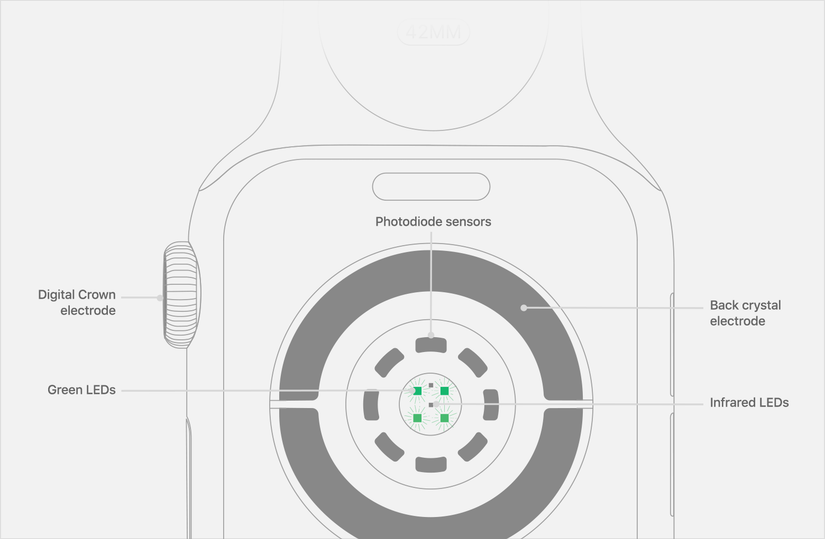
- Accelerometer & Gyroscope: Track steps, detect falls and crashes
- Heart Rate Sensor: Uses green, red, and infrared LEDs
- ECG App: On Series 4+ and SE (2nd gen)—detects atrial fibrillation
- Blood Oxygen (SpO2): On Series 6+
- Skin Temperature Sensor: On Series 8, Ultra, and later—helps with cycle tracking
- Altimeter & GPS: Built-in for accurate elevation and location tracking
Activity Rings: Daily Goals
The Activity app tracks:
– Move (Red): Active calories
– Exercise (Green): Brisk activity (10+ minutes)
– Stand (Blue): Hours stood
Close all three to earn achievements.
Workout App: Track Any Activity
Choose from 20+ types:
– Run, Cycle, Swim, Yoga, Strength
– Set goals for time, distance, or calories
– Auto-pauses when you stop
– Enable Water Lock for swimming
Workout Buddy: AI-powered coaching (requires Apple Intelligence)
Sleep Tracking: Quality Over Quantity
- Set bedtime and wake-up schedule
- Track deep, REM, and light sleep
- Receive a Sleep Score
- Sleep Apnea Detection via heart rate and temperature
Tip: Wear the watch to bed for accurate data.
Emergency Safety Features
- Fall Detection: Prompts emergency call if no movement
- Crash Detection: Calls 911 after car accidents
- Emergency SOS: Hold side button to call services
- Check In: Alerts contacts if you don’t check in
- Medical ID: Stores allergies, blood type, conditions
Productivity & Smart Control
The Apple Watch helps you stay on top of your day.
Calendar & Reminders
- View events, set alarms
- Create reminders via Siri
- Set timers with a tap
Maps & Navigation
- Haptic directions: 3 taps = left, 12 = right
- Offline maps for remote areas
- Compass & Backtrack on Ultra models
Apple Pay & Wallet
- Double-press to pay
- Add cards, transit passes, hotel keys, car keys
Smart Home Control
Use the Home app to:
– Turn on lights, adjust thermostats
– Lock doors, view cameras
– Broadcast messages via HomePod
– Activate scenes: “Goodnight” turns off lights
Integration: Works with Philips Hue, Nest, Ecobee, Lutron
Siri: Voice Commands on Wrist
Activate with “Hey Siri” or long-press Digital Crown. You can:
– “Set a timer for 10 minutes”
– “Start a 5K run”
– “Text Sarah I’m running late”
– “What’s the weather tomorrow?”
Apps & Automation: Extend Functionality
The Apple Watch supports thousands of third-party apps and custom workflows.
Must-Have Third-Party Apps
- Anylist: Sync grocery lists
- Bear: Note-taking
- Drafts: Capture ideas
- Fantastical: Calendar with natural language
- Flighty: Flight tracking
- Overcast: Podcasts
- Pedometer++: Step analytics
- HomeCam: View HomeKit cameras
Shortcuts: Automate Your Day
Use the Shortcuts app on iPhone to:
– Log weight with one tap
– Append dictated notes to a journal
– Auto-send ETA to family
– Trigger “Good Morning” scene at sunrise
Run shortcuts from Smart Stack, Control Center, or Siri.
Models & Variants: Choose Your Fit
Current Lineup
- Apple Watch SE: Best value—GPS, heart rate, fall detection
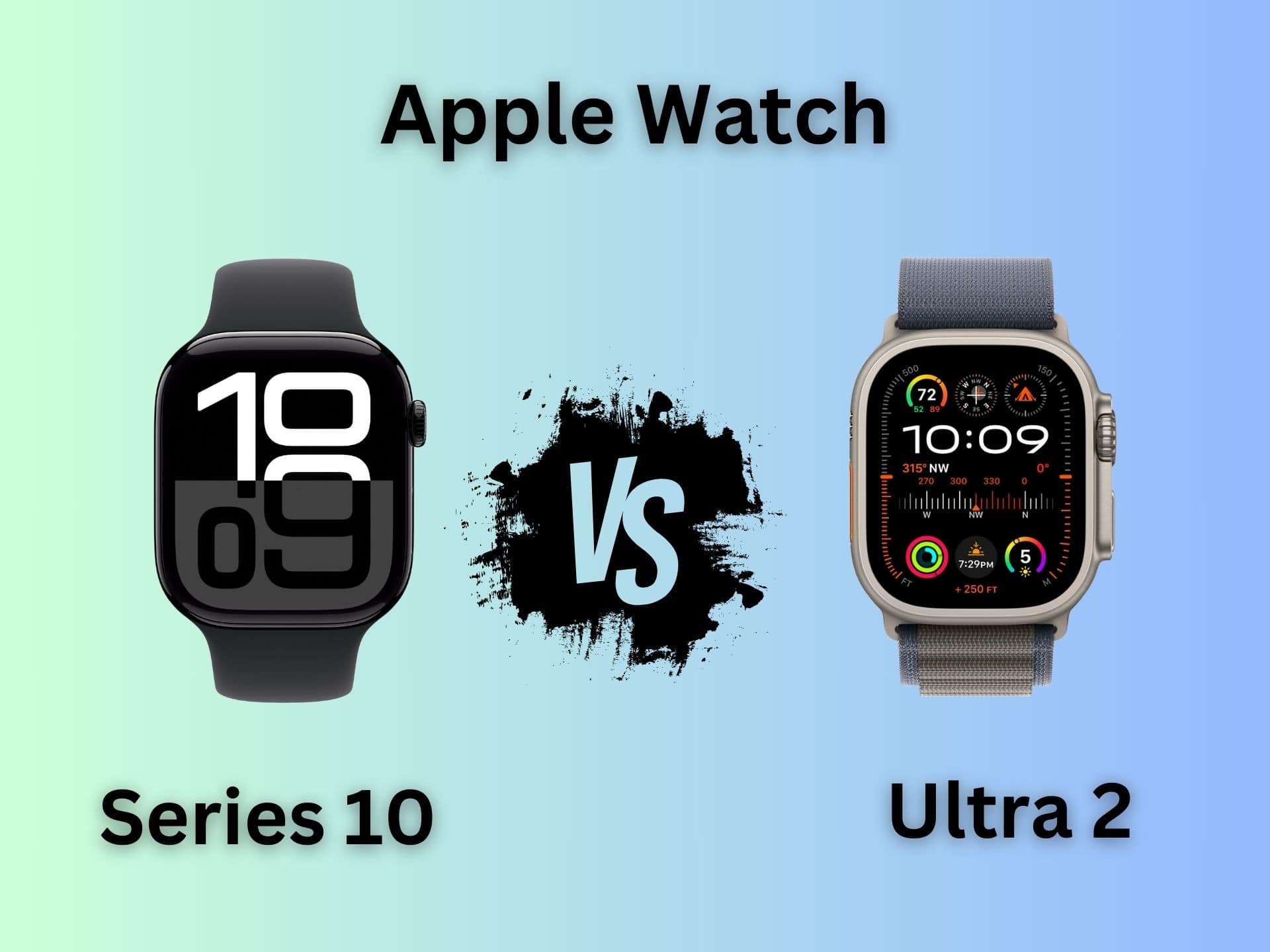
- Apple Watch Series 10: Premium—larger display, full health suite
- Apple Watch Ultra: For adventurers—Action Button, 36-hour battery, SOS via satellite
Sizes & Materials
Available in 41mm, 45mm, 49mm (Ultra). Cases in aluminum, stainless steel, titanium. Bands range from Sport to Hermès.
The Apple Watch works by turning your wrist into a command center—connecting you to your health, your home, your messages, and your world. It’s not just a watch. It’s a personal assistant, a safety guardian, and a fitness partner, all powered by seamless integration with the iPhone and Apple’s ecosystem. Whether you’re tracking a marathon, paying for groceries, or getting an alert about an irregular heartbeat, it’s designed to keep you informed, safe, and in control—without ever needing to pull out your phone.




