Is your Apple Watch SE stuck on the same clock face it came with? You don’t have to live with it. Changing the clock face is one of the easiest and most effective ways to personalize your device, improve functionality, and keep your daily experience fresh. Whether you’re looking for a sleek minimalist design, a fitness-focused layout with live activity rings, or a custom photo face with your favorite memory, Apple makes it simple to switch things up—right from your wrist or iPhone.
The best part? You don’t need any third-party apps, jailbreaking, or technical know-how. Apple gives you full control over your watch’s appearance through built-in tools. With just a few taps and swipes, you can browse hundreds of designs, customize complications (those handy mini-apps on your face), and switch between faces in seconds. Let’s walk through exactly how to change and customize the clock face on your Apple Watch SE.
Browse Watch Faces in Face Gallery

The Face Gallery in the Apple Watch app is your one-stop shop for discovering and customizing new clock faces. It offers a full preview of every available design and lets you fine-tune every detail before sending it to your watch.
Select a Watch Face Category
Open the Apple Watch app on your iPhone and tap Face Gallery. You’ll see curated categories like Infograph, Photos, Chronograph, Solar, and Health & Fitness. Each category highlights different styles and features. For example, Health & Fitness includes faces that prominently display your activity rings, while Photos lets you turn personal images into dynamic backgrounds.
To see every option at once, scroll down and tap See All Watch Faces. This gives you a complete carousel of all available designs. Tap any face to preview it in full screen.
Customize Before Adding
Once you find a face you like, tap Get and select a variant if available. Now you can personalize it:
- Change colors or styles: Tap options like dial color, hand style, or background texture. Watch the preview update in real time as you adjust.
- Add complications: Tap a position (e.g., Top Left), swipe through available apps like Weather, Calendar, Heart Rate, or Battery, then tap to confirm your choice.
- To remove a complication, scroll to the top of the list and select Off.
When you’re satisfied, tap Add to Watch. The new face will sync instantly and become active on your Apple Watch SE.
Add a New Face Directly on Your Apple Watch SE
No iPhone nearby? No problem. You can add and customize a new clock face directly from your wrist.
Open the Watch Face Picker
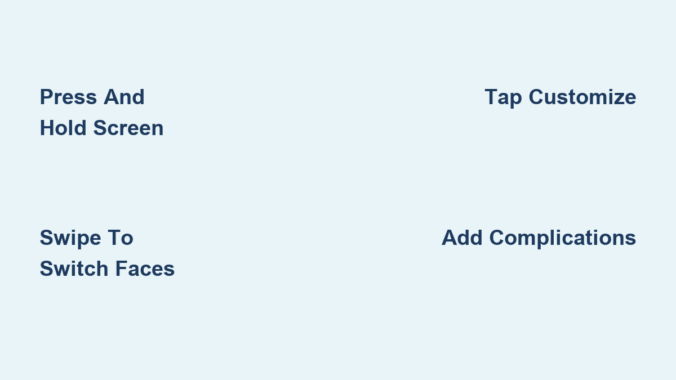
With your current clock face displayed, press and hold the screen. This enters edit mode. Swipe left until you see the + button, then tap it. You’ll now see a scrollable carousel of face categories like New Watch Faces, Favorites, and Time Travel.
Choose and Add a Design
Browse the collection and tap Get on any face you like. Then tap Add. The face is saved to your collection and immediately becomes your current watch face.
Now, tap Edit to customize it:
- Rotate the Digital Crown to adjust colors, depth effects, or background images (especially useful for faces like Photos or Astronomy).
- Tap each complication position and turn the Digital Crown to choose which data to display—such as next meeting, step count, or music controls.
This on-watch method is perfect for quick changes when you’re on the go.
Switch Clock Faces Instantly
Once you’ve built a collection, switching between faces takes less than a second.
Swipe to Change Faces
From any clock face, press and hold the display, then swipe left or right to cycle through your saved faces. Tap the screen to exit and lock in your selection.
For even faster access, enable Swipe to Switch Watch Face:
- Open the Settings app on your Apple Watch SE.
- Tap Clock.
- Toggle on Swipe to Switch Watch Face.
Now, you can swipe horizontally across the watch face itself—no need to press and hold. This shortcut turns changing faces into a seamless gesture, ideal when you’re switching between workout, work, or travel modes.
Customize Your Watch Face for Maximum Utility

Adding a face is just the start. Customizing it ensures it works for your lifestyle.
Edit Complication Layout
In edit mode (press and hold the screen), tap Customize. Then:
- Tap any complication slot (e.g., bottom corners or center).
- Turn the Digital Crown to scroll through available apps.
- Select one to show real-time data like weather, battery percentage, or upcoming events.
You can mix and match complications based on your needs. For example, place Heart Rate at the top and Timer at the bottom for workouts.
To leave a spot blank, choose Blank or Off, depending on the face type.
Adjust Visual Style by Face Type
Different faces support unique visual tweaks:
- Photos: Rotate the Digital Crown to cycle through albums or apply filters like Vintage or Mono.
- Infograph: Switch between modular layouts to rearrange complication zones.
- Astronomy: Toggle between Earth, Moon, or Solar System views for a dynamic background.
- Chronograph: Change bezel styles (e.g., tachymeter or telemeter) for a sportier look.
These adjustments let you tailor not just the function, but the feel of your watch.
Manage Your Face Collection Like a Pro
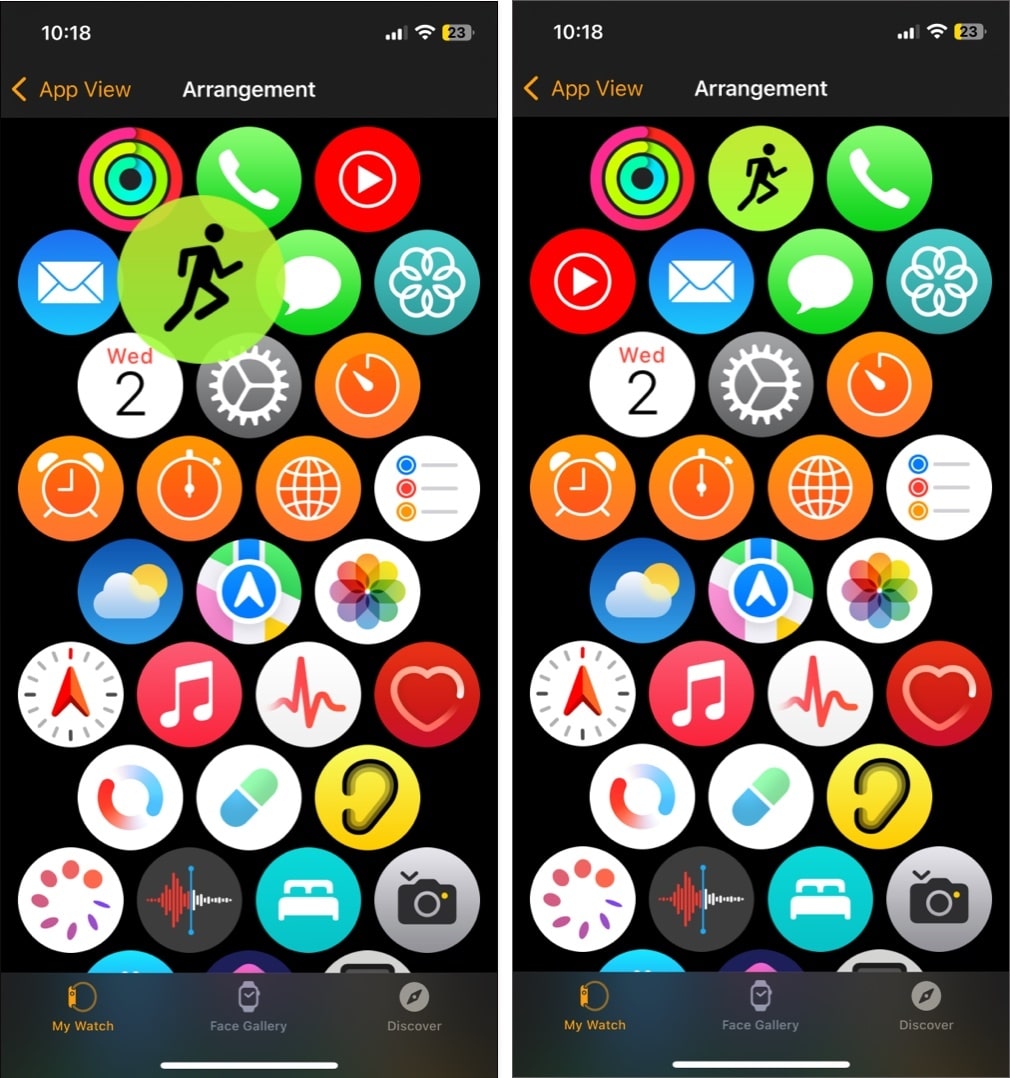
As you add more faces, organization becomes key. Keep your collection clean and intuitive.
Rearrange Face Order
On your iPhone:
- Open the Apple Watch app.
- Tap My Watch, then go to My Faces.
- Tap Edit, then drag the three-line icon next to any face to reorder it.
On your Apple Watch SE:
- Press and hold the screen.
- Touch and hold again until faces enter drag mode.
- Swipe left or right to reposition the current face.
The order determines your swipe sequence, so place your most-used faces front and center.
Remove Unused Faces
To delete a face:
On your Apple Watch SE:
1. Press and hold the screen.
2. Swipe to the face you want gone.
3. Swipe up, then tap Remove.
On your iPhone:
1. Open the Apple Watch app.
2. Go to My Watch > My Faces.
3. Tap Edit, tap the red minus icon, then Remove.
Don’t worry—deleted faces can always be re-added later from the Face Gallery.
Set Time Offset for Discreet Time Checks
Want to check the time without drawing attention? Use the time offset feature.
Adjust Clock Ahead
- Open Settings on your Apple Watch SE.
- Tap Clock.
- Tap +0 min, then turn the Digital Crown to set the time ahead (up to +59 minutes).
This only changes the displayed time—alarms, notifications, and timers still run on actual time. It’s ideal for classrooms, meetings, or situations where glancing at your watch might seem rude.
Note: Analog faces show the offset clearly; digital faces may not reflect the change.
Troubleshooting Common Issues
Running into problems? Try these fixes.
Face Not Appearing After Adding
If a new face doesn’t show up:
- Check Bluetooth connection between your iPhone and Apple Watch.
- Restart both devices to clear sync glitches.
- Update watchOS: Go to Settings > General > Software Update on your watch.
Re-adding the face usually resolves sync issues.
Complications Not Updating
If Weather, Activity, or Heart Rate isn’t refreshing:
- On your iPhone, go to Watch app > My Watch > Privacy > Motion & Fitness and ensure Fitness Tracking is on.
- Check Settings > Privacy > Location Services if weather or sunrise data is missing.
Some complications require permissions to stay current.
Can’t Swipe to Switch Faces
If swiping doesn’t work:
- Go to Settings > Clock and confirm Swipe to Switch Watch Face is enabled.
- Toggle it off and back on to reset the setting.
- Make sure you’re on a clock face—not inside an app—when swiping.
Pro Tips for Better Face Management
Take your customization to the next level with these expert strategies.
Create Purpose-Based Face Sets
Tailor faces to your daily routines:
- Work: Minimalist face with Calendar and Email complications.
- Workout: Activity Ring face with Heart Rate and Stopwatch.
- Travel: World Clock with Weather and Time Zone data.
- Evening: Photo face with a calming image and Moon Phase.
Switching faces becomes a productivity hack, not just a style choice.
Share Faces with Family or Friends
Found a great design? Share it:
- In the Apple Watch app, go to My Watch > My Faces.
- Tap a face, then tap Share Face.
- Send via Messages, Mail, or AirDrop.
They can download and use it instantly—perfect for couples or fitness partners.
Save Battery with Simpler Faces
Animated or data-heavy faces use more power. If battery life is low, switch to Simple, Numerals, or Activity Analog. These use less processing and are easier on the display, especially if you don’t use Always-On.
Final Note
Changing the clock face on your Apple Watch SE is a simple yet powerful way to personalize your device and enhance its usefulness. Whether you do it from your iPhone or directly on your wrist, the process is intuitive and instant. With full customization over colors, complications, and layout, every face can serve a unique role in your day.
Experiment freely—try a bold new design, build a set for different activities, or share your favorites. A quick face change can make your Apple Watch feel like a whole new gadget. So press and hold, swipe, and start exploring. Your perfect watch face is just a tap away.
Leave a Reply