
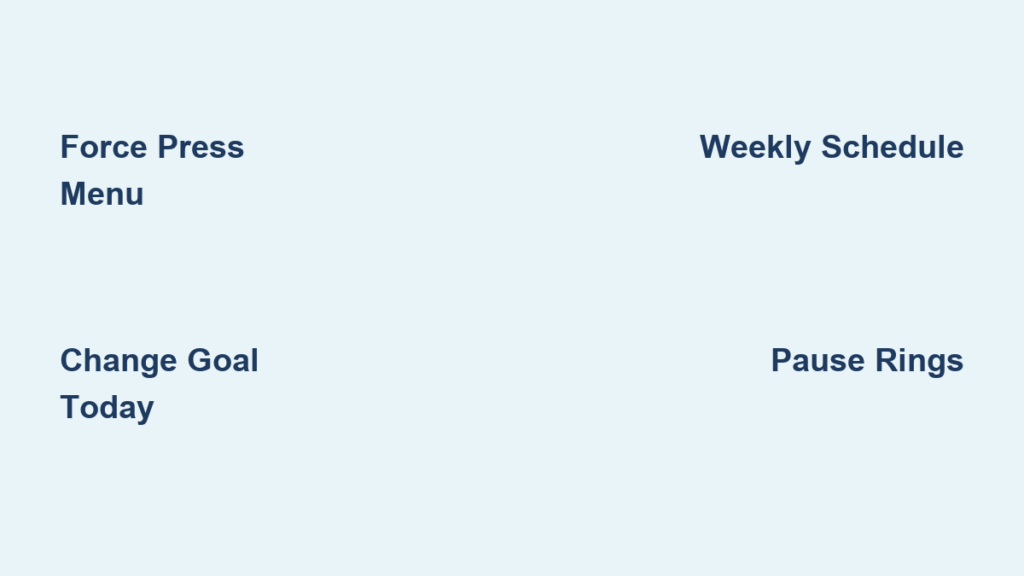
You’ve been crushing your daily activity—or maybe you’re barely scraping past your Move ring. Either way, your Apple Watch might be holding you to a goal that no longer fits your lifestyle. The Move goal, represented by the red Activity ring, tracks how many active calories you burn each day and is the only customizable ring in the Activity app. If you’re looking to increase your challenge or dial it back for recovery, you can change your Move goal in seconds—right from your wrist or iPhone.
Unlike the fixed Exercise (30 minutes) and Stand (12 hours) goals, your Move target adapts to your fitness level and schedule. Whether you want to set different goals for different days, adjust just for today, or pause tracking during a vacation, Apple offers multiple ways to take control. In this guide, you’ll learn every method to change your Move goal on Apple Watch, including hidden gestures, weekly schedules, temporary changes, and how to pause rings without losing your streak.
Adjust Move Goal Directly on Apple Watch
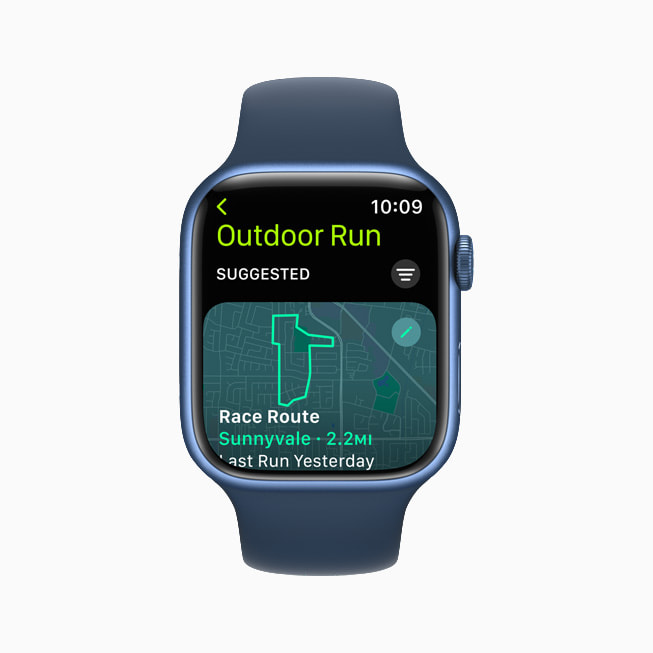
You don’t need your iPhone to tweak your Move goal. Your Apple Watch has a built-in way to do it—using a hidden force press gesture.
Use Force Press to Update Your Calorie Target
To change your Move goal on the watch:
1. Open the Activity app.
2. Tap any screen showing the rings (Move, Exercise, or Stand).
3. Press and hold firmly on the screen until a menu appears—this is a force touch action.
4. Select Change Move Goal.
5. Turn the Digital Crown to raise or lower your calorie target (range: 200–999 kcal).
6. Tap Set to confirm.
Tip: This works even if you’re on the Exercise or Stand screen—just force press anywhere on the Activity app.
Why Apple Hides This Feature
Apple designed this interaction to prevent accidental adjustments. Since your Move goal drives daily motivation, a deliberate press ensures you don’t change it while scrolling through stats.
- Works on: Apple Watch Series 1 and later (including SE and Ultra)
- Requires: watchOS 7 or newer
- Precision: Adjust in 1-kcal increments using the Digital Crown
Pro Tip: On newer models without 3D Touch (like Series 5 and up), use Haptic Touch—press longer (about 1–2 seconds) until the menu appears.
Change Move Goal Using iPhone Fitness App
For more control, use the Fitness app on your iPhone. It gives you a clearer interface and access to advanced features not available on the watch.
Temporarily Adjust Today’s Move Goal
Need a one-day break? Here’s how:
1. Open the Fitness app on your iPhone.
2. Tap the Activity rings.
3. Tap More Info (the “…” icon).
4. Choose Adjust Goal for Today.
5. Use the slider or +/– buttons to set your new calorie target.
6. Tap Change Move Goal for Today.
This change affects only today. Tomorrow, your regular goal returns automatically.
Best use cases: Travel days, illness, or intense recovery periods.
Set a Permanent Daily Move Goal
To update your ongoing target:
1. In the Fitness app, tap Change Daily Goal.
2. Adjust the calorie value using the controls.
3. Tap Change Move Goal.
Your new goal will apply every day unless you create a weekly schedule.
Create a Custom Weekly Move Goal Schedule
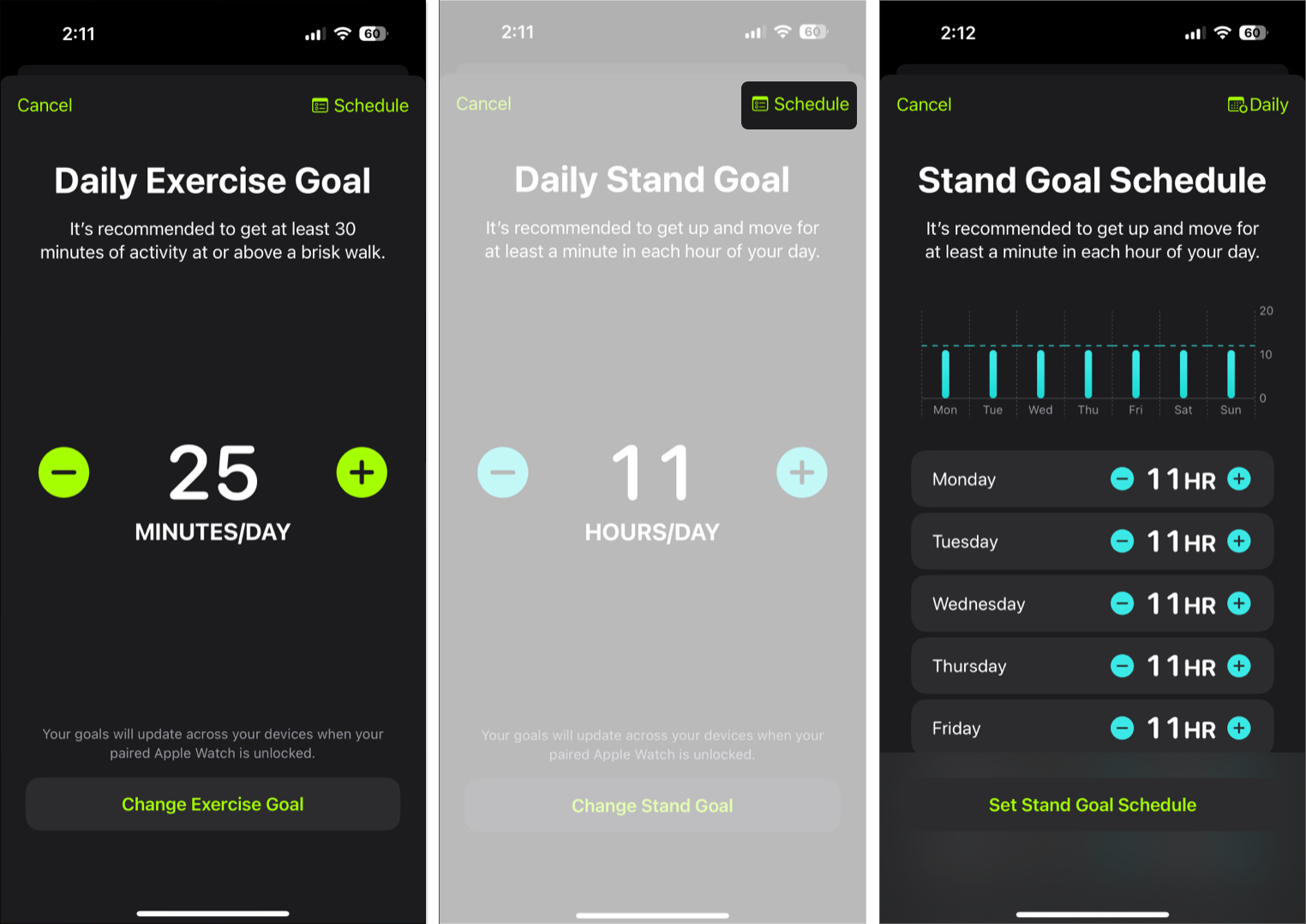
If your activity varies by day—like gym sessions on weekends and light movement on weekdays—you can set different Move goals for each day.
How to Schedule Daily Goals
- In the Fitness app, tap Change Daily Goal.
- Tap the Edit (pencil) icon in the top-right corner.
- Tap Schedule.
- Toggle Use Schedule on.
- Set individual targets:
– Example: 500 kcal (Mon–Fri), 700 kcal (Sat), 400 kcal (Sun) - Tap Set Schedule.
Important: This feature is iPhone-only—you can’t create or edit a schedule directly on the Apple Watch.
Benefits of a Weekly Schedule
- Match your goal to real-life routines
- Avoid burnout on rest days
- Stay challenged on active days
- Syncs instantly to your watch
Pro Tip: Revisit your schedule monthly. If your routine changes, update your goals to stay aligned.
Temporary vs. Permanent Move Goal Changes: What’s the Difference?
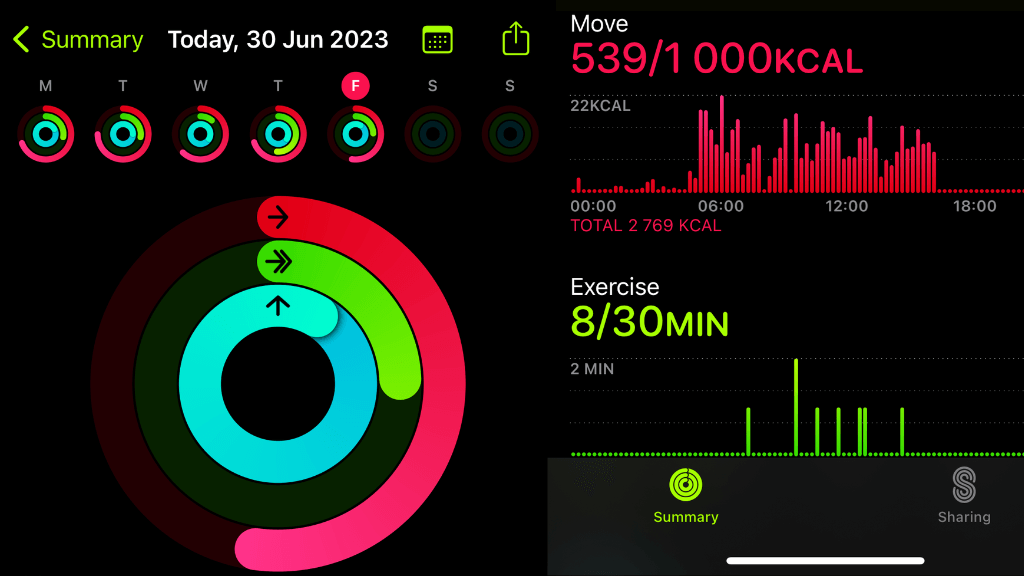
Understanding the types of changes helps you pick the right method.
| Type | Duration | Best For |
|---|---|---|
| Adjust Goal for Today | One day only | Travel, injury, rest days |
| Change Daily Goal | Ongoing (same every day) | Long-term fitness goals |
| Scheduled Goal | Ongoing (varies by day) | Weekly routines with variation |
You can switch between them anytime. For example, use a schedule for your normal week, then lower today’s goal temporarily if you’re under the weather.
Warning: Editing your daily goal resets your schedule. If you want to keep your weekly plan, avoid changing the daily value directly.
How Apple Suggests New Move Goals
Every Monday, your Apple Watch analyzes last week’s performance and may suggest a new Move goal.
How It Works
- If you closed your Move ring most days, it may suggest increasing your goal.
- If you rarely closed it, it may suggest lowering the target.
- You’ll see a prompt in the Activity app or a notification.
Accept or Skip the Suggestion
When prompted:
– Tap Increase Goal or Lower Goal to accept.
– Tap Not Now to keep your current target.
Note: These suggestions are optional. You’re never forced to change.
User Feedback: Some find Apple’s increases too aggressive. If you’re consistently hitting your goal, consider adjusting manually for better control.
Can You Switch Move Goal from Calories to Steps?
No. Despite years of user requests, Apple does not allow you to change the Move goal from calories to steps.
Why Calories Only?
- The Move ring measures active calories burned, not total steps.
- Step data is tracked separately in the Health and Fitness apps, but it doesn’t replace the Move ring.
- Apple considers calorie burn a more accurate health metric than step count.
User Demand
- Over 2,000 votes in Apple Support Community threads ask for step-based goals.
- Apple acknowledges the feedback but has not implemented it.
Official Response (March 2023):
“This is not currently possible.” — Apple Community Specialist
Workarounds
While you can’t change the Move ring:
– Use third-party apps like Pedometer++ or StepsApp for step tracking.
– Check step count in the Fitness app or iPhone’s Today view.
These apps run alongside Apple’s system but don’t integrate with the Activity rings.
Pause Activity Rings (Including Move Goal)
Need a break without losing your award streak? You can pause all Activity rings—including Move—for up to 90 days.
How to Pause on Apple Watch
- Open the Activity app.
- Tap More (three dots).
- Scroll down and tap Pause Rings.
- Choose duration (1 day, 1 week, or Custom).
- Confirm.
How to Pause on iPhone
- Open the Fitness app.
- Tap the Activity rings.
- Scroll down and tap Pause Rings.
- Select duration and confirm.
Resume or Edit Pause
- Tap Resume Rings to restart tracking.
- Tap Edit Pause to adjust the end date.
Key Benefit: Pausing preserves your award streak, so you won’t lose badges for inactivity.
Exercise and Stand Goals: Why You Can’t Change Them
Only the Move goal is customizable. The other two rings have fixed targets:
| Ring | Goal | Customizable? |
|---|---|---|
| Exercise | 30 minutes of brisk activity | ❌ No |
| Stand | 12 unique hours with movement | ❌ No |
Apple bases these on public health guidelines:
– 30 minutes of moderate exercise daily
– Standing breaks to reduce sedentary risk
Even third-party apps can’t alter these values.
Technical Limits and Troubleshooting
Move Goal Specifications
- Minimum: 200 kcal
- Maximum: 999 kcal
- Increments: 1 kcal (Digital Crown), 10 kcal (iPhone buttons)
- Sync Speed: Instant via iCloud
- watchOS Support: All methods work on watchOS 7+
Common Issues & Fixes
- Force press not working? Try holding longer (Haptic Touch). Restart the watch if needed.
- Goal not syncing? Ensure both devices are connected. Open the Activity app to force sync.
- Schedule not applying? Make sure Use Schedule is toggled on. Re-enable if you edited the daily goal.
Best Practices for Managing Your Move Goal
- Start Realistic: Aim to close your ring 4–5 days a week.
- Use Scheduling: Match goals to your weekly routine.
- Leverage Temporary Adjustments: Lower goal during illness or travel.
- Review Apple’s Suggestions: Accept only if the new goal feels achievable.
- Combine with Step Apps: Use third-party tools for step-based motivation.
Final Tips and Takeaways
Changing your Move goal on Apple Watch is simple once you know the methods. Whether you’re adjusting for a single day or setting a weekly plan, you’re in control. Remember:
- ✅ Change Move goal: Yes, in calories only (200–999 kcal)
- ❌ Switch to steps: Not possible
- ✅ Set different goals by day: iPhone only, via Schedule
- ✅ Pause rings: Up to 90 days, streak preserved
- ❌ Customize Exercise or Stand: Fixed by Apple
For long-term success, set a goal that matches your lifestyle—not just your ambition. A sustainable target keeps you motivated without burnout. And if you’d like Apple to add step-based goals, submit feedback at apple.com/feedback.
Now that you know how to change your Move goal, take a moment to set one that truly fits your life.




