
You’re getting ready for the day and realize your Apple Watch isn’t responding. Is it dead? Can it last through your morning run? The good news is, you don’t need to wear it or even pick it up to find out. With just your iPhone, you can instantly check your Apple Watch battery level—no guesswork, no panic. Whether it’s charging across the room or tucked in a drawer, your iPhone gives you real-time access to your watch’s power status.
This guide reveals four reliable ways to check Apple Watch battery from iPhone, including the fastest widget method, detailed diagnostics in the Watch app, hands-free Siri commands, and hidden charging insights in Settings. We’ll also cover troubleshooting tips, battery optimization, and best practices based on Apple’s official system behavior and user-tested workflows.
Whether you’re troubleshooting missing data, diagnosing rapid drain, or just want a quick glance before heading out, this is your complete resource for remote Apple Watch battery monitoring—all from your iPhone.
Add the Batteries Widget for Instant Access
The Batteries widget is the fastest, most visual way to check your Apple Watch battery without opening any apps. Once set up, it displays real-time charge levels for your iPhone, Apple Watch, AirPods, and other connected devices right on your Home Screen.
Set Up the Widget in Under a Minute
- Touch and hold any empty area on your iPhone Home Screen until the apps wiggle.
- Tap the + in the top-left corner.
- Scroll down and select “Batteries”.
- Choose your preferred size:
– Small: Shows percentages only.
– Medium: Circular icons for iPhone and paired devices.
– Large: Full list with detailed charge levels and device names. - Tap Add Widget, then Done.
✅ Pro Tip: Add the widget to your first Home Screen or access it instantly by swiping right from the lock screen (Today View).
What You’ll See at a Glance
- Apple Watch battery percentage with a small watch icon.
- A lightning bolt appears when charging.
- Color shifts from green (80–100%) to yellow (30–79%) to red (below 30%).
- Updates automatically every few minutes when devices are paired and within range.
This method is perfect for daily use—just one glance tells you if your watch is ready for the gym, commute, or overnight sleep tracking.
Troubleshooting: Apple Watch Not Showing in Widget?
If your watch doesn’t appear:
– Ensure Bluetooth is on (check Control Center).
– Confirm the watch is powered on and within range (~30 feet).
– Open the Watch app > My Watch > Battery—does it show a level?
– Restart both devices and wait 60 seconds.
– Delete and re-add the widget—sometimes a refresh fixes sync issues.
– Update to the latest iOS and watchOS versions.
❌ Still not showing? Try unpairing and re-pairing your Apple Watch in the Watch app. Your data is backed up, but you may need to reconfigure some settings.
Use the Watch App for Detailed Battery Insights

For more than just a number, the Watch app on iPhone provides in-depth battery analytics. It shows usage history, app drain, and charging patterns—essential for diagnosing why your watch dies too quickly.
Find Battery Info in 3 Easy Steps
- Open the Watch app on your iPhone.
- Tap “My Watch” at the bottom.
- Scroll down and tap “Battery”.
Here you’ll see:
– Current Apple Watch battery percentage.
– Charging status (if connected to power).
– A 24-hour usage graph showing active vs. idle time.
– A list of top battery-consuming apps.
Identify Power-Hungry Apps
Below the graph, you’ll see which apps used the most energy in the last 24 hours. Common culprits include:
– Workout apps using GPS and heart rate.
– Third-party apps refreshing in the background.
– Music streaming or phone calls over cellular.
🛠️ Expert Tip: If an app shows high usage but you didn’t use it, open Watch app > My Watch > [App Name] > Background App Refresh and disable it.
Fix “No Battery Information Available”
If the screen shows this message:
– Your Apple Watch is out of range or powered off.
– Bluetooth or Wi-Fi is disabled.
– A temporary software glitch is blocking sync.
Try this:
1. Bring both devices close together.
2. Wake your Apple Watch by tapping the screen.
3. Wait 1–2 minutes for automatic sync.
4. If still blank, restart both devices.
This method is ideal for weekly check-ins to catch battery-draining habits early.
Ask Siri for Hands-Free Battery Checks
Need to know your Apple Watch battery but can’t reach either device? Siri lets you check hands-free—from across the room or even while driving.
Use Voice to Check Battery Instantly
Say:
“Hey Siri, what’s the battery level on my watch?”
Siri responds immediately:
“Your Apple Watch has 74% battery remaining.”
✅ Works even if the watch is face-down, charging, or on silent.
Requirements for Siri to Work
- “Hey Siri” enabled (Settings > Siri & Search > Listen for ‘Hey Siri’”).
- iPhone and Apple Watch signed into the same Apple ID.
- Devices on the same Wi-Fi or within Bluetooth range.
- Compatible with watchOS 3+ and iOS 10+ (all modern devices).
What to Do If Siri Can’t Reach Your Watch
If Siri says, “I can’t reach your Apple Watch,” check:
– The watch is out of range or in Airplane Mode.
– Bluetooth is off on the iPhone.
– The watch is fully drained or frozen.
Quick fixes:
1. Move closer to the watch.
2. Press and hold the side button to wake it.
3. Wait 30 seconds and try again.
🔊 Bonus: If Announce Notifications is on (Settings > Notifications > Announce with Siri), Siri will speak the result aloud—even with headphones connected.
This method is perfect for quick, no-touch checks while cooking, working out, or getting dressed.
Check Battery in iPhone Settings for Charging History

Few users know this hidden feature: the iPhone Settings app shows Apple Watch battery status alongside a charging timeline, giving you deeper insight into usage patterns.
Access Combined Device Battery Data
- Open Settings on your iPhone.
- Tap Battery.
- Scroll down below the iPhone usage graph.
You’ll see:
– Apple Watch battery percentage.
– A mini charging timeline showing recent charge cycles.
– Estimated time to full charge (if currently charging).
💡 Best for: Checking multiple Apple devices at once—ideal before travel, meetings, or long outings.
Understand the Charging Graph
The timeline shows:
– Dips = periods of use.
– Rises = charging.
– Flat lines = idle or powered off.
A jagged pattern means frequent use; a steady decline overnight may indicate background drain.
⚠️ Warning: If the graph shows sudden drops while idle, check for apps running in the background or disable unnecessary notifications.
This method is great for spotting long-term trends and planning your charging routine.
Enable Low Power Mode Remotely to Extend Battery Life
Running low but need your watch to last longer? Turn on Low Power Mode directly from your iPhone to extend battery life by hours.
Activate from iPhone or Watch
From iPhone:
1. Open Watch app > My Watch > Battery.
2. Tap Low Power Mode to toggle on.
From watch:
– Swipe up from the watch face.
– Tap the battery icon.
– Tap Low Power Mode.
What Gets Turned Off
In Low Power Mode:
– ❌ Always-On Display
– ❌ Wrist Raise (tap screen to wake)
– ❌ Background app refresh
– ❌ Automatic workout detection
– ❌ Environmental sound monitoring
🔋 Auto-Activation: Turns on automatically when battery drops below 10%, unless disabled.
This feature is a lifesaver during travel, long flights, or all-day events.
Optimize Battery Health with Smart Charging
Protect your Apple Watch battery over time with Optimized Battery Charging, which learns your routine to reduce wear.
How It Works
- Charges to 80%, then pauses overnight.
- Completes 100% just before you typically unplug it.
- Reduces time spent at full charge, slowing battery aging.
Enable or Disable
On Apple Watch:
1. Go to Settings > Battery > Battery Health.
2. Toggle Optimized Battery Charging.
✅ Recommendation: Keep it ON for long-term battery health.
Troubleshoot Missing or Inaccurate Battery Data
If your Apple Watch battery isn’t showing or seems off, follow this quick checklist:
Fix Connection Issues
| Step | Action |
|---|---|
| 1 | Ensure Bluetooth is on (Control Center or Settings). |
| 2 | Confirm watch is powered on and within range. |
| 3 | Open Watch app > All Watches—is it listed? |
| 4 | Restart both devices. |
| 5 | Update to latest iOS and watchOS. |
Recalibrate for Accuracy
If battery drops suddenly:
1. Drain watch completely until it shuts down.
2. Charge to 100% uninterrupted.
3. Keep plugged in for 60 more minutes.
Do this every 1–2 months for best accuracy.
Charging Tips: Fast vs. Standard
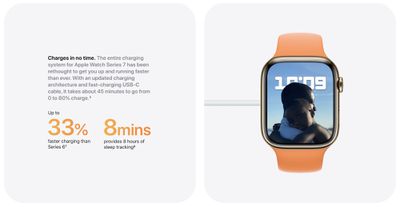
Fast Charging (Series 7 and later)
- Reaches 80% in 45 minutes.
- Requires Apple Watch Magnetic Fast Charging USB-C Cable and 20W+ adapter.
Standard Charging (Series 6 and earlier)
- 0% to 100% ≈ 2.5 hours.
- Use original Apple charger for best results.
Always align the back of the watch with the charger—magnets snap into place. A green charging ring confirms connection.
Final Recommendations
- Add the Batteries widget for one-tap access.
- Check the Watch app weekly to monitor app drain.
- Use Siri for hands-free checks across the house.
- Keep Optimized Battery Charging ON to extend lifespan.
- Recalibrate monthly if readings seem erratic.
With these methods, you’ll always know your Apple Watch battery status—no surprises, no dead watches. Just smart, seamless monitoring from your iPhone.




