
Is your Apple Watch dying before dinner even rolls around? You’re not alone. Apple officially rates battery life at up to 18 hours under normal use—meaning daily charging is non-negotiable. Whether you’re tracking workouts, receiving notifications, or monitoring sleep, knowing your battery status is crucial. The good news: checking your Apple Watch battery life is fast, flexible, and built right into the system.
In this guide, you’ll learn how to check battery percentage from your wrist or iPhone, add a 24/7 battery complication, review usage patterns, and assess long-term battery health. These methods work across all compatible models—Apple Watch Series 3 and later—provided they’re running watchOS 7 or newer. No more guessing if your watch will make it through the day. Let’s get you in control of your charge.
Open Control Center on Apple Watch
The fastest way to see your current battery level is directly from your wrist—no apps, no syncing, just a tap.
Press and Hold the Side Button
- Press and hold the side button until the Control Center appears.
- Look in the top-right corner of the screen: your battery percentage is displayed in white text.
- This works at any time—even during a workout, when the screen is dimmed, or if you’re in the middle of an app.
✅ Pro Tip: If the Control Center doesn’t appear, try swiping down from the top of the watch face instead. Some watch faces use a swipe-down gesture to reveal controls.
This method takes less than a second and is perfect when you’re heading out the door and need a quick power check. No setup required.
Add Battery Complication to Watch Face

Want to see your battery level every time you glance at your wrist? Make it a permanent feature with a battery complication.
Choose a Compatible Watch Face
Not all watch faces support battery tracking. The most reliable options include:
– Modular
– Utility
– Simple
– Infograph
– Numerals
Customize Your Watch Face
- Long-press on your current watch face to enter Edit mode.
- Swipe left to “Customize”.
- Tap a complication slot (e.g., top or bottom corner).
- Scroll and select “Battery”.
- Choose which device to monitor: Apple Watch, iPhone, AirPods, or other paired accessories.
Now, your battery percentage appears right on the watch face—no taps needed.
⚠️ Common Mistake: Users often pick a watch face that doesn’t support complications. If you don’t see the Battery option, switch to Modular or Utility for full customization.
✅ Pro Tip: Use multiple complications to track AirPods and iPhone batteries alongside your watch—ideal for travel days or long meetings.
Check Battery While Charging
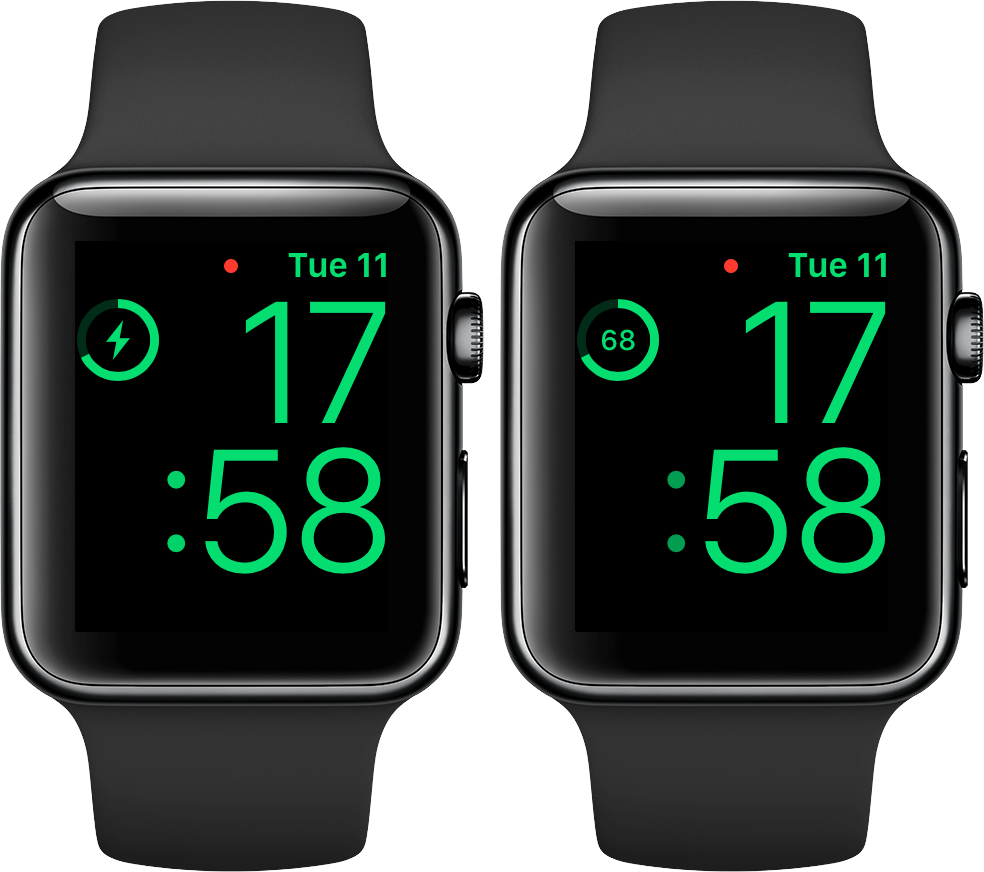
When your Apple Watch is on the charger, visual cues confirm it’s working—and reveal the exact charge level.
View the Charging Screen
- Place your watch on the magnetic charger.
- A black screen with a green lightning bolt appears—this means charging has started.
- Tap the screen to see the current battery percentage and a real-time charging animation.
The percentage updates every few minutes as the battery fills.
✅ Visual Cue: A red lightning bolt means the battery is critically low. It may take a few seconds before the charging screen appears.
✅ Time Estimate: From 0% to 80%, expect about 1.5 hours. A full charge typically takes 2.5 hours, depending on model and charger condition.
This method is also great for confirming your charger and cable are functioning properly.
Use iPhone Batteries Widget
You don’t need to touch your Apple Watch to check its battery. Your iPhone can show it instantly—alongside your other devices.
Add the Batteries Widget
- On your iPhone, long-press the Home Screen or swipe right to the Today View.
- Tap the “+” icon in the upper-left corner.
- Search for “Batteries”.
- Select the Batteries widget.
- Choose size (small or medium), then tap “Add Widget” and “Done”.
Monitor All Devices at Once
The widget displays real-time battery levels for:
– Apple Watch
– iPhone
– AirPods
– Apple Pencil
– Other Bluetooth accessories
✅ Pro Tip: Place the widget on your first Home Screen or Today View for one-tap access.
✅ Requirement: Your Apple Watch must be paired and connected via Bluetooth. If it’s powered off or out of range, the widget won’t show data.
This is especially useful when your watch is charging across the room or you’re preparing for a trip.
View Battery Usage History

Want to know what’s draining your battery? The built-in battery graph reveals your charging and usage patterns.
Access the Battery Graph
- Open Settings on your Apple Watch.
- Tap Battery.
- Scroll down to view the battery usage graph.
What the Graph Tells You
- Charge and discharge cycles over the last 24–48 hours
- Timestamp of your last full charge
- Periods of high activity (e.g., GPS workouts, phone calls)
- Idle times when battery drained slowly
The graph updates every few hours and helps identify power-hungry apps or behaviors.
❓ Ask Yourself: Did your battery drop 40% during a 30-minute run? Or did it drain overnight while sleeping? The graph shows where your power went.
⚠️ Note: If the graph is blank, use your watch normally for a day or two. It needs usage data to generate the timeline.
While it doesn’t break down battery use by app like the iPhone, the visual trend is enough to spot issues.
Check Apple Watch Battery Health

Battery health shows how much capacity your battery has compared to when it was new—critical for diagnosing poor performance or preparing for resale.
Access Battery Health Settings
- On your Apple Watch, go to Settings > Battery > Battery Health.
- Review two key metrics:
– Maximum Capacity: Current battery strength as a percentage (e.g., 92%).
– Health Status: “Normal” or “Service Recommended” if below ~80%.
Apple automatically alerts you if your battery is significantly degraded.
What’s a Healthy Battery?
- 100%–90%: Excellent—minimal wear
- 89%–80%: Good—still reliable
- Below 80%: Degraded—consider replacement
Apple recommends service when capacity drops enough to affect performance.
✅ Pro Tip: Enable Optimized Battery Charging in the same menu. It learns your routine and delays charging past 80% until you need it—reducing wear over time.
⚠️ Limitation: Battery Health requires watchOS 7 or later. Update via your iPhone: Watch app > General > Software Update.
Can You Check Battery Health Without an iPhone?
Yes—but only if the watch is already set up and functional.
When It Works
- Apple Watch is on, unlocked, and updated to watchOS 7+
- You can navigate Settings > Battery > Battery Health independently
- No active iPhone connection needed
This is useful for:
– Resellers assessing device condition
– Users troubleshooting before pairing
When It Doesn’t Work
- Watch is factory reset and unpaired
- Device won’t turn on or is frozen
- Running outdated software (pre-watchOS 7)
🛠️ Force Restart If Needed: Press and hold the side button + Digital Crown for 10 seconds until the Apple logo appears.
❗ No Diagnostic Mode: Unlike the iPhone, there’s no way to check battery health in recovery or DFU mode. The watch must be operational.
✅ Expert Confirmation: As one user put it: “On the Apple Watch… Open Settings > Battery > Battery Health. And there it is!” — no iPhone required once accessible.
Battery Care Tips for Longevity
Maximize your Apple Watch battery lifespan with smart charging habits.
Stay in the Sweet Spot
- Ideal Range: 20% to 80%
- Avoid frequent 0% discharges or leaving it plugged in overnight
Lithium-ion batteries degrade faster when fully drained or overcharged.
Use Optimized Battery Charging
- Enabled in Settings > Battery > Battery Health
- Learns when you typically use your watch and delays full charging until needed
- Reduces chemical aging and extends battery lifespan
Avoid Extreme Temperatures
- Don’t leave your watch in:
- Hot cars
- Direct sunlight for hours
- Freezing environments
- High heat causes permanent capacity loss
Apple may shut down the watch temporarily if it overheats during charging or intense workouts.
✅ Pro Tip: Turn on Power Saving Mode during long flights or events to disable unnecessary features and conserve charge.
Troubleshoot Missing Battery Info
Can’t find your battery data? Try these fixes.
Battery Complication Missing?
- Switch to a supported watch face like Modular or Utility.
- Ensure you’re in Edit mode and assigned the Battery option correctly.
Battery Graph Not Showing?
- Wait 24–48 hours. The system needs usage data to generate the timeline.
- Restart the watch if it remains blank.
Battery Health Grayed Out?
- Update to watchOS 7 or later via iPhone.
- If already updated, restart the watch and recheck.
Watch Unresponsive?
- Force restart: Press and hold side button + Digital Crown for 10 seconds.
- If still frozen, contact Apple Support—possible hardware issue.
Summary: Best Ways to Monitor Apple Watch Battery
| Need | Best Method | Device Used |
|---|---|---|
| Quick check | Control Center (side button) | Apple Watch |
| Always visible | Battery complication | Apple Watch |
| Charging status | Tap screen on charger | Apple Watch |
| Usage trends | Settings > Battery graph | Apple Watch |
| Long-term health | Battery Health menu | Apple Watch (watchOS 7+) |
| Remote monitoring | iPhone Batteries widget | iPhone + paired watch |
| Resale proof | Show Battery Health screen | Apple Watch (functional only) |
Checking your Apple Watch battery life should be quick, reliable, and informative. From glanceable complications to long-term health insights, these tools help you stay powered and informed. Keep your watch updated, avoid deep discharges, and use the iPhone widget for seamless cross-device monitoring. Whether you’re managing daily use or preparing to upgrade, now you know exactly how to track every percent.





