
Have you ever wanted to know how well your body is absorbing oxygen—especially during sleep, at high altitudes, or while recovering from illness? With the Apple Watch, you can now check your blood oxygen (SpO2) levels right from your wrist. This feature, introduced in 2020, uses advanced sensors to estimate how much oxygen your red blood cells are carrying, offering valuable insights into your respiratory health and overall wellness.
But not every Apple Watch supports it, and depending on when and where you bought your device—especially in the U.S.—you may not see results directly on your watch. In this guide, you’ll learn exactly how to check blood oxygen on Apple Watch, including real-time measurements, overnight tracking, viewing trends in the Health app, troubleshooting failed readings, and understanding key limitations. Whether you’re monitoring recovery from illness, sleep quality, or high-altitude performance, this guide will help you use the SpO2 feature effectively and safely.
✅ Confirm Your Apple Watch Supports Blood Oxygen
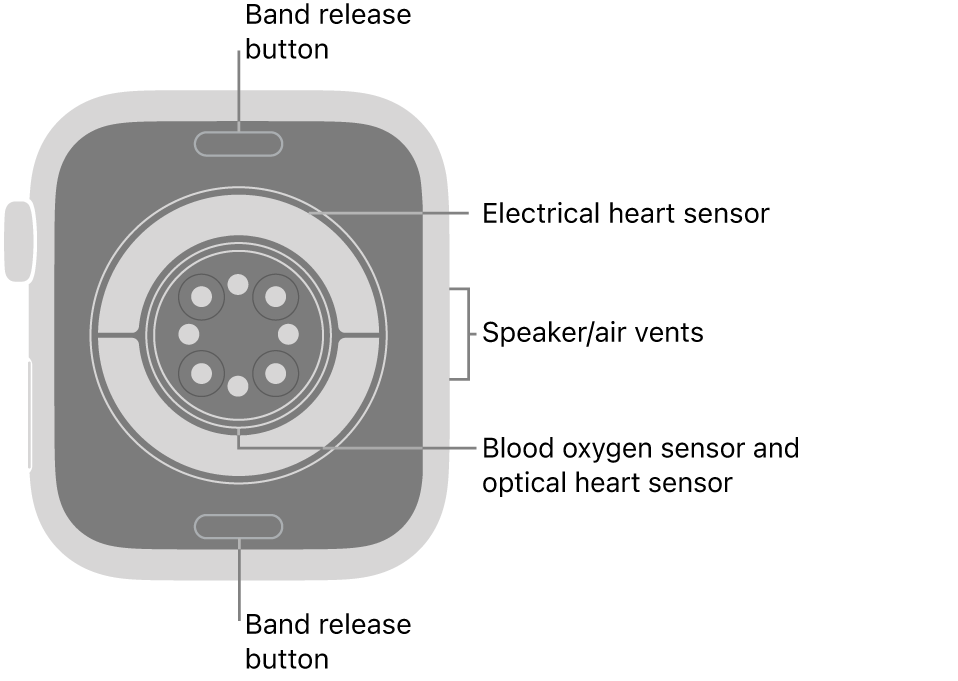
Before you start measuring, make sure your device is compatible.
Which Models Can Measure SpO2?
- Apple Watch Series 6, 7, 8, 9, 10, 11
- All Apple Watch Ultra models (Ultra, Ultra 2, Ultra 3)
❌ The Apple Watch SE (both generations) and Apple Watch for Kids do not have the necessary sensors and cannot measure blood oxygen.
The SpO2 sensor has been built into eligible models since 2020, but availability depends on region and purchase date, especially for users in the United States.
U.S. Users: Check Your Purchase Date
Due to a patent dispute with health tech company Masimo, Apple disabled the blood oxygen feature via software on new U.S. models from January 18, 2024, to August 14, 2025.
- Purchased before January 18, 2024: Full functionality — readings appear on your watch
- Purchased on or after January 18, 2024 (part number ends in LW/A):
- Raw data collected on the watch
- Processed on your iPhone
- Results only visible in the Health app on iPhone, not on the watch screen
Apple restored limited functionality in August 2025 using a technical workaround that shifts data processing to the iPhone, complying with legal restrictions. Full on-watch analysis may return after 2028, when the contested patents expire.
🧪 What Blood Oxygen (SpO2) Means
SpO2 stands for peripheral capillary oxygen saturation, a measure of how much oxygen your blood is carrying.
- Normal range: 95%–100%
- Slightly low: 90%–94%
- Low (hypoxemia): Below 90% — may indicate a respiratory or cardiovascular issue
Your body needs consistent oxygen delivery to function properly. Tracking SpO2 trends—especially during sleep or illness—can help detect early signs of breathing problems. But remember: Apple Watch is not a medical device. Use trends, not single readings, for insight—and always consult a doctor if you suspect a health issue.
🔧 Set Up Blood Oxygen: Software & App Requirements
Even with a compatible model, your devices must meet software requirements.
Required Software Versions
- iPhone: iPhone 6s or later with iOS 18.6.1 or later
- Apple Watch: watchOS 11.6.1 or later
- Apple ID signed in on both devices
- Location services enabled for Health and Apple Watch apps
Can’t Find the Blood Oxygen App?
It might be missing or disabled:
- Open the App Store on your Apple Watch
- Search for “Blood Oxygen”
- Download the official Apple app (free)
Alternatively, the app may appear after setting up respiratory tracking in the Health app on your iPhone.
🛠️ How to Take a Manual Blood Oxygen Reading
You can check your SpO2 level anytime with an on-demand measurement.
Step-by-Step Instructions
-
Wear your Apple Watch snugly
– The back sensor must press firmly against your skin
– Avoid loose bands or placement over bony areas -
Rest your arm flat, palm down on a table or in your lap
– Movement interferes with accuracy -
Open the Blood Oxygen app on your watch
– Tap the app icon or use the Digital Crown to scroll to it -
Tap Start
-
Hold your wrist still for 15 seconds
– The screen will count down automatically -
Tap Done when finished
- View your result (if supported on your model)
📱 U.S. users with post-Jan 2024 models: Results are processed on your iPhone and only visible in the Health app, not on the watch.
🛌 Enable Automatic Overnight Blood Oxygen Monitoring

Your Apple Watch can measure SpO2 in the background while you sleep or when motionless.
How It Works
- Measures every few minutes when you’re still, typically during sleep
- Uses a bright red LED (visible in dark rooms)
- Data contributes to overnight trends in the Health app
How to Turn It On
- On your Apple Watch, open Settings
- Scroll to Blood Oxygen
- Toggle on:
– In Sleep Focus
– In Theater Mode
⚠️ You must have Sleep tracking enabled in the Health app for overnight readings to work.
📊 View and Analyze Your SpO2 Data in the Health App
All blood oxygen readings—manual and automatic—are stored in the Health app on iPhone.
How to Access Your Data
- Open the Health app
- Tap Browse (bottom right)
- Tap Respiratory or search “Blood Oxygen”
- Tap the Blood Oxygen card to see:
– Daily averages
– Trends (Day, Week, Month, Year)
– Sleep-based readings
– High-elevation measurements
Filter Your Readings
You can filter by:
– Time of day (awake vs. asleep)
– Elevation
– Reading type (manual or background)
💡 Pro Tip: Pin the Blood Oxygen card to your Health dashboard for quick access.
🎯 Key Health Insights from SpO2 Tracking

While not diagnostic, SpO2 trends can reveal important patterns.
Detect Sleep Apnea Risk
Frequent dips below 90% during sleep are a strong predictor of obstructive sleep apnea. Combine with low REM sleep or high respiratory rate for better insight. If you notice repeated low readings, talk to your doctor about a sleep study.
Monitor High-Altitude Exposure
At elevations above 5,000 feet, SpO2 naturally drops. Acclimatization takes time, and a normal baseline may be 90–94% even in healthy individuals. This is useful for hikers, climbers, and mountain travelers.
Track Respiratory Illness Recovery
Conditions like COVID-19, pneumonia, asthma, or COPD can lower SpO2. Some patients experience silent hypoxia—dangerously low oxygen without shortness of breath. Monitoring helps catch worsening symptoms early.
Seek medical help if SpO2 drops below 90% or you feel breathless.
Support Heart and Lung Health
Chronically low SpO2 may signal:
– Heart failure
– Pulmonary embolism (lung blood clot)
– Anemia
– COPD
Always consult a physician if you suspect a medical condition.
🎯 Improve Measurement Accuracy
Even advanced sensors need the right conditions.
Best Practices
- Wear the watch snugly, 1–2 inches above the wrist bone if needed
- Clean the back sensor weekly with a dry cloth
- Rest your arm, palm down
- Stay still—no talking or moving
- Wait 10–15 minutes after exercise
- Warm up cold hands—poor circulation affects readings
Why Readings Fail
Common causes:
– Cold hands or poor circulation
– Tattoos or dark skin (may absorb light differently)
– Loose band or air gaps
– Movement during measurement
Try moving the watch slightly higher on your forearm if readings consistently fail.
❌ Know the Limitations
The Apple Watch SpO2 feature is useful—but not foolproof.
Not a Medical Device
- Not FDA-cleared for diagnosis or treatment
- Cannot replace clinical pulse oximeters
- Should not be used to manage medical conditions
Use it as a trend tracker, not a diagnostic tool.
No Real-Time Alerts
- No vibration or sound alerts for low SpO2
- Unlike medical oximeters (e.g., Wellue O2Ring), it won’t wake you if oxygen drops
- You may get morning notifications about low overnight levels, but not real-time warnings
Those needing continuous monitoring should use dedicated medical devices.
U.S. Patent Dispute Impact
From Jan 2024 to Aug 2025, SpO2 was disabled on new U.S. models. The 2025 workaround moved processing to the iPhone. Full functionality may return after 2028.
⚙️ Fix Common SpO2 Issues
| Issue | Solution |
|---|---|
| App missing | Download from Apple Watch App Store |
| Reading fails | Tighten band, warm hands, clean sensor, stay still |
| No background measurements | Enable “In Sleep Focus” and “In Theater Mode” |
| Data not syncing | Update iOS/watchOS, restart devices, open ECG app |
| No result on watch (U.S.) | Normal—results appear only in iPhone Health app |
Still stuck? Try a soft reset: Hold Side Button + Digital Crown until Apple logo appears.
🔄 Third-Party Apps: Proceed with Caution
Some apps (e.g., Blood Oxygen App by AboutMe Apps) offer PDF reports or alerts, but:
– No refunds reported
– Alerts often don’t work during sleep
– Icons mimic Apple’s app—can be confusing
Apple does not endorse third-party SpO2 apps for medical use.
📅 Blood Oxygen Feature Timeline
| Date | Event |
|---|---|
| Sept 2020 | Series 6 launches with SpO2 |
| Jan 18, 2024 | U.S. import ban — SpO2 disabled |
| Aug 14, 2025 | Workaround released — iPhone processing |
| Aug 2025+ | Full access restored for all users |
| 2028 (est.) | Patent expiration — full on-watch return |
🧑⚕️ Who Should (and Shouldn’t) Use SpO2 Tracking
Who Benefits Most
- Fitness and wellness enthusiasts
- Sleep quality seekers
- High-altitude travelers
- Post-illness recovery tracking
- Caregivers (non-medical use)
Who Should Avoid Reliance
- Patients with COPD, heart failure, or sleep apnea
- Those on supplemental oxygen
- Users needing real-time alerts
- Anyone requiring medical-grade accuracy
Always consult a healthcare provider for medical concerns. Use Apple Watch data as supplemental insight only.





