
You’ve just taken your Apple Watch Series 3 out of the box—or maybe you’ve dug it out of a drawer after upgrading your iPhone. Either way, you’re ready to reconnect and start using it for fitness tracking, notifications, Apple Pay, and even standalone calls (if you have the cellular model). But when you power it on, nothing happens. No pairing prompt. No camera scan. Just silence.
Don’t worry—this is a common issue, especially when pairing an older Apple Watch Series 3 with newer iPhones like the iPhone 15 or 16. Despite Apple’s compatibility claims, software mismatches, Activation Lock, or failed resets can block the connection. The good news? Thousands of users have successfully paired their Series 3 watches in 2025 using the right steps.
This step-by-step guide shows you exactly how to connect Apple Watch 3 to any iPhone—whether it’s a first-time setup, a transfer to a new phone, or troubleshooting a failed attempt. You’ll learn how to bypass common errors, restore health data, activate cellular, and get your watch fully functional again.
Prepare iPhone and Watch for Pairing
Before you begin, ensure both devices meet the requirements for a smooth connection.
Confirm iPhone Compatibility and Update iOS
Apple Watch Series 3 supports iPhone 6s or later running iOS 11 or higher. While Apple no longer adds new features to the Series 3, it remains officially compatible with the latest iPhones as of 2025.
However, some users report pairing failures with iPhone 14, 15, and 16—usually due to outdated software. To avoid this:
- Go to Settings > General > Software Update on your iPhone.
- Install the latest version of iOS, even if it’s iOS 18 or later.
- A recent update often resolves Bluetooth or pairing recognition issues.
⚠️ Warning: Never skip updates before pairing. An outdated iOS version can prevent the Apple Watch app from detecting your device.
Charge Both Devices to 50%+
Low battery is one of the top reasons pairing fails.
- Plug your Apple Watch 3 into its magnetic charger.
- Wait until a red battery icon appears on the screen.
- Charge both devices to at least 50% before starting.
- Use Apple’s original charger—third-party cables may not deliver enough power.
Enable Bluetooth, Wi-Fi, and Location Services
On your iPhone, make sure these are turned on:
- Bluetooth: Required for initial discovery.
- Wi-Fi: Speeds up data transfer and software updates.
- Location Services: Needed for Find My, fitness tracking, and emergency features.
You don’t need to disable any of these afterward—they’re essential for full functionality.
Also, keep your Apple ID and password handy. You’ll need it to sign in and disable Activation Lock.
Power On and Start Pairing Apple Watch 3
Now it’s time to begin the actual connection.
Turn On the Apple Watch
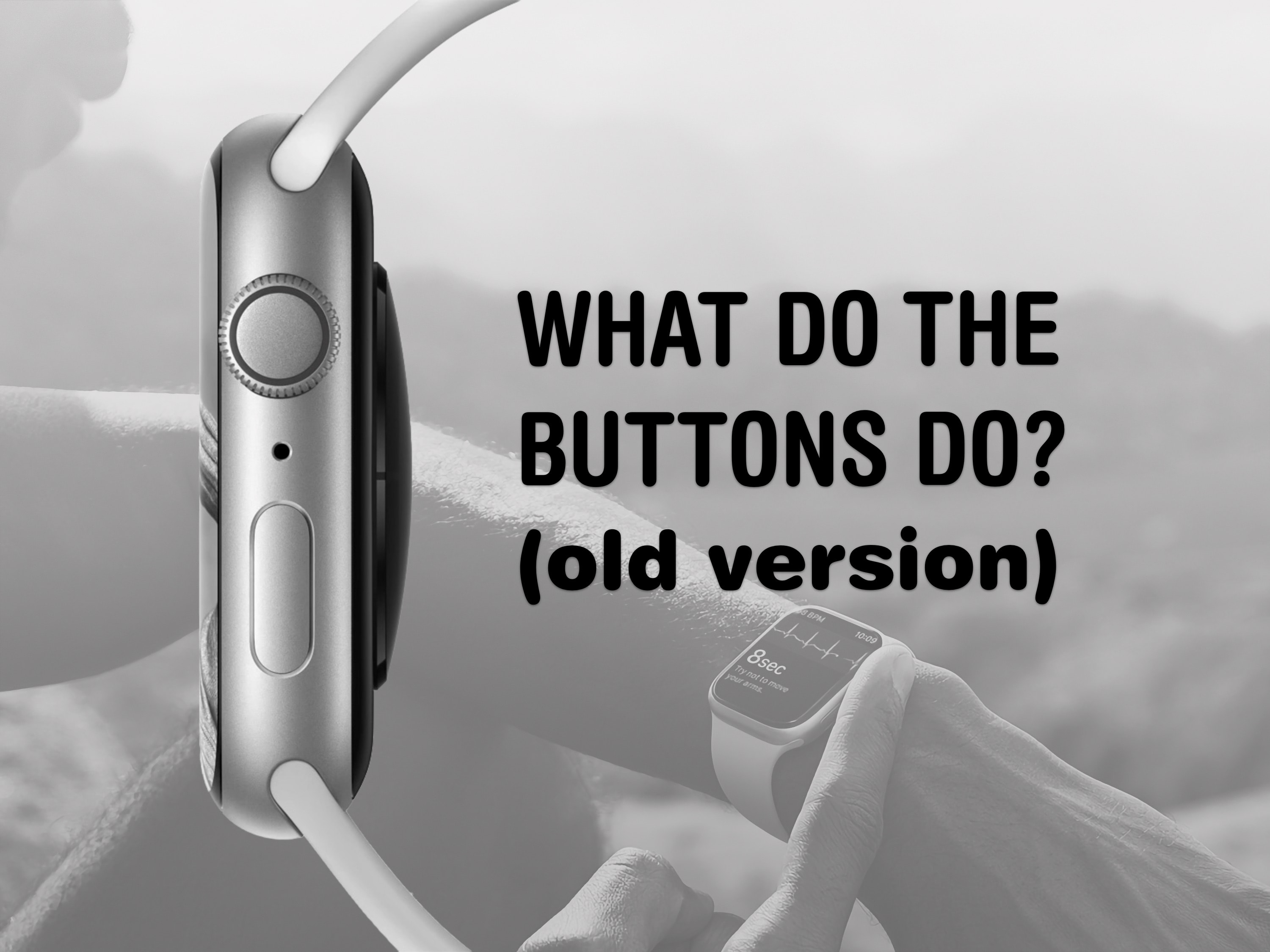
Press and hold the side button (below the Digital Crown) until the Apple logo appears. This may take 10–20 seconds if the battery was fully drained.
Once on, place the watch on your wrist. The setup screen will guide you through language and region selection—just wait for your iPhone to take over.
Trigger the Pairing Prompt on iPhone
Unlock your iPhone and hold it near the Apple Watch.
Within seconds, a “Set Up New Apple Watch” prompt should appear on your iPhone screen.
If it doesn’t:
- Open the Apple Watch app.
- Tap All Watches > Add Watch.
- Choose Set Up New Apple Watch.
This forces the pairing process manually.
Use the Camera to Pair (Fastest Method)
Hold your iPhone so the Apple Watch face is centered in the camera viewfinder. A swirling animation will appear on the watch—your iPhone scans it to complete pairing instantly.
When successful, you’ll see: “Your Apple Watch is paired.”
✅ Pro Tip: Do this in bright, even lighting. Avoid direct sunlight or dark rooms. Clean the watch screen if the camera can’t focus.
Pair Manually If Camera Fails
If the animation doesn’t appear or your iPhone can’t scan it:
- Tap Pair Apple Watch Manually on the iPhone.
- On the watch, go to Settings > General > Reset > Erase All Content and Settings.
- Confirm the erase—this wipes all data and returns the watch to factory settings.
- Then follow the on-screen instructions to enter a code displayed on the watch.
This method works even if the camera is broken or misaligned.
Complete Setup and Restore Data
After pairing, configure your watch through the iPhone app.
Choose Setup Type: “Set Up for Myself”
Tap Set Up for Myself unless you’re assigning the watch to someone else via Family Setup.
Restore from Backup or Set Up as New
You have two options:
- Restore from Backup: Brings back apps, settings, and Health data from a previous watch.
- Set Up as New: Starts fresh—ideal if it’s your first time using the watch.
⏱️ Note: If prompted, allow iOS or watchOS updates to finish first. This may take several minutes.
Sign In to Apple ID and Fix Activation Lock
Enter your Apple ID password when prompted. This enables iCloud syncing, Find My, and Activation Lock.
If you see an Activation Lock screen:
- The watch is still linked to another Apple ID.
- You must enter that account’s email and password.
- For secondhand watches, ask the seller to remove it at iCloud.com > Find My > Devices.
Without removal, the watch cannot be used.
Create a Passcode
Tap Create a Passcode on the iPhone, then enter a 4-digit (or longer) code on the watch.
This is required for:
- Apple Pay
- Unlocking the watch when removed from your wrist
- Activation Lock security
You can skip it, but you’ll lose access to key features.
Customize Settings and Enable Key Features
Now personalize your watch for daily use.
Select Wrist and Orientation
Choose Left or Right wrist. Confirm the Digital Crown is at the top.
This affects screen orientation, haptic feedback, and heart rate sensor placement.
Adjust Text Size and Bold Text
On your iPhone, go to the Apple Watch app and adjust:
- Text Size: Make it larger for readability.
- Bold Text: Improves contrast (requires restart).
Changes sync automatically unless overridden in Watch settings.
Enable Location, Health, and Emergency Features
Turn on:
- Location Services: For Maps, workouts, and geofencing.
- Health Profile: Enter your date of birth, gender, height, and weight for accurate calorie and fitness tracking.
- Emergency SOS: Hold the side button to call emergency services.
- Fall Detection: Automatically alerts emergency contacts after a hard fall.
Both emergency features are life-saving—leave them enabled.
Set Up Apple Pay
Open the Wallet app on your iPhone and add a credit or debit card. Verify with your bank if needed.
Once confirmed, you can use Apple Pay on your watch—even without your iPhone.
Activate Cellular (GPS + Cellular Model Only)
If you have the cellular version:
- Follow prompts to set up eSIM.
- Requires carrier support and active plan.
Some carriers (like AT&T, Verizon, T-Mobile) may require you to:
- Call customer service
- Visit a store
- Activate online
Once live, you can make calls, send texts, and stream music without your iPhone nearby.
Transfer Apple Watch 3 to a New iPhone
Upgraded your phone? Here’s how to move your watch safely.
Back Up Old iPhone First
Before switching:
- Update your old iPhone and Apple Watch to latest iOS/watchOS.
- Back up using:
- iCloud: Go to Settings > [your name] > iCloud > Health = ON
- Computer (Finder/iTunes): Use encrypted backup to include Health and Activity data
Restore New iPhone from Backup
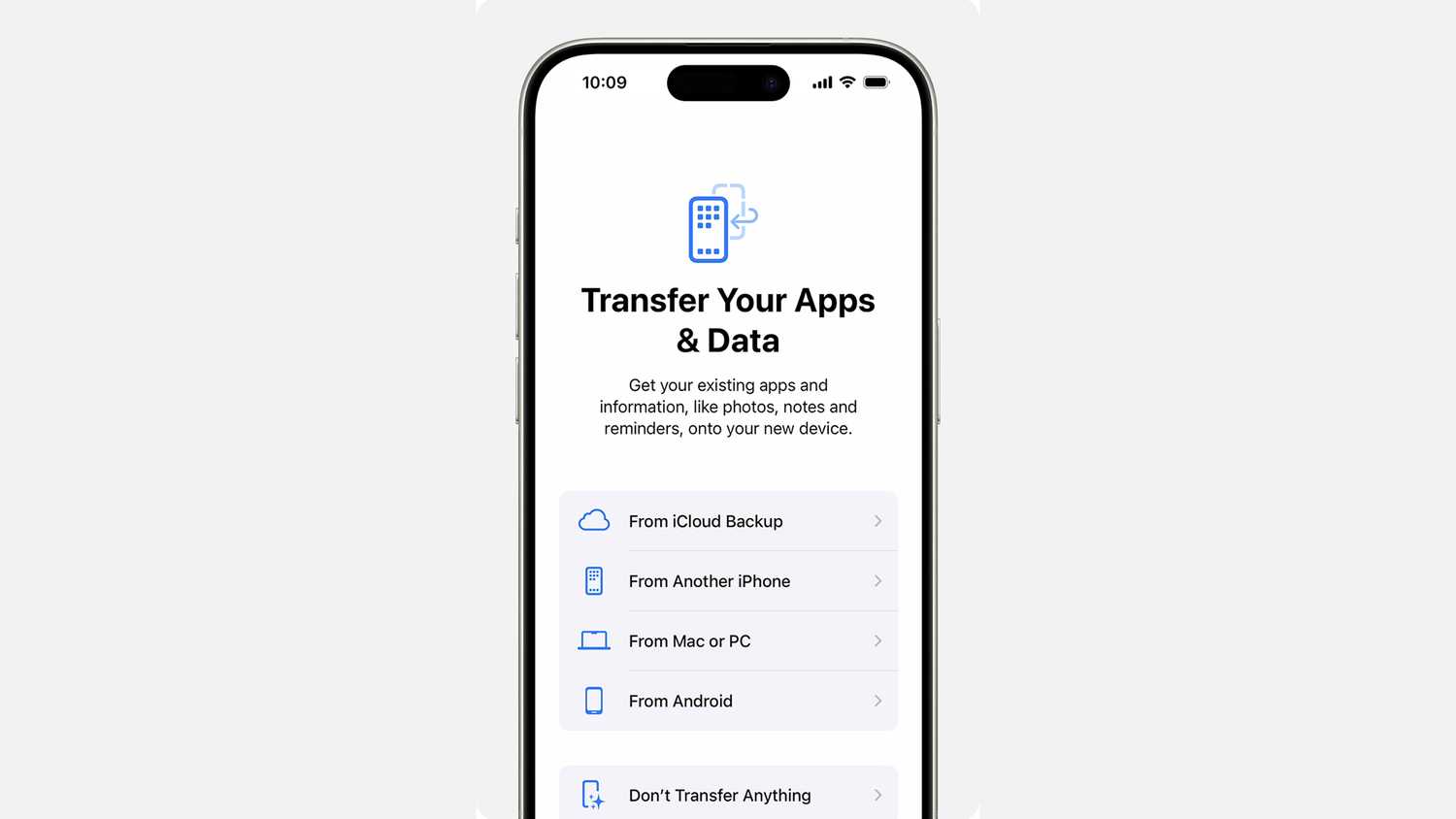
Set up your new iPhone and restore from the most recent backup of your old device.
If prompted: “Use your Apple Watch?”
– Keep the watch on your wrist and unlocked
– Tap Continue to transfer settings automatically
If no prompt appears, proceed manually.
Reconnect via Apple Watch App
On the new iPhone:
– Open Apple Watch app
– Keep watch on wrist
– If detected, tap Continue
If it says Start Pairing, the watch is still linked to the old phone.
❗ Important: Unpairing erases the watch. Always back up first.
Repair and Restore from Backup
In Apple Watch app:
– Tap All Watches > Add Watch
– Pair using camera or manual method
– Choose Restore from Backup
– Select the backup from your old iPhone
Your apps, settings, and Health data will reappear.
Fix Common Pairing Problems (2025 Tested)

iPhone Won’t Detect Apple Watch
Try this:
– Ensure iPhone is unlocked
– Restart both devices
– Bring them within inches
– Toggle Bluetooth/Wi-Fi off and on
Pairing Animation Not Scanning
- Clean the screen
- Try in bright indoor light
- Hold iPhone steady
- Tap Pair Manually and erase the watch
Can’t Pair with iPhone 15 or 16?
Despite compatibility, some users face blocks.
Proven Fix (Verified in 2025):
1. On watch: Settings > General > Reset > Erase All Content and Settings
2. Confirm erasure
3. Watch restarts to setup mode
4. Hold iPhone near and pair normally
5. Sign in and Restore from Backup
✅ User Success Confirmed:
– “12/4/2024 — Series 3 + iPhone 15 Plus — it worked!”
– “April 2025 — 15 Pro Max — tysm!”
– “8/18/25 — paired Series 3 to iPhone 16!”
Maintain Long-Term Performance
Once connected:
- Use the Apple Watch app to manage apps, notifications, and updates.
- Back up regularly via iCloud or encrypted computer backup.
- Update software cautiously—newer watchOS versions may slow older hardware.
- Restart weekly to clear glitches.
Final Note: The Apple Watch Series 3 still works perfectly in 2025—even with the latest iPhones. With the right reset, backup, and setup steps, you can connect it successfully every time. Follow this guide to avoid Activation Lock traps, restore your health data, and keep your wearable running for years to come.




