If your Apple Watch 10 touch screen isn’t responding, you’re not imagining it—and you’re far from alone. A growing number of users are reporting touch unresponsiveness, from sluggish taps to a completely frozen display, often shortly after setup or a watchOS update. While the screen may still light up and show notifications, it ignores swipes, passcode entries, and even button presses. This frustrating issue can make your Apple Watch nearly unusable.
The root cause varies: sometimes it’s a software glitch, especially after updates like watchOS 11.0 to 11.4, where Apple introduced known touch response bugs. Other times, it’s environmental—like moisture, sweat, or a faulty screen protector blocking input. In more serious cases, it points to hardware defects, including internal display layer damage or manufacturing flaws. Some users have even received two defective Series 10 units in a row, suggesting potential batch-level issues.
The good news? Most cases can be resolved without professional help. This guide delivers step-by-step fixes proven by real users and Apple support protocols. Whether you’re dealing with a temporary freeze or a persistent failure, you’ll learn how to diagnose, repair, and prevent the problem—fast.
Force Restart Your Apple Watch 10
Hold Both Buttons Until Apple Logo Appears
A force restart is the fastest and most effective way to fix a frozen or unresponsive Apple Watch 10. It clears temporary software glitches that can block touch input, especially after a failed update or system crash.
Steps:
1. Press and hold the Digital Crown and Side Button at the same time.
2. Keep holding for 10–15 seconds, even if the screen flickers.
3. Release only when the Apple logo appears.
⚠️ Don’t let go too early—if the screen flashes but no logo shows, keep pressing. Deep freezes may take longer to recover.
Best time to use it:
– Screen turns on but ignores taps.
– Stuck on passcode screen.
– Watch vibrates or receives notifications but interface is frozen.
Many users report immediate recovery of touch function after a force restart. However, if you find yourself doing this daily, the issue is likely deeper—proceed to software or hardware troubleshooting.
Clean the Screen and Your Hands Thoroughly
Remove Oils, Sweat, or Residue Blocking Touch
Apple Watch uses a capacitive touch screen, which relies on the electrical conductivity of your skin. Oils, sweat, lotions, or water on the screen—or your fingers—can create a barrier that prevents touch detection.
Action steps:
– Wipe the screen with a soft, dry, lint-free cloth (like a microfiber cloth).
– Wash and dry your hands completely before interacting.
– Avoid using alcohol, window cleaners, or paper towels—they can damage the oleophobic coating.
What to check for:
– Grease from hand creams or sunscreen.
– Water droplets after washing hands or swimming.
– Condensation trapped under a screen protector.
This simple fix resolves many false “failure” reports. If touch works after cleaning, avoid heavy skincare products before use and consider switching to a breathable sport band to reduce sweat buildup.
Remove or Replace Your Screen Protector
Test Without It to Rule Out Interference
A thick, low-quality, or poorly applied screen protector can interfere with touch sensitivity. Some third-party models, especially bubble-wrap types, reduce responsiveness—particularly around the edges.
Fix:
1. Gently peel off the current protector.
2. Test touch input directly on the glass.
3. If touch works, replace with a thin, Apple-certified protector.
✅ Recommended: Look for “ultra-clear” or “anti-fingerprint” protectors designed specifically for the Apple Watch Series 10.
Avoid protectors that feel bulky or trap air bubbles—they can create pressure points that disrupt touch signals.
Disable Water Lock After Exposure to Water
Unlock the Screen Manually to Restore Touch
Water Lock disables the touch screen to prevent accidental taps when your watch is wet. If not turned off properly, it can mimic a non-responsive display.
How to disable:
1. Press and hold the Digital Crown.
2. Wait for “Unlocked” to appear.
3. Swipe right and tap to confirm.
💡 Pro tip: You’ll hear a series of beeps as water is cleared from the speaker—this confirms Water Lock is disengaging.
If touch works after this step, the issue was Water Lock, not hardware failure. Make it a habit to disable it manually after swimming or handwashing.
Update to the Latest watchOS Version

Install Critical Fixes for Touch Responsiveness
Apple has addressed touch screen issues in watchOS 11.3 and later, particularly for users on 11.0.1 to 11.2, who reported the worst performance.
Steps:
1. Open the Watch app on your iPhone.
2. Tap General > Software Update.
3. Download and install any available update.
Important:
– Ensure your Apple Watch has at least 50% battery.
– Keep it connected to Wi-Fi and the charger during the update.
⏱️ Update time: 15–30 minutes. Do not interrupt the process.
Many users confirm that upgrading to watchOS 11.3 or 11.4 resolved their touch issues permanently. If you’re on an older version, this should be your top priority.
Unpair and Re-pair Your Apple Watch
Fix Deep Software Conflicts
If basic fixes fail, unpairing clears corrupted connections between your watch and iPhone—often resolving hidden software bugs.
Steps:
1. Open Watch app on iPhone.
2. Tap All Watches.
3. Select your Apple Watch.
4. Tap the info (i) icon.
5. Choose Unpair Apple Watch.
6. Confirm and wait.
After unpairing:
– Re-pair as new or restore from backup.
– Try setting up as new first—if the issue disappears, your backup may be corrupted.
⚠️ Warning: This process takes 10–20 minutes. Back up your data if possible.
This step has helped many users where restarts and updates failed.
Reset All Content and Settings

Last-Resort Software Fix
If touch problems persist, erase everything to eliminate deep software corruption.
On Apple Watch:
1. Go to Settings > General > Reset.
2. Tap Erase All Content and Settings.
3. Enter passcode if prompted.
4. Confirm.
After reset:
– Set up as new (avoid restoring backup yet).
– Test touch functionality.
✅ Success sign: If touch works now, the issue was software-related. Avoid restoring a problematic backup.
This is especially effective after a failed update or beta software use.
Check for Physical or Hardware Damage
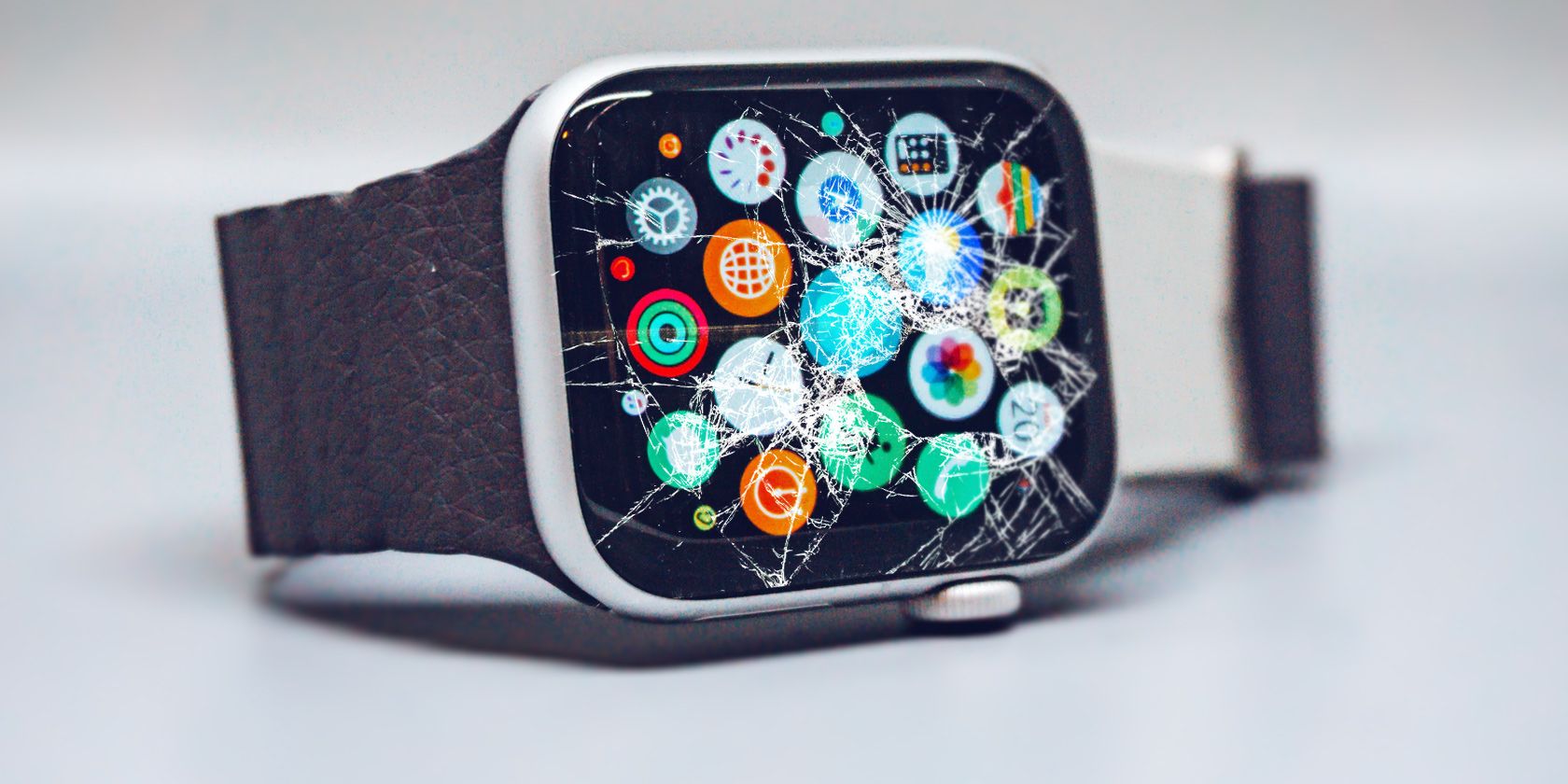
Look for Cracks, Bubbles, or Discoloration
Even minor damage can disrupt the touch layer. Inspect carefully:
Warning signs:
– Hairline cracks on the glass.
– Cloudiness or bubbles under the screen.
– Discoloration (possible water damage).
– Loose or lifted edges.
If any are present, the display may need professional replacement.
🛠️ Note: Apple uses fused display modules—screen and touch layer are not repairable separately.
Even with no visible damage, internal faults can occur during shipping or manufacturing—especially if the issue appeared immediately after unboxing.
Monitor Battery and Charging Behavior
Test If Power Issues Affect Touch
Some users report touch screen recovery after placing the watch on the charger, even with battery levels above 70%.
Possible causes:
– Battery miscalibration after a software update.
– Power management glitch affecting the display driver.
What to do:
– Place watch on charger for 15 minutes.
– Try touch input after.
– Watch for rapid battery drain (e.g., 80% → 60% in an hour).
🔄 Apple recommends waiting 24 hours after a major update for battery to recalibrate.
If touch only works when charging, a battery or logic board issue may be present.
Loosen Your Watch Strap During Workouts
Reduce Pressure and Heat Buildup
One user (Kirk3377) discovered that a tight strap during exercise caused touch failure—likely due to heat and pressure distorting the screen.
Fix:
– Loosen the band slightly.
– Use a ventilated or breathable strap.
– Avoid wearing it too high on the wrist.
💡 Why it matters: Heat and pressure can affect capacitive sensors. A snug fit may compress the display assembly.
This low-cost fix works for some—especially during or after intense workouts.
Contact Apple for Professional Repair
When Software Fixes Fail
If touch remains unresponsive after all troubleshooting, it’s time for expert help.
Signs of hardware failure:
– No response after force restart + reset + re-pair.
– Issue returns immediately after setup.
– Visible damage or discoloration.
– Needing restarts daily.
Options:
– Apple Store: Fastest diagnosis. Bring all troubleshooting steps you’ve tried.
– Apple Support: Visit support.apple.com for chat, phone, or mail-in service.
– Authorized Service Provider: For out-of-warranty repairs.
✅ Under warranty or AppleCare+? Repair or replacement is free.
Request a Replacement Unit
Especially After Recurring Failures
Multiple users have received immediate replacements due to touch screen issues—even without visible damage.
When to ask:
– You’ve tried all fixes and issue persists.
– You received a second unit with the same problem.
– The watch is new (within 14 days).
📢 User success: One person reported two defective Series 10 units in a row—Apple replaced both.
If Apple Support denies your claim, politely escalate to a supervisor. Mention “recurring touch screen failure” and “potential batch defect.”
Prevent Future Touch Screen Issues
Best Practices for Reliable Performance
Avoid repeat problems with these habits:
Software:
– Install watchOS updates promptly.
– Wait for patch releases (e.g., 11.3+) after major updates.
– Avoid beta software unless necessary.
Usage:
– Don’t wear the watch too tightly.
– Remove gloves or wet hands before tapping.
– Use high-quality screen protectors.
Backups:
– Back up regularly.
– When troubleshooting, test without restoring backup first.
🔄 Monthly check: Restart your watch once a month to clear memory.
Watch for an Official Apple Service Program
Stay Informed About Recalls or Repairs
As of now, Apple has not issued a recall or service program for the Apple Watch Series 10 touch screen issue. But similar problems in the past—like the Apple Watch Series 6 blank screen program—led to free repairs.
Stay updated:
– Check Apple Support monthly.
– Join Apple Discussions forums.
– Follow trusted tech news sources.
If a pattern emerges, Apple may launch a repair extension program.
Summary: What Works Most Often
| Fix | Success Rate | Time Required |
|---|---|---|
| Force Restart | High (70%) | 1 minute |
| Clean Screen | Medium (40%) | 2 minutes |
| Update watchOS | High (65%) | 20 minutes |
| Remove Screen Protector | Medium (50%) | 5 minutes |
| Unpair & Re-pair | High (60%) | 15–20 minutes |
| Reset All Content | Medium (55%) | 10 minutes |
| Hardware Replacement | Near 100% | Varies |
Final Note: The Apple Watch Series 10 touch screen issue is largely software-driven, especially after watchOS 11 updates, but hardware defects do occur. Start with a force restart and cleaning, then move to software updates and resets. If nothing works, contact Apple for a replacement—especially if the problem returns after repair. Don’t accept repeated failures; persistent touch issues are not normal and warrant a new device.