
You unlock your iPhone with a glance, but every time you raise your wrist, your Apple Watch greets you with a passcode prompt. If you’re asking how to take passcode off Apple Watch, you’re not alone. Many users want to disable the passcode for convenience — only to find the “Turn Passcode Off” option missing or greyed out. The truth is, Apple doesn’t let you remove the passcode freely when certain security features are active.
This guide walks you through how to remove the passcode from your Apple Watch, even when it seems impossible. You’ll learn exactly why the option is blocked, how to fix it step by step, and what trade-offs come with turning it off. Whether it’s Apple Pay, a work email account, or Screen Time restrictions holding you back, we’ll help you regain control — and get back to a seamless wrist-raising experience.
Turn Off Passcode on Apple Watch (When It’s Possible)
If no restrictions are in place, disabling the passcode is simple. You can do it directly from your Apple Watch or via the iPhone’s Watch app.
Use Apple Watch Settings
- Open the Settings app on your Apple Watch.
- Tap Passcode.
- Select Turn Passcode Off.
- Enter your current 4-digit or custom passcode.
Once confirmed, the passcode is removed. The screen will now show Turn Passcode On instead.
Use iPhone Watch App
- Open the Watch app on your iPhone.
- Go to the My Watch tab.
- Tap Passcode.
- Choose Turn Passcode Off.
- Enter your Apple Watch passcode when prompted.
✅ Success is confirmed when the option changes to “Turn Passcode On.”
❌ If the button is greyed out, a system-level restriction is blocking the change — keep reading to fix it.
Fix Greyed-Out “Turn Passcode Off” Option
If the option to disable the passcode is dimmed or missing, Apple Watch is enforcing it due to a higher-level security policy. Here’s how to identify and remove the block.
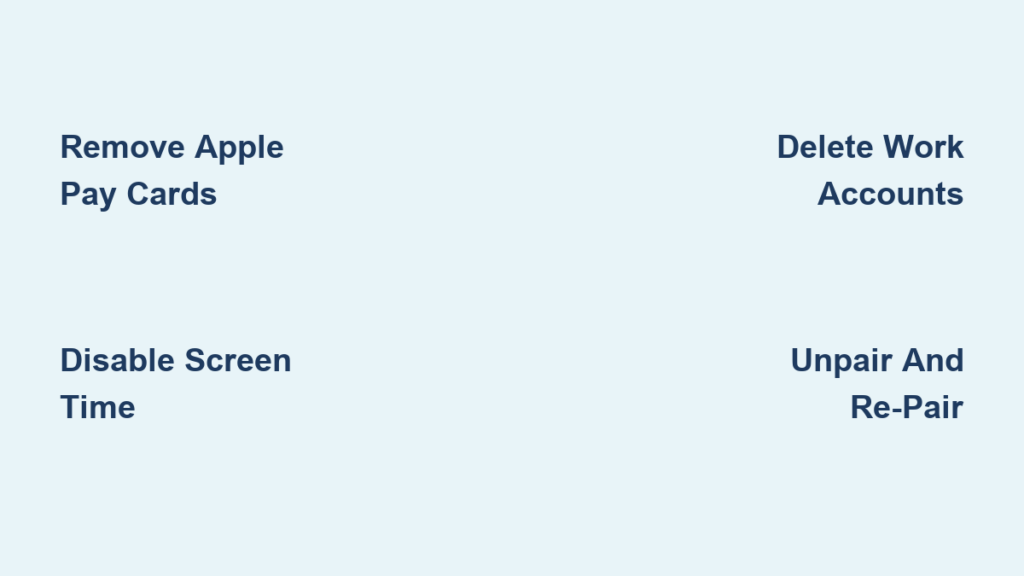
Disable Screen Time Restrictions
Screen Time on your iPhone can prevent changes to privacy and security settings — even on your Apple Watch.
Steps:
- On iPhone, go to Settings > Screen Time.
- Tap Content & Privacy Restrictions.
- If enabled, tap Allow Changes under Content Restrictions.
- Set Passcode Changes to Allow.
⚠️ Even if Screen Time appears off, residual settings may persist. Try toggling it off completely, then restart both your iPhone and Apple Watch before retrying.
Remove Work or School Email Accounts

Corporate or school email accounts (like Exchange or Microsoft 365) often enforce strict device policies that require a passcode — even if you only use them for calendar access.
How to Check:
- On iPhone: Settings > General > VPN & Device Management.
– If a profile is listed, your device is managed. - Go to Settings > Mail > Accounts.
– Look for non-personal accounts, especially Exchange.
Solution:
- Delete unnecessary work or school email accounts.
- Remove any associated device profiles under VPN & Device Management.
- Restart both devices.
- Try disabling the passcode again.
🗣️ User confirmed: “I only used a work calendar, but removing the account let me disable the passcode.”
This shows that even passive use of Exchange can trigger mandatory passcode enforcement.
Remove Apple Pay Cards from Apple Watch
If any credit, debit, or transit cards are synced to your Apple Watch, a passcode is required — regardless of whether you actually use Apple Pay.
How to Remove Cards:
- Open the Watch app on iPhone.
- Tap My Watch, then go to Wallet & Apple Pay.
- Under On Your Watch, tap each card.
- Select Remove This Device.
✅ Cards remain on your iPhone — only the watch copy is deleted.
🗣️ Pro tip: “Make sure no cards are listed under Wallet in the Watch app — that fixed it for me.”
After removing all cards, return to the Passcode settings and try turning it off again.
Reduce Passcode Use Instead (Best Compromise)
If you can’t fully disable the passcode, reduce how often you need to enter it by enabling automatic unlocking.
Enable Unlock with iPhone
This feature lets your Apple Watch unlock automatically when you unlock your iPhone — no manual passcode entry needed.
Steps:
- Open Watch app on iPhone.
- Tap My Watch > Passcode.
- Turn on Unlock with iPhone.
✅ Works when:
– Bluetooth is on
– iPhone is nearby (~33 feet)
– Wrist Detection is enabled🗣️ Real-world result: “I never enter my passcode. Unlock with iPhone handles it.”
Turn On Wrist Detection
Wrist Detection locks your Apple Watch when removed and unlocks it when worn — as long as your iPhone is nearby.
Enable It:
- On Apple Watch: Settings > Passcode.
- Ensure Wrist Detection is ON.
⚠️ If Wrist Detection is off, your watch locks every time the screen sleeps — forcing frequent passcode entry.
Keep Wake on Wrist Raise Active
To ensure smooth auto-unlock:
- On Apple Watch: Settings > Display & Brightness.
- Enable Wake on Wrist Raise.
This keeps the watch responsive and ready to unlock when you raise your wrist.
Advanced Fixes When Standard Methods Fail
If the passcode option remains blocked despite removing cards and accounts, try these deeper solutions.
Unpair and Re-Pair Apple Watch
A clean setup often clears hidden configuration locks.
Steps:
- Open Watch app on iPhone.
- Tap My Watch, then the (i) icon next to your watch.
- Tap Unpair Apple Watch.
- Confirm and back up your data if prompted.
- Set up the watch again.
- During setup, skip creating a passcode (if allowed).
⚠️ Warning: This erases all data on the watch, including unsynced health data.
✅ Use this as a last resort when nothing else works.
Check Family Sharing & Parental Controls
If your Apple ID is part of a Family Sharing group with parental controls, the family organizer may restrict passcode changes.
Verify:
- On iPhone: Settings > Screen Time.
- Look for This Is My [Child’s] iPhone.
- If active, the admin must allow passcode changes.
Contact the family organizer to adjust settings.
Resolve iCloud Account Issues
Pending iCloud recovery, two-factor authentication problems, or activation lock can enforce security policies.
Actions:
- Ensure your Apple ID is verified and in good standing.
- Complete any account recovery steps.
- Sign out of iCloud on both devices, then sign back in.
This may reset stuck security enforcement.
Features Lost When Passcode Is Off
Disabling the passcode removes access to key secure features. Be aware of the trade-offs:
| Feature | Status |
|---|---|
| Apple Pay on Apple Watch | ❌ Disabled |
| Unlock Mac with Apple Watch | ❌ Not available |
| Health data access when locked | ❌ Restricted |
| Auto-unlock with iPhone | ❌ Requires passcode to be on |
| Erase after 10 failed attempts | ❌ Turned off |
🔐 Security note: Without a passcode, anyone who finds your watch can access your data.
Customize Passcode Settings (Alternative to Removal)
If you keep the passcode, optimize security and usability.
Enable Erase After 10 Failed Attempts
Adds protection against brute-force attacks.
- On Apple Watch: Settings > Passcode.
- Turn on Erase Data.
After 10 wrong attempts, the watch erases itself.
Change to Custom Passcode
Use a longer, more secure code.
- On Apple Watch: Settings > Passcode.
- Tap Change Passcode.
- Toggle Simple Passcode OFF.
- Enter a custom alphanumeric or longer numeric code.
✅ Increases security without affecting auto-unlock.
🛡️ Best practice: Use a unique code different from your iPhone.
Reset Apple Watch If Passcode Is Forgotten
No recovery option exists if you forget your passcode. You must erase the device.
Method 1: Unpair via iPhone
- Open Watch app.
- Tap My Watch > (i) > Unpair Apple Watch.
- Confirm — this erases the watch.
After unpairing, re-pair and restore from backup.
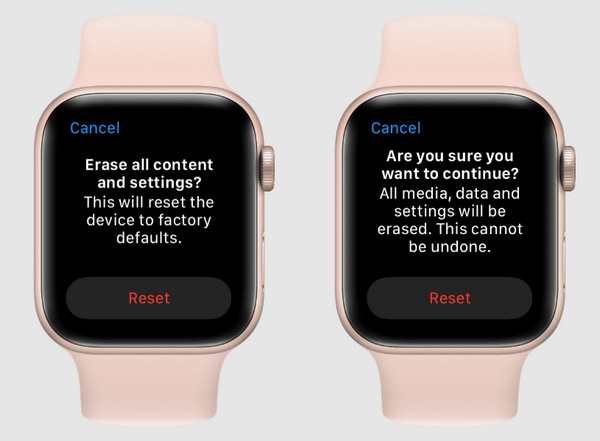
Method 2: Erase on Apple Watch
- Press and hold the side button until Power Off slider appears.
- Firmly press the slider (Force Touch).
- Tap Erase All Content and Settings.
- Re-pair with iPhone.
Both methods remove the passcode and require re-setup.
Step-by-Step Decision Flow to Remove Passcode
Follow this checklist to systematically resolve passcode issues:
-
Is “Turn Passcode Off” visible?
– ✅ Yes → Enter passcode to disable.
– ❌ No → Proceed. -
Is Screen Time blocking changes?
– → Fix via Content & Privacy Restrictions > Passcode Changes > Allow.
– Restart devices and retry. -
Are Apple Pay cards on the watch?
– → Remove all via Watch app > Wallet & Apple Pay.
– Retry. -
Do you have work/school accounts?
– → Remove Exchange accounts and device profiles.
– Restart and retry. -
Still blocked?
– → Try unpairing and re-pairing.
– → Contact Apple Support if issue persists.
📣 Note: Some users report even Apple Support couldn’t fix it — suggesting rare firmware bugs or deep configuration conflicts.
Final Tips and Recommendations
- Passcode enforcement is layered: It can come from Apple Pay, Screen Time, device management, or iCloud.
- Auto-unlock is the best compromise: Keep the passcode on but use Unlock with iPhone and Wrist Detection to avoid typing it.
- One account can lock it down: Adding a work email, even for calendar, may silently enforce the passcode.
- Updates may reset settings: After watchOS updates, recheck passcode and unlock options.
If you value convenience over maximum security, removing the passcode is possible — but only after clearing all dependencies. In most cases, the fix isn’t a bug — it’s a feature working as intended. By following this guide, you’re not just disabling a passcode — you’re taking control of your Apple Watch’s security ecosystem.




