
You glance at your Apple Watch and do a double-take—14 hours of exercise logged today? You didn’t run a marathon or train for a triathlon. Chances are, a manual entry error, forgotten workout, or background glitch inflated your Exercise minutes on Apple Watch, leaving your yellow Activity ring suspiciously full. The frustration is real: you try deleting the workout, but the minutes don’t budge. Why? Because Apple doesn’t actually remove exercise minutes just by deleting a session.
Here’s what most guides won’t tell you: Exercise minutes are stored as individual one-minute blocks in the iPhone’s Health app, not as a single workout file. That means even if you delete the entire session, those 60 (or 840) tiny entries can linger—still counting toward your daily goal. The only way to truly fix it? Delete each minute manually. This guide walks you through the exact steps, fastest navigation paths, and real-world tips tested by users who’ve battled the same issue. By the end, you’ll know exactly how to delete exercise minutes on Apple Watch—and prevent them from coming back.
Why Your Exercise Ring Stays Full After Deleting a Workout
Deleting a workout doesn’t always reset your Activity data—and here’s why.
Health App Logs Exercise in 1-Minute Increments
The Activity ring isn’t powered by your workout history. It pulls data from the Health app, which breaks down all exercise into individual 1-minute entries. So if you manually logged a 1-hour walk, the system didn’t record “1 workout.” It recorded 60 separate “1 min” entries tagged with timestamps.
Example: A user entered a workout ending at 3:00 AM the next day—accidentally logging 14 hours. After deleting the session, the Exercise ring remained full because the 840 individual minutes were still in the Health database.
Deleting the Workout ≠ Deleting the Minutes
When you delete a workout:
– The session disappears from the Fitness app.
– Metrics like heart rate or calories may be removed.
– But the minute-level exercise data often stays, still feeding your Activity ring.
This mismatch is why your yellow ring refuses to drop, even after “fixing” the problem. To truly reset it, you must go deeper—into the source-level data.
How to Delete Individual Exercise Minutes (iPhone Required)
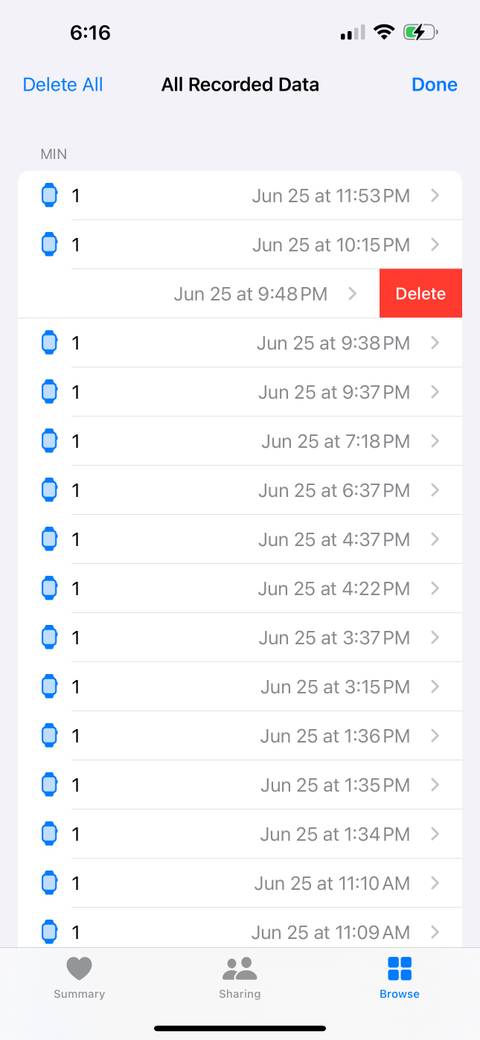
You cannot delete exercise minutes from the Apple Watch—this must be done on your iPhone.
Step 1: Open Health App and Navigate to Exercise Minutes
- Open the Health app on your iPhone.
- Tap “Browse” (bottom menu).
- Search for “Exercise Minutes” or go:
Browse → Activity → Exercise Minutes - Tap “Show All Data” at the bottom.
✅ Pro Tip: If “Show All Data” doesn’t appear, tap the category name (Exercise Minutes) again to reveal it.
Step 2: Delete Each Minute One by One
- Select the date with incorrect data.
- You’ll see a list of “1 min” entries, each with a timestamp.
- Swipe left on each unwanted minute → tap Delete.
- Repeat for every erroneous minute.
⚠️ No bulk delete exists. To remove 30 minutes, you must swipe 30 times. It’s tedious—but effective.
Step 3: Force Sync to Update Apple Watch
After deletion:
– Wait 2–5 minutes for iCloud Health sync.
– Open the Activity app on your Apple Watch to confirm the ring updates.
– If no change:
– Restart your Apple Watch
– Reopen the Fitness app on iPhone
– Ensure both devices are connected via Bluetooth or Wi-Fi
Alternative: Delete Full Workouts (Partial Fix)
Deleting entire workouts helps—but it’s not a complete solution.
Delete via Fitness App
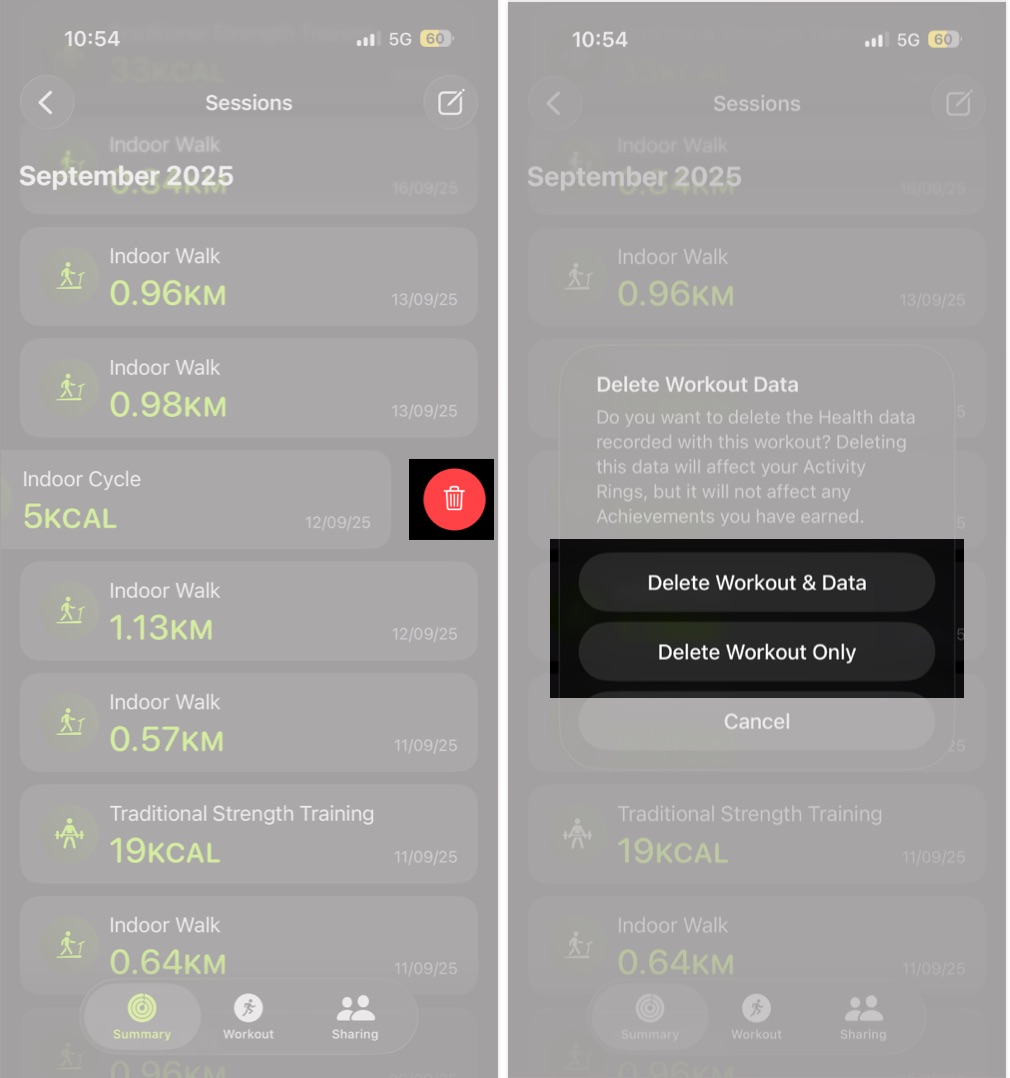
- Open Fitness app → tap “Sessions”.
- Swipe left on the workout → tap Delete.
- Choose:
– Delete Workout and Data (removes associated health metrics)
– Delete Workout Only (keeps data like calories)
❗ This removes the session but doesn’t guarantee minute deletion. Use this after cleaning up individual minutes.
Delete via Health App
- Open Health app → Browse → Activity → Workouts
- Tap “Show All Data”
- Tap Edit → select workout → Delete
- Confirm deletion type
🔍 This method removes the workout history but not the minute-level entries. Treat it as a cleanup step, not the fix.
Fastest Paths to Exercise Minutes (iOS 16–17)
Navigation changes with iOS updates. Use these direct routes:
Path 1: From Apple Watch Source (Best for Watch-Recorded Errors)
- Settings → Health → Data Access & Devices
- Under DEVICES, tap your Apple Watch
- Scroll to ACTIVITY → tap Exercise Minutes
- Tap Show All Data → delete individual minutes
✅ Use this if the error came from a workout tracked on your watch
Path 2: From iPhone Source (Best for Manual Entry Errors)
- Settings → Health → Data Access & Devices
- Under SOURCES, tap your iPhone
- Tap Exercise Minutes
- Delete entries as needed
✅ Use this if you manually entered the workout on your iPhone
Critical Limitations You Must Accept
Even after deletion, some effects are permanent.
1. Achievements Can’t Be Reset
- Badges like “Longest Workout: 14 Hours” remain locked in.
- Apple does not allow resetting achievements, even after full data removal.
- They’re based on lifetime peak values, not current data.
User report: “I deleted everything, but the badge still shows.” – akaToph3r
2. Third-Party App Sync Can Restore Data
Workouts from Strava, MyFitnessPal, or Garmin may reappear.
To stop this:
1. Delete the workout in the original app first
2. Then delete from Health app
3. Disable auto-sync if errors persist
3. No Undo Button
- Once deleted, minutes are gone forever
- No trash bin or recovery option
- Always double-check date, time, and source before swiping
Pro Tips to Prevent Future Errors
Avoid repeat mistakes with smart habits.
1. Verify Manual Entries
When adding a workout:
– Confirm start and end times
– Never set end time past midnight
– Check the correct date is selected
2. Use the Workout App Live
Start and stop workouts on the Apple Watch:
– Ensures accurate timestamps
– Prevents phantom tracking
– Syncs cleanly to Health
3. Review Data Daily
Check the Fitness app each evening:
– Catch long sessions before they sync
– Delete errors early
4. Disable Background Tracking (If Needed)
If your watch logs false workouts:
– Open Watch app → Privacy → Motion & Fitness
– Turn off Fitness Tracking temporarily
– Or disable Auto-Workout Detection
5. Audit Health Data Monthly
Search “Exercise Minutes” monthly:
– Scan for anomalies
– Clean up stray entries before they pile up
Real User Success Stories
akaToph3r: Fixed Ring, But Not Achievements
“I deleted all minutes under Settings > Health > iPhone > Exercise Minutes. The Activity ring dropped immediately. But the ‘Longest Workout’ badge stayed. Annoying, but at least my data is clean.”
onewordgo: Used Watch Path Successfully
“Found the entries under Apple Watch source. Took 10 minutes to delete 60 minutes of bad data. Worked perfectly.”
TheRealBudello: Sync Delay Issue
“Deleted all iPhone-side entries, but Fitness app still showed 937 minutes. Had to restart both devices to force full sync.”
just-spaghetti: Confirmed It Works
“So tedious… but it worked. Deleted 45 minutes one by one. My ring finally shows zero today.”
How Apple Stores Exercise Data (Technical Insight)
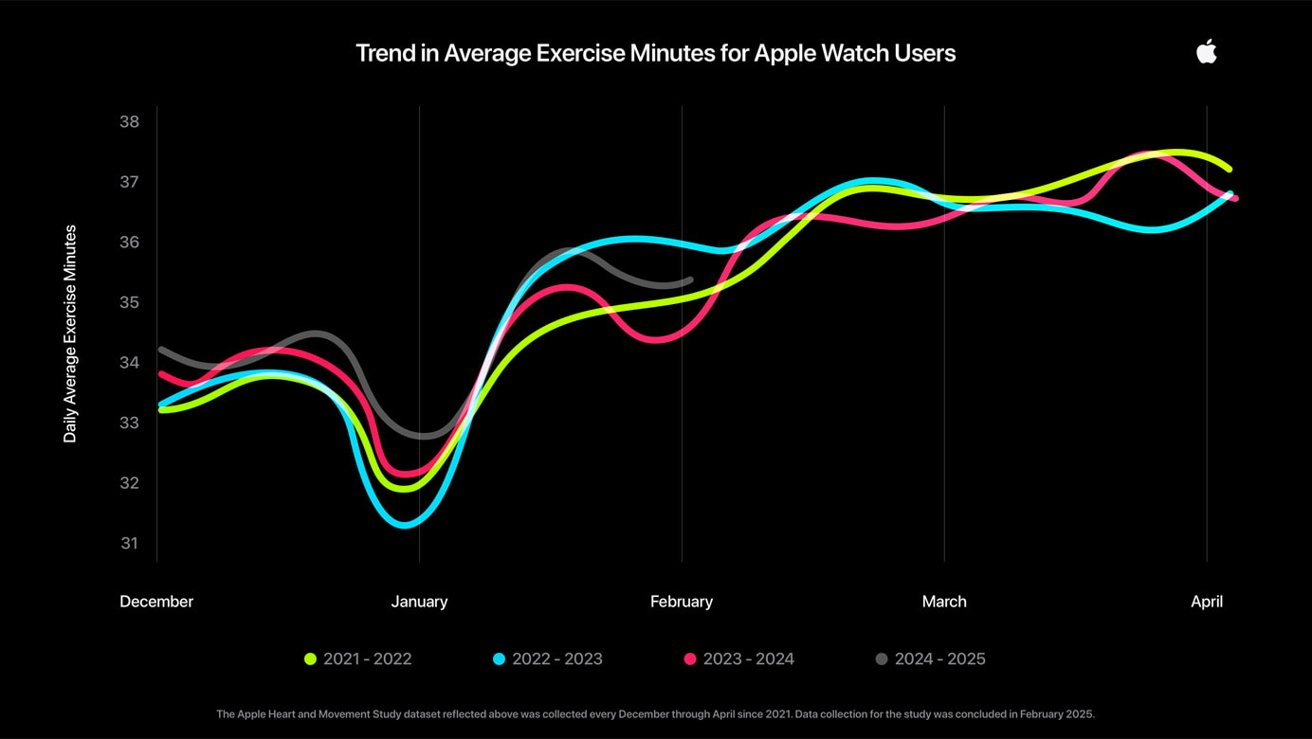
Minute-by-Minute Logging
- Health app logs each minute of exercise as a separate entry
- Each has:
- Timestamp
- Source (Watch, iPhone, app)
- Activity type (if specified)
- These directly feed the Exercise ring calculation
iCloud Health Sync
- Deletions sync across devices via iCloud
- Delay can happen if offline
- Restarting devices forces resync
Complete Step-by-Step Summary
| Step | Action |
|---|---|
| 1 | Open Health app on iPhone |
| 2 | Go to Browse > Exercise Minutes or Settings > Health > Devices > Apple Watch > Exercise Minutes |
| 3 | Tap Show All Data → select incorrect date |
| 4 | Swipe and delete each “1 min” entry |
| 5 | Wait 2–5 minutes for sync |
| 6 | Open Activity app on Apple Watch to verify |
| 7 | (Optional) Delete associated workout in Fitness or Health app |
⚠️ Final Warning: Deletions are permanent. No undo. Confirm every action.
Final Thoughts: Accuracy Over Automation
Yes, deleting exercise minutes on Apple Watch is a painstaking process. No bulk delete. No undo. And your achievements may haunt you forever. But the good news? Your data can be fixed.
The real fix isn’t deleting a workout—it’s cleaning up the minute-level entries in the Health app. Once done, your Activity rings will reflect real effort, not digital ghosts from a typo.
Stay vigilant. Double-check manual entries. Use the Workout app live. And when errors happen, now you know exactly how to delete exercise minutes on Apple Watch—the only way that actually works.





