Your Apple Watch’s Activity rings—Move, Exercise, and Stand—are designed to keep you motivated with daily fitness goals. But what happens when your rings fill up without you actually working out? Maybe you left your phone in your pocket during a car ride, or a third-party app mistakenly logged a 45-minute run you never took. When this happens, you’re likely searching for a way how to reset rings on Apple Watch. Unfortunately, Apple doesn’t offer a direct “reset” button. You can’t wipe the rings clean or start the day over with a single tap.
But here’s the good news: while you can’t manually zero out your rings, you can fix inaccurate data that’s causing them to fill incorrectly. The real solution lies in cleaning up false workout entries through the Health app on your iPhone. By removing erroneous workouts, you effectively “reset” your ring progress by subtracting the fake calories, exercise minutes, and stand time. In this guide, you’ll learn exactly how to do that, troubleshoot missing entries, prevent future tracking errors, and understand what’s actually possible when trying to reset your Apple Watch Activity rings.
Remove Incorrect Workouts to Correct Ring Data
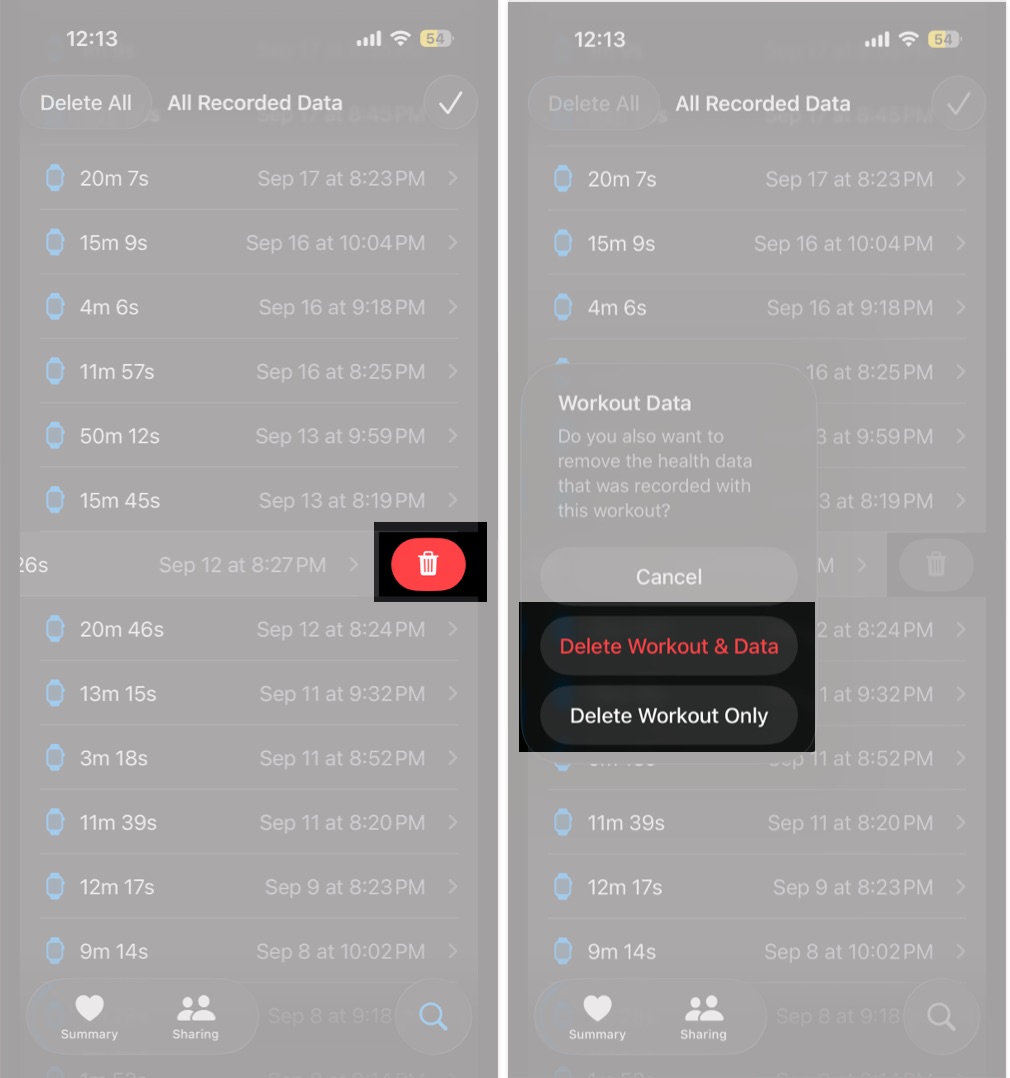
If your rings are full but you didn’t earn it, the culprit is likely a falsely recorded workout. Third-party fitness apps—like Strava, MyFitnessPal, or poorly coded health trackers—can sometimes run in the background and log activity without your knowledge. While Apple won’t let you reset the rings directly, deleting the incorrect workout from your Health app will reverse its impact on your daily totals.
How to Delete a Workout from the Health App
Follow these steps to remove a workout that’s artificially inflated your rings:
- Open the Health app on your iPhone.
- Tap the Browse tab in the lower-right corner.
- Search for Workouts or navigate to Health Data > Fitness > Workouts.
- Tap Show All Data to see your complete workout history.
- Scroll through the list and look for suspicious entries—check the date, time, duration, and activity type.
- Tap the incorrect workout, then select Delete Workout (or Delete).
- Confirm the deletion when prompted.
✅ Result: Once deleted, the active calories, exercise minutes, and any stand time from that session are removed. Your Activity rings on the Apple Watch will update within minutes to reflect the corrected totals.
Pro Tip: Sort by date or filter by workout type (e.g., “Outdoor Walk”) to find phantom entries faster. Look for workouts that last exactly 10 or 30 minutes—common defaults for glitchy apps.
What Data Is Removed When You Delete a Workout?
Deleting a workout removes:
– Active Energy (calories) burned during the session
– Exercise minutes added to your Exercise ring
– Duration that may have contributed to Stand hours (if the workout was long enough)
⚠️ Important: Only structured workouts can be deleted this way. Continuous Active Energy Burned—like background calorie tracking—is not removable. If your rings were filled by non-workout data, you won’t be able to delete it, but you can prevent it from happening again.
Find and Fix Hidden or Missing Workout Entries
Sometimes, the activity messing up your rings doesn’t appear in the Workouts list at all. This can be frustrating—your Exercise ring is full, but there’s no record of why. This usually happens when apps log data as Active Energy Burned instead of a formal workout, or when syncing is delayed.
Why the Workout Might Not Show Up
Common reasons include:
– Logged as Active Energy, not a workout
– Sync delay between Apple Watch and iPhone (can take hours)
– Misclassified under a vague category like “Other” or “Indoor Walk”
– App logged data in the background without user confirmation
How to Track Down Hidden Activity
Check Active Energy Burned
- Open Health app > Browse > Activity > Active Energy Burned.
- Tap Show All Data.
- Look for unusual spikes—like 400 calories burned while sitting at your desk.
- Tap an entry to see which app recorded it.
Review Exercise Time and Stand Hours
- Go to Browse > Activity > Exercise Time or Stand Hours.
- Use Show All Data to scan for abnormal entries.
- Note the source app—if it’s a third-party tracker you don’t trust, consider revoking its access.
❌ Limitation: You cannot delete individual Active Energy entries. Only full workouts can be removed. If the false data isn’t tied to a workout, it stays—but you can stop it from recurring.
Why You Can’t Fully Reset Apple Watch Activity Rings
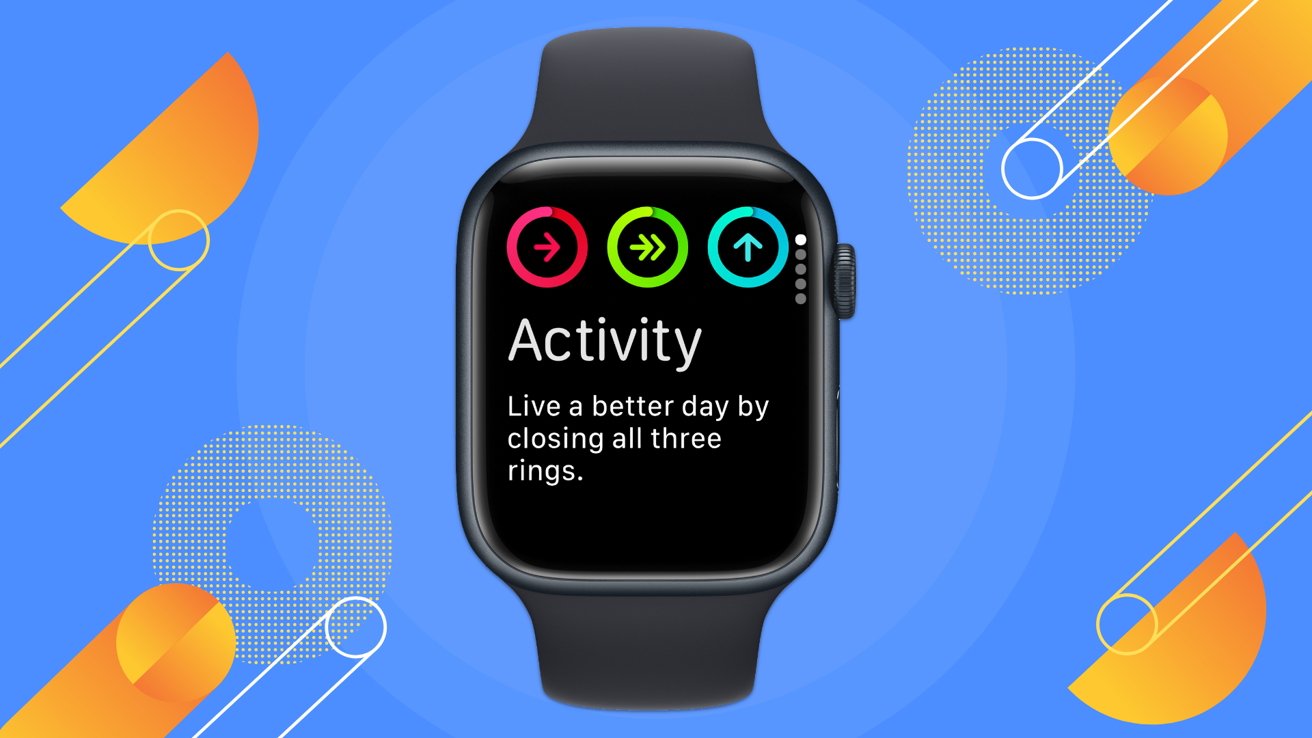
Apple intentionally blocks any method to reset or edit Activity rings. There’s no setting, no secret menu, and no app that can wipe your daily progress. This is by design.
What Apple Prevents (And Why)
- ❌ No option to reset rings to zero
- ❌ No way to edit calorie or minute totals
- ❌ Cannot restart the day or change past data
🎯 Apple’s Reasoning: The Activity rings are meant to reflect real, honest effort. Allowing resets would undermine long-term motivation and data integrity. Your streaks, weekly trends, and monthly progress rely on consistent, unedited data.
Common Myths About Resetting Rings
| Myth | Reality |
|---|---|
| “Force restarting the watch resets the rings” | ❌ No—only reboots the device; data remains |
| “Unpairing the watch deletes activity” | ❌ No—Health data is stored on your iPhone |
| “You can reset rings in Watch or iPhone Settings” | ❌ No—no such option exists |
| “Third-party apps can reset rings” | ❌ No—no app can override Apple’s system |
Even a factory reset won’t erase your Health data—because it’s backed up in iCloud and synced from your iPhone.
Prevent Future Ring Errors with Smart Settings
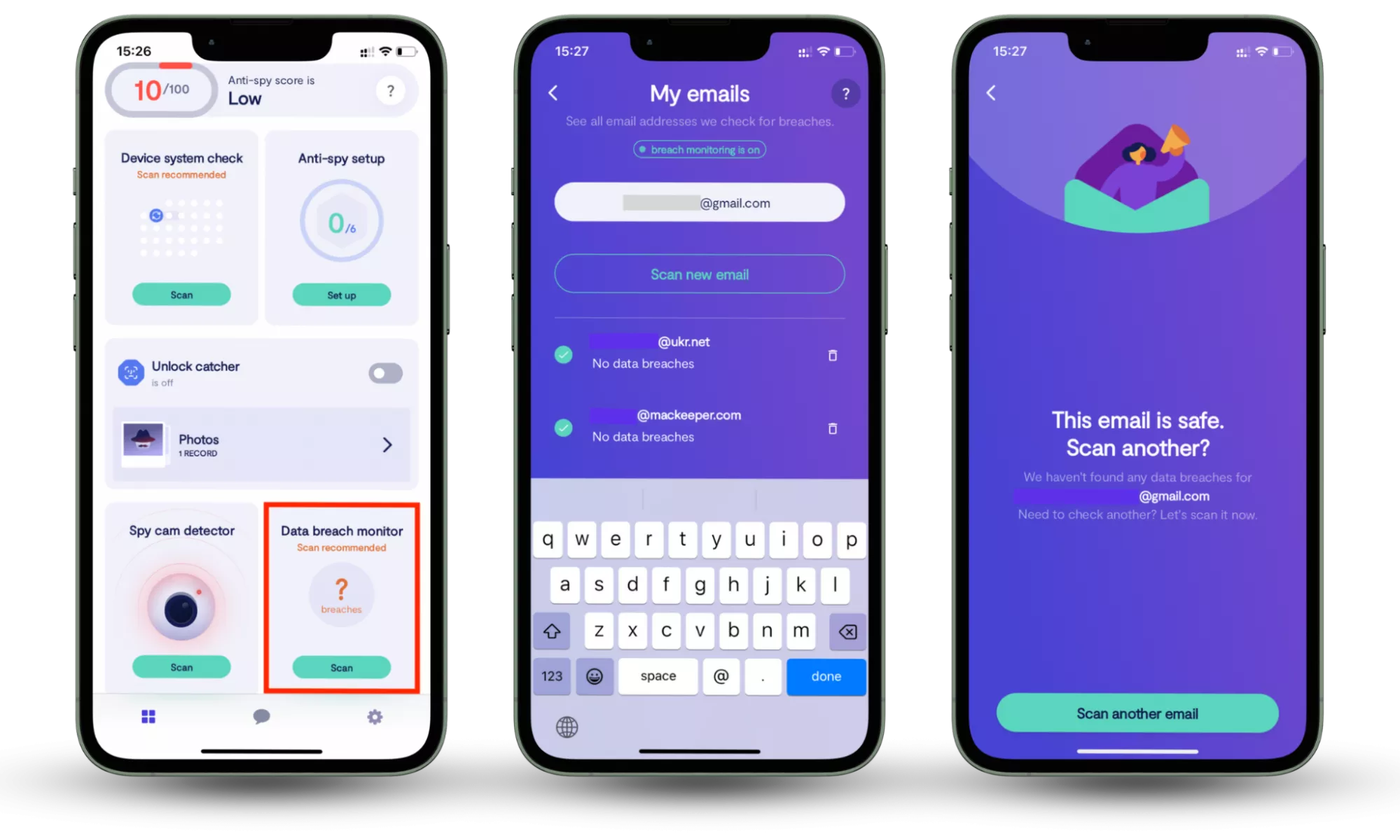
The best way to avoid needing a “reset” is to stop bad data before it enters your system. With a few proactive steps, you can keep your rings accurate and trustworthy.
Manage App Permissions in Health
- Open the Health app > Profile (top-right) > Apps.
- Select any fitness app (e.g., Strava, Fitbit, Nike Run Club).
- Review what it can read and write.
- Turn off permissions for:
– Active Energy Burned
– Exercise Time
– Workouts
💡 Pro Tip: Only allow trusted apps to write to your Health. You can still read data from others, but prevent them from adding it.
Always End Workouts Properly
Many tracking errors happen because apps keep recording after you’ve stopped.
- Don’t just close the app—tap Finish or End Workout.
- Use the Apple Workout app for most sessions—it’s the most accurate and reliable.
- Avoid apps that auto-pause poorly or don’t let you review data before saving.
Use Airplane Mode to Block Background Tracking
If you’re inactive (e.g., working at a desk, sleeping, or in a meeting) but wearing your watch, and you suspect an app is falsely tracking:
- Enable Airplane Mode on your Apple Watch.
- This turns off Bluetooth, Wi-Fi, and cellular—stopping background syncing.
- Disable when you’re ready to resume normal tracking.
Handle Sync Delays That Cause Confusion
Sometimes, a workout appears to affect your rings but isn’t visible in the Health app yet. This is usually due to sync delays, not missing data.
Wait Before Taking Action
- Allow 2–6 hours for full sync between devices.
- Keep both iPhone and Apple Watch charged, on Wi-Fi, and within range.
- Open the Activity app on your watch to prompt a sync.
🔁 Force a Sync:
– Restart both devices.
– Close and reopen the Health app.
– Open the Workout app and start a 1-minute session, then end it.
This often triggers a full data refresh.
Real User Fixes and Lessons Learned
Community feedback confirms that deleting workouts works—if the data was logged as a workout.
Success Story: “Fixed My Rings in Minutes”
- User: lufcrace
- Issue: Rings filled after phone bounced in pocket during a drive.
- Fix: Found a phantom “Outdoor Walk” in Health app, deleted it.
- Result: Exercise and Move rings dropped to correct levels.
Frustration Case: “No Workout to Delete”
- User: ReaperT454
- Issue: Rings filled mysteriously, but no workout listed.
- Troubleshoot: Found spike in Active Energy from a sketchy app.
- Outcome: Couldn’t delete data, but revoked app’s Health access to prevent recurrence.
🧩 Key Insight: If the bad data isn’t a workout, you can’t remove it—but you can stop it from happening again.
Summary: What You Can and Can’t Do
| Action | Possible? | How |
|---|---|---|
| Reset rings directly | ❌ No | No built-in feature |
| Delete incorrect workouts | ✅ Yes | Via iPhone Health app |
| Remove non-workout calorie data | ❌ No | Can’t edit Active Energy manually |
| See which app logged activity | ✅ Yes | Check data source in Health app |
| Prevent false tracking | ✅ Yes | Manage app permissions |
| Sync delayed data | ✅ Yes | Wait or force sync |
Final Tips for Keeping Rings Accurate
- Check Health app weekly for odd entries.
- Use Apple’s Workout app for most sessions—it’s the gold standard.
- Review third-party app access every few months.
- Don’t panic over one bad day—your weekly and monthly trends matter more.
- Focus on consistency, not perfection.
While you can’t fully reset your Activity rings on Apple Watch, you can fix what’s filling them. By using the Health app as your control center, you maintain accurate, trustworthy fitness tracking—without breaking Apple’s rules.
🔁 Bottom Line: You can’t reset the rings, but you can delete the workouts that fill them. That’s the real fix.