
You glance at your Apple Watch and see an old message thread you’d rather not have—maybe it’s clutter, maybe it’s sensitive. You swipe to delete, only to realize you can’t remove just one message. The whole conversation vanishes—or worse, nothing happens at all.
If you’re trying to delete messages on Apple Watch, you’re not alone. Thousands of users face the same limitations every day. The reality is simple: you can only delete full message conversations—not individual messages—directly on the watch. And depending on your iCloud settings, that deletion might also wipe the chat from your iPhone, iPad, or Mac.
In this guide, you’ll learn:
– How to delete a message thread from your Apple Watch
– Why you can’t delete single messages
– Whether your iPhone is affected by watch deletions
– The fastest way to clear messages across devices
– How to edit or unsend recent iMessages
– When a full reset makes sense
Let’s take back control of your message history—without surprises.
Delete a Message Thread on Apple Watch
The only built-in way to remove messages from your Apple Watch is by deleting entire conversations. This method works across all Apple Watch models running current versions of watchOS.
You’ll need to act directly in the Messages app on your wrist. There’s no shortcut—each conversation must be removed one at a time.
Swipe to Delete a Conversation
Deleting a thread takes just seconds:
- Press the Digital Crown to return to the app grid.
- Tap the Messages app.
- Scroll through your inbox.
- Swipe left on the conversation you want to erase.
- Tap the red Trash icon (or Delete button).
- Confirm by tapping Delete again.
✅ Result: The entire message thread disappears from your Apple Watch.
⚠️ Warning: If Messages in iCloud is enabled, this deletion may also remove the conversation from your iPhone, iPad, and Mac.
This action cannot be undone unless you restore from a backup. So double-check before confirming.
Why You Can’t Delete Individual Messages
Many users expect to tap and remove a single message—especially after sending a typo or wrong photo. But Apple Watch does not support deleting individual messages.
❌ No Option to Remove a Single Message
No matter how long you press or how hard you try, there’s no way to delete just one bubble in a conversation. This applies to:
- All Apple Watch models (Series 3 and later)
- Both iMessages (blue) and SMS/MMS (green)
- All current versions of watchOS
The reason? Apple designed the Apple Watch as a notification companion, not a full messaging hub. It’s meant for quick replies and alerts, not deep message management.
💡 Pro Tip: If you sent the wrong message, you can edit or unsend it—but only within strict time limits (more on that below).
Until Apple updates watchOS, single-message deletion remains off the table.
Can You Delete All Messages at Once?
No. There is no bulk delete feature on the Apple Watch.
Each conversation must be deleted individually—swipe, tap, confirm, repeat. There’s no “Select All” or “Clear All Messages” button.
For someone with dozens of old chats, this can take 5–10 minutes of repetitive swiping.
Why Bulk Delete Isn’t Available
Apple likely omits bulk deletion to:
– Prevent accidental mass data loss
– Keep the interface clean and simple
– Encourage users to manage messages from the iPhone
⚠️ User Frustration: Many users upgrading from Android smartwatches (like the Pixel Watch) expect swipe gestures to support batch actions. Apple’s one-at-a-time approach feels outdated in comparison.
Your best workaround? Use your iPhone for faster cleanup.
Does Deleting on Apple Watch Delete on iPhone?
It depends on whether Messages in iCloud is turned on.
This is the #1 point of confusion for Apple Watch users.
Some users report messages vanishing from their iPhone after deleting on the watch. Others find their phone untouched. The difference? iCloud syncing.
Messages in iCloud: ON
- ✅ Sync enabled: Delete on Apple Watch → deleted on iPhone, iPad, Mac
- ⏱️ Real-time sync: Changes appear within seconds
- 🔗 One ecosystem: All devices share the same message database
📢 New Behavior Alert: With iOS 18 and watchOS 11, deletions on the Apple Watch now sync more reliably to the iPhone—even if they didn’t before. This isn’t a bug—it’s tighter iCloud enforcement.
Messages in iCloud: OFF
- ❌ No sync: Delete on Apple Watch → only removed from watch
- 📱 iPhone safe: Full conversation remains on your phone
- 🧩 Local storage: Messages live independently on each device
🔍 User Tip: Want to clean your watch without touching your iPhone? Turn off Messages in iCloud before deleting.
How to Turn Off Messages in iCloud

Want to delete messages on your Apple Watch without affecting your iPhone? Disable syncing.
You cannot change this setting on the watch—it’s controlled by your iPhone.
Steps to Disable Syncing
- Open Settings on your iPhone.
- Tap your Apple ID name at the top.
- Go to iCloud.
- Scroll to Messages.
- Toggle Messages in iCloud OFF.
🔄 What Happens Next?
– Future deletions on the watch stay local
– Existing messages remain synced until changed
– Your iPhone keeps all message history
Now you can wipe your Apple Watch inbox freely—your phone stays untouched.
⚠️ Note: Turning this off may increase storage use on your iPhone, as messages are no longer offloaded to iCloud.
Delete Messages from iPhone (Faster Method)
Need to clear multiple conversations fast? Use your iPhone.
It’s the most efficient way to remove messages from your Apple Watch—especially when syncing is on.
Bulk Delete on iPhone
- Open the Messages app.
- On the inbox screen, place two fingers side-by-side.
- Drag them left across multiple threads to select.
- Tap Delete.
- Confirm.
✅ Result: Selected conversations vanish from all synced devices, including your Apple Watch.
This method saves 10+ minutes compared to manual deletion on the watch.
💡 Bonus: You can also search for specific contacts or keywords and delete those threads directly.
Edit or Unsend Recent Messages on Apple Watch
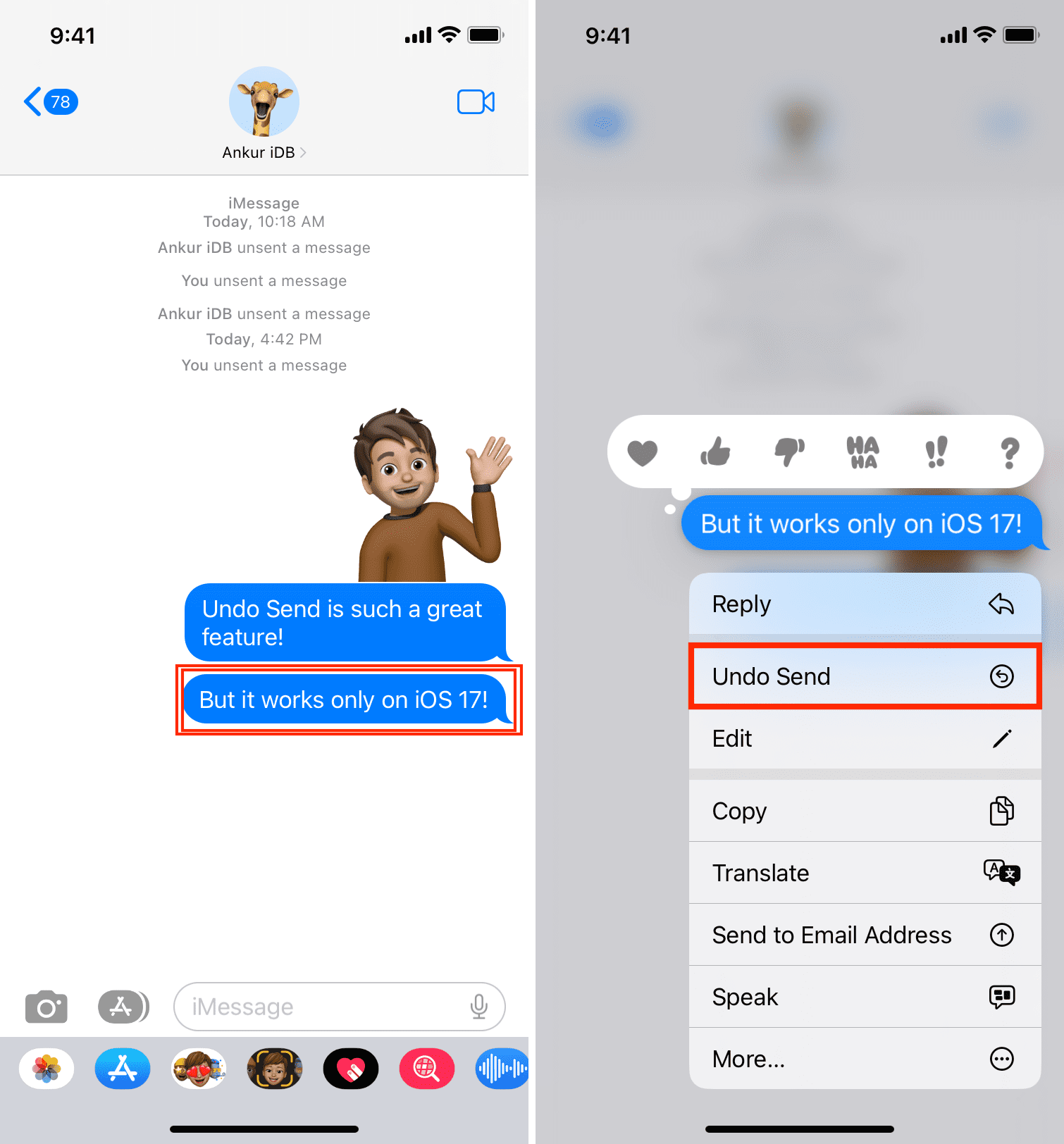
Can’t delete a single message? You can edit or unsend it—if you act fast.
These features only work with iMessages (blue bubbles), not SMS (green bubbles).
Edit a Message Within 15 Minutes
Fix typos or clarify meaning:
- In a message thread, touch and hold the message bubble.
- Tap Edit.
- Make changes.
- Tap Done.
📌 The message shows “Edited” beneath it. Recipients can tap to see prior versions.
You can edit a message up to 5 times within 15 minutes.
⚠️ Limitation: iPhone users on iOS 15.7 or earlier see a follow-up message like: “Edited to: [new text]” in quotes.
Unsend a Message Within 2 Minutes
Pull back a message entirely:
- Touch and hold the message.
- Tap Undo Send.
📌 Both you and the recipient see a note: “You unsent a message” or “They unsent a message.”
⚠️ Caveat: On older iOS versions, the original message may still appear in the thread, even after unsending.
These tools offer limited control—but they’re better than nothing.
Erase All Messages: Full Reset Option
Need a clean slate? You can wipe everything—messages, apps, settings—with a full reset.
This is ideal when:
– Selling or gifting your watch
– Troubleshooting syncing bugs
– Starting fresh after years of clutter
Steps to Erase Apple Watch
- On your watch, go to Settings > General > Reset.
- Tap Erase All Content and Settings.
- Enter your passcode.
- Confirm with Erase.
⚠️ Warning: This deletes everything—health data, apps, Wi-Fi passwords, and all messages.
After erasing:
– Re-pair the watch with your iPhone
– Restore from backup (optional)
– Reinstall apps and reconfigure
✅ Time Required: 15–30 minutes, depending on setup speed.
Use this nuclear option only when necessary.
Troubleshooting Message Deletion Issues

Sometimes, the delete function doesn’t work as expected. Here’s how to fix common problems.
Delete Button Missing?
If the red Trash icon doesn’t appear when you swipe:
- 🔄 Cause: Software glitch or outdated watchOS
- ✅ Fix: Update your watch:
1. Open Watch app on iPhone
2. Go to General > Software Update
3. Install latest version
💡 Tip: Keep both iPhone and Apple Watch updated.
Messages Reappear After Deletion?
They’re syncing back from another device.
- 🔄 Cause: Messages in iCloud is on, and another device restored or re-sent data
- ✅ Fix:
- Delete the conversation from iPhone first
- Or disable Messages in iCloud
Deletion Not Syncing to iPhone?
Your devices aren’t communicating.
- 🔄 Cause: Syncing off or connection issue
- ✅ Fix:
- Ensure Bluetooth and Wi-Fi are on
- Restart both devices
- Check iCloud Messages setting
🔄 Quick Reset: Turn off Apple Watch, then restart iPhone before turning watch back on.
Best Practices for Message Management
To stay in control, follow these expert tips.
Use iPhone for Bulk Cleanup
- Delete 20+ threads in under a minute
- Use two-finger swipe to select multiple conversations
- Avoid repetitive wrist swiping
Disable iCloud Sync for Local-Only Deletion
Want to keep iPhone messages but clear the watch?
- Turn off Messages in iCloud
- Delete freely on Apple Watch
- No risk to phone history
Edit or Unsend Fast
Caught a mistake?
- Edit within 15 minutes (up to 5 times)
- Unsend within 2 minutes
- Only works with iMessages
Restart Weekly
Prevent syncing glitches:
- Restart Apple Watch: Hold side button > swipe Power Off > restart
- Reboot iPhone occasionally
Final Thoughts: What You Can and Can’t Do
Here’s a quick recap:
| Feature | Supported? | Notes |
|---|---|---|
| Delete entire conversation | ✅ Yes | Swipe left > Delete |
| Delete individual message | ❌ No | Not possible on watch |
| Bulk delete multiple threads | ❌ No | Must delete one by one |
| Edit recent iMessage | ✅ Yes | Within 15 minutes, up to 5 edits |
| Unsend message | ✅ Yes | Within 2 minutes |
| Delete syncs to iPhone? | ⚠️ Depends | Only if Messages in iCloud is on |
Final Recommendations
- For speed: Delete from iPhone
- For privacy: Disable iCloud syncing
- For mistakes: Use Edit or Undo Send
- For full cleanup: Reset Apple Watch
Until Apple adds better message tools to watchOS, your iPhone remains your best control center. Manage iCloud settings wisely, and master the swipe-to-delete workflow.
Your Apple Watch may not be a full messaging hub—but with the right strategy, you can keep it clean, private, and clutter-free.





