Your Apple Watch Series 10 does far more than tell time—it’s a health sentinel, a gesture-controlled assistant, and a portable navigation hub. Yet most users barely scratch the surface of its capabilities. With watchOS 11 and advanced hardware like the always-on retina display, enhanced speaker, and new motion sensors, the Series 10 can detect illness before symptoms appear, respond to hand gestures, and guide you through hikes—no phone required.
This guide reveals 10 powerful Apple Watch tips and tricks that transform your daily routine. From silent haptic navigation to illness-detecting vitals monitoring and hands-free camera control, these features save time, boost safety, and unlock hidden functionality. Whether you’re a fitness enthusiast, frequent traveler, or just want a smarter wearable experience, these actionable insights will help you get every ounce of value from your device.
Let’s dive into the lesser-known—but highly effective—features your Apple Watch can do right now.
Stream Music & Detect Songs with the Built-In Microphone
Your Apple Watch Series 10 listens—and plays—on its own.
Automatically Identify Songs Around You
Thanks to the onboard microphone and Music Recognition, your watch detects songs playing in cafes, stores, or parties—without opening an app.
How to enable:
– Open Settings > Privacy & Security > Microphone on your Apple Watch
– Toggle Music Detection on
Once active:
– A Recognized Music widget appears in your Smart Stack
– Swipe to view the track, artist, and album
– Tap to open Apple Music and play the song
Pro Tip: Works best in quiet to moderately noisy environments. Background noise reduces detection accuracy.
This feature runs quietly in the background, making it perfect for identifying tunes during commutes or social gatherings—no need to pull out your phone.
Play Audio Directly Through the Watch Speaker
Forget headphones for quick listening—your Apple Watch can stream music, podcasts, and audiobooks through its built-in speaker.
Steps:
1. Open Music, Podcasts, or any audio app
2. Start playback
3. Tap the ⋯ menu in the top-right
4. Select AirPlay
5. Choose Apple Watch
The speaker delivers surprisingly clear mid-range audio, ideal for home use or short listening sessions.
Note: Volume is limited—don’t expect concert-level sound. Also, spatial audio and lossless quality are not supported.
Works with:
– Apple Music
– Podcasts
– Audiobooks
– Spotify, iHeartRadio (if app supports AirPlay)
Use Case: Perfect when your phone is charging across the room or you’re prepping a meal and need quick audio access.
Control Your Watch Without Touching It: Use Double Tap
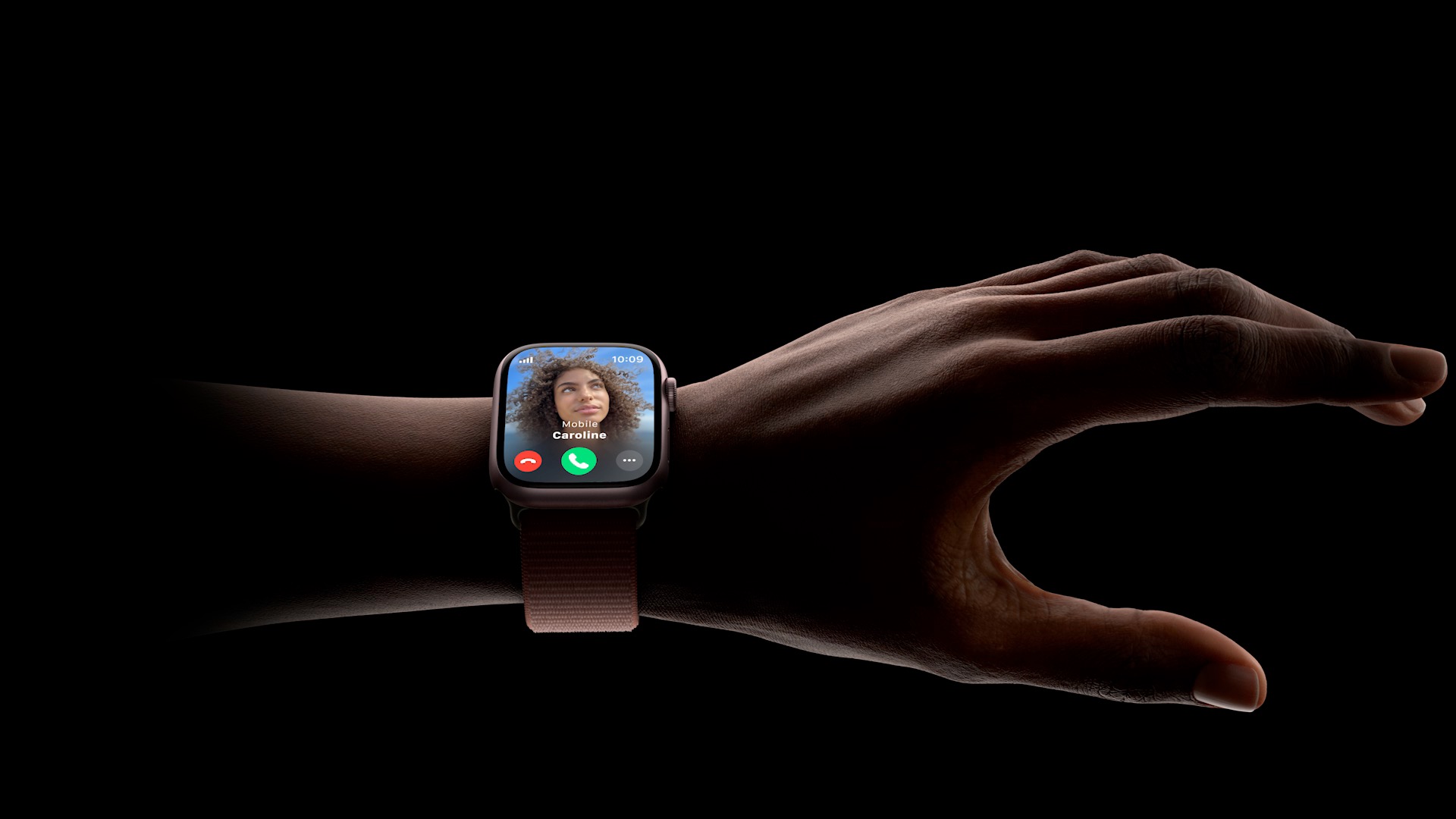
Navigate apps, pause music, and start dictation—just by tapping your fingers.
How to Enable Double Tap
This gesture uses motion sensors to detect when you tap your thumb and index finger together twice.
Setup:
– On iPhone: Open Watch app > Accessibility > Touch > Double Tap
– Toggle Double Tap on
Now you can interact while cooking, working out, or wearing gloves.
What You Can Do With Double Tap
| Context | Action |
|---|---|
| Watch Face | Opens Smart Stack |
| Smart Stack | Scrolls between widgets |
| Messages | Scrolls to bottom → second tap starts dictation |
| Music/Podcasts | Play/pause playback |
| Timer Alert | Dismisses alarm |
| Workout App | Switch between pace, heart rate, or calories |
Customize It to Launch Shortcuts
Go beyond defaults by assigning custom actions.
Steps:
1. Go to Settings > Accessibility > Accessibility Shortcut
2. Select Double Tap
3. Choose an action:
– Launch Flashlight
– Open Camera
– Start Voice Memos
– Trigger a Shortcuts automation
Expert Tip: Pair with Voice Isolation during calls to minimize background noise while walking or moving.
Note: Only available on Apple Watch Series 9, Ultra 2, SE (3rd gen), and Series 10.
Detect Illness Early with the Vitals App
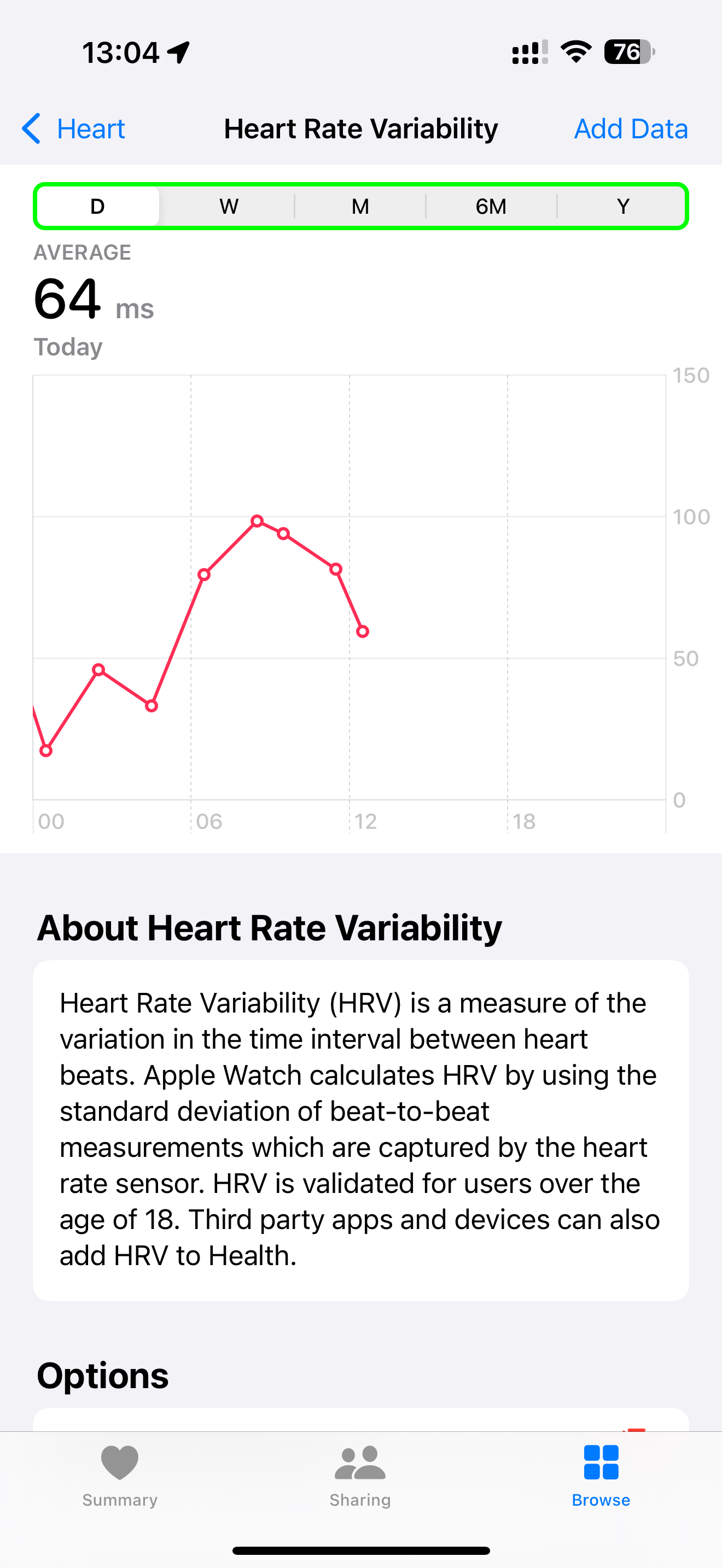
Your Apple Watch could alert you to a cold or flu before you feel sick.
How Vitals Monitors Your Health
The Vitals app tracks five key metrics during sleep:
1. Heart rate
2. Respiratory rate
3. Wrist temperature
4. Blood oxygen (SpO₂)
5. Sleep duration
After wearing it to bed for 7 consecutive nights, it establishes your personal baseline.
If two or more metrics remain outside your normal range for over 24 hours, you’ll get a notification:
“Your vitals are outside your normal range.”
It’s not a medical diagnosis—but a powerful early warning system.
Access and Track Your Data
- Open the Vitals app on your Apple Watch
- Tap the calendar icon to see trends
- View Overnight Vitals or Weekly Summary
Add Vitals to Your Watch Face
Stay informed at a glance.
Steps:
1. Press and hold your watch face
2. Tap Edit
3. Add Overnight Vitals or Weekly Vitals complication
4. Position it prominently
Limitation: Blood oxygen data is processed on the iPhone due to IP restrictions. Not visible in the Vitals app on models sold after January 29, 2024.
User Benefit: Many users report catching infections 1–2 days before symptoms appear.
Silence Alerts with a Wrist Flick (No Buttons Needed)
Dismiss calls, alarms, and notifications—just by flicking your wrist.
How to Enable Wrist Flick
Available on newer models, this gesture replaces button presses.
On Apple Watch:
– Go to Settings > Gestures > Wrist Flick
– Toggle On
How to Use It
Perform a quick up-and-back flick to:
– Dismiss incoming calls
– Silence timer alerts
– Return to the watch face from deep menus
Why It’s Better: Faster than pressing the side button or tapping “Dismiss”—especially useful during workouts or when hands are wet.
Best For: Cooking, swimming, or intense training sessions.
Limitation: Not supported on Series 8 and earlier.
Upgrade Your Watch Face: Try Flux and Reflections
Make your display more dynamic and responsive.
Flux Watch Face
Exclusive to Series 10:
– Smooth, flowing second-hand movement
– Colors shift with ambient light (warm, cool, or vibrant)
– Feels alive and modern
Reflections Watch Face
- Ripple effect when you tilt your wrist
- Maintains visibility in Always-On mode thanks to 1 Hz refresh
- Elegant and functional
How to Add:
1. Open Watch app > Face Gallery
2. Scroll to Flux or Reflections
3. Customize colors and complications
Pro Tip: Use Smart Shuffle in the Photos face to let AI pick your best images daily—great for nature lovers and pet owners.
Master Smart Stack for Instant Access
Turn your wrist into a proactive assistant.
What Smart Stack Does
Swipe up or turn the crown to access:
– Live Activities (workouts, timers, deliveries)
– Proactive suggestions (start a run at the gym)
– Real-time data (weather, calendar, vitals)
Customize Your Widgets
- Swipe up from watch face
- Tap Edit
- Add widgets: Timer, Vitals, Check-In, Activity Rings
- Drag to reorder
- Tap the yellow pin to keep key tools at the top
Disable Annoying Auto-Launch
Stop Maps or Music from taking over your screen.
Fix:
– Go to Settings > Smart Stack > Live Activities
– Turn off Auto-Launch Live Activities
Power Use: Pin the Check-In widget—it ends automatically when you finish a workout.
Navigate Without a Phone: Use Offline Maps & Haptic Directions
Get turn-by-turn guidance even without service.
Download Offline Maps
On iPhone:
1. Open Maps
2. Drop a pin → Tap Download
3. Enable Sync with Apple Watch
On Apple Watch:
– Open Maps > Profile > Offline Maps
– Follow directions via haptic taps
Haptic Cues:
– Left Turn: 3 sets of double taps (●● ●● ●●)
– Right Turn: 12 single taps (●●●●●●●●●●●●)
Perfect For: Hiking, travel, or urban exploration.
Dive Deeper: Use Depth Gauge & Water Temperature
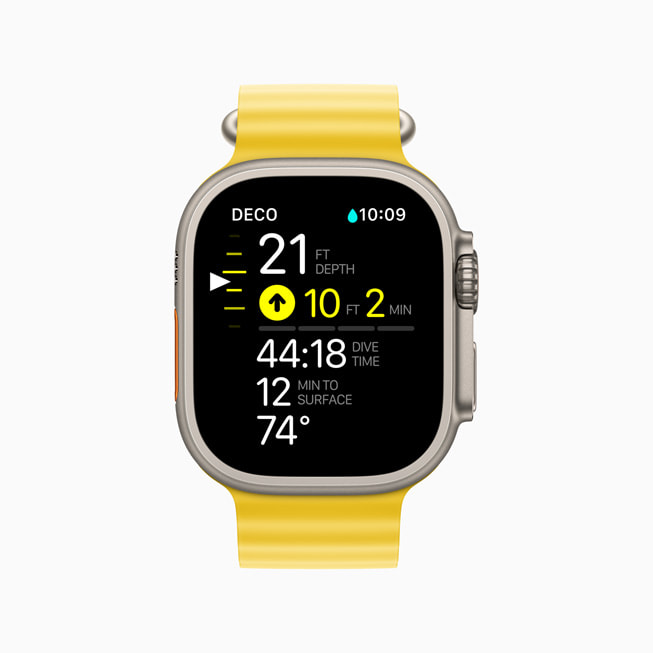
Snorkelers and swimmers: your watch tracks underwater data.
Enable Auto-Launch
On iPhone:
– Watch app > General > Auto-Launch > When Submerged
– Set to Open Depth App
– Threshold: 3 ft for accuracy
Measures:
– Depth
– Water temperature
– Submersion time
Pro Tip: Use with Water Lock and twist the crown to eject water after swimming.
Control Your iPhone Camera from Your Wrist
Use your Apple Watch as a remote viewfinder.
Steps:
1. Open Camera app on Apple Watch
2. iPhone shows live feed
3. Tap shutter button to take photo
Works with:
– Front and rear cameras
– Portrait and video modes
Use Case: Group photos, low-angle shots, or selfies with perfect framing.
Bonus Pro Tips
- Raise to Speak: Enable in Siri settings—just lift your wrist to talk.
- Take Screenshots: Press Digital Crown + Side Button (enable first in Watch app).
- Unlock Mac Automatically: In System Settings > Touch ID & Password.
- Adjust Flashlight Brightness: Turn the Digital Crown in Control Center.
- Run Multiple Timers: Up to 10 at once in the Timers app.
Final Recommendations for Peak Performance
| Feature | Best Setting |
|---|---|
| Battery Life | Turn off Always-On Display when needed |
| Notifications | Disable non-essential alerts |
| Wrist Orientation | Set to Right if worn on right hand |
| Sleep Tracking | Wear nightly; use Sleep Focus |
| Accessibility | Enable Double Tap, Wrist Flick, Prominent Haptics |
| Safety | Set up Medical ID, Emergency Contacts, Find My |
Start using these 10 Apple Watch tips and tricks today—transform your wearable from a simple tracker into a powerful, intelligent companion. Your smarter, safer, and more efficient wrist experience begins now.