
If your Apple Watch dies before bedtime—or worse, during a workout—you’re not alone. Many users struggle to get through a full day on a single charge, especially with newer models like the Series 10 or Apple Watch Ultra running advanced sensors and background features. But here’s the good news: you can extend Apple Watch battery life significantly with just a few strategic adjustments. In real-world testing, one user stretched their Series 10 GPS model from under 24 hours to over 50 hours of use without sacrificing core functionality.
The secret lies in targeting the biggest battery drainers first. Features like Always-On Display, Sleep Apnea Detection, and constant Siri listening quietly eat up power while you go about your day. By disabling or optimizing these settings, you can dramatically improve battery performance. This guide walks you through every proven tweak—backed by Apple’s recommendations, user testing, and expert insights—so you can go longer between charges, whether you’re at work, on a hike, or traveling.
You’ll learn how to identify what’s draining your battery, which settings to disable (and which to keep), and how to maintain long-term battery health. From quick fixes to advanced automations, this comprehensive strategy ensures your Apple Watch keeps up with you—not the charger.
Turn Off Always-On Display to Save Up to 26% Daily
Disabling Always-On Display (AOD) is the single most effective step to extend Apple Watch battery life. On OLED models (Series 4 and later), the screen uses power even when dimmed because individual pixels remain active. With AOD enabled, your watch face is always visible, consuming energy whether you’re looking at it or not.
How to Disable Always-On Display
Go to:
Settings > Display & Brightness > Always On → OFF
If you prefer to keep AOD for convenience:
– Use dark watch faces like Simple or Numerals Duo—black pixels use no power on OLED screens.
– Limit complications to one or two static ones.
– Turn off complication visibility in AOD mode:
Settings > Display & Brightness > Always On > Show Complications → OFF
💡 Real Result: One user reported gaining 12 extra hours, jumping from 24 to 36 hours of battery life after turning off AOD and switching to a minimal watch face.
Use Low Power Mode for Long Outings

Introduced in watchOS 9, Low Power Mode is designed for situations where charging isn’t possible—like long hikes, flights, or all-day events. It disables non-essential services to stretch battery life.
What Low Power Mode Disables
- Always-On Display
- Background heart rate monitoring
- Irregular rhythm alerts
- Cellular and Wi-Fi when disconnected from iPhone
- Frequent notifications (syncs only once per hour)
How to Enable Low Power Mode
From your Apple Watch:
– Open Control Center
– Tap the battery percentage icon
– Select Low Power Mode
Or go to:
Settings > Battery > Low Power Mode
⚠️ Note: The mode turns off automatically when your battery reaches 80% during charging. Use it strategically—not daily—for maximum benefit.
Stop Background App Refresh from Draining Power
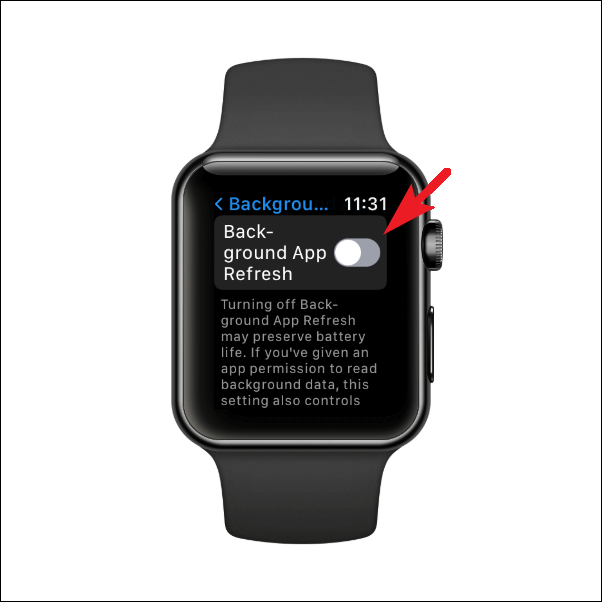
Background App Refresh allows apps to update content even when not in use, but this constant syncing uses CPU, Wi-Fi, and cellular data—quietly draining your battery by 5–10% per day.
How to Disable Background App Refresh
On your iPhone:
1. Open the Watch app
2. Go to My Watch > General > Background App Refresh
3. Toggle it OFF
You can also disable it for individual apps if you want selective updates.
✅ No Trade-Off: Apps still work normally—they just don’t refresh until you open them.
Turn Off Hey Siri and Raise to Speak
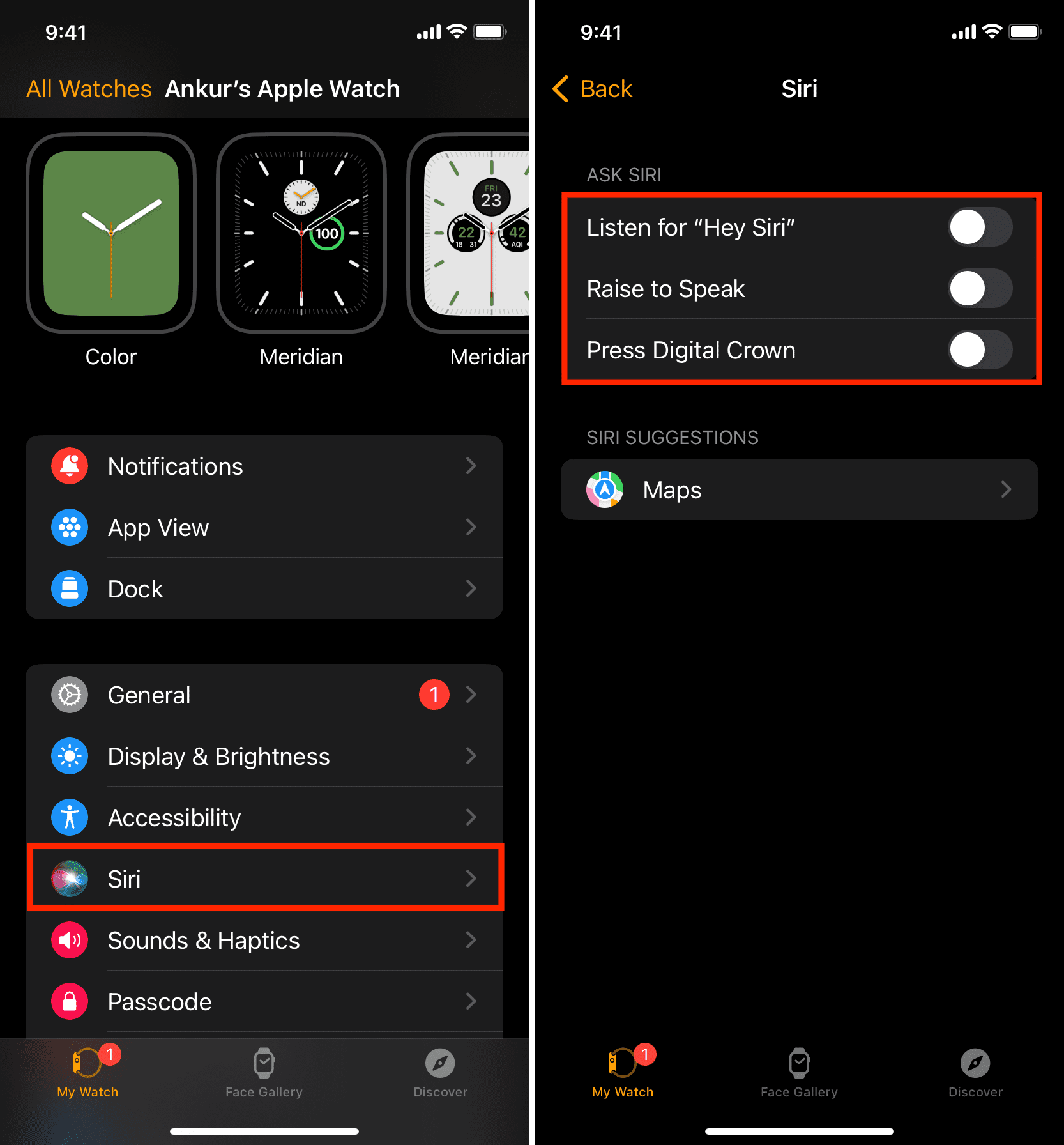
“Hey Siri” keeps the microphone active and listening at all times, which can cost 5–8% of battery per day. If you rarely use voice commands, this feature offers little benefit for its power cost.
How to Disable Siri Listening
On Apple Watch:
– Settings > Siri > Listen for “Hey Siri” → OFF
– Raise to Speak → OFF
Instead, manually activate Siri by pressing the Digital Crown when needed.
🎯 Pro Tip: For most users, disabling both options saves noticeable battery with zero impact on usability.
Cut Notification Overload to Reduce Screen Wakes
Every notification wakes the screen, triggers haptics, and processes data. With multiple apps sending alerts, this adds up fast—draining 5–15% daily.
How to Optimize Notifications
In the Watch app on iPhone:
1. Tap Notifications
2. For each app, choose:
– Mirror iPhone (default)
– Custom (recommended): Disable non-essential apps
– None (for apps you don’t need on your wrist)
Best Practices
- Disable alerts for social media, email, or news apps
- Enable notification grouping to reduce screen wake frequency
- Set a Sleep Schedule to silence non-urgent alerts at night
📌 User Insight: Reducing notifications from 15+ apps to just 5 essentials added 6–8 hours of battery life.
Choose Battery-Friendly Watch Faces and Complications
Your watch face isn’t just style—it’s a major power factor. Complications that pull live data (like weather, stocks, or heart rate) constantly refresh, using sensors and connectivity.
Recommended Watch Faces
- Numerals Duo
- Minimal
- Simple
Avoid:
– Modular
– Infograph (too many live elements)
Optimize Complications
- Use ≤3 complications
- Prefer static types: Date, Calendar, Battery Level
- Avoid live-refresh types: Weather, Stocks, Activity Rings
🔍 Test Finding: Disabling complication refresh in AOD saved measurable battery, especially on Series 9 and 10 models.
Manage Health Sensors to Balance Battery and Functionality
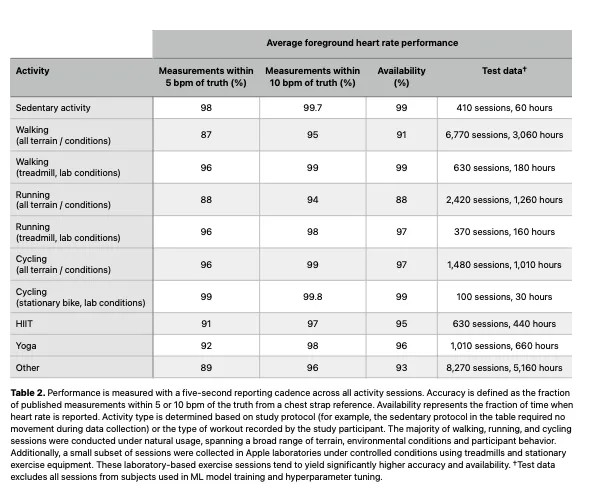
Apple Watch runs multiple sensors by default. While useful, some are heavy on power.
Sensor Settings to Adjust
| Feature | Recommendation | Why |
|---|---|---|
| Heart Rate | Keep ON | Core function; low drain |
| Blood Oxygen (SpO2) | Keep ON | Minimal impact; useful for sleep |
| Sleep Apnea Detection | Turn OFF | Drains ~20% nightly |
| Noise App | Turn OFF | Constant mic use; rarely needed |
| Handwashing Detection | Turn OFF | Unnecessary for most |
| Irregular Rhythm Alerts | Consider OFF | Requires 24/7 monitoring |
Use Sleep Schedule for Auto-Saving
Set a Sleep Schedule on your iPhone:
– Automatically dims screen
– Disables AOD
– Reduces haptics
– Improves tracking accuracy
Go to:
Health app > Browse > Sleep > Full Schedule > Set Schedule
Save Battery During Workouts
Long runs or hikes can kill your battery—especially when GPS, heart rate, and screen brightness are all active.
Enable Workout Low Power Mode
This disables the heart rate sensor during workouts to save power.
On iPhone Watch app:
– My Watch > Workout > Low Power Mode → ON
⚠️ Trade-off: Less accurate calorie burn estimates, but GPS still works.
Use iPhone GPS Instead
Keep your iPhone nearby during outdoor workouts:
– Watch uses iPhone’s GPS
– Reduces sensor load
– Saves 10–15% on long runs
📈 Test Result: One user completed a 10-mile hike with 60% battery left by using iPhone GPS.
Disable Unused Connectivity Features
Cellular models offer freedom—but at a cost.
Cellular
- Turn OFF when near your iPhone
- Prevents LTE searching in weak signal zones
- Toggle on only when needed
Wi-Fi
- Keep ON unless extreme saving
- Watch only uses Wi-Fi if Bluetooth drops
- Turning it off offers minimal gain
Bluetooth
- Keep ON—required for iPhone pairing
Airplane Mode
- Use sparingly
- Turns off all radios (no calls/texts)
- Re-enable Bluetooth if you need iPhone connection
✅ Best Practice: Manually toggle Cellular off at home/work to avoid unnecessary drain.
Additional Power-Saving Tweaks
Small changes add up. These settings offer minor but consistent gains.
| Setting | Location | Benefit |
|---|---|---|
| Reduce Motion | Settings > Accessibility > Reduce Motion |
Fewer animations = less GPU load |
| Reduce Transparency | Settings > Accessibility > Display & Text Size |
Slight performance boost |
| Turn Off Walkie-Talkie | Settings > Walkie-Talkie |
Background activity even when idle |
| Disable Music Detection | Settings > Music Detection |
Uses mic and CPU unnecessarily |
| Nightstand Mode | Settings > Nightstand Mode |
Turns off when not used as clock |
| Auto Downloads | Settings > General > Software Update > Automatic Updates |
Avoid unexpected update drains |
Maintain System Health for Better Performance
A well-maintained watch runs more efficiently.
Restart Weekly
- Clears memory
- Stops rogue apps
- Fixes minor glitches
How to:
Press and hold side button → slide to power off → restart
✅ Recommended: 2–3 times per week.
Keep Software Updated
Apple releases battery optimizations in every watchOS update.
Check for updates:
– Settings > General > Software Update
Enable automatic updates:
– iPhone Watch app → My Watch > General > Software Update > Automatic Updates
📈 User Report: Some saw noticeable improvement after updating to watchOS 11.
Preserve Long-Term Battery Health
A healthy battery holds more charge over time.
Enable Optimized Battery Charging
Learns your routine and delays charging past 80% to reduce wear.
How to:
– Settings > Battery > Battery Health > Optimized Battery Charging → ON
📊 Available since watchOS 7—especially helpful for Apple Watch Ultra.
Avoid Extreme Temperatures
Heat is the #1 enemy of lithium-ion batteries.
- Ideal Range: 32°F to 95°F (0°C to 35°C)
- Above 95°F: Can permanently damage capacity
- Below 32°F: Temporary drain; recovers when warmed
- Charging in Heat: Software may pause charging
❗ Warning: Remove thick cases while charging—they trap heat.
Troubleshoot Persistent Battery Drain
If your battery still dies fast, try these last resorts.
Factory Reset
Removes bloat and resets performance.
How to:
– Settings > General > Reset > Erase All Content and Settings
📣 User Feedback: Many report better battery life post-reset, especially after OS updates.
Check Battery Health
On iPhone Watch app:
– My Watch > Battery > Battery Health
Look for:
– Maximum Capacity ≥80%
– Below 80%? Replace battery at Apple or authorized provider
💰 Note: Replacement restores near-original battery life.
Recalibrate Battery Gauge
If percentage seems inaccurate:
1. Charge to 100%
2. Use until watch shuts down
3. Charge again to 100%
This helps the system recalibrate the battery meter.
Real-World Success: 48–56 Hours on a Single Charge
One user achieved over two days of battery life on an Apple Watch Series 10 (GPS) with normal use—calls, notifications, GPS walks, sleep tracking—using this setup:
- AOD: OFF
- Sleep Apnea Detection: OFF
- Background App Refresh: OFF
- Hey Siri: OFF
- Complications: 2 static
- Notifications: curated
- Workout GPS: iPhone-based when possible
🔄 Bonus: Used iPhone Shortcuts to auto-disable AOD at night and re-enable in the morning.
By making just a few of these changes, you can double your Apple Watch battery life and go days between charges. The key is targeting the biggest drains first—especially Always-On Display and background sensors—then fine-tuning based on your lifestyle. With smart settings and regular care, your Apple Watch can keep up with you, not the charger.





