
You’re holding an Apple Watch that won’t budge past the passcode screen. Maybe it’s been sitting in a drawer for months, or you bought it secondhand—either way, you’re locked out. The good news? You can factory reset a locked Apple Watch, even without knowing the passcode. But here’s what most people don’t realize: resetting the device doesn’t automatically unlock it.
Apple’s Activation Lock is designed to prevent unauthorized use, meaning that even after a full erase, the watch will still ask for the original Apple ID and password during setup. So your real goal isn’t just to wipe the data—it’s to erase and remove Activation Lock so the device can be used again.
This guide walks you through every method to factory reset a locked Apple Watch, whether you have the paired iPhone, know the Apple ID, or are working with a forgotten passcode. We’ll cover which techniques work on older models, how to remotely wipe via iCloud, and why some resets leave you stuck at the Apple ID prompt.
Force Reset a Locked Apple Watch (No Passcode)
Use this method when you can’t enter the passcode but still have physical access to the watch.
Trigger Erase on Watch Screen (Series 4 and Newer)
If you own an Apple Watch Series 4, SE, Ultra, or any model from 2018 onward, follow these steps:
- Keep the watch connected to its charger—a low battery could interrupt the process.
- On the locked screen, press and hold the Side Button (below the Digital Crown) until the Power Off slider appears.
- Don’t release the Side Button—keep holding it, then press and hold the Digital Crown at the same time.
- Hold both for 10–15 seconds. Eventually, a red “Erase All Content and Settings” option will appear.
- Tap Reset, then confirm when prompted.
The watch will begin erasing—this can take 5–10 minutes. Once done, it restarts to the initial setup screen.
✅ Works on: Series 4, 5, 6, 7, 8, 9, SE, Ultra
⚠️ Note: You’ll still need the original Apple ID to complete setup unless Activation Lock was previously removed.
Fix for Older Models (Series 1–3)
Older Apple Watches (Series 1, 2, 3) often don’t respond to the Digital Crown + Side Button combo. Instead, try this screen-press trick:
- Press and hold the Side Button until the Power Off slider shows up.
- Now, press and hold your finger firmly on the screen—like a long press or force touch.
- Hold for 1–2 seconds, then lift your finger.
- If successful, the “Erase All Content and Settings” option will appear.
- Tap Reset, confirm, and let the process run.
💬 User success: Multiple users (mpascall, Lee4819) confirmed this workaround worked after failing with button combinations.
🔋 Tip: Ensure the battery is above 50%—low power can prevent the erase prompt from appearing.
Reset Using Paired iPhone (Best for Full Unlock)
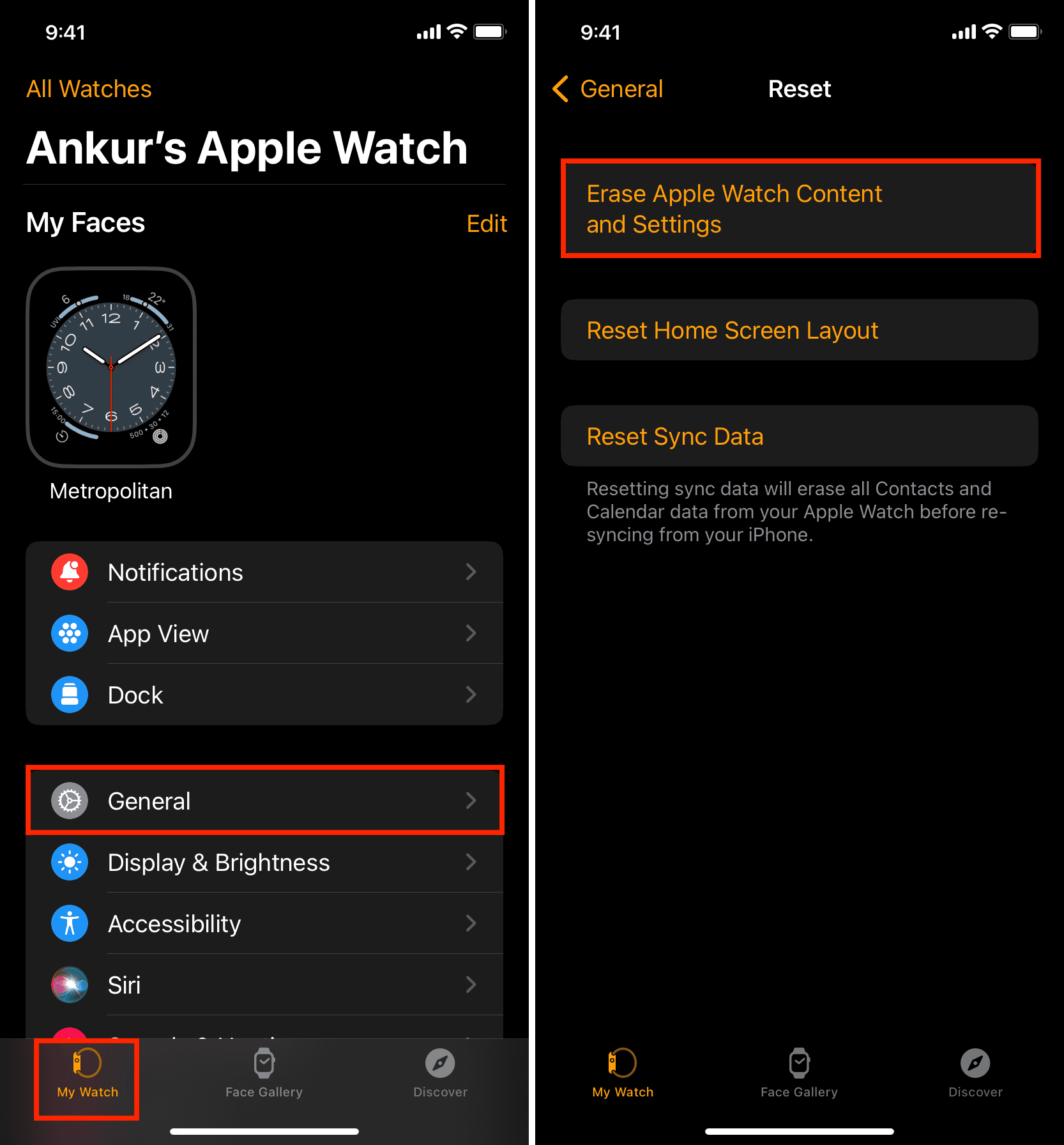
If you still have the original iPhone used to set up the watch, this is the cleanest and most effective method—it erases data and removes Activation Lock.
Erase Through Apple Watch App
- Keep both devices near each other and powered on.
- Open the Apple Watch app on your iPhone.
- Tap My Watch, go to General > Reset.
- Select Erase Apple Watch Content and Settings.
- Enter your Apple ID password when prompted.
For GPS + Cellular models, choose:
– Keep cellular plan (if reusing)
– Remove cellular plan (if selling or no longer using)
- Wait while the watch resets remotely. It will restart automatically.
✅ Activation Lock removed? Yes
💾 Backup created? Automatically, before erasure
⏱️ Time: Under 5 minutes
🛠️ Difficulty: Easy — recommended whenever possible
This method fully disassociates the watch from your Apple ID, so when you set it up again, no previous account will be asked for.
Remote Wipe via Find My (No iPhone Needed)
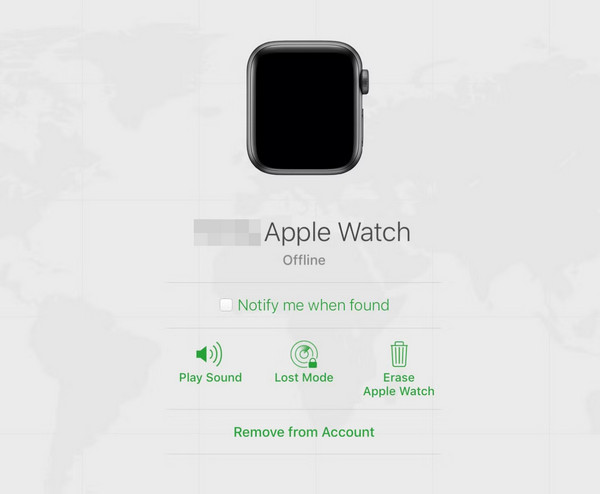
Lost your iPhone but still know the Apple ID? You can still erase your locked Apple Watch remotely via iCloud—as long as Find My Apple Watch was enabled.
Steps to Erase via iCloud
- Open a browser and go to iCloud.com.
- Sign in with the Apple ID linked to the watch.
- Click Find iPhone (yes, it covers all Apple devices).
- At the top, click All Devices.
- Select your Apple Watch from the list.
- Click Erase Apple Watch.
- Confirm the action.
📶 If offline: The erase command will execute the next time the watch connects to Wi-Fi or cellular.
Once complete, the watch resets and Activation Lock is removed, allowing a fresh setup.
✅ Works without iPhone? Yes
🚫 Won’t work if: Find My was disabled before lockout
💡 Pro tip: Use this if you lost your phone but still have Apple ID access.
Unpair Before Reset (The Smart Way)
Unpairing isn’t a reset itself, but it’s the best way to prepare for one. It ensures data is erased, Activation Lock is disabled, and your iCloud account no longer lists the device.
How to Unpair Apple Watch
- Open the Apple Watch app on your iPhone.
- Tap My Watch, then your watch under All Watches.
- Tap Unpair Apple Watch.
- Confirm—enter your Apple ID password.
The watch erases completely and disconnects from your account.
🔄 Why do this first? Prevents Activation Lock issues
🎯 Best for: Selling, gifting, or trading in your watch
Even if the watch is locked, unpairing from the iPhone triggers a full remote erase, including Apple ID removal.
What Happens After Reset?
After any successful factory reset:
- The Apple Watch restarts to the setup screen.
- Bring it close to an iPhone (iOS 13+) to pair.
- Follow prompts to:
– Choose language and region
– Set up watch face
– Restore from backup (if available)
❌ Stuck at Apple ID prompt? That means Activation Lock was not removed. You’ll need the previous owner’s Apple ID and password to proceed.
Activation Lock: The Hidden Roadblock

Here’s the reality: Erasing data ≠ Removing the Apple ID.
- A factory reset wipes personal content but leaves Activation Lock active unless done via unpairing or Find My.
- The device remains tied to the original account—unusable to others without credentials.
Can You Bypass Activation Lock?
No. There is no backdoor, no third-party tool, and no hidden method.
- You must have the Apple ID and password to disable Activation Lock.
- If forgotten, visit iforgot.apple.com for recovery.
- If it’s a secondhand watch, contact the seller to unpair it.
🚨 Warning: Resetting a device you don’t own may violate Apple’s terms and local laws.
Troubleshooting Common Issues
“Erase” Option Doesn’t Appear
On older models:
– Try the screen press method instead of button combos.
– Ensure the watch is charged above 50%.
– Repeat the gesture—some users succeed on the third attempt.
Watch Won’t Turn On After Reset
- Hold the Side Button for 10+ seconds to force power on.
- If unresponsive, charge for 15 minutes, then try again.
Cellular Plan Still Active After Reset
For GPS + Cellular models:
– If you chose “Keep Plan,” it remains active.
– To cancel: Open Apple Watch app > Cellular > Remove Plan, or call your carrier.
📞 Tip: Contact your carrier to confirm cancellation when selling.
Model Compatibility & Requirements
| Method | Supported Models |
|---|---|
| Force Reset (Button Combo) | Series 4+, SE, Ultra |
| Screen Press Reset | Series 1–3 |
| Remote Erase via Find My | All (if Find My enabled) |
| Erase via iPhone App | All (with paired iPhone) |
🔄 Software note: Outdated watchOS may block some features. Update when possible.
Real User Experiences
- mpascall: “Tried every combo on my Series 3—nothing worked. Pressed hard on the screen and BAM, erase option popped up.”
- Tard-King-LoL: “Used iCloud to erase my old watch after losing my iPhone. Took 20 minutes, but it worked.”
- Stunning-Educator320: “Bought a used watch—reset it, but now it asks for Apple ID. Can’t bypass it?”
💬 Lesson: The screen press trick saves older models. And no, you can’t skip the Apple ID without help.
Best Practices for a Smooth Reset
- Enable Find My Apple Watch — always. It’s your safety net.
- Back up regularly — so you don’t lose health or app data.
- Unpair before resetting — the only way to fully remove Activation Lock.
- Use iCloud erase if iPhone is gone — but only if Find My was on.
- Verify ownership — never reset a watch without proof of purchase.
Summary: Which Method Should You Use?
| Scenario | Recommended Method |
|---|---|
| No passcode, but have watch | Force reset (button or screen press) |
| Have paired iPhone | Erase via Apple Watch app |
| Lost iPhone, but know Apple ID | Remote erase via iCloud |
| Selling or gifting | Unpair via iPhone app |
| Forgotten Apple ID | Use iforgot.apple.com or contact Apple Support |
Final Tips
- No magic fix: There’s no way to bypass Activation Lock without credentials.
- Apple Support can help: With proof of purchase, they may assist in removing Activation Lock.
- Secondhand buyers: Always ask the seller to unpair the watch before buying.
After a successful reset and Activation Lock removal, your Apple Watch is as good as new—ready to pair, restore, or resell.
🔁 Bottom line: You can factory reset a locked Apple Watch—but only unlock it fully if you remove the Apple ID first.




