
You just unboxed your Apple Watch and are ready to supercharge it with useful apps—but how do you actually install them? Unlike your iPhone, your Apple Watch doesn’t automatically sync every app. Instead, you need to manually add them using one of two straightforward methods: directly from your wrist or through your iPhone. Whether you’re looking for fitness trackers, navigation tools, or messaging apps, knowing how to get apps on Apple Watch makes all the difference. This guide walks you through every step—from downloading your first app to troubleshooting installation issues—so you can make the most of your wearable right away.
Let’s dive into the simplest, most effective ways to install, reinstall, and manage apps on your Apple Watch.
Install Apps Directly from Apple Watch App Store
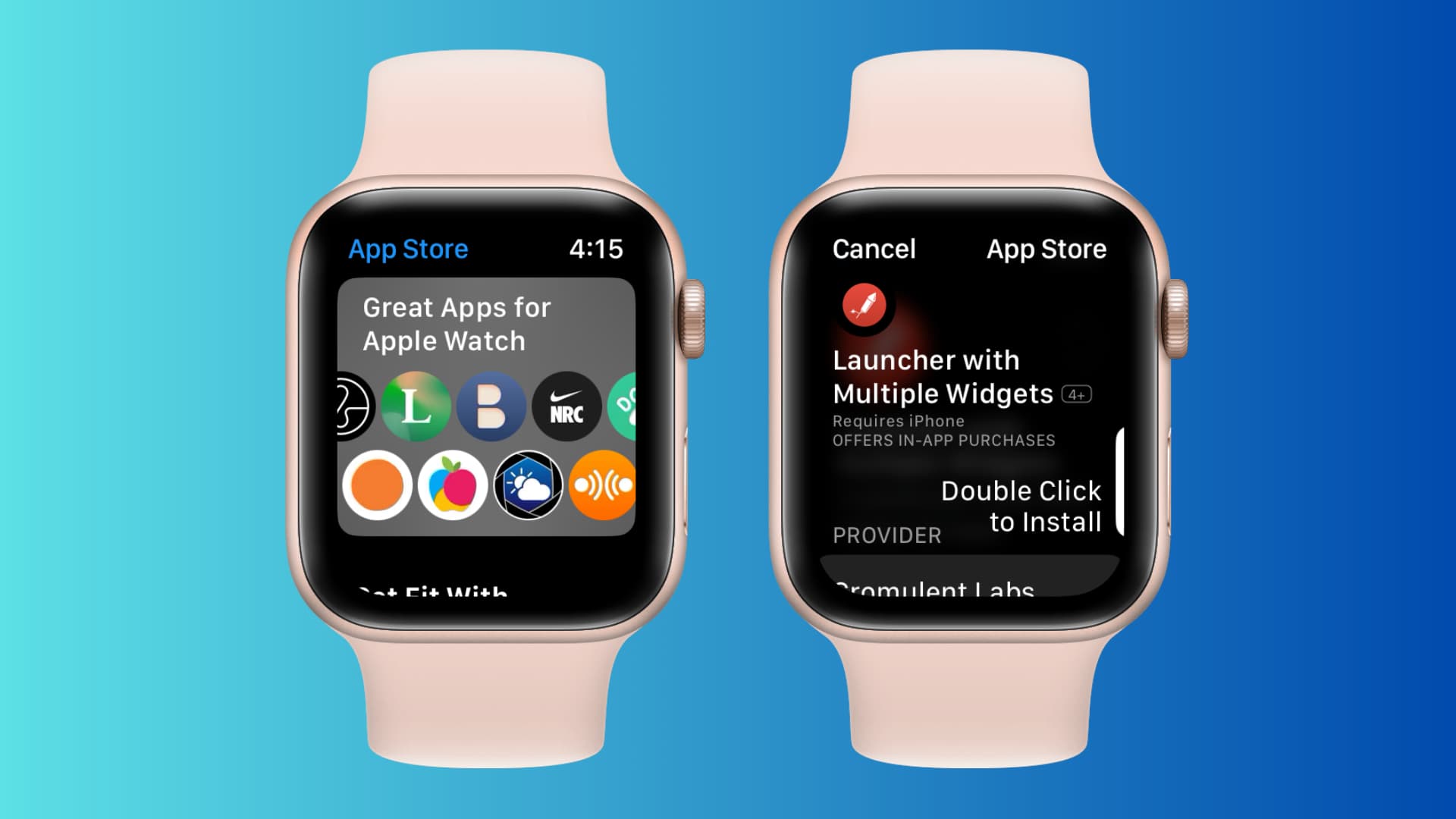
The fastest way to get new apps is straight from your wrist. The Apple Watch has its own App Store, letting you search, preview, and install apps without touching your iPhone.
Open the App Store on Your Watch
- Press the Digital Crown to open the Home screen.
- Tap the blue App Store icon (an “A” inside a circle).
- Tap Search at the bottom to find apps by name.
You can search using:
– Scribble: Write the app name with your finger.
– Dictation: Say the app name aloud.
– Onscreen Keyboard: Type slowly using the small keypad.
If you’re browsing for ideas, scroll down to explore Featured, Top Charts, or Editor’s Picks.
Download and Install Any App
Once you find an app:
– Tap it to view details: description, screenshots, ratings, and reviews.
– For free apps, tap Get.
– For paid apps, tap the price (e.g., $2.99).
Then:
– Double-click the side button (below the Digital Crown) to confirm with your Apple ID.
– Wait for the progress circle to complete. The app will appear on your Home screen.
Note: Free apps may include in-app purchases or subscriptions. You won’t be charged to download, but unlocking premium features later will require payment.
Most apps install in under a minute—faster with a strong Wi-Fi connection.
Install Apps Using the iPhone Watch App
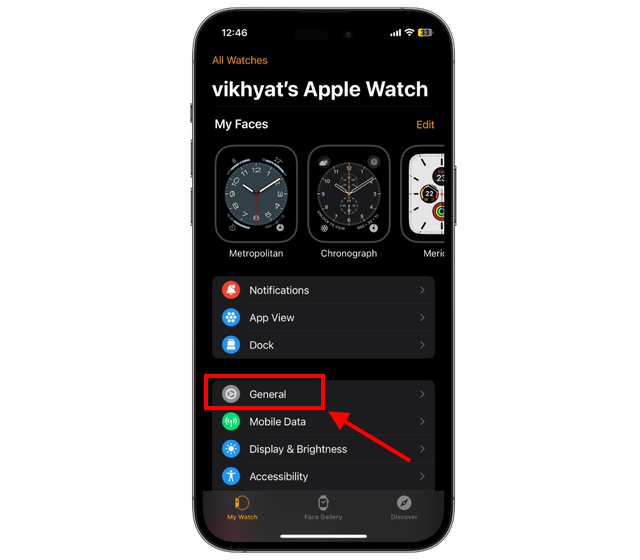
Prefer a bigger screen? Use the Watch app on your iPhone to manage all your Apple Watch apps from one place.
Access the My Watch Tab
- Open the Watch app on your iPhone (pre-installed on all compatible models).
- Tap the My Watch tab at the bottom.
- Scroll down to see installed apps and Available Apps—those compatible but not yet installed.
Install from Your iPhone
Next to any uninstalled app, tap Install. The app downloads directly to your Apple Watch—even if your phone is across the room.
This method is ideal for:
– Installing multiple apps at once.
– Reinstalling apps you deleted.
– Seeing which apps are already on your watch.
If an app shows Install instead of Open, it means it’s not on your watch but can be added instantly.
Redownload Missing or Deleted Apps
Accidentally removed a useful app? No problem. You can reinstall any previously downloaded app—for free.
Reinstall from Apple Watch
- Open the App Store on your watch.
- Tap your profile icon (top-right corner).
- Select Purchased.
- Find the app and tap Install.
Your Apple ID keeps a record of all past downloads—no repurchasing needed.
Restore via iPhone Watch App
- Open the Watch app on iPhone.
- Go to My Watch > scroll through installed apps.
- If an app appears but has an Install button, tap it to redownload.
This works even if the app was deleted months ago—perfect for bringing back seasonal or rarely used tools.
Fix Apps That Won’t Install
Sometimes, apps fail to download. Here’s how to resolve common issues.
Check Internet Connection
Your Apple Watch needs Wi-Fi or cellular to install apps:
– For Wi-Fi: Go to Settings > Wi-Fi and connect.
– For cellular (GPS + Cellular models): Ensure service is active and in range.
Try downloading again after confirming connectivity.
Free Up Storage Space
Apple Watch has limited storage. Large apps (like music or games) can fill it fast.
To check space:
1. Open Watch app on iPhone.
2. Tap General > Usage.
3. See how much storage is used and by which apps.
To free space:
– Long-press any app icon on the Home screen.
– Tap Remove App.
Pro Tip: Delete unused apps every few months to maintain peak performance.
Update watchOS and iOS
Outdated software blocks new app installations. Ensure both devices are up to date:
– On iPhone: Settings > General > Software Update
– On Apple Watch: Settings > General > Software Update
Newer apps often require watchOS 8 or later and iPhone 6s or later.
Handle Regional and Compatibility Limits
Some apps aren’t available in every country. If you can’t find an app, here’s why.
App Not in Your Region?
Developers may restrict availability due to:
– Local laws
– Language support
– Server access
Check the app’s website or developer notes to confirm if it supports your country.
App Requires Newer Hardware
Certain apps need features only on Apple Watch Series 4 or later, such as:
– ECG monitoring
– Fall detection
– Always-on altimeter
If an app won’t install, check its description for minimum model requirements.
Older watches (like Series 1–3) can’t run apps needing advanced sensors or faster processors.
Manage App Permissions and Privacy
When installing third-party apps, you’ll see permission requests like:
– Access to heart rate
– Location tracking
– Notifications
– Health data
Review Before Allowing
Always consider:
– Why the app needs each permission.
– The developer’s privacy policy (linked in App Store).
Apple doesn’t endorse third-party apps, so read user reviews and check ratings before installing.
Warning: Never grant unnecessary access. For example, a flashlight app shouldn’t need your location.
Optimize App Performance and Battery Life
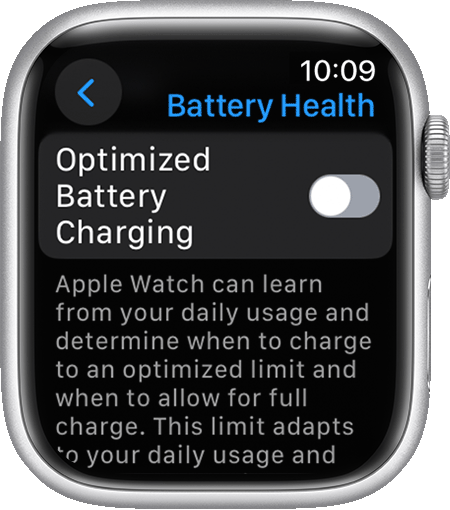
Too many apps slow down your watch and drain battery. Keep things running smoothly.
Audit Installed Apps Monthly
- Press Digital Crown to see all apps.
- Remove ones unused for 30+ days:
– Long-press icon > Remove App.
Fewer apps = faster performance and longer battery.
Use Wi-Fi for Big Downloads
Downloading over cellular uses data and drains battery faster.
Before installing large apps:
– Connect your Apple Watch to Wi-Fi.
– Start the download.
This is especially important for apps over 50MB.
Best Practices for App Success
Follow these expert tips to make the most of your Apple Watch apps.
Keep watchOS Updated
New updates unlock:
– Better app compatibility
– Security fixes
– Performance boosts
Enable automatic updates in Settings > General > Software Update > Automatic Updates.
Read Reviews Before Installing
In the App Store, tap Ratings & Reviews to see:
– Real user feedback
– Known bugs
– Developer responsiveness
Avoid apps with low ratings or no recent updates.
Organize Apps with Glances and Complications
After installing:
– Add useful apps to your Complication (watch face).
– Pin key apps in Glances for quick access.
For example: Add a weather app complication so you don’t have to open the full app.
Summary: Your App Installation Checklist
| Step | Action |
|---|---|
| ✅ Choose Method | Use App Store on watch or Watch app on iPhone |
| ✅ Search Smartly | Use Scribble, Dictation, or keyboard |
| ✅ Authenticate | Double-click side button to confirm Apple ID |
| ✅ Reinstall Freely | Redownload past apps via Purchased list |
| ✅ Check Compatibility | Confirm watchOS, model, and region support |
| ✅ Free Up Space | Delete old apps to maintain speed |
| ✅ Protect Privacy | Review permissions and developer trust |
| ✅ Update Often | Stay on latest watchOS and iOS |
By mastering these steps, you can install any app on your Apple Watch in under a minute. Whether you prefer using your wrist or your phone, the process is simple and fast. Just remember to keep your software updated, manage storage wisely, and only install apps you truly use.
Now that you know how to get apps on Apple Watch, explore health, productivity, and lifestyle tools to make your wearable work harder for you.





