
Is your Apple Watch dying before the day ends? Does it shut down unexpectedly even with 30% charge? These could be signs of battery degradation—and the solution starts with knowing your Apple Watch battery health. Unlike third-party workarounds or guesswork, Apple provides a built-in, reliable way to check your battery’s condition directly on the device. In this guide, you’ll learn exactly how to access battery health data, interpret what it means, and take real steps to extend your watch’s lifespan. Whether you’re troubleshooting poor performance, preparing to sell your device, or just staying ahead of wear and tear, this is everything you need to know—no fluff, no speculation, just facts from Apple’s own system.
Access Battery Health on Your Apple Watch
Open Settings on Apple Watch
Start by pressing the Digital Crown to return to your Home screen. Tap the Settings app—the gear icon near the bottom left. This is your central hub for system controls, including power management and diagnostics.
🔍 Pro Tip: Ensure your watch has at least 20% charge before checking. While the feature works at low levels, readings are more accurate with moderate charge.
Navigate to Battery Health
Scroll down and tap Battery, then select Battery Health. This screen reveals two critical metrics: Maximum Capacity and Peak Performance Capability—both essential for assessing long-term battery wellness.
⚠️ If you don’t see Battery Health: Your watch may be running an outdated version of watchOS or is an unsupported model. More on that below.
Understand Maximum Capacity
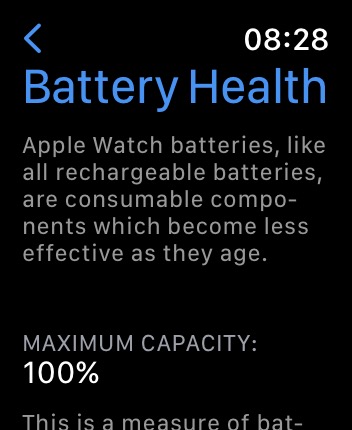
What Maximum Capacity Means
The Maximum Capacity percentage shows how much charge your current battery holds compared to when it was brand new.
- 100%: Your battery performs like new.
- 80–99%: Normal aging; still suitable for daily use.
- Below 80%: Apple considers this degraded and may display a Service Recommended alert.
For example, if your watch shows 74%, it only retains about three-quarters of its original battery life. If it once lasted 18 hours, now expect closer to 13 under the same usage.
Apple designs lithium-ion batteries to retain up to 80% capacity after about 500 full charge cycles, which typically covers 1.5 to 3 years of regular use. After that, replacement becomes a smart investment in performance.
Check Peak Performance Capability

Does Your Battery Deliver Full Power?
Even if your battery percentage looks fine, weak cells can fail under load. The Peak Performance Capability section tells you whether your battery can deliver the burst of energy needed during high-demand tasks like GPS tracking, music streaming, or workout monitoring.
- If the system detects instability, it may warn that performance could be impacted.
- Unlike older iPhones, Apple Watch doesn’t throttle speed automatically, but a failing battery can cause:
- Unexpected shutdowns
- Sluggish app response
- Delayed haptic feedback
If your watch feels slower despite full charge, poor battery health could be the hidden cause.
Enable Optimize Battery Charging
Slow Degradation With Smart Charging
In the same menu, you’ll find Optimize Battery Charging—a powerful tool that helps preserve long-term battery health by reducing time spent at 100%.
How It Works:
- Learns your routine (e.g., charging overnight).
- Charges to 80% quickly, pauses, then completes the final 20% just before you unplug.
This reduces chemical stress on the battery, helping maintain higher maximum capacity over time.
How to Turn It On:
- Go to Settings > Battery > Battery Health
- Toggle Optimized Battery Charging on
✅ Requires: watchOS 7 or later
🕒 Best results after 1–2 weeks of consistent charging patterns💡 Expert Note: Some users disable this for convenience, but keeping it on can extend your battery’s usable life by months—or even a year.
Requirements to View Battery Health
Supported Models and Software
Not all Apple Watches can show battery health. To access this feature, your device must meet specific criteria:
| Requirement | Details |
|---|---|
| Apple Watch Model | Series 3 or newer |
| Operating System | watchOS 7 or later |
| Access Method | Must be viewed directly on the watch |
❗ Important: Even if your watch is unpaired now, it must have previously been updated to watchOS 7+—a process that requires pairing with an iPhone.
Can You Check Battery Health Without an iPhone?
Only If Already Updated
Here’s the catch: You cannot enable or access Battery Health on a factory-fresh or reset Apple Watch without first pairing it to an iPhone.
Real-World Scenarios:
✅ Yes, You Can (Unpaired):
- Your Apple Watch runs watchOS 7+
- Battery Health was previously accessible
- You’ve since unpaired it
👉 You can still view battery health without being connected.
❌ No, You Can’t (Unpaired):
- Watch is pre-updated (e.g., shipped with watchOS 6)
- Never paired to an iPhone
- Running outdated software
👉 Battery Health option won’t appear, even after setup.
How to Unlock Battery Health on an Unpaired Watch
Step-by-Step Fix
Want to check battery health before selling or buying a used Apple Watch? Follow these steps:
- Pair the watch temporarily with any iPhone
- Open the Watch app on the iPhone
- Go to General > Software Update
- Install watchOS 7 or newer
- Once updated, open Settings > Battery > Battery Health on the watch
- (Optional) Unpair the watch after recording the reading
💬 Verified user reports confirm: This is the only reliable method to access battery health on previously unupdated devices.
Monitor Battery Status Without Health Data
Even if you can’t access Battery Health, you can still track general battery behavior.
Use Control Center
Swipe down from the top of the watch face to open Control Center.
- See current battery percentage instantly
- Tap the battery icon and turn the Digital Crown to view connected devices (AirPods, etc.)
👆 This is the fastest way to check charge level—ideal when you’re on the go.
Add a Battery Complication
See Charge at a Glance
Customize your watch face to include a battery complication:
- Long-press your watch face
- Tap Edit
- Swipe to the Complication screen
- Select a position and choose Battery
- Pick either Apple Watch or paired device
Now you’ll see charge status without opening any menus.
💡 Pro Tip: Use this to spot sudden drops—like if your battery falls from 60% to 20% in one hour, signaling possible app drain or system issues.
Review Battery Usage History
Find Power-Hungry Apps
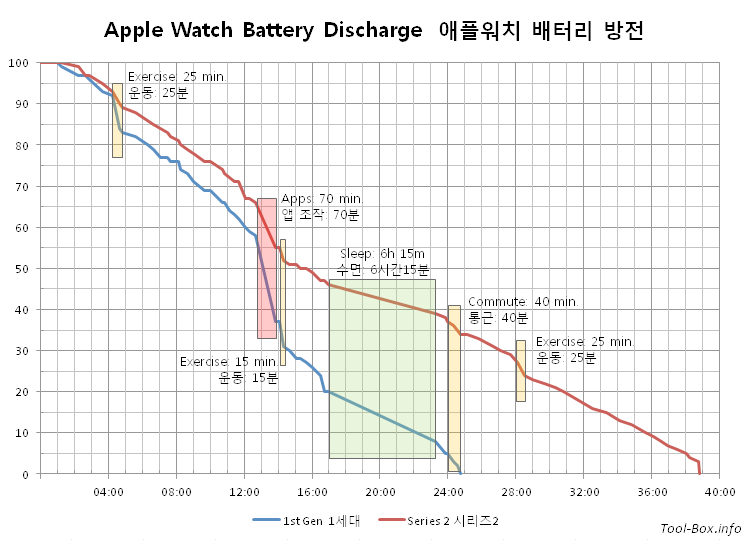
Go to Settings > Battery to see a graph of recent usage.
This visual timeline shows:
– When the watch was charging
– When battery dropped rapidly
– Estimated time since last full charge
While it doesn’t list individual app usage like iPhone, patterns reveal:
– Heavy GPS use during workouts
– Background activity overnight
– Charging gaps during the day
🔎 Look for: Frequent deep discharges (going from 100% to 0%)—these accelerate long-term wear.
Factors That Degrade Battery Life
What Hurts Your Battery?
Even with care, batteries wear out. But some habits speed up the process.
1. Extreme Temperatures
- Avoid charging or using in heat above 35°C (95°F)
- Don’t leave in direct sun (e.g., on a car dashboard)
- Cold temps can cause temporary shutdowns
2. Full Charge Cycles
- One cycle = using 100% of battery (not one full charge)
- Example: Using 50% today and 50% tomorrow = 1 cycle
- After ~500 cycles, expect capacity to drop below 80%
3. Long-Term Storage
- Never store a fully drained or fully charged watch
- Ideal: Power down at 50% and store in a cool, dry place
Extend Battery Lifespan: Best Practices
Simple Habits for Longevity
You can’t stop aging, but you can slow it.
| Habit | Benefit |
|---|---|
| Enable Optimize Battery Charging | Reduces time at 100%, slowing chemical wear |
| Avoid overnight charging daily | Or use optimized mode to delay final charge |
| Keep charge between 20–80% | Minimizes stress on lithium-ion cells |
| Update to latest watchOS | Includes battery efficiency improvements |
| Use Low Power Mode when needed | Extends single charge, reduces cycle count |
🛑 Myth: Closing apps saves battery. In reality, iOS/watchOS manages background processes efficiently—force-closing apps uses more power.
When to Consider Battery Replacement
Signs It’s Time for Service
Don’t wait for total failure. Replace your battery if you notice:
- Maximum capacity below 80%
- Unexpected shutdowns (even at 30–40%)
- Battery drains in hours, not days
- Watch won’t hold charge overnight
Apple displays a Service Recommended message when capacity drops too low—but not all users see it immediately.
🛠️ After replacement: A new battery restores capacity to near 100%, effectively resetting the clock on degradation.
Where to Get Battery Service
Official Options
Apple offers battery service through:
– Apple Stores
– Apple Authorized Service Providers
– Mail-in service (varies by region)
Cost & Coverage:
- Under AppleCare+: Free if battery holds less than 80%
- Out of warranty: Varies by model and country (e.g., $79 in the U.S. as of last update)
📌 Note: Third-party replacements exist, but may disable features like Battery Health reporting due to lack of calibration.
Final Tips for Buyers and Resellers
Selling Your Apple Watch?
- Check battery health first
- Share the screenshot with buyers
- Consider battery replacement if below 80%—it boosts resale value
Buying Used?
- Ask for proof of battery health
- If the watch is unpaired, request temporary pairing to verify software version and capacity
- Avoid devices stuck on watchOS 6 or earlier—health data is hidden
🧩 Bottom line: Battery health is not just a number—it reflects real-world usability. A Series 4 with 85% capacity will outperform a Series 6 with 65%.
Final Note: Your Apple Watch battery is a consumable component, but with the right tools and habits, you can maximize its lifespan. By checking Battery Health regularly, enabling Optimized Charging, and understanding when to seek service, you ensure your wearable stays reliable for years. Whether you’re troubleshooting, reselling, or just maintaining your device, this built-in feature gives you the clarity you need—right from your wrist.





