
You’ve probably searched “how to make Apple Watch waterproof” after getting it wet—or to prepare for swimming, showers, or sweaty workouts. Here’s the truth: you can’t make an Apple Watch waterproof, and you don’t need to. Every modern Apple Watch (Series 2 and later, including SE and Ultra models) comes with built-in water resistance from the factory. The real question isn’t how to make it waterproof—it’s how to use and protect that water resistance properly.
Water resistance means your watch can handle splashes, sweat, rain, and even swimming—within limits. But it’s not permanent, and misuse can lead to damage. The key is knowing your model’s limits, using Water Lock correctly, and following simple care steps to keep your watch safe in wet environments.
In this guide, you’ll learn exactly how water resistance works across Apple Watch models, how to activate Water Lock, how to eject water safely, and what actually damages your watch’s protection. You’ll also discover which bands are best for water use and how to avoid common mistakes that shorten your device’s lifespan.
Let’s cut through the confusion—and keep your Apple Watch in top shape, no matter how wet things get.
Know Your Apple Watch’s Water Resistance Rating
Series 2–8 & SE: Built for Swimming (50m WR)
If you own an Apple Watch Series 2 through Series 8 or the second-generation SE, your watch has a WR50 rating—meaning it’s tested to withstand depths of up to 50 meters under controlled lab conditions. This certification follows the ISO 22810:2010 standard for water-resistant watches.
That doesn’t mean you should dive 50 meters deep. Instead, this rating confirms it’s safe for:
- Pool swimming
- Ocean swimming
- Water aerobics
- Light snorkeling
However, water resistance degrades over time. Regular exposure to chlorine, salt, heat, or impacts can weaken seals. Even minor dents near the speaker or Digital Crown can compromise protection.
While you can wear it in the shower, Apple advises against it due to exposure to soaps, shampoos, and lotions, which can erode seals and damage finishes.
Apple Watch Ultra & Ultra 2: Dive-Ready Protection
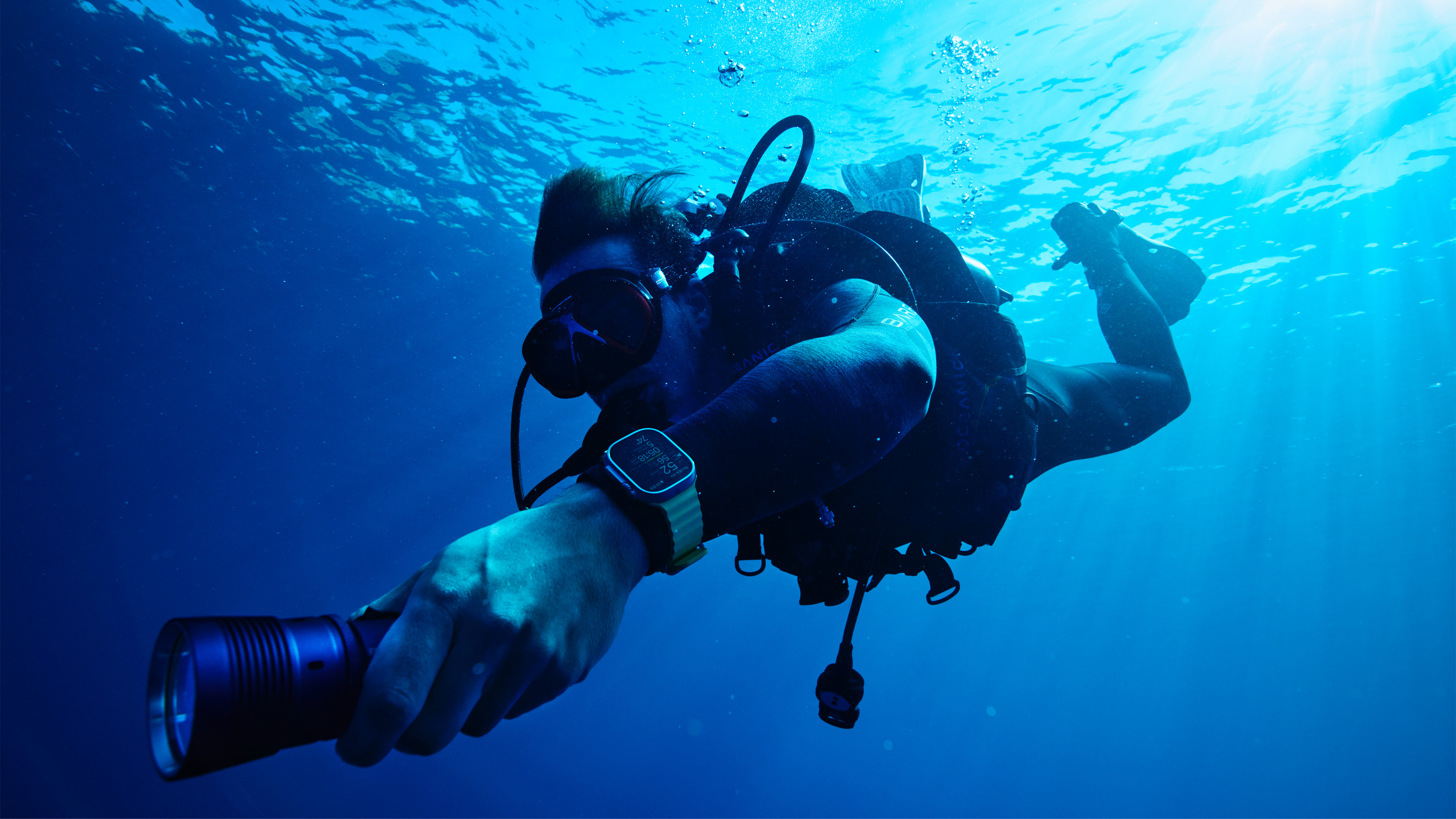
The Apple Watch Ultra and Ultra 2 go far beyond standard models with EN13319 certification, a standard used for professional diving equipment. These watches are rated for up to 100 meters and support recreational scuba diving up to 40 meters when paired with the Oceanic+ app.
Built for extreme conditions, they feature:
– A titanium case for durability
– Reinforced speaker and mic grilles
– Dual-frequency GPS and a depth sensor
– A flat, rotating crown for easier use with gloves
If you’re into snorkeling, diving, or high-speed water sports, the Ultra series is your best—and safest—option.
Avoid Water with Series 1 and Older Models
Apple Watch Series 1 and the first-generation model are only splash-resistant, not water-resistant. They’re designed to handle rain or handwashing, but should never be submerged. Even brief exposure during swimming can cause permanent damage.
If you own one of these models, keep it dry. Wipe it immediately if it gets wet.
Activate Water Lock Before Water Exposure
How to Turn On Water Lock via Control Center
Water Lock is your first line of defense in wet environments. To enable it manually:
- Press the side button to open Control Center.
- Tap the water droplet icon (ensure it’s added in the Watch app under Control Center settings).
- A blue water droplet symbol appears at the top of the screen—your touchscreen is now locked.
This prevents accidental taps from water droplets, which can pause workouts or trigger unwanted actions.
💡 Pro Tip: If you don’t see the Water Lock icon, go to the Watch app on iPhone > Control Center > Customize Controls and add it.
Automatic Activation During Swim Workouts
When you start a Pool Swim or Open Water Swim workout, Water Lock turns on automatically. This ensures:
– Touch input is disabled
– Speaker protection is engaged
– You can navigate metrics using only the Digital Crown
Even if you’re not tracking a swim, manually enabling Water Lock before any water exposure gives you the same benefits.
Quick Activation on Apple Watch SE and Similar Models
On some models, like the SE, you can activate Water Lock by:
– Pressing and holding the Digital Crown (without rotating it)
– Wait for the water droplet icon to appear
This shortcut is handy when you’re already at the pool or beach and need fast access.
Eject Water After Swimming: Clear the Speaker Safely
How to Disable Water Lock and Remove Moisture
After swimming, follow these steps:
- Dry the screen with a soft, lint-free cloth.
- Press and hold the Digital Crown until you hear high-pitched tones and feel a vibration.
– On watchOS 8 or earlier, you’ll need to rotate the Digital Crown instead. - Let the tones play fully—they use sound waves to push water out of the speaker.
This process cleans the speaker grille and prevents muffled audio or long-term corrosion.
What to Do If Sound Is Still Muffled
If your speaker remains damp:
– Repeat the ejection process 2–3 times
– Try rotating the crown slowly while tones play
– Avoid compressed air, heat, or sharp tools—they can damage internal components
Most users regain full audio clarity within two cycles.
Prevent Accidental Touches in Water
Why Water Lock Matters for Screen Control
Water conducts electricity, and droplets on your screen can trick the Apple Watch into registering false touches. Without Water Lock, you might:
– Accidentally pause your swim workout
– Launch the wrong app
– Trigger an SOS call
– Change volume or brightness unintentionally
By disabling touch input, Water Lock keeps your session smooth and your data accurate.
Navigate Using the Digital Crown Only
While Water Lock is active:
– Touchscreen is off
– Digital Crown works normally—rotate to scroll through laps, stroke type, or heart rate
– Side button still functions for menu access
This design lets you stay focused on your swim without breaking form or fumbling with settings.
Rinse After Salt or Chlorine Exposure
Protect Seals and Prevent Corrosion
After swimming in:
– Saltwater
– Chlorinated pools
– Hot tubs (not recommended)
Rinse your Apple Watch under fresh, lukewarm water. Gently wash around the speaker grilles and Digital Crown to flush out residue.
Then:
– Dry thoroughly with a microfiber cloth
– Avoid towels with rough fibers or heat sources like hairdryers
Salt and chlorine are corrosive. Over time, they degrade rubber seals and accelerate wear.
Never Use Soaps or Chemicals
Apple explicitly warns against exposing your watch to:
– Soap
– Shampoo
– Lotions
– Perfume
– Detergents
These substances break down waterproof seals and may void your warranty. Stick to plain water only for cleaning.
Choose the Right Band for Wet Activities

Hybri Strap: Best for Swimmers and Athletes
The Hybri Strap is built for water:
– Made of high-grade silicone
– 100% waterproof and quick-drying
– Breathable texture reduces sweat buildup
– Easy to clean and odor-resistant
Perfect for daily swimmers, runners, or anyone who sweats heavily.
Mona Strap: Style Meets Function
The Mona Strap offers a polished look with performance:
– Leather exterior for elegance
– Silicone inner layer for water resistance
– Fast-drying and comfortable
Ideal for office-to-pool transitions or rainy commutes.
Avoid Leather, Nylon, and Metal Bands
These materials absorb water and don’t dry quickly:
– Leather cracks and stains when wet
– Nylon traps moisture, leading to odor
– Metal bands hold water against your skin, increasing irritation risk
Save them for dry days.
Avoid High-Risk Water Situations
No Saunas, Steam Rooms, or Hot Showers
High heat expands materials and weakens waterproof seals. Never wear your Apple Watch in:
– Saunas
– Steam rooms
– Hot, steamy showers
Even if it survives, repeated exposure shortens its lifespan.
Skip High-Velocity Water Sports
Unless you own an Ultra model, avoid:
– Jet skiing
– Water skiing
– Water park slides
High-pressure water can force its way past seals, especially if buttons are pressed underwater.
Never Press Buttons Underwater
Pressing the side button or Digital Crown while submerged increases internal pressure and risks water ingress. Wait until you’re out of the water to interact.
Debunking Common Myths
“Water Lock Makes It Waterproof” — False
Water Lock is a software feature, not a physical upgrade. It doesn’t enhance water resistance—it only locks the screen and ejects water from the speaker.
“I Must Use Water Lock or Risk Damage” — Misleading
Water resistance is always active. Water Lock mainly prevents accidental touches and helps clear the speaker. Forgetting it won’t damage your watch—but you might trigger unwanted actions.
“All Apple Watches Can Go Scuba Diving” — Dangerous Myth
Only Apple Watch Ultra and Ultra 2 support recreational scuba diving up to 40 meters. Other models are rated for shallow swimming only.
Best Practices Summary
-
Know your model’s limits:
– Series 1: Splash only
– Series 2–8, SE: 50m (swimming OK)
– Ultra: 100m (scuba diving supported) -
Use Water Lock every time—before swimming, showering, or heavy sweating.
-
Eject water after every exposure—press or rotate the Digital Crown until tones play.
-
Rinse with fresh water after salt or chlorine, then dry thoroughly.
-
Use water-resistant bands like Hybri or Mona—avoid leather, nylon, and metal.
-
Avoid saunas, steam, and high-pressure water—they degrade seals.
-
Get repairs only at Apple—third-party fixes often break water resistance.
Final Note: You don’t need to make your Apple Watch waterproof—Apple already did. With proper use of Water Lock, correct post-swim care, and the right accessories, your Apple Watch will handle water like a pro. Respect its limits, follow Apple’s guidelines, and your device will stay protected for years—whether you’re swimming laps, braving the rain, or diving into adventure.





