
You crushed a 45-minute kickboxing session, completed a grueling weightlifting routine, or finished a long trail run—but your Apple Watch was left behind. No GPS. No heart rate data. No automatic ring credit. Before frustration sets in, here’s the good news: you can manually add exercise to Apple Watch and still earn full progress toward your Move and Exercise rings. This built-in feature, powered by the Health app on your iPhone, lets you preserve your fitness consistency even when real-time tracking isn’t possible.
While the Apple Watch can’t retroactively capture metrics like pace, elevation, or heart rate zones, it does accept manual workout entries that directly impact your daily Activity rings. Whether you forgot your watch, couldn’t wear it during sparring, or it died mid-hike, this guide gives you the exact steps to log your workout accurately—keeping your streak alive and your goals on track.
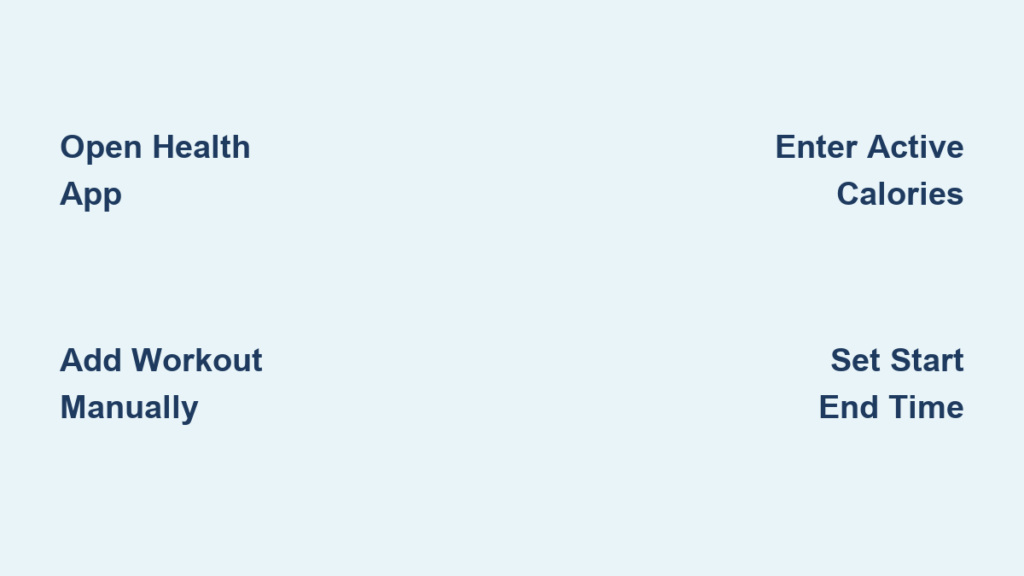
Open the Health App on iPhone
The Health app is your control center for manually logging workouts. Unlike the Activity or Fitness apps, only the Health app allows you to add exercise data after the fact.
Search for Activity Data
At the bottom of the Health app, tap Search. Type “Activity” into the search bar. When the result appears under Health Categories, tap Activity. This section organizes all fitness-related metrics synced from your Apple Watch, including steps, flights climbed, and, most importantly, Workouts.
Access Your Workout History
Inside the Activity section, tap Workouts. This screen displays every workout recorded by your Apple Watch as well as any previously added manual entries. From here, you can review past sessions or create a new one to fill in gaps from untracked exercise.
Add a Manual Workout in Seconds
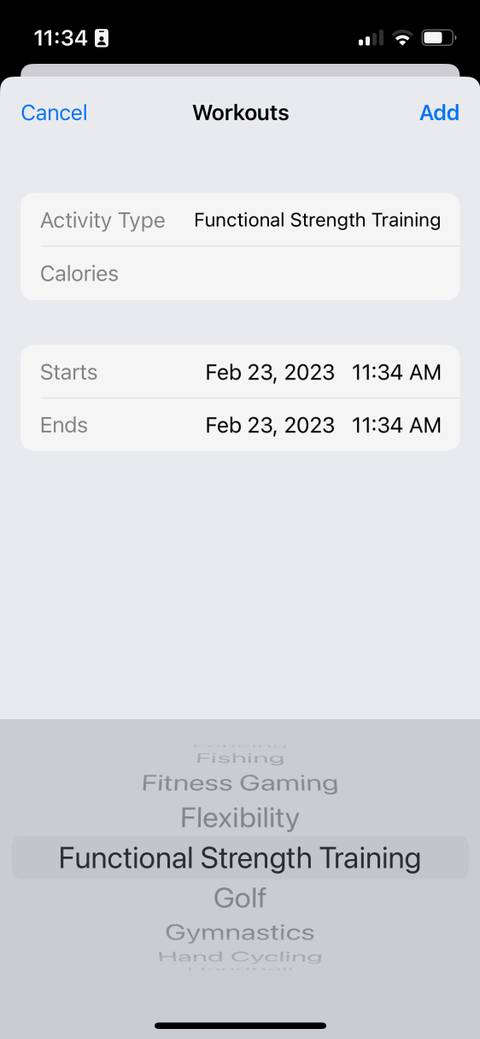
Adding a missed workout takes less than a minute—but the impact on your daily progress is significant.
Tap the Add Button to Start
In the top-right corner of the Workouts screen, tap the plus (+) icon. This opens the manual entry form where you’ll input your workout details. Don’t look for this option in the Activity app on your watch—it’s only available in the iPhone’s Health app.
Enter Accurate Workout Details
Fill in the following fields to ensure proper credit:
- Workout Type: Choose the closest match—options include Running, Cycling, Functional Strength Training, Kickboxing, HIIT, and more.
- Start Time and End Time: Set the exact duration. Every full minute of moderate activity counts toward your Exercise ring.
- Calories Burned (Active): Enter estimated active calories (not total). This value fills your Move ring. Use a fitness calculator or prior tracked workouts for accuracy.
- Distance (Optional): Add if known (e.g., 6.2 miles for a 10K), though it doesn’t affect ring progress.
- Heart Rate (Optional): Input average or max if measured with another device. This data appears in Health but doesn’t influence ring calculations.
Pro Tip: Only active calories—those burned above your resting metabolism—should be entered. Including total calories inflates your Move ring and skews long-term trends.
Save and Sync Immediately
Once all fields are complete, tap Done. The workout syncs instantly across your Apple Watch, iPhone, and iPad (if linked). Open the Activity app on your watch—you’ll see your rings update in real time.
How Activity Rings Respond to Manual Entries
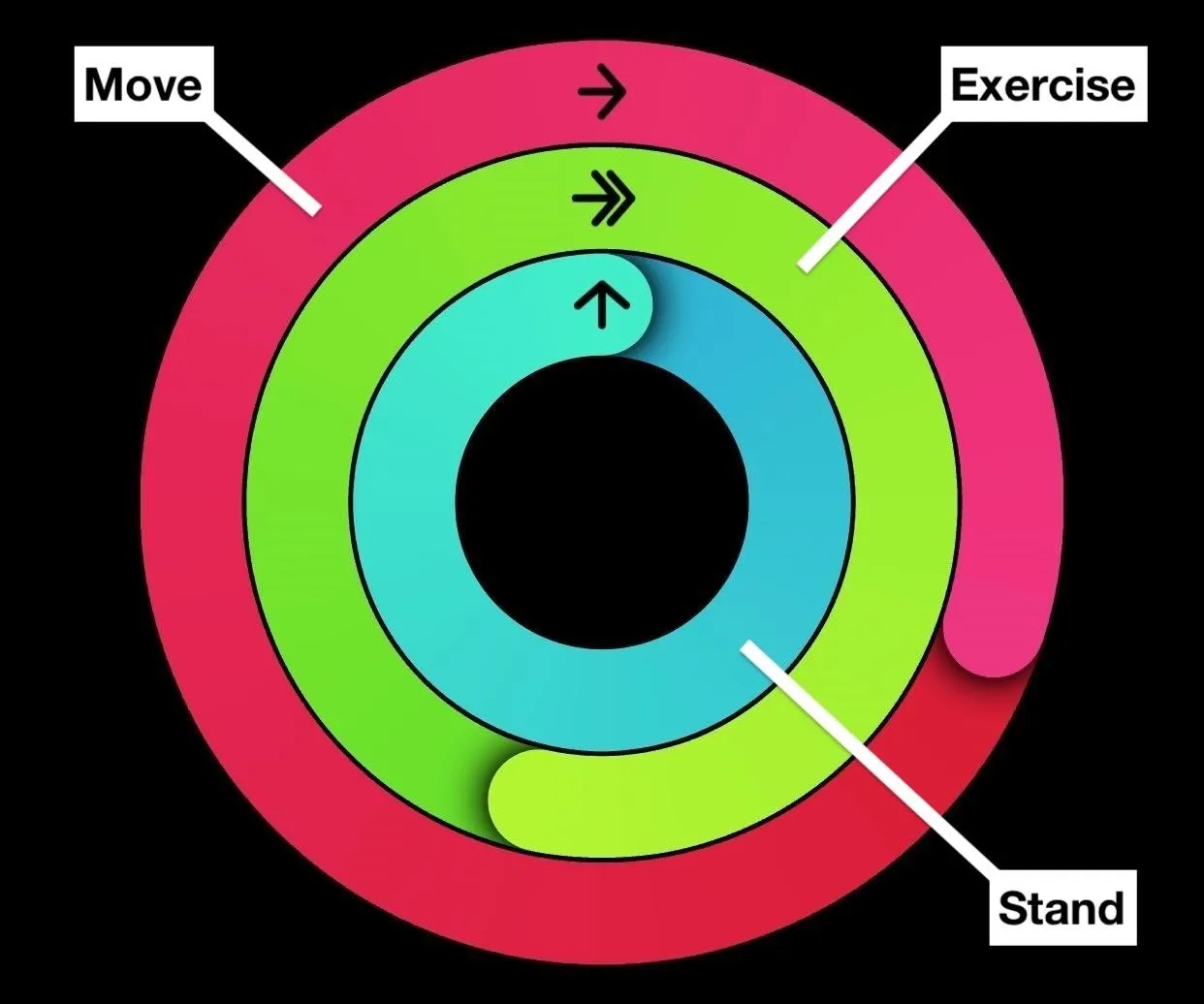
Each ring reacts differently to manual input. Knowing how they work ensures you log correctly.
Move Ring: Active Calories Drive Progress
The red Move ring fills based on active calories burned, which you must estimate and enter. If you skip this field, your Move goal won’t advance—even if duration is correct.
Example: A 50-minute intense strength session might burn ~350 active calories for a 180-lb person. Enter that number to get full credit.
Exercise Ring: Every Minute Counts
The green Exercise ring advances with each minute of moderate or vigorous activity. By entering accurate start and end times, every eligible minute contributes.
- Minimum: 1 minute required.
- Intensity: Must be above light movement (e.g., brisk walk, lifting, sparring).
- No automatic detection, but time entry fills the gap.
Stand Ring: Not Affected by Manual Workouts
The blue Stand ring is unaffected by manual entries. It requires standing and moving for at least 1 minute in 12 different hours of the day. This cannot be added retroactively through workout logs.
Supported Workout Types for Manual Entry
Apple supports over 20 activity types for manual logging. Choose the best match to maintain consistent records.
Common Manual Workout Categories
- Running
- Cycling
- Elliptical
- Stair Climbing
- Rowing
- Yoga
- Core Training
- HIIT
- Functional Strength Training
- Dance
- Kickboxing
- Swimming (Pool/Open Water)
- Cross-Training
- Other (custom)
Best Match Rule: If your activity isn’t listed (e.g., wrestling), pick the closest equivalent—like Functional Strength Training or Mixed Cardio.
Real-World Use Cases for Manual Logging
Many athletes and fitness enthusiasts rely on this feature daily.
Combat Sports Training
Boxers, wrestlers, and MMA fighters often train with gloves, wraps, or headgear that make wearing a watch unsafe. Manual logging ensures their hard work isn’t lost.
“I can’t wear my Apple Watch during sparring. But I log every session as ‘Kickboxing’ with estimated calories and time. My rings stay accurate.” — Verified user
Gym Sessions Without the Watch
Lifting heavy? Using machines? Worried about scratches? If you left your watch at home, manual entry keeps your streak intact.
Outdoor Adventures Off the Grid
Hiking, trail running, or cycling with a dead battery? Log duration and calories afterward to maintain your fitness history.
Group Fitness Classes
In spin, bootcamp, or CrossFit, watches aren’t always practical. Add the workout later using real-time notes or a fitness tracker.
Tips for Accurate Manual Logging
Precision ensures reliable data and meaningful progress.
Estimate Calories Like a Pro
Use trusted tools:
– MyFitnessPal calorie calculator
– ACE (American Council on Exercise) calculator
– Fitbit, Garmin, or Polar app logs (if used during workout)
Key factors:
– Your weight
– Exercise intensity
– Duration
– MET value of the activity
Example: A 150-lb person doing 45 minutes of vigorous weightlifting burns ~280 active calories.
Track Workouts in Real Time
Even without your Apple Watch, use:
– A fitness journal
– Voice memo
– Third-party app (e.g., Strava, Samsung Health)
– Chest strap heart rate monitor
This data makes manual entry faster and more accurate.
Be Honest and Consistent
Over-reporting inflates your Move ring and can cause Apple Fitness to raise your daily goal artificially. Under-reporting cheats your progress. Stay consistent—use the same workout type and estimation method for similar sessions.
Troubleshooting Common Issues
Even simple processes can hit snags. Here’s how to fix them fast.
Workout Doesn’t Appear in Activity App
Wait 1–2 minutes for sync. If missing:
– Restart iPhone and Apple Watch.
– Check Wi-Fi or cellular connection.
– Ensure both devices use the same Apple ID.
Rings Don’t Update
Verify:
– Start and end times are set (required for Exercise ring).
– Calories burned are entered (required for Move ring).
– Timezone matches your current location.
Missing either field = partial or no ring credit.
Add Button Missing
Make sure you’re in the correct path:
– Health app > Browse > Health Categories > Activity > Workouts > +
Don’t use the Fitness or Activity app—manual entry is only available in the Health app.
Can’t Edit or Delete Entry
Go to:
– Health app > Workouts > Find your entry > Tap Edit or Delete
Only manually added workouts can be edited. Watch-recorded sessions cannot be altered.
Limitations to Know Before You Log
Manual entry is powerful—but it has boundaries.
No Heart Rate Zones or Pace Data
Since the Apple Watch wasn’t worn:
– No heart rate graphs
– No zone breakdowns
– No pace or cadence tracking
Manual heart rate entry is for record-keeping only.
No GPS or Elevation
Routes, distance, and elevation aren’t generated. Even if you enter distance, it’s for your records—not ring credit.
Stand Ring Not Affected
You can’t manually add Stand credits. It must be earned in real time by standing and moving during 12 different hours.
Estimation Is Required
You’re responsible for accurate calorie and duration input. The system trusts your data—so be truthful.
Verified by Apple: It Actually Works
Apple confirms manual entries update your Activity rings.
“Your Activity rings update to reflect the workout added. To check your progress, open the Activity app on your Apple Watch or the Fitness app on your iPhone.”
— Apple Support, November 19, 2025
This means your effort is recognized—even without the watch on your wrist.
Final Note
Manually adding exercise to Apple Watch isn’t a hack—it’s a fully supported feature designed for real-life fitness. Whether you’re boxing, lifting, or hiking off-grid, you can still earn ring credit by entering your workout in the Health app.
Just remember:
– Use active calories, not total.
– Set accurate start and end times.
– Choose the closest workout type.
– Sync across devices automatically.
With this method, your Activity rings stay honest, complete, and motivating—no matter where your workout takes you.




