
Your Apple Watch is designed to discreetly tap your wrist with a haptic alert—no sound needed. But if it still rings during meetings, disrupts your sleep, or stays silent when it should vibrate, you’re likely missing a critical setting. The key to achieving true vibration-only mode isn’t just toggling a bell icon—it’s about correctly configuring Silent Mode, enabling haptic feedback, and locking down app-specific notifications and alarms to ensure your watch taps you, and only you, without a single sound.
Many users assume turning off sound is enough, only to be startled by a loud alarm from their iPhone. Others disable haptics by accident and receive no alert at all. This guide walks you through every step—system settings, alarm behavior, app-level controls, and troubleshooting tips—to make your Apple Watch vibrate only, every time, without fail.
Activate Silent Mode for Vibration-Only Alerts
Silent Mode is the foundation of vibration-only operation. When enabled, your Apple Watch stops all audible alerts and relies solely on haptics—but only if haptics are turned on.
Toggle Silent Mode via Control Center
- Wake your Apple Watch by pressing the side button.
- Swipe up from the bottom of the screen (or press and hold the side button on newer models with watchOS 9+).
- Tap the bell icon until it turns red.
✅ A red bell means Silent Mode is active—your watch will now vibrate instead of making noise.
🔄 On newer models, long-pressing the side button opens Control Center directly for faster access.
This method is ideal for quick switching, but remember: it resets after a restart or software update.
Set Silent Mode Permanently in Settings
For a persistent vibration-only setup:
- Press the Digital Crown to open the home screen.
- Tap Settings.
- Go to Sounds & Haptics.
- Toggle Silent Mode to On.
- Slide Alert Volume all the way to 0.
🔒 This ensures Silent Mode stays active even after reboots, giving you consistent vibration-only alerts.
Sync Silent Mode from Your iPhone
To maintain consistency across devices:
- On your iPhone, open the Watch app.
- Tap My Watch > Sounds & Haptics.
- Toggle Silent Mode to On.
🔄 This syncs your preference and helps prevent accidental sound alerts after software updates.
Turn On Haptic Alerts—The Missing Link
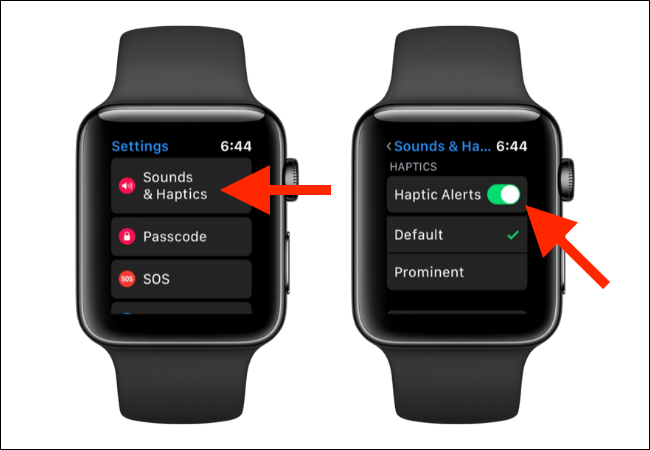
Here’s the most common mistake: users enable Silent Mode but forget to turn on Haptic Alerts. Without this, your watch will be completely silent—no sound, no vibration.
Enable Haptic Feedback on Apple Watch
- On your Apple Watch, open Settings.
- Tap Sounds & Haptics.
- Ensure Haptic Alerts is toggled On.
⚠️ If Haptic Alerts is off, your watch won’t vibrate—even in Silent Mode. You’ll miss calls, messages, and alarms.
Think of it this way: Silent Mode mutes sound. Haptic Alerts turn on the tap. Both must be active for vibration-only alerts.
Boost Vibration Strength for Reliable Alerts

A weak buzz is easy to miss—especially if you’re in a noisy office or wearing the watch loosely.
Choose Between Default and Prominent Haptics
- Open Settings > Sounds & Haptics.
- Scroll to Haptics.
- Select:
– Default: Standard tap intensity.
– Prominent: Stronger, longer vibrations.
🔍 When you select an option, your watch plays a sample vibration—test both to find what works best.
✅ Use Prominent if:
– You wear your watch with a loose fit
– You work in loud environments
– You frequently miss alerts
This small change can drastically improve alert reliability.
Enhance Usability with System Haptics
While not required for notifications, system-level haptics improve the overall tactile experience.
Enable UI Feedback Features
- On Apple Watch: Settings > Sounds & Haptics
- Toggle on:
– Crown Haptics: Feel pulses when scrolling the Digital Crown.
– System Haptics: Get taps for taps, scrolls, and menu interactions.
🛠️ These don’t affect alerts but make navigation more intuitive and responsive.
Configure App-Specific Haptic Alerts
Even with global settings correct, individual apps may disable vibrations—causing you to see a notification but feel nothing.
Verify Haptics for Each App
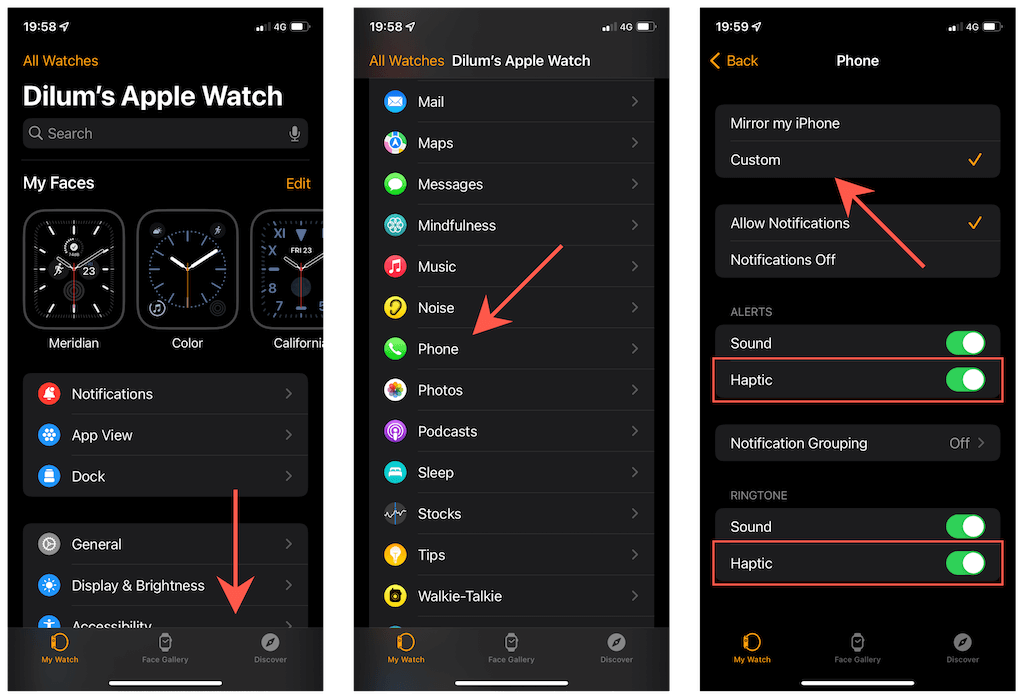
- On your iPhone, open the Watch app.
- Go to My Watch > Notifications.
- Select an app (e.g., Messages, Phone, Calendar).
- Confirm:
– Alerts: On
– Haptics: On
– Sound: Off
✅ Repeat for all key apps: Email, Slack, WhatsApp, Reminders, etc.
🎯 Example: You might see a message preview but feel no tap if haptics are disabled for that app.
This step ensures every app respects your vibration-only preference.
Make Alarms Vibrate Only—No iPhone Ringing
This is where most users fail: alarms often play sound on the iPhone, even when the watch is set to vibrate.
Set Alarms Only on Apple Watch
- Open the Alarm app directly on your Apple Watch.
- Create your alarm there.
- Delete any matching alarms on your iPhone.
✅ Why? If an alarm exists on the iPhone, the system may default to playing it there—even if your watch taps silently.
🔄 One user reported: “I stopped waking up the whole house when I deleted iPhone alarms and used only the watch.”
Keep iPhone Locked, Watch Unlocked
Apple’s handoff logic can override your settings:
- iPhone: Keep it locked during alarm time.
- Apple Watch: Wear it and keep it unlocked.
❗ If the watch is locked or not on your wrist, the system assumes it’s unavailable and triggers the iPhone’s sound alarm.
Disable iPhone Clock Sounds
Prevent fallback alerts:
- On iPhone: Settings > Apps > Clock > Notifications
- Toggle Sounds Off
- Keep Haptics On (if you want iPhone-only taps)
🔇 This stops the iPhone from playing any alarm sound, even if triggered.
Choose a Vibration-Only Alarm Tone
- On iPhone: Open Clock app > Alarm > Edit > Sound
- Select:
– Vibrate Only
– None (with haptics enabled)
📊 Avoid ringtones—even if volume is low, they can override silent behavior.
Check Sleep Mode Status
- Open the Sleep app on your Apple Watch.
- Look for this message:
“Apple Watch is in silent mode. Rather than playing a sound, your watch will tap your wrist.”
✅ If you see this, your setup is correct.
❌ If not, recheck Silent Mode and connectivity.
Troubleshoot Common Vibration Issues
Even with correct settings, problems can occur.
No Vibration at All
Cause: Haptic Alerts is off.
Fix: Go to Settings > Sounds & Haptics > Haptic Alerts = On
🚫 This is the #1 reason users get no alerts—Silent Mode without haptics means total silence.
iPhone Rings Instead of Watch Tapping
Cause: Alarm set on iPhone, not on watch.
Fix: Delete iPhone alarm, use only Watch Alarm app
🔄 Sync issues can cause the iPhone to take over—eliminate duplicates.
Weak or Missed Vibrations
Cause: Default haptic strength too low.
Fix: Switch to Prominent haptics.
✅ Also ensure the watch is worn snugly—loose fit reduces vibration feel.
Vibration Stops Early
Cause: Watch locks during alert.
Fix: Keep watch unlocked and on wrist.
🔄 System logic: If watch is locked or removed, iPhone takes over with sound.
Bell Icon Greyed Out
Cause: Software bug.
Fix:
– Restart your Apple Watch
– Update to latest watchOS
– Reset settings if needed
🔄 A quick restart often resolves unresponsive controls.
Optimize Device Sync for Reliable Alerts
Vibration-only mode depends on seamless iPhone-Watch coordination.
Keep Bluetooth On
- Ensures devices stay connected.
- Prevents iPhone from assuming watch is offline.
Update watchOS and iOS
- Bugs in older versions can break silent/haptic logic.
- Always install latest updates.
Avoid Theater Mode
- Theater Mode disables both sound and vibration.
- Use Silent Mode (red bell) for vibration-only.
🚫 Don’t confuse the two: Theater Mode = no sound, no tap. Silent Mode = no sound, tap only.
Test Your Vibration-Only Setup
Before relying on it, verify everything works.
Alarm Test Procedure
- Set a test alarm for 1–2 minutes ahead using the Apple Watch Alarm app.
- Lock your iPhone and place it across the room.
- Wear your Apple Watch, unlocked.
- Wait for the alert.
✅ Success: You feel a tap—no sound from watch or phone.
❌ Failure: iPhone rings? Delete its alarm and disable Clock app sounds.
Final Checklist: Vibrate Only Confirmed
| Setting | Location | Required State |
|---|---|---|
| Silent Mode | Control Center or Settings | ✅ On (red bell) |
| Haptic Alerts | Watch: Sounds & Haptics | ✅ On |
| Haptic Strength | Watch: Sounds & Haptics | Prominent (recommended) |
| Crown Haptics | Watch: Sounds & Haptics | ✅ On |
| System Haptics | Watch: Sounds & Haptics | ✅ On |
| App Haptics | iPhone Watch app > Notifications | ✅ Enabled per app |
| iPhone Clock Sounds | iPhone Settings > Clock > Notifications | ❌ Off |
| Alarm Source | Use Apple Watch only | ❌ No iPhone alarms |
| iPhone State | Locked during alerts | Prevents sound fallback |
Real-World Tips from Users
- “Switching to Prominent haptics made me never miss a call in meetings.”
- “The real fix was deleting iPhone alarms. Now my watch taps me—no more loud rings.”
- “I missed alerts for weeks because Haptic Alerts was off. Turn it on!”
- “Keep the watch unlocked. If it locks, the phone takes over with sound.”
📌 Some users report glitches after updates—simply re-enable Silent Mode and restart the watch.
Key Reminders
- Silent Mode ≠ Theater Mode: Use Silent Mode for vibration-only.
- Low battery may reduce haptics: Charge fully before relying on silent alarms.
- Accessibility tip: Explore Accessibility > Touch > Haptic Feedback for deeper customization.
By following this guide, your Apple Watch will deliver reliable, sound-free vibration alerts for calls, messages, and alarms—keeping you informed without disturbing others.





