
You’re juggling tasks, your hands are full, and your Apple Watch buzzes with an urgent message. Instead of fumbling through dozens of chats, you want your most important conversations—your partner, your boss, your child’s school—to appear instantly on your wrist. That’s exactly what pinning conversations on Apple Watch is designed for. But here’s the catch: the Apple Watch doesn’t let you pin messages directly like your iPhone. Instead, it relies entirely on your iPhone to manage which threads rise to the top. Without the right steps, you might see a frustrating “No Pinned Conversations” message—even after carefully setting everything up. In this guide, you’ll learn how to pin conversations for Apple Watch, fix sync issues, and use complications and widgets to access them faster. Whether you’re a busy parent, remote worker, or just want quicker replies, these steps ensure your go-to chats stay within reach—literally, at a glance.
Ensure Messages Sync Is Enabled
Before pinning any conversation, confirm your Apple Watch is set up to receive and display messages correctly.
Check Apple Watch Messages Settings
Open the Watch app on your iPhone and navigate to:
My Watch > Messages
Make sure “Show App on Apple Watch” is turned ON. If it’s off, the Messages app won’t appear on your watch at all—meaning no pinned chats, no alerts, nothing.
Also verify:
– Alerts are set to Mirror My iPhone
– App Visibility is also set to Mirror My iPhone
– iMessage is active: Go to Settings > Messages on iPhone and ensure iMessage is ON
Warning: Even if you pin ten conversations, they won’t show up on your watch if Messages isn’t enabled in the Watch app.
Confirm Device Connection and Software
Both your iPhone and Apple Watch must be:
– Connected via Bluetooth (check Control Center)
– Unlocked and active during setup
– Running the latest software:
– iOS: Settings > General > Software Update (iPhone)
– watchOS: Settings > General > Software Update (Apple Watch)
Outdated software is a common cause of sync failures. A simple update can resolve many pinning issues.
Pin Conversations Using iPhone (Only Reliable Method)

You cannot reliably pin conversations from the Apple Watch alone—Apple’s system is iPhone-first. All pinning actions should be done on your iPhone for consistent results.
Step-by-Step: Pin on iPhone
- Open the Messages app on your iPhone.
- Find the conversation you want to prioritize (e.g., spouse, boss, family group).
- Touch and hold the chat thread.
- Tap “Pin” from the pop-up menu.
- Repeat for up to three or more important contacts.
Note: You can pin more than three, but only the first three (by order) will appear on your Apple Watch.
Reorder Pinned Chats to Force Sync
Just pinning isn’t enough—many users report that changes don’t sync until you rearrange the pinned list.
To trigger the update:
1. In the Messages app, tap Edit at the top.
2. Tap the three-line drag handle next to each pinned conversation.
3. Drag your top three priorities to the very top of the list.
4. Tap Done.
Pro Tip: This drag-and-drop action forces a system-level sync with your Apple Watch. Wait 30–60 seconds, then check your watch.
Find Pinned Conversations on Apple Watch
Once synced, your pinned chats appear in two key places: the Messages app and the Messages widget.
Inside the Messages App
Open the Messages app on your Apple Watch.
At the top of the message list, you’ll see a grid of pinned conversations—even if you’ve pinned more than three, they’ll all be accessible here.
Use the Digital Crown to scroll through them quickly. This is the most reliable way to access all your pinned threads.
On the Watch Face: Messages Widget
The Messages widget (accessed by swiping up from the watch face) displays only up to three pinned conversations as small circular icons.
If you see:
– Blank circles → Sync hasn’t completed
– “No Pinned Conversations” → No valid pins detected or sync failed
How to Refresh the Widget
Even after pinning, the widget may not update automatically. To fix:
1. Reorder pins on iPhone (drag your top three to the front).
2. On your Apple Watch, swipe up to open Today View.
3. Swipe to the Messages widget and wait—sometimes it reloads after a few seconds.
Important: Only the first three pinned conversations (by order on iPhone) appear here. Rearranging on iPhone updates which ones show.
Add a Pinned Messages Complication for Instant Access
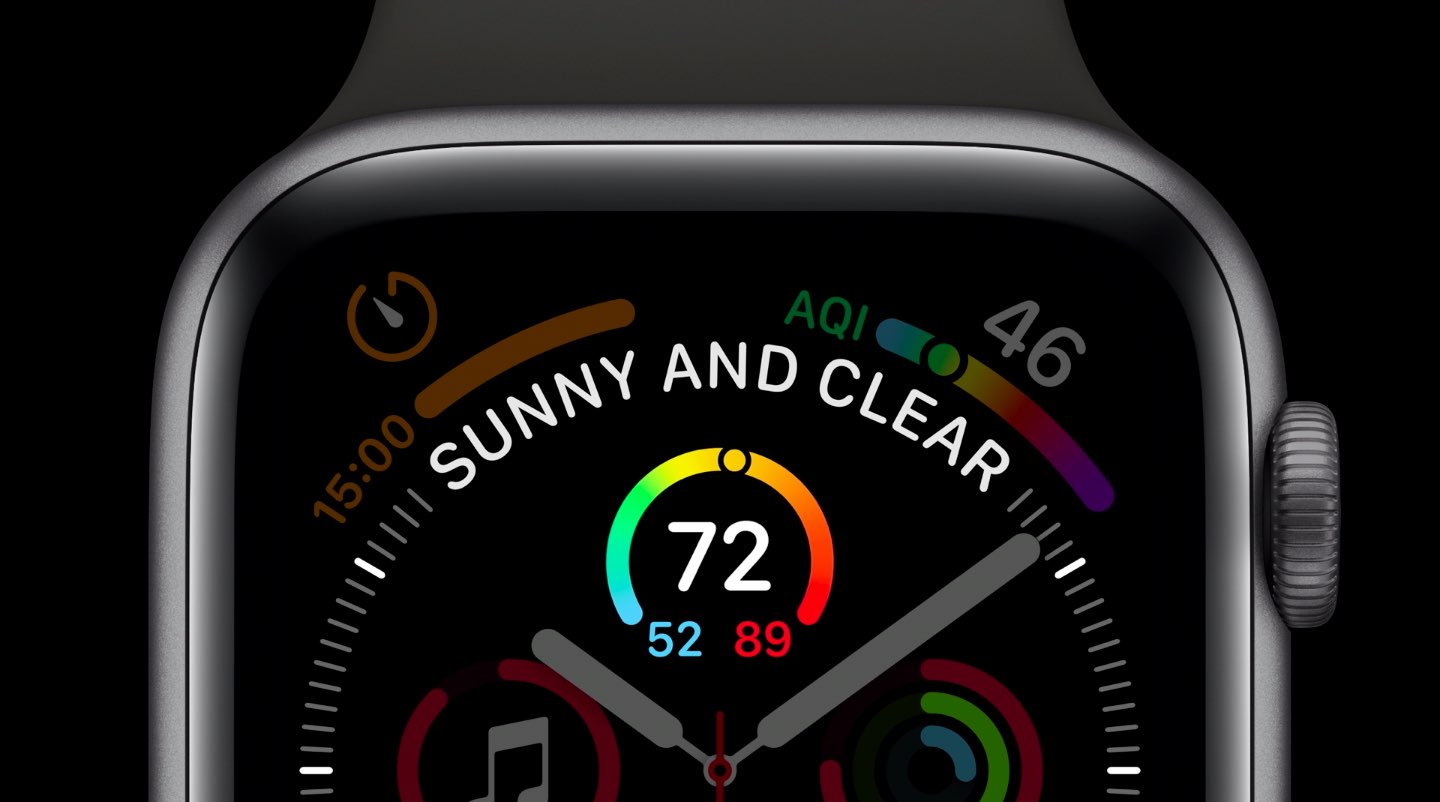
For one-tap access without opening apps or widgets, use a dedicated complication.
Supported Watch Faces
- Modular
- Modular Compact
- Modular Ultra (best for visibility)
- Contain
- Numerals
How to Add the Complication
- Press and hold your watch face.
- Tap Edit.
- Select a module (e.g., bottom or side).
- Scroll and choose “Pinned Messages”.
- Exit edit mode.
The complication displays headshots or initials of your top three pinned contacts. Tap any one to open the conversation instantly.
Expert Note: This updates automatically once sync completes—no manual refresh needed.
Fix Common Pinning Issues
Even after following the steps, problems can occur. Here’s how to resolve them.
Issue: Pinned on iPhone But Not Showing on Watch
Cause: Sync failure or cached data.
Solutions:
- Reorder pins again on iPhone
- Unpin and re-pin one conversation
- Open Messages on both devices simultaneously
- Wait up to 2 minutes—sync is not instant
Verified Fix: “After dragging my wife’s chat to first place, it appeared on the watch in under a minute.”
Issue: ‘No Pinned Conversations’ in Widget
Even with pins set, the message persists.
Fix Checklist:
✅ Messages app enabled on Apple Watch
✅ iPhone and Apple Watch connected
✅ Both devices updated
✅ At least one conversation pinned and in top three
✅ Order rearranged to trigger sync
If still failing:
– Restart Apple Watch: Hold side button > Power Off > Slide to off > Turn back on
– Restart iPhone: Hold side + volume button > Slide to power off > Restart
Then repeat the pin + reorder process.
Issue: Pins Disappear After Restart
A known quirk—pinned status sometimes resets after a watch restart.
Prevention Tips:
- Always reorder pins after repinning
- Avoid bulk unpinning—edit one at a time
- Keep iPhone unlocked and nearby when setting up
User Insight: “If I restart my watch, I have to go back into edit mode on iPhone and just drag one pin up to refresh it.”
Know the Key Limitations
Apple’s pinning system has frustrating constraints. Be aware of what to expect.
Only Top 3 Show on Widget
No matter how many you pin, only three appear on the watch face widget or complication.
The rest remain accessible inside the Messages app, but not on the surface.
No Reliable Standalone Watch Pinning
While some users report seeing a “Pin” option when long-pressing a thread on the watch, this rarely works consistently.
Changes made only on the watch usually don’t sync back to iPhone.
Sync Isn’t Automatic
Pinning metadata doesn’t sync in real time. You must manually trigger updates via reordering.
This is the single biggest reason for failed setups.
Pinned vs. Favorites Confusion
Older watchOS versions used “Add to Favorites.” Now, Favorites are retired—everything uses “Pin.”
If you see “Favorites” in old guides, treat it as outdated.
Who Benefits Most from Pinned Conversations?
Pinning isn’t just for convenience—it’s a productivity game-changer.
Caregivers & Parents
Keep emergency contacts, school group chats, or pediatrician threads at the top.
One tap to reply during urgent moments.
Remote Workers
Pin messages from:
– Your manager
– Key clients
– Daily standup channels
Avoid missing critical updates during meetings.
Frequent Texters
Reduce scroll fatigue. Instead of hunting through 50+ threads, your go-tos are always visible.
Pro Tip: Rotate pins weekly based on current needs (e.g., project chat during workdays, family chat on weekends).
Step-by-Step Checklist for Success
Use this quick reference to ensure everything works.
✅ On iPhone
- [ ] Open Messages app
- [ ] Long-press target conversation
- [ ] Tap Pin
- [ ] Repeat for others
- [ ] Tap Edit > Drag top three to front
- [ ] Tap Done
✅ On Apple Watch
- [ ] Open Messages app → Check for grid of pinned chats
- [ ] Swipe up to view Messages widget
- [ ] Confirm top three appear
- [ ] (Optional) Add Pinned Messages complication
✅ Troubleshoot If Needed
- [ ] Restart both devices
- [ ] Re-enable Messages in Watch app
- [ ] Update iOS and watchOS
- [ ] Re-pin and reorder again
Final Note: Pinning conversations on Apple Watch works—but only if you understand it’s iPhone-driven and sync-sensitive. There’s no magic button; success comes from pinning + reordering to force updates. Once set, your most important messages stay instantly accessible, turning your wrist into a communication hub. Use complications, respect the three-conversation limit, and remember: when in doubt, drag and drop to refresh.




