

You’ve just captured the perfect moment—your dog mid-leap, a golden-hour sunset, or a cherished family photo—and now you want to see it every time you glance at your wrist. The good news? You can put any picture on your Apple Watch using Apple’s native Photos watch face. No third-party apps, no complex hacks—just seamless integration between your iPhone and Apple Watch.
Whether you want one favorite image as a static backdrop or a rotating gallery that changes with each raise of your wrist, Apple makes it easy. This guide walks you through two reliable methods to set a photo as your watch face, customize its behavior, and troubleshoot common issues when pictures don’t appear. We’ll also cover how to optimize images for the small screen and manage storage for smooth syncing.
Let’s get your favorite memories onto your wrist in minutes.
Create a Photos Watch Face Using Your iPhone

The fastest and most dependable way to add a picture to your Apple Watch is through the Apple Watch app on your iPhone. This method gives you full control over album selection, layout, and syncing.
Select the Photos Face from the Gallery
- Open the Apple Watch app on your iPhone.
- Tap Face Gallery at the bottom.
- Scroll down to the Photos section and tap it.
- Choose a style: standard grid, subtle zoom, or dynamic shuffle—each affects how your image fills the screen.
✅ Pro Tip: The Photos face supports dynamic updates. If you enable shuffle, your watch displays a new photo each time you raise your wrist, pulling from your selected source.
Choose Your Photo Source: Album or Smart Collection
After selecting the face style, pick where your photos come from:
- Album: Select any user-created album (e.g., “Vacation 2024” or “Family”).
- Smart Collections: Let Apple’s AI do the work by choosing:
- People (photos of recognized individuals)
- Pets (animal faces automatically detected)
- Places & Cities (geotagged travel shots)
🔄 When using a smart collection, your Apple Watch pulls 16 curated photos per day, rotating them with each wake.
Customize Layout and Add to Your Watch
- Adjust the time position (top, center, bottom).
- Apply a color tint to blend the image with the clock.
- Add complications like weather, date, or activity rings.
- Once satisfied, tap Add in the top-right corner.
⚠️ Sync Note: Only photos from selected albums or collections will appear. To ensure syncing, go to My Watch > Photos and confirm your album is listed under Synced Albums.
Set a Specific Photo as Watch Face from Your Apple Watch
Want to instantly turn a photo you’re viewing into your watch face? You can do it directly on your wrist—ideal for spontaneous moments.
Open and Select a Photo on Your Watch
- On your Apple Watch, open the Photos app.
- Browse to an album: Recents, Favorites, Featured, or a synced custom album.
- Tap the photo you want to use.
Use “Create Watch Face” to Apply It Instantly
- Tap the More button (three dots or share icon).
- Scroll down and select Create Watch Face.
- Choose Photos as the face type.
🎯 The selected image becomes the primary photo in a new watch face. You can edit complications and time style later.
Activate and Customize the New Face
- Press firmly on the watch screen to enter Edit mode.
- Swipe left or right to find your new photo face.
- Tap Edit to adjust time style, add widgets, or change behavior.
💡 Expert Note: “Create Watch Face” doesn’t always set the face as active. You may need to manually select it from your face gallery to start using it.
Control Which Photos Appear on Your Watch
You don’t have to manually choose every image. Apple lets you automate the selection process through syncing and smart collections.
Sync Specific Albums for Full Control
- In the Apple Watch app on iPhone, go to My Watch tab.
- Tap Photos.
- Under Synced Albums, tap Add Album.
- Select any album from your iPhone’s Photos app.
📦 Storage Alert: Each photo uses space on your watch. Large albums (100+ images) may require trimming if your watch is low on storage.
Use Smart Collections for Hands-Off Curation
Instead of manual selection, use AI-powered options:
- People: Great for family or partner photos.
- Pets: Automatically includes animal faces.
- Places & Cities: Perfect for travel memories.
✅ Best Practice: Mark favorite photos as Favorites in the iPhone Photos app—they’re prioritized in smart collections.
Fix: Photos Not Showing on Apple Watch
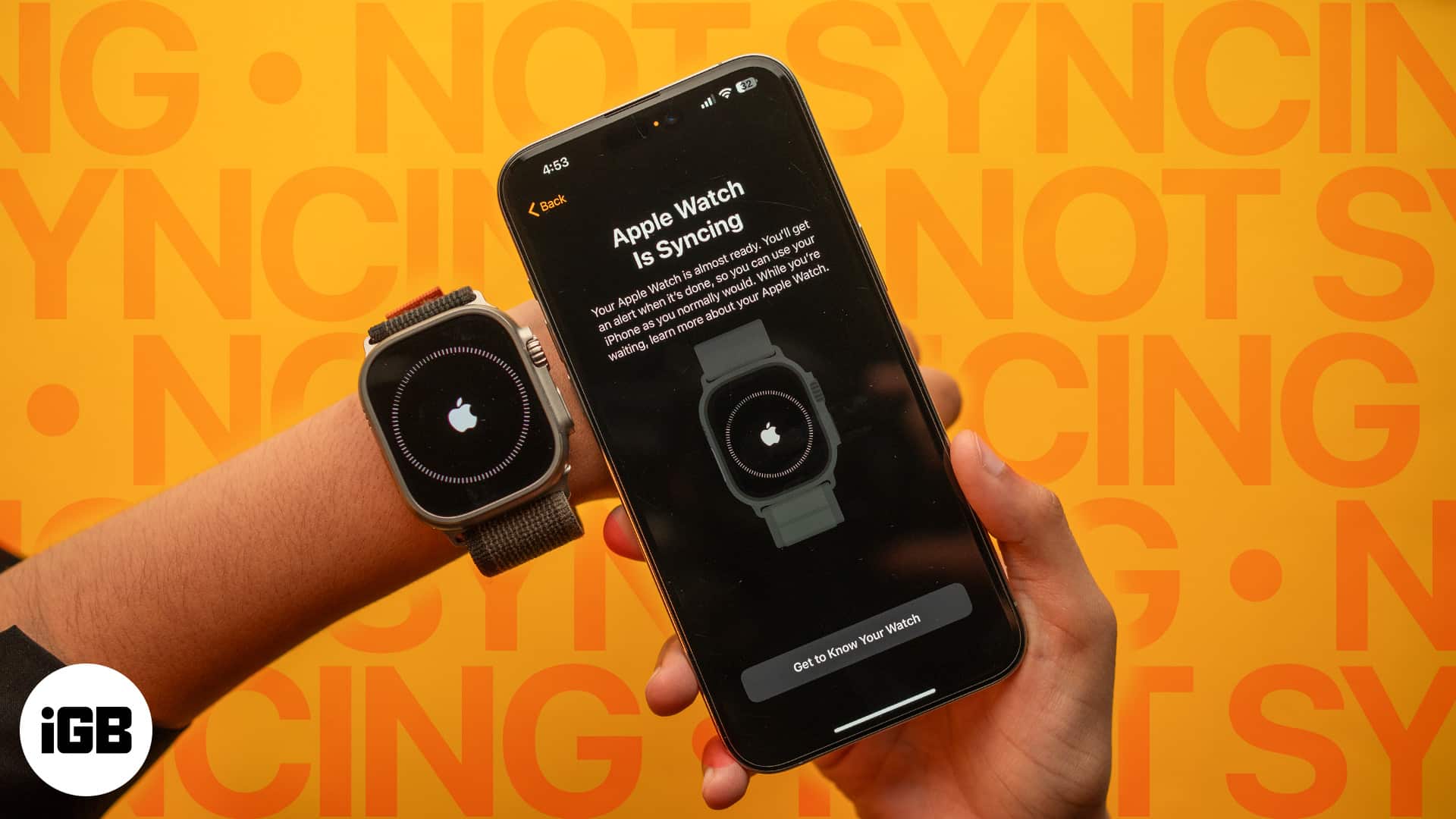
It’s frustrating when your photos don’t appear despite correct setup. Here’s how to fix it.
Verify Sync Settings
- Open Apple Watch app → My Watch → Photos.
- Check if your album appears under Synced Albums.
- If missing, tap Add Album and reselect it.
❌ Common Mistake: Many users assume all photos sync automatically. They don’t—you must manually select albums.
Free Up Apple Watch Storage
- Go to Apple Watch app → My Watch → General → Usage.
- View Available Space.
- Deselect non-essential albums to free up room.
🕳️ Storage Tip: A full watch halts photo syncing. Keep at least 500MB free for reliable performance.
Restart Devices to Force Re-Sync
- Restart your Apple Watch (hold side button until power slider appears).
- Restart your iPhone.
- Place both on charge overnight to trigger sync.
🔁 Sync typically occurs over Wi-Fi while charging. Be patient—large albums may take hours.
Optimize Photos for the Apple Watch Screen

Not all images look great on the small, high-contrast OLED display.
Avoid These Photo Types
- Low-resolution or blurry images (appear pixelated)
- Overly dark or high-contrast photos (lose detail)
- Fine details (text, small faces, intricate patterns)
🖼️ Ideal Choices: Bright, high-contrast, close-up shots with a clear subject—like a pet’s face or a scenic landscape.
Crop and Enhance Before Syncing
Use the iPhone Photos app to:
- Crop to focus on the subject.
- Adjust brightness, contrast, and sharpness.
- Apply subtle filters for mood without losing clarity.
🎨 Pro Tip: Use Markup or Shortcuts to batch-edit and prepare images before syncing.
Customize How Often Photos Change
Decide whether you want a single static image or a rotating gallery.
Enable Daily Shuffle (16 Photos Per Day)
Available when using:
- Entire Photo Library
- People, Pets, Places, Cities
Each day, Apple selects 16 photos and cycles through them with each wrist raise.
🔄 To keep one image, use a single-photo album or set a static face via the watch.
Control Change Frequency
- By default, photos change each time you raise your wrist if shuffle is on.
- To reduce changes, use a smaller album (e.g., 5–10 photos).
⏱️ No built-in timer exists, but fewer synced photos = slower rotation.
Troubleshoot Missing “Set as Watch Face” Option
Some users report not seeing the “Set as Watch Face” option after tapping “Create Watch Face.”
Update to Latest Software
Ensure both devices are up to date:
- iPhone: iOS 14 or later
- Apple Watch: watchOS 7 or later
🔄 Go to Settings > General > Software Update on both devices.
Scroll to Reveal Hidden Options
In some watchOS versions:
- After tapping Create Watch Face, you must scroll down in the editor.
- Look for Set as Current Face or Apply.
💬 User Insight: “I couldn’t set a pic until I scrolled further.” Always explore the full menu.
Maintain and Update Your Photo Watch Face
Your watch face can evolve as your photo library grows.
Add New Photos to Synced Albums
Any photo added to a synced album will appear on your watch within 24 hours or after a restart.
✅ Sync Tip: Create a dedicated “Watch Faces” album and add new favorites regularly.
Remove Old Photos
Delete from the album on iPhone to automatically remove from the watch.
🗑️ No manual cleanup needed—sync removes deleted photos automatically.
Summary: Key Steps at a Glance
| Task | How to Do It |
|---|---|
| Add photo face | iPhone: Watch app → Face Gallery → Photos → Select source → Add |
| Use one photo | Apple Watch: Photos app → Tap photo → More → Create Watch Face |
| Sync albums | iPhone: Watch app → My Watch → Photos → Synced Albums |
| Fix missing pics | Check sync, free storage, restart devices |
| Optimize display | Use high-res, well-lit, subject-focused images |
Final Tips for a Perfect Photo Watch Face
- Sync overnight: Let your watch charge while syncing to avoid interruptions.
- Use Favorites: Apple prioritizes favorite-tagged photos in smart collections.
- Avoid duplicates: Don’t sync the same photos in multiple albums—wastes space.
- Test first: Try a 10-photo album before syncing hundreds.
By following these steps, you can put any picture on your Apple Watch and enjoy a personalized, ever-changing display that reflects your life. Whether it’s your child’s smile, a mountain vista, or a beloved pet, your wrist just became a window to what matters most.




