
You’re trying to check a notification, but your Apple Watch won’t unlock. After a few wrong tries, a message appears: “Too Many Passcode Attempts” or “Try Again Later.” Then, worse—“Reset Apple Watch.” Panic sets in. You’re locked out.
This is Apple’s security system working as intended—blocking unauthorized access after repeated failed passcode entries. But if you forgot your code or triggered the lock by accident, you’re stuck. The good news? You can reset your Apple Watch and regain full access—even without knowing the passcode.
In this guide, you’ll learn exactly how to reset an Apple Watch after too many passcode attempts, step by step. We’ll cover what the lockout means, how to erase the device, how to restore your data, and how to avoid this in the future. Whether you have an Apple Watch Series 3 or the latest model, this method works across all versions.
What the Lockout Message Means
When your Apple Watch displays a lock message, it’s enforcing Apple’s security protocols. The exact message determines your next steps:
- “Try Again in X Minutes”: Temporary lock. Wait it out, then try again.
- “Too Many Attempts. Reset Apple Watch.”: Permanent lock. You must erase the device to regain access.
- “Erase All Content and Settings”: Automatic wipe—triggered only if you previously enabled Erase Data in Passcode settings.
Once you see “Reset Apple Watch,” there’s no bypass. You can’t guess the passcode, use iTunes, or connect to a Mac. The only solution is a hardware-initiated factory reset.
⚠️ There is no workaround. Unlike iPhones, Apple Watch has no recovery mode or DFU mode. The button-based reset is the official and only recovery path.
Prepare for the Reset
Before pressing any buttons, ensure you’re ready. A failed reset can leave your watch unresponsive.
Charge Your Apple Watch Fully
- Plug it into the magnetic charger.
- Wait until the charging symbol appears (red or green).
- Do not attempt the reset on low battery. The process requires continuous power.
✅ Pro Tip: Let it charge for at least 15–20 minutes if below 30%. A full charge ensures the reset completes without interruption.
Keep Your iPhone Nearby
After reset, you’ll need to re-pair the watch with your iPhone. Make sure:
- Your iPhone is unlocked.
- Bluetooth is on.
- Both devices are within close range.
✅ If your iPhone doesn’t detect the watch, open the Watch app → My Watch → Start Pairing.
Know Your Apple ID and Password
Even after a factory reset, Activation Lock remains active. During setup, you’ll be prompted to enter the Apple ID and password linked to the watch.
❌ No Apple ID access? You’re locked permanently. Visit iforgot.apple.com before starting to recover your credentials.
Check for an iCloud Backup
If you previously enabled backups, your data can be restored:
- On iPhone: Open Watch app → General → Reset → Erase All Content and Settings (only visible when unlocked).
- Or go to Settings → [Your Name] → iCloud → Manage Storage → Backups → This iPhone and check if Apple Watch is listed.
✅ A backup means you’ll recover apps, health data, messages, and custom watch faces in minutes.
How to Factory Reset a Locked Apple Watch
When you can’t unlock your watch, this button combination is your only option.
Step 1: Press and Hold the Side Button
- Press and hold the side button (below the Digital Crown).
- Keep holding until the Power Off slider appears.
- Do not slide. Leave the screen as-is.
⏱️ This takes about 3–5 seconds. The screen will dim slightly when the power menu loads.
Step 2: Add the Digital Crown to Trigger Reset
- While the Power Off screen is visible, press and hold the Digital Crown.
- After a few seconds, a “Reset” option appears with the warning:
“This will erase all data on your Apple Watch.”
✅ This is the only way to access the reset function when locked out.
Step 3: Confirm the Erase
- Tap Reset.
- Tap Reset again to confirm.
- The watch begins erasing all content.
⚠️ Do not disconnect the charger.
The process takes 3–5 minutes. The screen may go black, then show the Apple logo. This is normal.
When complete, the watch restarts to a blank setup screen: “Bring iPhone near Apple Watch.”
Re-Pair and Restore Your Apple Watch
Now that the device is clean, it’s time to bring it back to life.
Step 1: Pair with Your iPhone
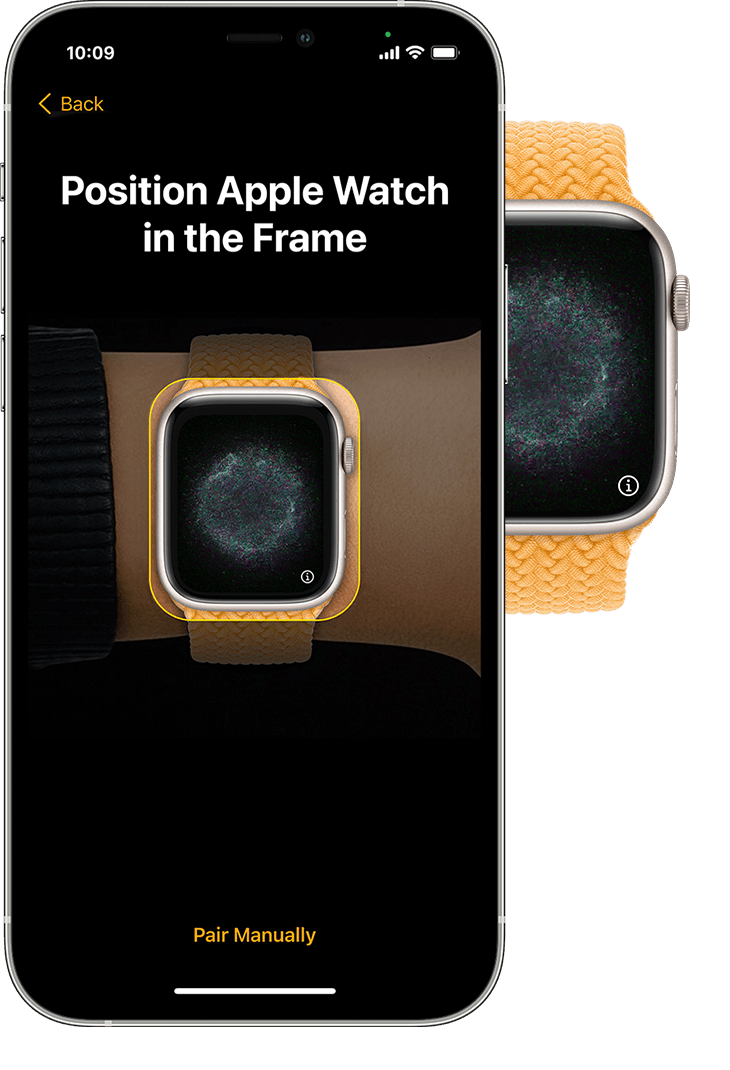
- Hold your iPhone close to the Apple Watch.
- A pairing animation appears on your iPhone.
- Tap Continue and follow the on-screen prompts.
✅ If no animation appears, open the Watch app on iPhone and tap “Start Pairing.”
Step 2: Restore from Backup
During setup, choose:
- Set Up as New Apple Watch – Start fresh.
- Restore from iCloud Backup – Best if you have one.
- Restore from iPhone Backup – Uses last synced data.
✅ Choose the most recent backup to recover health data, messages, apps, and watch faces.
The restore process takes 2–10 minutes, depending on data size and Wi-Fi speed.
Step 3: Deactivate Activation Lock
You’ll reach the Activation Lock screen.
- Enter the Apple ID email associated with the watch.
- Enter the password.
- Tap Next.
🔒 This proves ownership. Without correct credentials, the watch remains unusable.
Set a New Passcode
After activation:
- You’ll be prompted to set a new passcode.
- Choose a 4-digit or 6-digit code.
- For extra security, disable Simple Passcode and use a custom alphanumeric code.
✅ Pro Tip: Avoid birthdays or repeating digits. Pick a code that’s easy for you to remember but hard for others to guess.
Also, enable Wrist Detection so the watch locks automatically when removed.
What Data Is Lost vs. Recovered

Permanently Erased (Unless Backed Up)
| Data Type | Recoverable? |
|---|---|
| Passcode | ❌ |
| Apps & Settings | ✅ (from backup) |
| Messages | ✅ (from backup) |
| Health & Fitness Data | ✅ (if backed up) |
| Music, Photos, Wallet | ✅ (from backup) |
| Watch Faces & Complications | ✅ (from backup) |
Preserved or Retained
| Item | Status |
|---|---|
| Activation Lock | Still active (requires Apple ID) |
| watchOS Version | Unchanged |
| Hardware Functionality | Fully intact |
✅ Your backup is your lifeline. With it, your Apple Watch returns to its previous state almost instantly.
Troubleshoot Common Reset Issues
Reset Option Doesn’t Appear
Causes:
– Low battery
– Unresponsive screen
– Incorrect button timing
Fix:
– Charge for 20+ minutes.
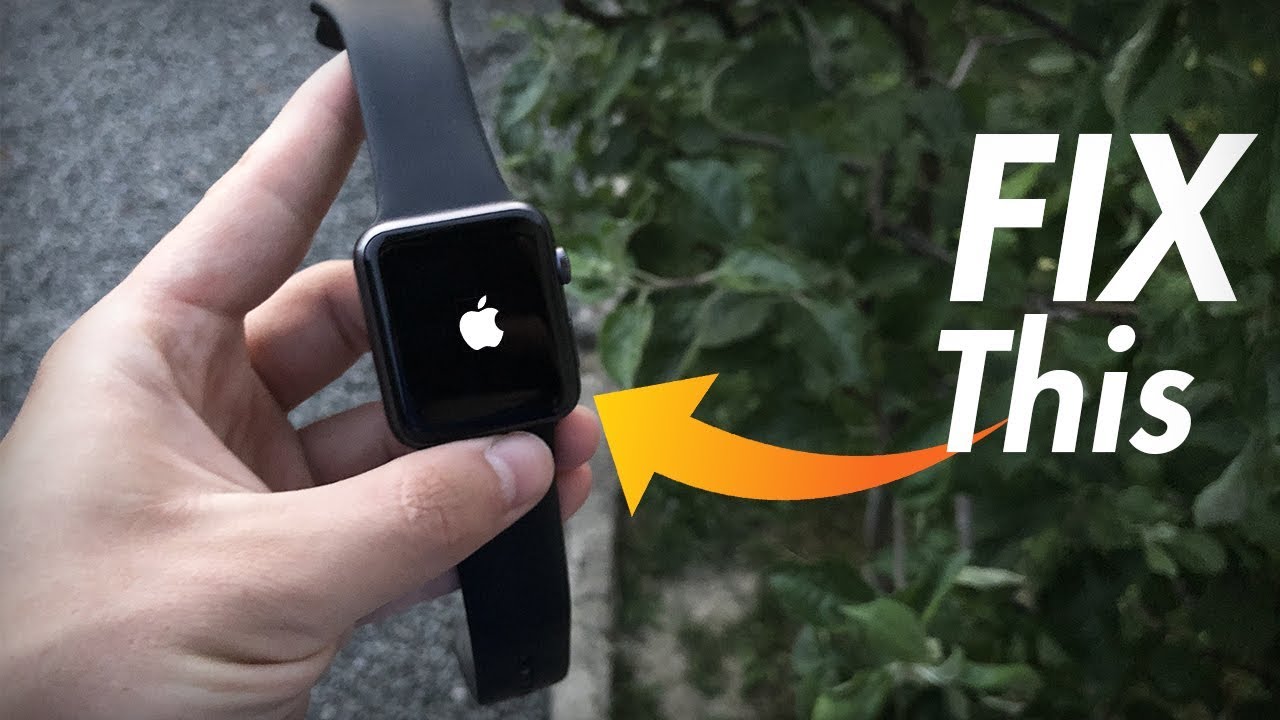
– Try a force restart: Hold Side Button + Digital Crown for 10 seconds until the Apple logo appears.
– Then repeat the reset steps.
iPhone Doesn’t Detect the Watch
Try This:
– Restart Bluetooth on iPhone.
– Toggle Airplane Mode on/off.
– Move away from Wi-Fi interference.
– Open Watch app → My Watch → Start Pairing.
✅ Wait for the animated swirl—don’t rush the pairing.
Forgot Apple ID or Password
You’ll be blocked at Activation Lock.
Solution:
– Tap “Forgot Apple ID or Password?” on the prompt.
– Enter your recovery email or phone number.
– Or visit iforgot.apple.com on another device.
🛑 Without recovery options, you cannot proceed. Contact Apple Support with proof of purchase.
No Backup Available
You can still use the watch—but expect manual setup:
- Reinstall apps one by one.
- Reconfigure watch faces.
- Re-enter health goals and workout preferences.
- Re-add credit cards to Apple Wallet.
✅ It works—just time-consuming. Back up now to avoid future hassle.
Prevent Future Lockouts
Enable Automatic iCloud Backups
- On iPhone: Open Watch app → General → iCloud → Backups → Turn On.
- Backups happen nightly when the watch is on the charger and near your iPhone.
✅ Test it: Go to Settings → [Your Name] → iCloud → Manage Storage → Backups and verify Apple Watch is listed.
Use a Reliable, Memorable Passcode
Avoid overly complex codes.
Better Options:
- 4-digit code based on meaningful numbers (e.g., apartment number, anniversary).
- Use Simple Passcode unless in a high-security environment.
- Store it in a password manager, not on paper.
Turn On Find My Apple Watch
- Go to Watch app → My Watch → Find My → Find My Apple Watch → On.
- Enables remote lock, locate, or erase if lost.
✅ Also activates Activation Lock—enhancing security.
Avoid Accidental Lockouts
Common causes:
– Watch pressing against pillow or pocket (“butt-dial”).
– Kids playing with the screen.
– Wet fingers causing misreads.
Prevention:
- Lock manually before charging: Press Side Button until screen goes black.
- Increase Wrist Raise threshold slightly if distracting.
FAQs: Quick Answers
Can I reset Apple Watch without iPhone?
✅ Yes—reset works standalone.
❌ But re-pairing requires iPhone. You can’t use the watch without it.
Does resetting remove Activation Lock?
❌ No. Activation Lock remains until you enter the original Apple ID and password.
How long does the reset take?
⏱️ 3–5 minutes to erase.
➕ 5–10 minutes to re-pair and restore.
Will I lose health data?
✅ Only if no backup exists.
With iCloud or iPhone backup, health data is restored.
Is there a recovery mode like iPhone?
❌ No. Apple Watch has no DFU or recovery mode.
The Side Button + Digital Crown method is the official recovery path.
Final Checklist Before Reset
Before you begin:
- [ ] Apple Watch is charging
- [ ] iPhone is nearby and unlocked
- [ ] You know your Apple ID and password
- [ ] You’ve checked backup status
- [ ] You’ve tried force restart if unresponsive
Summary: Regain Access in Minutes
Being locked out of your Apple Watch is stressful—but not permanent. With the correct button combo, you can reset it in minutes, even without knowing the passcode.
Here’s the full path back:
- Charge the watch
- Press and hold Side Button → then add Digital Crown → tap Reset
- Wait for erase to finish
- Re-pair with iPhone
- Restore from backup
- Enter Apple ID to disable Activation Lock
- Set new passcode
Done.
Your watch works like new—and with a backup, it feels like nothing ever happened.
Stay Prepared: Avoid Lockouts Next Time
- ✅ Back up daily via iCloud
- ✅ Use a memorable passcode
- ✅ Keep Apple ID secure
- ✅ Enable Find My Apple Watch
Do this once, and next time—you’ll be ready.
Now, grab your charger, press those buttons, and get your Apple Watch back where it belongs: on your wrist.




