If your Apple Watch is frozen, unresponsive, or you’re preparing to sell it, knowing how to reset Apple Watch the right way can save you time, data loss, and activation headaches. A reset can fix software glitches, clear personal information, or return the device to factory settings—but not all resets are equal. The method you choose depends on your situation: Do you have your iPhone? Is the watch locked out? Are you stuck in pairing mode?
This complete guide walks you through every official way to reset your Apple Watch, including hidden force-reset techniques when standard options fail. You’ll learn which method removes Activation Lock, how to avoid getting trapped by security features, and what to do if your watch won’t respond at all. Whether you’re troubleshooting, selling, or starting fresh, this is the only guide you need.
Unpair via iPhone (Best for Selling)
When giving away or selling your Apple Watch, unpairing through your iPhone is the gold standard. It’s the only method that fully disables Activation Lock, backs up your data, and ensures a clean handoff.
Why This Is the Safest Option
- ✅ Removes Activation Lock permanently
- ✅ Automatically creates a full backup
- ✅ Keeps your Apple ID secure
- ✅ Required for hassle-free resale
Use this method only if you still have your paired iPhone and know your Apple ID password.
Step-by-Step: How to Unpair Your Apple Watch
- Open the Apple Watch app on your iPhone.
- Tap My Watch, then select All Watches in the top-left corner.
- Tap the info button (i) next to your watch.
- Choose Unpair Apple Watch.
- Confirm by tapping Unpair [Name].
- Enter your Apple ID password when prompted.
- For cellular models, decide whether to Keep or Remove your plan.
The watch will erase itself remotely. Once complete, it restarts into setup mode—like it just came out of the box.
⚠️ No backup? No unpairing. If you skip this step and erase directly on the watch, no backup is created. Always unpair when possible.
Reset Directly on Apple Watch (No iPhone Needed)
Don’t have your iPhone nearby? You can still wipe your Apple Watch from the device itself—perfect for quick resets or troubleshooting.
When to Use This Method
- iPhone is lost, damaged, or unavailable
- Apps are crashing or performance is sluggish
- You want to clear data fast
Important: Activation Lock stays active unless you unpaired first via iPhone.
How to Erase All Content from the Watch
- On your Apple Watch, open Settings.
- Go to General > Reset.
- Tap Erase All Content and Settings.
- Enter your passcode.
- For cellular models, choose Keep or Remove plan.
- Tap Erase All to confirm.
Your watch will restart and reset completely. To pair again, you’ll need the original Apple ID and password to disable Activation Lock.
💡 Pro Tip: This method does not back up your data. Only use it if you’ve already synced or don’t plan to restore.
Fix Apple Watch Stuck in Pairing Mode
If your watch boots straight into the “Pair with iPhone” screen and won’t let you access Settings, you’re likely dealing with a failed reset or interrupted update. The fix? A special force-restart trick.
What Causes This Issue
- Software update failed mid-process
- Previous reset was interrupted
- Watch wasn’t properly unpaired
You’ll see the Apple logo, then immediately jump to pairing—no menus, no Settings, just setup.
Force Restart into Erase Mode
- Press and hold Side button + Digital Crown for 10 seconds.
- Release when the Apple logo appears.
- Immediately press and hold only the Side button again.
- Keep holding for 20–30 seconds.
- Wait for “Erase All Content and Settings” to appear.
- Tap Reset, then Reset Again to confirm.
The watch will erase completely and reboot into clean setup mode.
🧠 User Confirmed: “You really have to hold after the Apple logo forever—but it worked!” Timing is key. Don’t give up too soon.
Locked Out? Too Many Passcode Attempts
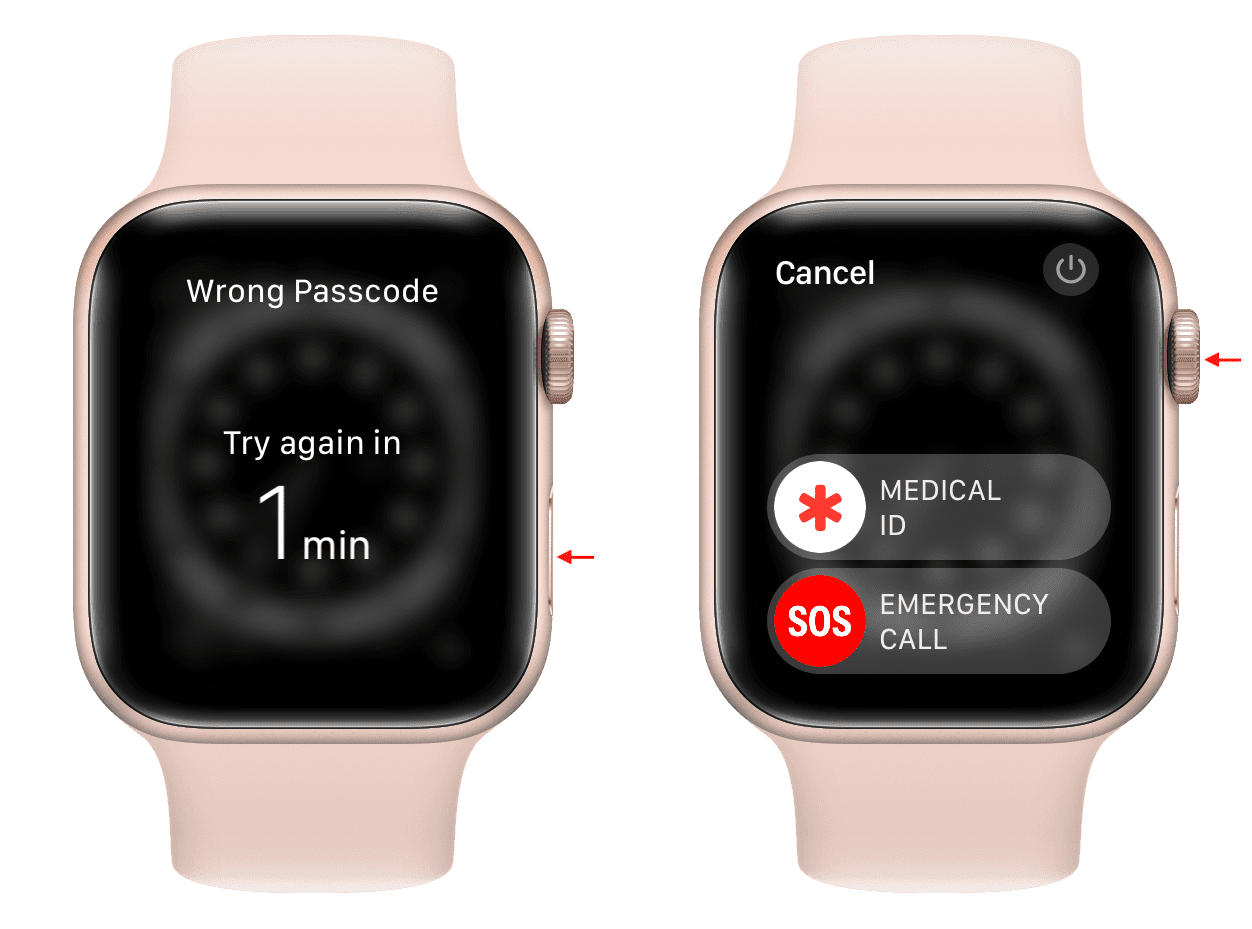
Entered the wrong passcode too many times? Apple Watch locks you out with:
“Too Many Passcode Attempts; Reset Apple Watch and pair again.”
You can’t swipe, tap, or access Settings. The only way forward is a forced reset—and it must be charging.
How to Force Reset When Locked Out
- Plug your Apple Watch into the charger.
- Press and hold the Side button until the Power Off slider appears.
- Keep holding the Side button, then press and hold the Digital Crown.
- After a few seconds, a Reset option will appear.
- Tap Reset, then Reset Again to confirm.
The watch erases all data and restarts in setup mode.
⚠️ Critical: This method only works when charging. Apple blocks resets on battery power to prevent unauthorized access.
Can You Bypass Activation Lock?
Short answer: No. You can reset the watch—but Activation Lock cannot be removed without the original Apple ID and password.
What Is Activation Lock?
- Enabled automatically when you set up your Apple Watch
- Ties the device to your Apple ID for anti-theft protection
- Prevents setup by anyone else unless unlocked
After any reset (except iPhone unpairing), you’ll still need the previous owner’s credentials to complete pairing.
❌ No loopholes: Apple does not allow bypassing Activation Lock. If buying used, ensure the seller unpaired the watch first.
Managing Cellular Plans During Reset

Have a GPS + Cellular model? Don’t forget your carrier plan—it can keep billing you even after reset.
What Happens During Reset
You’ll be asked:
– Keep Plan: Reuse it when re-pairing with the same iPhone
– Remove Plan: Choose this when selling or switching devices
After Removing the Plan
- The plan stays active in your account until canceled
- Contact your carrier (Verizon, AT&T, etc.) to stop billing
- Leaving it active = continued monthly charges
💬 User Insight: “I sold my watch but forgot to remove the plan—got billed for months!” Always double-check.
Post-Reset Setup: How to Pair Again
After any reset, your Apple Watch enters setup mode. Here’s how to pair it again.
Step-by-Step Pairing
- Keep the watch near your iPhone.
- Open the Apple Watch app.
- Tap Start Pairing.
- Follow on-screen prompts.
- When asked, sign in with the original Apple ID.
- Choose:
– Set Up as New Apple Watch, or
– Restore from Backup (if available)
⚠️ Wrong Apple ID? Setup fails. Activation Lock blocks new accounts.
Can You Restore from Backup?
Only backups created during iPhone unpairing are available. Direct resets don’t create backups.
Compare All Reset Methods

| Scenario | Best Method | Removes Activation Lock? | Needs iPhone? | Needs Passcode? |
|---|---|---|---|---|
| Selling or gifting | Unpair via iPhone | ✅ Yes | ✅ Yes | ✅ Yes |
| No iPhone access | Reset from watch | ❌ No | ❌ No | ✅ Yes |
| Stuck in pairing mode | Force restart + erase | ❌ No | ❌ No | ❌ No |
| Locked out (too many attempts) | Force reset while charging | ❌ No | ❌ No | ❌ No |
| General troubleshooting | Any working method | Depends | Optional | Optional |
Use this table to pick the right method fast.
Troubleshooting Tips That Work
Even when following steps perfectly, some users hit snags. These real-world fixes help:
Watch Won’t Show Erase Option?
- Charge fully before attempting
- Hold the Side button longer after Apple logo (up to 30 seconds)
- Try multiple times—timing matters
Reset Fails Midway?
- Ensure stable Wi-Fi during setup
- Update iPhone to latest iOS
- Restart both devices and retry
“iPhone Is Out of Date” Error?
Despite having latest iOS, this may appear due to:
– Server sync delay
– Out-of-sync watchOS version
Fix: Unpair via iPhone, update both devices, then re-pair.
Avoid These Common Mistakes
Don’t damage your device or waste time. Avoid these errors:
Inserting Pins into Holes
The tiny holes are not reset buttons. They’re:
– Microphones
– Speakers
– Water sensors (Ultra models)
Never insert tools—you risk permanent damage.
Using Third-Party Reset Tools
Apple doesn’t support external software. Stick to built-in methods only.
Forgetting to Cancel Carrier Plans
Leaving your cellular plan active = surprise bills. Always:
1. Remove plan during reset
2. Call carrier to cancel
What Happens During a Reset?
How Long Does It Take?
- 5–10 minutes, depending on data and model
- Newer models (Series 7–10) erase faster
Is Data Really Gone?
- ✅ All apps, messages, health data deleted
- ✅ Encrypted and securely erased
- ✅ No recovery without backup
Apple uses the same secure deletion standard as iPhones.
Compatibility
All methods work on:
– Apple Watch Series 3 and later
– All GPS and GPS + Cellular models
– watchOS 7 and above
Older models may have slight UI differences but follow the same logic.
When to Contact Apple Support
Try these steps first—but if nothing works, get help.
Contact Apple If
- Watch freezes during reset
- Erase option never appears
- Activation Lock persists despite correct Apple ID
- Buttons are unresponsive (possible hardware issue)
Visit support.apple.com or use the Apple Support app.
📹 Watch Video Guides: Apple provides official reset tutorials—perfect for visual learners.
Final Note: Resetting your Apple Watch is safe and effective when done correctly. Always unpair via iPhone when possible—it’s the only way to fully remove Activation Lock and create a backup. If locked out or stuck, use force-reset methods with patience. Never rush the button holds. And remember: without the original Apple ID, the watch remains locked. Whether fixing, selling, or starting fresh, this guide gives you the power to reset confidently.