
Forgetting your Apple Watch password can be more than just annoying—it can lock you out of your fitness tracking, messages, Apple Pay, and even prevent you from unlocking your iPhone. Unlike some devices that offer password recovery options, Apple does not allow you to recover or bypass a forgotten passcode on the Apple Watch. The only reliable solution is to erase the device and set it up again, then restore your data from a backup. Whether you still have access to your paired iPhone or are completely locked out, this guide walks you through every step to reset your Apple Watch password safely and efficiently. You’ll also learn how to recover your data, troubleshoot common issues like unresponsive controls or connection errors, and adopt smart habits to avoid future lockouts.
Reset Apple Watch Without Passcode (On Device)
If you can’t unlock your Apple Watch and don’t have your iPhone nearby, you can still erase it directly on the watch. This method works on watchOS 7 or later and only requires your Apple Watch and its magnetic charger.
Connect to Charger First
Before doing anything, plug your Apple Watch into its charger. A stable power source is essential—interrupting the erase process could cause software instability or a failed reset.
Force Erase Using Side Button and Digital Crown
Follow these steps carefully:
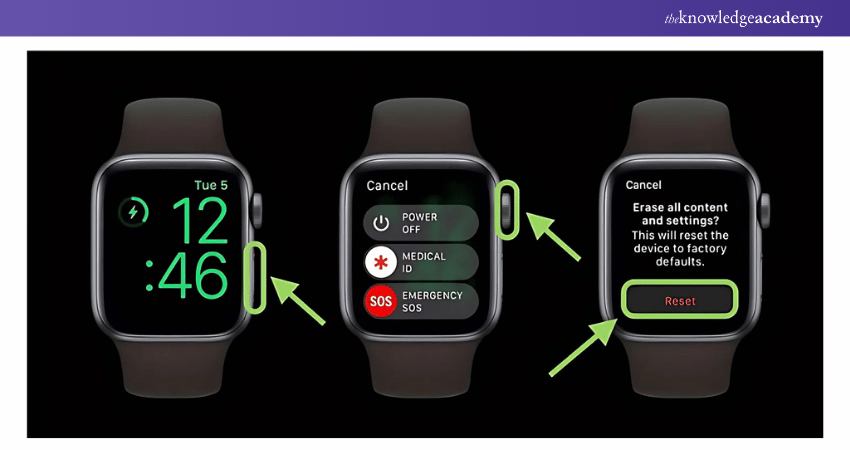
- Press and hold the Side button until the Power Off slider appears.
- Keep holding the Side button, then press and hold the Digital Crown at the same time.
- Hold both for about 10 seconds.
- When the “Erase all content and settings” option appears on screen, tap it.
- Confirm by tapping Reset, then Reset again.
⚠️ No manual backup is created, but if your watch was previously paired with your iPhone, Apple automatically saves a local backup during the erase process—so you won’t lose everything.
Wait for Reset to Finish
The Apple Watch will restart and show the Apple logo. This takes 2–5 minutes. Once it displays the setup screen, the reset is complete and you can begin pairing it again.
Reset Apple Watch Using iPhone (Best Method)
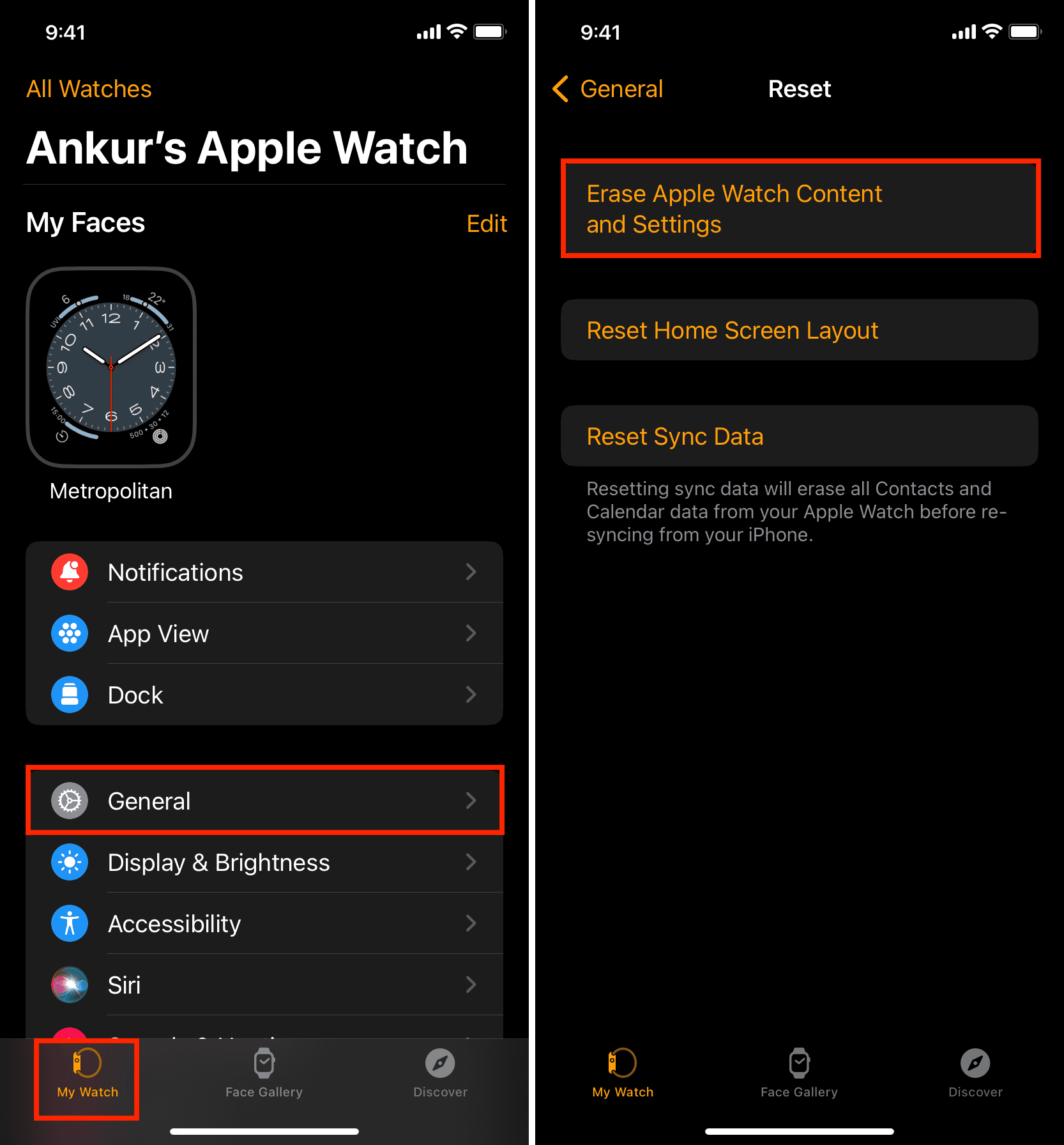
When your iPhone is available, using the Apple Watch app is the most reliable way to erase your watch. It ensures proper removal of Activation Lock and gives you control over your cellular plan (if applicable).
Open Apple Watch App and Navigate to Reset
- On your iPhone, open the Watch app.
- Tap the My Watch tab.
- Go to General > Reset.
- Tap Erase Apple Watch Content and Settings.
✅ Tip: This option only appears if your Apple Watch is connected via Bluetooth and within range.
Confirm Erase and Enter Apple ID
You may be prompted to:
– Enter your Apple ID password.
– Choose what to do with your cellular plan (for GPS + Cellular models).
For Cellular Models:
- Keep Plan: Select if you’re re-pairing the same watch.
- Remove Plan: Choose if selling or switching devices.
❗ If you remove the plan and don’t pair a new watch, contact your carrier to avoid ongoing charges.
Wait for Unpair and Wipe
The iPhone will unpair the watch and send the erase command. The process can take up to 10 minutes. Once complete, the watch restarts and shows the Apple logo—indicating it’s ready to set up again.
Fix: “Watch Is Not Connected” Error
If you see “Watch Is Not Connected” when trying to erase via iPhone, the locked state is likely preventing communication.
Why It Happens
- A locked Apple Watch can’t refresh its Bluetooth connection.
- Airplane Mode may be enabled, but you can’t disable it without unlocking.
Quick Fixes
- Ensure Bluetooth and Wi-Fi are on on your iPhone.
- Restart both devices.
- Place them within 6 inches of each other.
- Try resetting directly on the watch—it doesn’t require a live connection.
✅ Best workaround: Use the on-device reset method if the iPhone method fails.
Fix: Digital Crown Not Responding
If the Digital Crown is stuck, unresponsive, or won’t rotate, you can’t use the on-device reset method.
Clean the Digital Crown
- Turn off the Apple Watch.
- Gently rotate the crown to dislodge debris.
- Wipe with a soft, lint-free cloth.
- If exposed to saltwater or chlorine, rinse under warm tap water for 10–15 seconds, then dry thoroughly.
🚿 Apple confirms it’s safe to rinse Series 2 and later under fresh water—just avoid high-pressure or high-heat sources.
Try iPhone-Based Reset Instead
If cleaning doesn’t help, use the Apple Watch app on your iPhone to erase the device—no need to press or rotate the Digital Crown.
What Gets Deleted During Reset
A factory reset removes all data and settings from the Apple Watch:
- Apps and app data
- Music, photos, and voice memos
- Health and activity data (locally stored)
- Messages and notifications
- Apple Pay cards and Wallet passes
- Wi-Fi and Bluetooth pairings
- Custom watch faces
🔐 Activation Lock remains active unless unpaired via iPhone. However, during an iPhone-based erase, unpairing happens automatically—removing the lock.
How to Restore Data After Reset
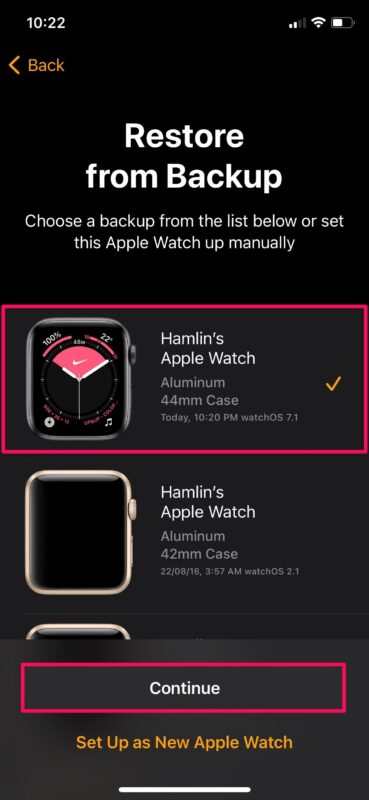
Good news: your data isn’t lost forever. Apple automatically creates a local backup on your iPhone when you erase via the Watch app.
Restore During Setup
After resetting:
- Bring your Apple Watch close to your iPhone.
- Tap Continue on the pairing screen.
- Follow setup prompts.
- When prompted, choose Restore from Backup.
- Select the most recent backup (listed by date and size).
⏱️ Restoration time: 10–30 minutes, depending on data size and Wi-Fi speed.
Verify Backup Availability
Check backups in the Watch app:
– Open Watch app > My Watch > General > Usage > Apple Watch Backups.
– Look for your device under “Backups.”
✅ Pro tip: Charge your watch nightly near your iPhone and Wi-Fi to ensure automatic backups.
Change Apple Watch Passcode (If You Can Still Access It)
If you remember your current passcode, you can avoid a full reset.
On Apple Watch
- Open Settings.
- Tap Passcode.
- Select Change Passcode.
- Enter current code, then create a new one.
On iPhone
- Open Watch app.
- Go to My Watch > Passcode > Change Passcode.
- Enter current passcode and set a new one.
❌ You cannot change the passcode if the watch is locked—only after unlocking or resetting.
Choose a Stronger Passcode (6-Digit Recommended)
Apple supports:
- 4-digit (default, less secure)
- 6-digit (recommended)
- Custom alphanumeric (most secure, but hard to enter on a small screen)
Upgrade to 6 Digits
- On Apple Watch: Settings > Passcode > Turn Off Passcode.
- Re-enable passcode and select 6-Digit Numeric.
🔐 Use a unique 6-digit code—avoid birthdays, addresses, or patterns like 123456.
Prevent Future Lockouts
Avoid getting locked out again with these simple strategies.
Store Passcode in a Password Manager
Use secure tools like:
– 1Password
– Bitwarden
– NordPass
– iCloud Keychain (with limitations)
✅ Choose end-to-end encrypted services so only you can access the code.
Write It Down (Safely)
Keep a physical copy in a locked drawer or safe—never on your phone or in your wallet.
Sync with iPhone Passcode
Use the same numeric pattern as your iPhone if it’s easy to remember—just avoid weak codes like 0000 or 111111.
Enable Wrist Detection
Go to Settings > Passcode > Wrist Detection. The watch only locks when removed from your wrist—reducing how often you need to enter the passcode.
When to Factory Reset Your Apple Watch
A full reset is useful in several situations:
Forgotten Passcode
Primary reason—no alternative exists.
Selling or Gifting
Ensure all personal data is wiped and Activation Lock is disabled.
✅ Use the iPhone method to unpair and erase—removes cellular plan and disables Activation Lock.
Software Crashes or Freezing
If the watch freezes often or apps crash, a reset can resolve hidden software issues.
Preparing for Repair
Apple Support may require you to erase the device before service.
Summary: Key Facts About Resetting Apple Watch
| Issue | Solution |
|---|---|
| Forgotten password? | Erase the watch—no recovery option |
| Reset without iPhone? | Yes—use Side button + Digital Crown |
| Will I lose health data? | No—if backed up automatically |
| Does reset remove Activation Lock? | Only if unpaired via iPhone |
| Can I keep my cellular plan? | Yes—choose “Keep Plan” during iPhone reset |
| Best passcode length? | 6 digits |
| Backup frequency? | Automatic—when charging, idle, and near iPhone |
Final Tips for a Smooth Reset
- Always charge your watch before resetting.
- Keep your iPhone nearby for easier pairing and backup access.
- Use the iPhone method when possible—it’s safer and preserves more data.
- Never disable Activation Lock before resetting—it defeats security.
- Test the Digital Crown regularly—clean it monthly if you swim or sweat a lot.
By following these steps, you can reset your Apple Watch password and get back to using your device in under 30 minutes. More importantly, with smart passcode habits and regular backups, you’ll never face a full lockout again.





