
You’re on a late-night shift, glancing at your wrist in a dimly lit room. The small “PM” beneath 2:00 is barely visible—was that 2:00 AM or 14:00? If you work in healthcare, aviation, emergency services, or simply prefer the clarity of military time (24-hour format), switching your Apple Watch to display 14:00 instead of 2:00 PM eliminates confusion and boosts efficiency. The good news: Apple makes it easy to set your Apple Watch to military time—without affecting your iPhone’s clock.
Unlike many smartwatches, the Apple Watch allows independent time formatting. You can have 24-hour time on your wrist while keeping your iPhone in 12-hour mode—a game-changer for professionals who need precision but want personal devices to stay user-friendly. This guide walks you through how to set Apple Watch to military time, which watch faces support it, why analog dials won’t show 24-hour time, and how to fix common sync issues when the change doesn’t stick.
Whether you’re a nurse tracking patient vitals, a pilot logging flight hours, or just someone tired of guessing AM/PM, this step-by-step tutorial gives you everything you need—no jargon, no guesswork.
Enable 24-Hour Time in the Apple Watch App
The only way to switch your Apple Watch to military time is through the Apple Watch app on your iPhone. There’s no direct setting on the watch itself, and toggling 24-hour time in your iPhone’s system settings won’t affect the watch unless you also enable it separately.
Open the Watch App on iPhone
- Tap the Watch app icon on your iPhone.
- Make sure you’re on the My Watch tab (bottom-left corner).
- Scroll down and tap Clock.
✅ Pro Tip: The “Clock” section controls how time is displayed on your watch—not alarms, world clocks, or sleep schedules. Keep scrolling past “Time Zone Support” and “24-Hour Time” is the first toggle you’ll see.
Toggle On 24-Hour Time
- Tap the switch next to 24-Hour Time to turn it green (ON).
- Wait 10–20 seconds. The setting syncs automatically with your Apple Watch.
Once enabled, your watch will display time as 14:30 instead of 2:30 PM—but only on digital-compatible watch faces. You don’t need to restart, unpair, or manually refresh. The update happens silently in the background.
⚠️ Important: This change only affects digital time displays. Analog watch faces—including Infograph, GMT, and Classic—will continue showing 12-hour time regardless of this setting.
Which Watch Faces Show Military Time?
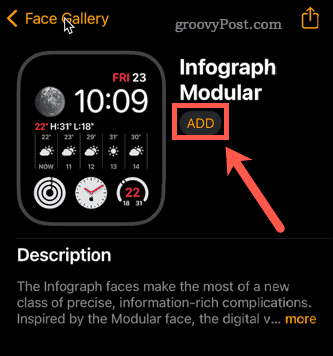
Not all Apple Watch faces support 24-hour formatting—even with the setting enabled. Here’s what works and what doesn’t.
✅ Supported Digital Watch Faces
These faces automatically switch to 24-hour format when the setting is on:
- Modular – Large digital time with customizable complications
- Numerals – Clean, bold numbers ideal for quick reading
- Timelapse (City/Sky) – Dynamic backgrounds with digital time overlay
- Motion – Animated time display that updates throughout the day
- Astronomy – Earth, Moon, or Solar view with digital time
- Solar – Sun position-based design with 24-hour time
- Simple – Minimalist digital display
🎯 Best Picks:
– Modular: Perfect for showing 24-hour time + heart rate, activity rings, or a timer.
– Numerals Mono: High-contrast black-and-white font, excellent for low-light conditions like night shifts.
– Timelapse: Automatically adjusts brightness and shows time clearly over city skylines or star fields.
To add a new face:
1. Press the watch screen to enter face selection.
2. Swipe left and tap +.
3. Choose a digital face from the Face Gallery.
4. Customize by tapping Edit and adjusting size or complications.
❌ Unsupported: Analog Watch Faces
All analog dials — including Infograph, GMT, Classic, Solar Analog, and X-Large — do not display 24-hour time, even with the setting enabled.
Why? Because:
– The hour hand still completes a 12-hour cycle.
– No AM/PM indicator changes to reflect 24-hour time.
– Complications cannot show 24-hour time for the local zone.
💬 Real User Frustration:
“I need both a second hand and military time on my watch face. Nurses, pilots, and military personnel use both. Why can’t Apple combine them?”
Despite years of user feedback since 2017, Apple has not added 24-hour support to analog faces in any watchOS update, including watchOS 10.
Keep iPhone in 12-Hour Mode While Watch Uses 24-Hour
Yes—your Apple Watch can show military time while your iPhone stays in 12-hour format. This is one of the most underused but powerful features of Apple’s ecosystem.
How It Works
- Apple Watch app → Clock → 24-Hour Time: Controls only the watch
- iPhone Settings → General → Date & Time → 24-Hour Time: Controls only the phone
You can mix and match:
– Apple Watch: 24-hour ON
– iPhone: 24-hour OFF
✅ Real-World Example:
A paramedic uses 24-hour time on their Apple Watch during shifts for accurate log entries but keeps their iPhone in 12-hour mode to avoid confusing family members at home.
Just ensure:
– 24-Hour Time is ON in Watch app → Clock
– 24-Hour Time is OFF in iPhone Settings → General → Date & Time
No reboot needed. Both devices sync independently and function without conflict.
Troubleshooting: Watch Still Shows 24-Hour Time After Turning It Off

You disabled 24-hour time—but your Apple Watch still shows 19:15 instead of 7:15 PM. What’s going wrong?
1. Check iPhone’s System Time Format
Even if you turned it off in the Watch app, your iPhone’s regional settings may force 24-hour time.
Go to:
– Settings → General → Date & Time
– Ensure 24-Hour Time is OFF
– Turn Set Automatically ON (recommended)
🔄 Why? Some regions (like Germany, France, or Canada) default to 24-hour time. If “Set Automatically” is off, your phone might be using a regional format that overrides your preference.
2. Verify Region Settings
- Open Settings → General → Language & Region
- Tap Region
- Select United States (or another region that uses 12-hour time)
Changing this resets system-wide formatting rules and often fixes stuck time displays.
3. Restart Both Devices
Sync glitches can delay updates.
Restart Apple Watch:
– Press and hold the side button and Digital Crown for 10+ seconds.
– Release when the Apple logo appears.
Restart iPhone:
– Press volume up/down + side button (varies by model).
– Slide to power off, then turn back on.
Wait for full reboot—then check the watch face.
4. Update Software
Outdated OS versions can cause display bugs.
Update:
– iPhone: Settings → General → Software Update
– Apple Watch: Watch app → General → Software Update
Ensure both devices are on the latest version.
5. Unpair and Re-Pair (Last Resort)
If nothing works:
1. Open Watch app → My Watch → All Watches
2. Tap (i) next to your watch
3. Tap Unpair Apple Watch
4. Follow prompts to erase and re-pair
⚠️ Warning: This removes all data on the watch. Back up health data first via iCloud.
After setup, re-enable 24-hour time. This forces a clean sync and usually resolves persistent formatting issues.
Can You Display Both 12-Hour and 24-Hour Time?
No—Apple does not allow dual time display on a single watch face.
You cannot:
– Show 2:30 PM and 14:30 simultaneously
– Add a 24-hour complication to an analog face
– Display military time in a subdial or corner
📝 Workaround:
Use the Modular face with:
– Main time in 24-hour format
– A world clock complication set to a 12-hour region (e.g., New York)
But you can’t see both formats for the same time zone.
Submit Feedback to Apple
Thousands of users have requested this feature. You can too.
Visit: apple.com/feedback/watch.html
Request:
– 24-hour time in complications
– Military time support on analog faces
– Dual-format display option
The more feedback Apple receives, the more likely they’ll add it in a future update.
Best Watch Faces for Military and Medical Professionals
If you rely on accuracy, clarity, and speed, choose a face that maximizes readability.
1. Modular
- Large digital time
- Up to 8 customizable complications
- Ideal for showing timers, heart rate, ECG, and world clocks
✅ Use Case: Nurses track medication schedules in 24-hour format while monitoring patient vitals.
2. Numerals Mono
- Black-and-white high-contrast display
- No distractions
- Excellent for low-light environments
🌙 Night Shift Tip: Use Numerals Mono Black to reduce glare in dark rooms.
3. Timelapse (City)
- Digital time over a dynamic skyline
- Automatically adjusts brightness
- Great for outdoor operations or shift changes
📍 Note: Only shows 24-hour time if the setting is enabled or your region uses it.
Common Mistakes to Avoid
❌ Only Changing iPhone Settings
If you enable 24-hour time in iPhone Settings but not in the Watch app, your Apple Watch won’t change.
✅ Fix: Always toggle 24-Hour Time in Watch app → Clock for watch-specific control.
❌ Expecting Analog Faces to Change
No toggle will make an analog dial show 24-hour time.
✅ Fix: Stick to digital faces like Modular or Numerals for true military time.
❌ Skipping Restart After Changes
Sometimes the display lags.
✅ Fix: Restart both devices after toggling to ensure the change applies.
❌ Using Third-Party Apps
Some apps claim to show military time—but they can’t override system restrictions.
✅ Fix: Trust only built-in settings and Apple-approved watch faces.
Final Tips for Long-Term Use
Once set, military time works reliably—but a few maintenance habits help.
🔋 Battery Impact
- 24-hour time uses zero extra power.
- Digital faces may use slightly more battery than analog, depending on brightness and animation.
🔄 Multiple Watches?
If you own more than one Apple Watch, repeat the 24-Hour Time toggle for each in the Watch app. Settings are not shared.
🧰 Monthly Check
Every 30 days:
– Open Watch app → Clock
– Confirm 24-Hour Time is still ON
– Check for software updates
Prevents accidental resets after OS updates or sync errors.
Summary: Apple Watch Military Time – Quick Reference
| Feature | Supported? |
|---|---|
| Set Apple Watch to 24-hour time | ✅ Yes |
| Keep iPhone in 12-hour mode | ✅ Yes |
| Works on analog watch faces | ❌ No |
| Shows 24-hour in notifications | ✅ Yes |
| Dual 12/24-hour display | ❌ Not possible |
| Fix sync issues with restart | ✅ Yes |
| Works on all Apple Watch models | ✅ Yes (watchOS 1+) |
You’re Ready: Set It and Forget It
Setting your Apple Watch to military time takes less than 30 seconds:
- Open Watch app on iPhone
- Tap Clock → Toggle 24-Hour Time ON
- Choose a digital face like Modular or Numerals
That’s it. From now on, you’ll see 14:00 instead of guessing between AM and PM—perfect for night shifts, travel, or anyone who values precision.
And remember: your iPhone stays untouched. You control each device independently.
If it doesn’t work right away, restart both devices or check your region settings. Most issues resolve in minutes.
Now go put that military time to work—your wrist knows the real time.




