
Your Apple Watch is showing the wrong time. Maybe it just powered back on after sitting idle for weeks, you’ve returned from a cross-country flight, or a recent software update caused a glitch. You tap the screen, expecting a simple way to fix the time—only to find no “Set Time” menu. That’s because Apple Watch doesn’t let you manually reset the system clock like a traditional watch.
Instead, your Apple Watch automatically syncs its time with your paired iPhone. Any time discrepancy means the issue starts on your phone, not on your wrist. Manually adjusting the display on the watch only changes how the time looks, not how it works—alarms, calendar alerts, and health tracking still follow the iPhone’s actual time.
In this guide, you’ll learn how to permanently correct the time, when (and why) to use display offsets, and what to do when syncing fails. Whether you’re troubleshooting a frozen clock after charging or adjusting for global travel, these steps ensure your Apple Watch stays accurate and reliable.
Fix Wrong Time Using iPhone Date & Time Settings
The only reliable way to reset the time on your Apple Watch is through your iPhone. This updates the core system clock, ensuring all apps, alerts, and health features reflect the correct time.
Enable Set Automatically on iPhone
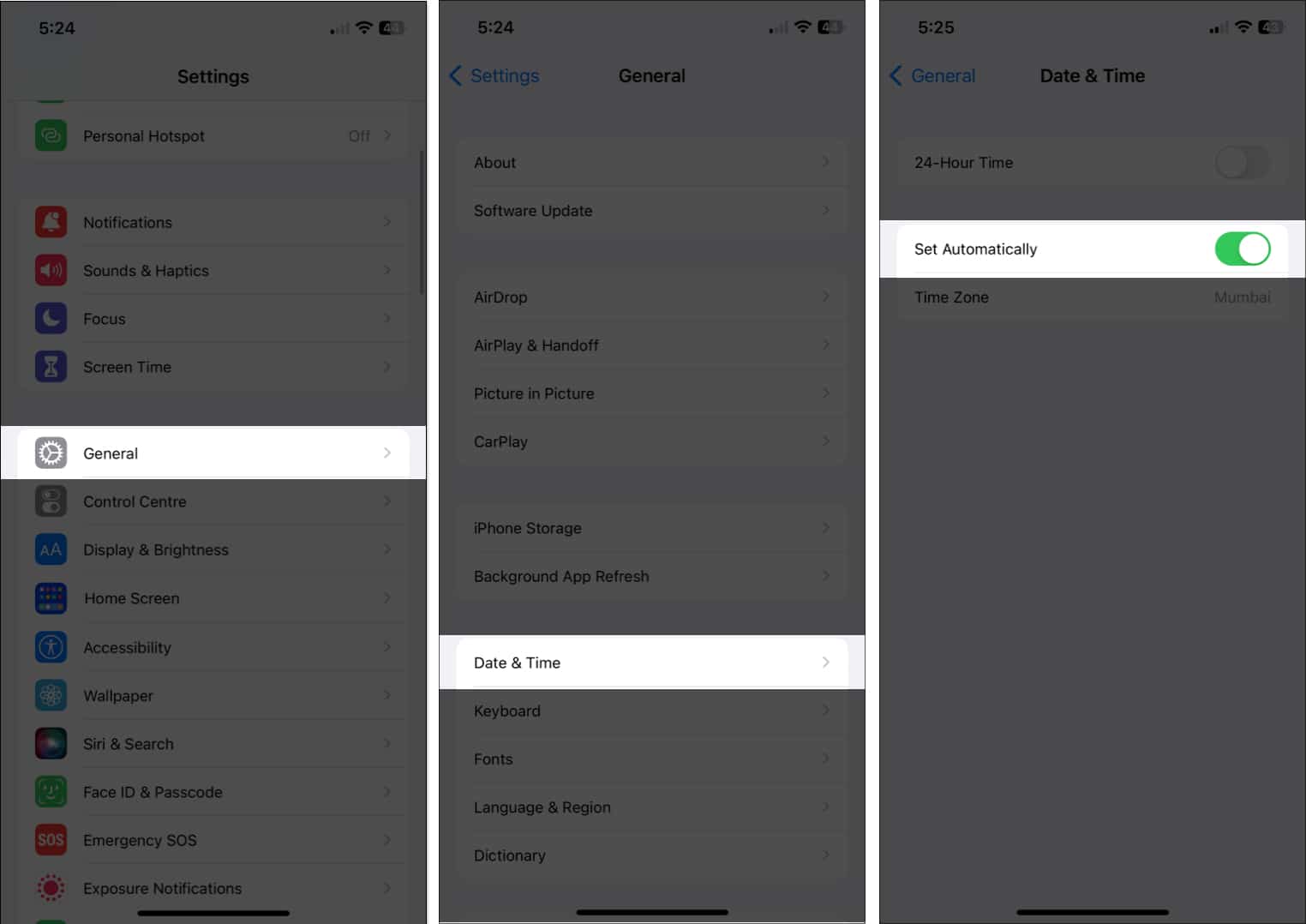
- Open Settings on your iPhone.
- Tap General > Date & Time.
- Toggle Set Automatically to ON.
✅ When enabled, your iPhone uses GPS, cellular networks, and internet time servers to maintain perfect accuracy.
If Set Automatically was off, toggle it off and back on to force a refresh. Then confirm your Time Zone is correct—especially if you’ve traveled.
Your Apple Watch will sync the new time within seconds once in range of your iPhone.
Why this works: The iPhone acts as the master clock. Once updated, it pushes the accurate time to your Apple Watch via Bluetooth or Wi-Fi.
Correct Time After Long Disconnection or Charging
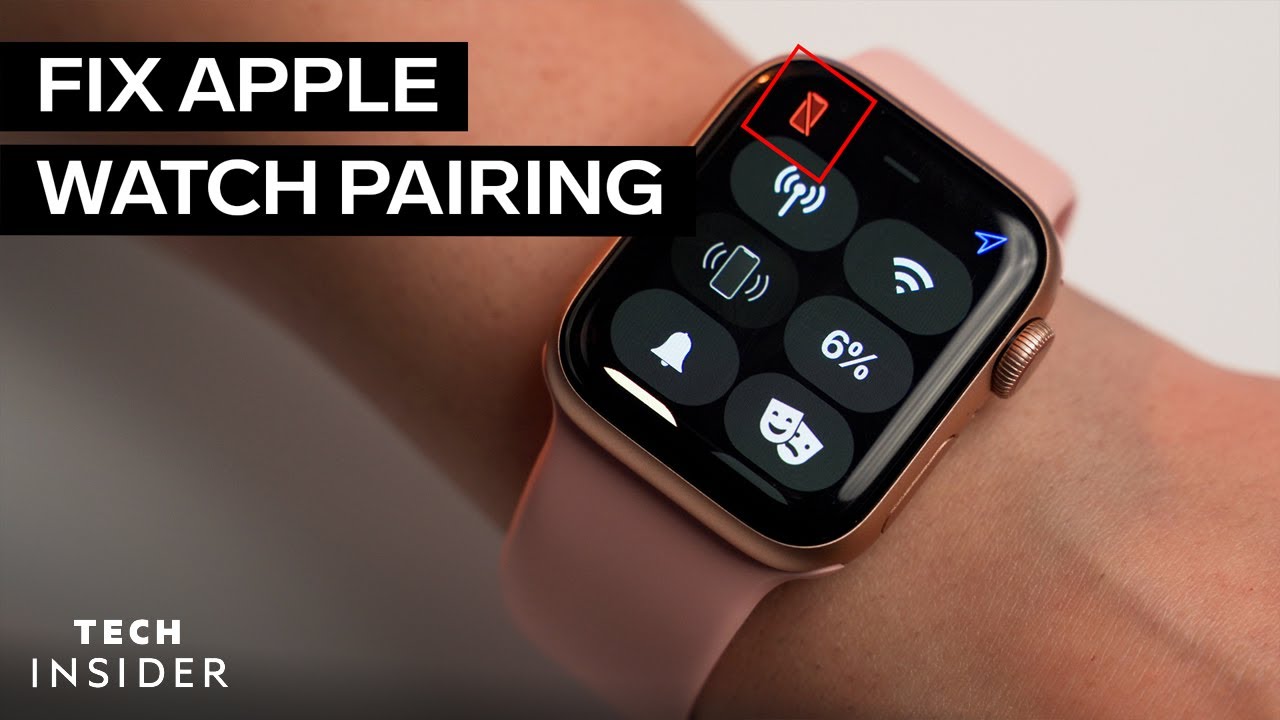
If your Apple Watch was uncharged for days, it may boot up with an outdated date and time. This is normal—Apple Watch doesn’t maintain time when powered off.
Reconnect to iPhone to Sync Time
- Charge your watch until it turns on.
- Place it within 6 inches of your iPhone.
- Unlock your iPhone.
- Wait for the connection icon (two overlapping circles) to appear at the top of the iPhone screen.
Once connected, your watch pulls the correct time and date automatically.
🔴 If you see a red lightning bolt on your watch, it’s not connected. Move closer and wait.
Force Immediate Sync via Apple Watch App
- Open the Apple Watch app on your iPhone.
- Tap your watch name at the top.
- Wait for the sync indicator (a spinning circle) to appear.
This triggers an instant update—ideal if the time isn’t correcting on its own.
Restart Apple Watch to Resolve Sync Glitches
A restart often fixes time issues caused by software bugs, especially after a watchOS update.
How to Restart Your Apple Watch
- Press and hold the side button and the Digital Crown together.
- Keep holding until the Apple logo appears (about 10 seconds).
- Release both buttons.
After restarting, your watch reconnects to your iPhone and pulls the correct time.
💡 Pro tip: If the time is still wrong, restart both devices. This clears any lingering sync errors.
Adjust Displayed Time Only (Manual Offset)
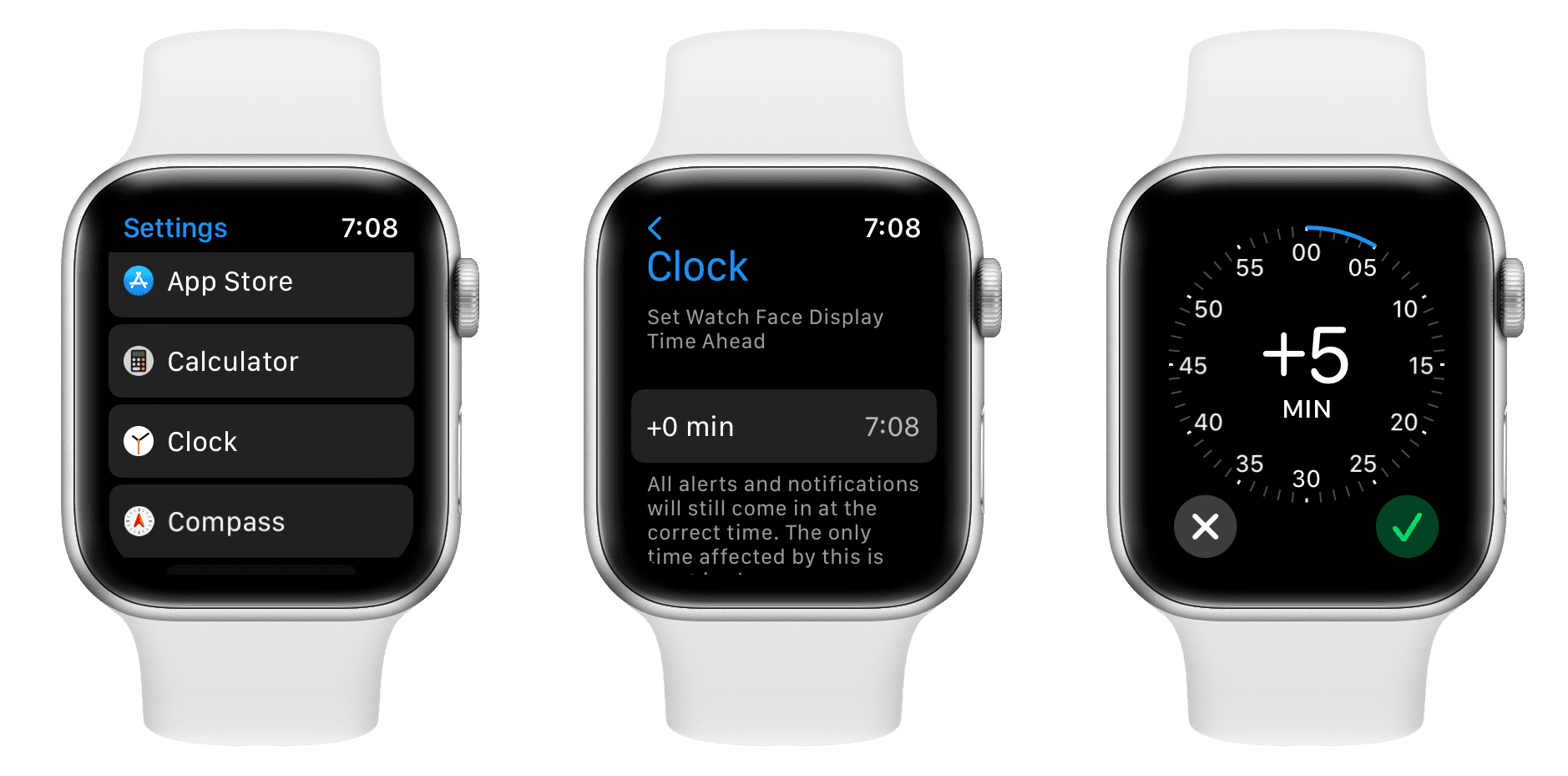
Want your watch to show time 5 minutes ahead to help you stay punctual? You can tweak the displayed time without changing the real system clock.
Set a Time Offset on Apple Watch
- On your watch, open Settings.
- Tap Clock.
- Select Time Zone or Manual Offset (varies by watchOS version).
- Turn the Digital Crown to add or subtract minutes (e.g., +5, -10).
- Tap Set.
Now your watch face shows the adjusted time—but alarms and calendar events still trigger based on iPhone time.
⚠️ Important: This offset resets the next time your watch syncs with your iPhone.
Troubleshoot Persistent Time Sync Issues
If your Apple Watch keeps showing the wrong time, follow these steps to fix deeper sync problems.
Check iPhone Connectivity
- Ensure Bluetooth is on (Settings > Bluetooth).
- Turn Airplane Mode off.
- If away from your iPhone, make sure your Apple Watch is connected to a known Wi-Fi network.
🛰️ Non-cellular models need Wi-Fi or iPhone proximity to sync time.
Update watchOS and iOS
Outdated software can break time syncing.
- Open the Apple Watch app on your iPhone.
- Go to General > Software Update.
- Install any pending updates for both devices.
✅ Keeping both devices updated ensures reliable time synchronization.
Re-Pair Your Apple Watch (Last Resort)
If time still won’t correct, re-pairing forces a full reset.
Steps to Re-Pair
- In the Apple Watch app, tap your watch > Unpair Apple Watch.
- Confirm and wait for backup.
- Set up your watch again—restore from backup if needed.
After re-pairing, time syncs instantly and accurately.
🛑 Only use this method if all else fails—re-pairing takes time and requires reconfiguration.
Handle Time Zone Changes During Travel
Traveling across time zones? Your Apple Watch adjusts automatically—if settings are correct.
Enable Automatic Time Zone Detection
- On iPhone: Settings > General > Date & Time.
- Ensure Set Automatically is ON.
- Go to Privacy > Location Services > System Services and enable Setting Time Zone.
When you land, your iPhone detects your new location and updates the time zone. Your Apple Watch follows within seconds.
✈️ No manual action needed—ideal for frequent flyers.
Use Dual Time Watch Faces
Want to track home and local time?
- Choose watch faces like GMT, Infograph Modular, or Traveler.
- Add a second time zone complication.
- Customize it to show your home city.
🎯 Example: The Infograph face displays two time zones at once—perfect for international calls.
Use Speak Time and Hourly Chimes
Need time feedback without looking? Use built-in accessibility features.
Turn On Speak Time
- On Apple Watch: Settings > Clock > Speak Time > On.
- Double-tap the screen with two fingers to hear the time aloud.
🔊 Works even when the screen is off—great for meetings or workouts.
Enable Hourly Chimes
Get an audio cue every hour.
- Open Settings > Clock > Chimes > On.
- Choose:
– Chime on the Hour
– Chime on the :15 and :45 - Pick a sound: Beep, Radar, or Ripple.
🕰️ Helps you stay aware of time—especially useful when focused or distracted.
Customize Time Display on Watch Faces
Make your Apple Watch show time in a way that fits your lifestyle.
Edit Your Watch Face
- Press and hold the watch face.
- Tap Edit.
- Swipe to change the face style (e.g., Solar, Chronograph, Modular).
- Tap a complication to customize it.
Add Time-Based Complications
Include widgets like:
- Second time zone
- Sunrise/sunset times
- Stopwatch or timer
- Next calendar event
🎨 Example: The Modular face lets you place a large digital time display at the top—ideal for quick glances.
Avoid Common Time-Setting Mistakes
Many users create confusion by making incorrect adjustments.
❌ Don’t Use Manual Offset for Alarms
Manual display offsets do not affect alarms or calendar alerts. If your watch shows +10 minutes and your alarm is set for 8:00, it will ring at actual 8:00—not when your watch says 8:00.
❌ Don’t Disable Set Automatically on iPhone
Turning off Set Automatically risks permanent time drift, especially after travel or battery drain.
✅ Always keep it ON unless you have a specific need to set time manually.
FAQ: Time Reset on Apple Watch
Can I change the time zone directly on the Apple Watch?
No. Time zone changes must be made on your iPhone. The Apple Watch updates automatically after syncing.
Why does my Apple Watch show the wrong date?
This usually happens after long disconnection. Solution: Reconnect to your iPhone or Wi-Fi—the date corrects automatically.
Does airplane mode affect Apple Watch time?
Yes. If Airplane Mode is on and Wi-Fi/Bluetooth are off, your watch can’t sync. Time may freeze until connection resumes.
Can I set time without my iPhone?
Only the displayed time can be adjusted on the watch. True time reset requires your iPhone or a Wi-Fi/cellular connection.
Summary: Best Ways to Reset Time
| Method | What It Fixes | Device Used | Lasting Fix? |
|---|---|---|---|
| iPhone Date & Time Settings | Wrong time, time zone | iPhone | ✅ Yes |
| Restart Apple Watch | Sync glitches | Apple Watch | ✅ Yes (after sync) |
| Manual Offset | Display preference | Apple Watch | ❌ Resets on sync |
| Re-pair Watch | Persistent sync errors | iPhone + Watch | ✅ Yes |
| Update Software | Bug-related drift | Both devices | ✅ Yes |
Final Note: The Apple Watch is designed to stay perfectly in sync with your iPhone. For reliable, accurate timekeeping, keep “Set Automatically” enabled, maintain a connection, and let the system handle the rest. Manual tweaks are cosmetic—ideal for personal habits, not system fixes. When in doubt, restart your watch. It’s the fastest way to restore correct time.




