
You tap an app on your Apple Watch, and nothing happens. Or it spins endlessly. Or it crashes before you can even use it. If Apple Watch apps not working is your daily frustration, you’re not alone. Whether it’s a single third-party app freezing or the entire My Watch interface unresponsive, this guide delivers proven, step-by-step fixes—from quick restarts to full system recovery.
The cause could be something simple: a software glitch, outdated watchOS, low storage, or overheating. Or it might be deeper: corrupted app data, failed syncing, or even a broken connection between your iPhone and watch. Some Apple Watch SE users report sluggish app launches, often due to hardware limits or bloated software in newer watchOS versions. But no matter your model—SE, Series, or Ultra—there’s a fix that works.
In this guide, you’ll learn how to diagnose the real problem, apply fast solutions, and recover from total app failure, including when the Watch app on your iPhone won’t open at all. Every step is verified by users and experts, ordered from simple to advanced, so you can get your apps running again—fast.
Restart Apple Watch First
Before diving into complex repairs, start with a restart. Most app issues are temporary software glitches that a reboot clears instantly.
Force Restart for Frozen Devices
If your watch is stuck or unresponsive, a force restart resets the system without losing data.
Steps:
1. Press and hold the Digital Crown and the side button at the same time.
2. Keep holding for 10–15 seconds.
3. Release when the Apple logo appears.
This clears running processes and fixes frozen apps in most cases.
Normal Restart for Responsive Devices
If the watch works but apps misbehave:
- Press and hold the side button until the Power Off slider appears.
- Swipe to turn it off.
- Wait 10 seconds, then press the side button to power it back on.
Pro Tip: Always restart your iPhone first, then your Apple Watch. This ensures a clean Bluetooth reconnection and reduces sync errors.
Update iOS and watchOS
Outdated software is one of the top reasons apps crash or won’t open. Apple regularly releases updates that fix bugs affecting app performance.
Check iPhone iOS Update
- Open Settings > General > Software Update on your iPhone.
- If an update is available, download and install it.
Update Apple Watch watchOS
- On iPhone, open the Watch app.
- Go to General > Software Update.
- Make sure your watch is:
– On the charger
– Connected via Bluetooth
– At least 50% battery
Why it matters: Older watchOS versions may have bugs that prevent apps from launching. Updating often resolves these silently.
Free Up Storage Space
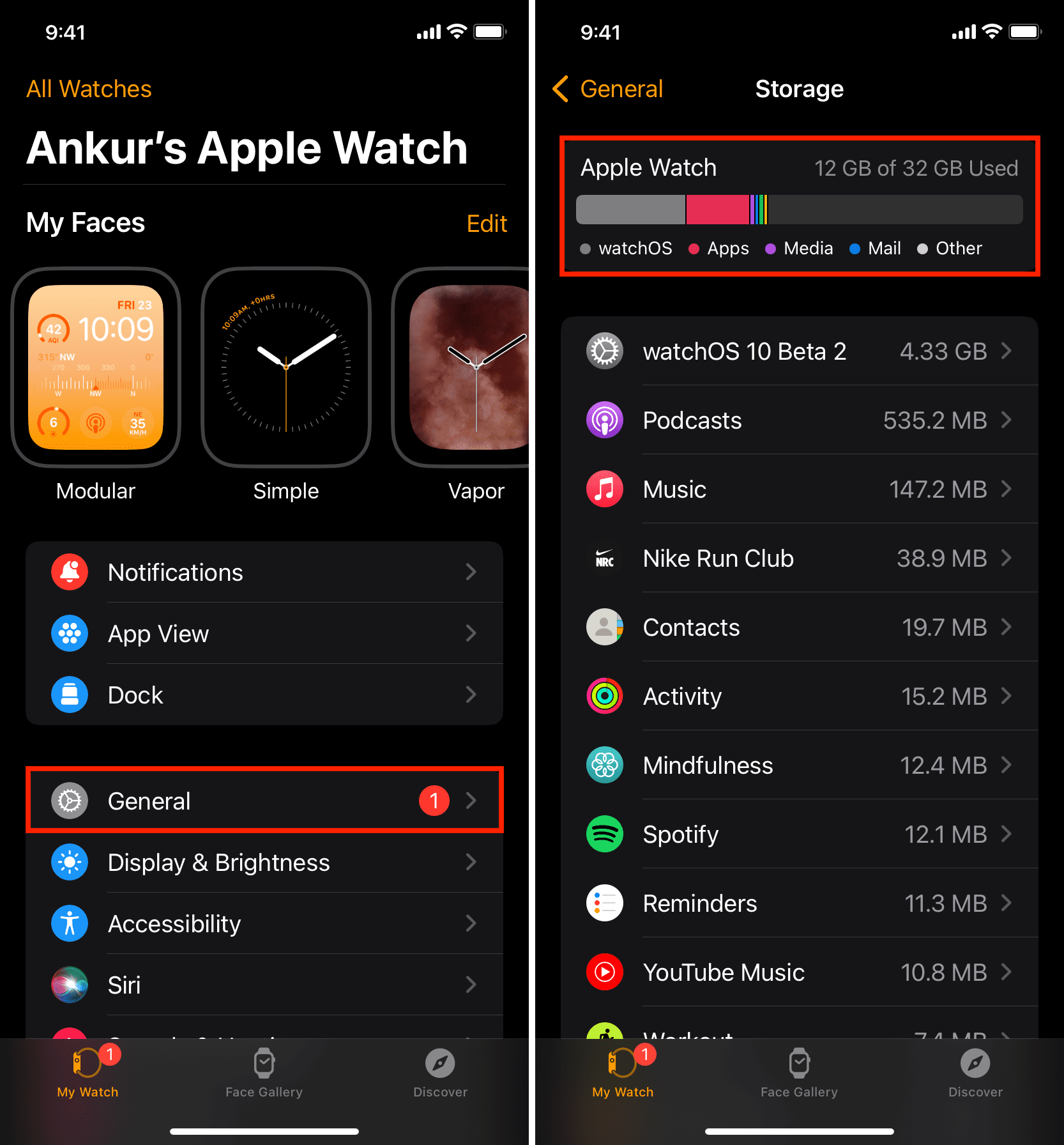
Low storage cripples app performance. While Apple Watch models have 32GB total, usable space is much less—sometimes under 5GB.
Check Available Storage
- On iPhone, open Watch app > General > Usage.
- Look at the Available space.
Warning: If you have less than 1GB free, apps may fail to launch, update, or sync properly.
Delete Unused Content
To free up space:
– Remove downloaded music, podcasts, or audiobooks
– Delete large watch faces with heavy complications
– Uninstall apps you rarely use—especially big ones like games or navigation tools
After cleaning up, restart your watch to clear cached data and improve responsiveness.
Reinstall Problematic Apps
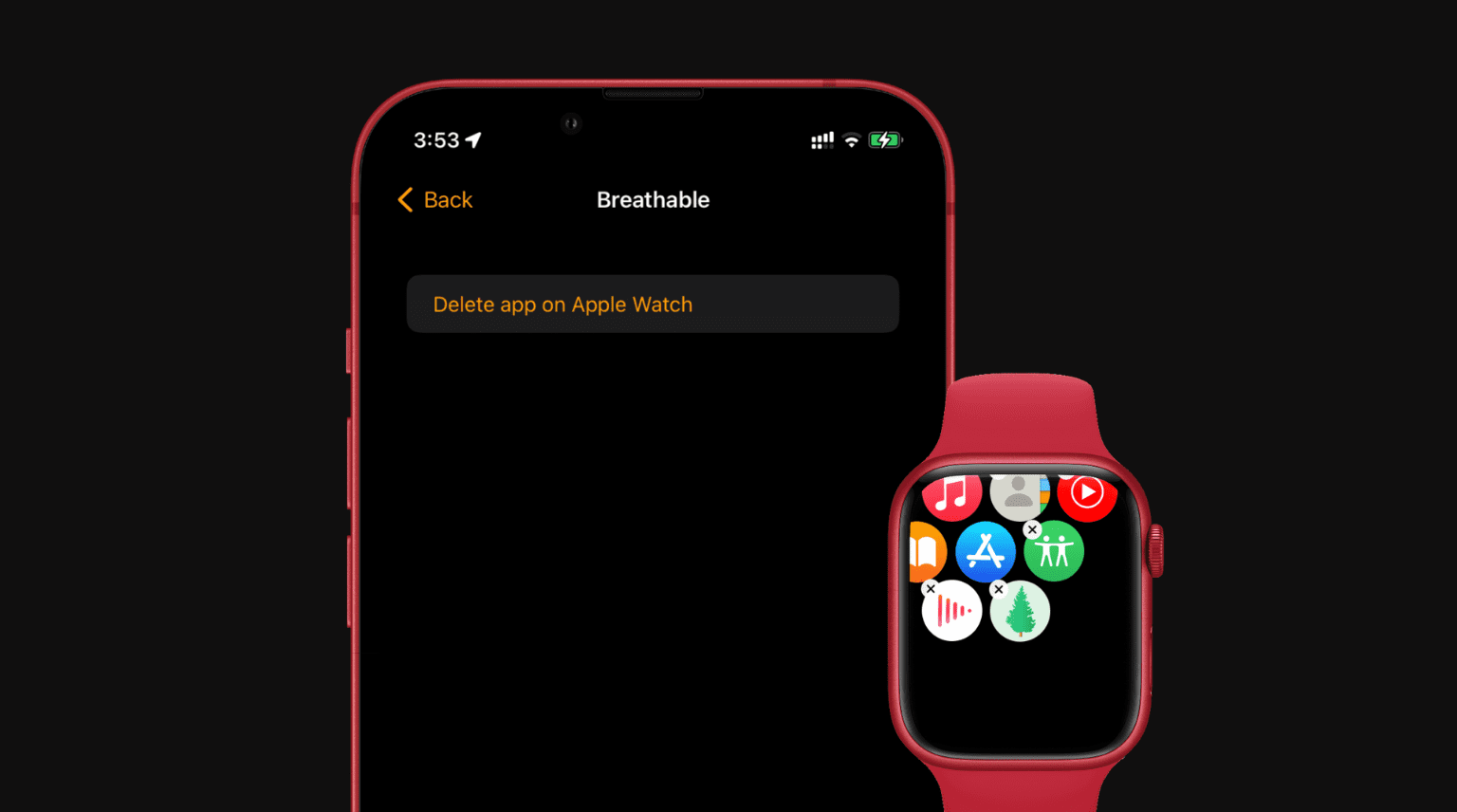
Corrupted app data or incomplete installation can cause crashes—even if the app shows up on your watch.
Remove and Re-add via iPhone (Best Method)
This ensures a clean reinstall and full sync.
Steps:
1. Open Watch app on iPhone.
2. Tap My Watch tab.
3. Select the app that’s not working.
4. Turn off Show App on Apple Watch.
5. Wait until it disappears from the watch.
6. Toggle Show App on Apple Watch back on.
The app will re-sync from your iPhone. Wait for it to fully install before testing.
Delete Directly from Apple Watch
- Press Digital Crown to open the app grid.
- Touch and hold the screen > Tap Edit Apps.
- Tap the × on the app icon.
- Reinstall from the App Store on your watch or iPhone.
Fix Connectivity and Sync Issues
Poor Bluetooth or Wi-Fi syncing can stop apps from launching or updating.
Restart iPhone and Watch
- Restart your iPhone first.
- Then restart your Apple Watch.
- Wait for them to reconnect automatically.
This resets the Bluetooth link and clears sync errors.
Reset Network Settings on Watch
Clears corrupted network data without deleting apps.
Steps:
1. On Apple Watch: Settings > General > Reset > Reset All Settings.
2. Enter your passcode.
3. The watch restarts, and you’ll need to re-enter Wi-Fi passwords.
Use this if apps fail during sync or when fetching data.
Diagnose App-Specific Problems
Not all app failures are system-wide. Isolate the issue to save time.
Test Built-in Apps
Try opening:
– Workout
– Heart Rate
– Messages
– Weather
If these work, the problem is likely limited to third-party apps.
Contact App Developer
If only one app fails:
1. Open App Store on iPhone.
2. Search for the app.
3. Scroll down to App Support.
4. Report the issue or check for known bugs.
Many developers release patches for watchOS compatibility issues.
Use Airplane Mode to Bypass Sync Hangs
Some apps freeze during launch because they’re trying to sync data in the background.
Launch App in Airplane Mode
- Swipe up from your watch face to open Control Center.
- Tap Airplane Mode.
- Try opening the app.
If it works, the issue is network-related—likely syncing with your iPhone or fetching cloud data.
Turn Airplane Mode off afterward to restore connectivity.
Switch to List View for Better Responsiveness
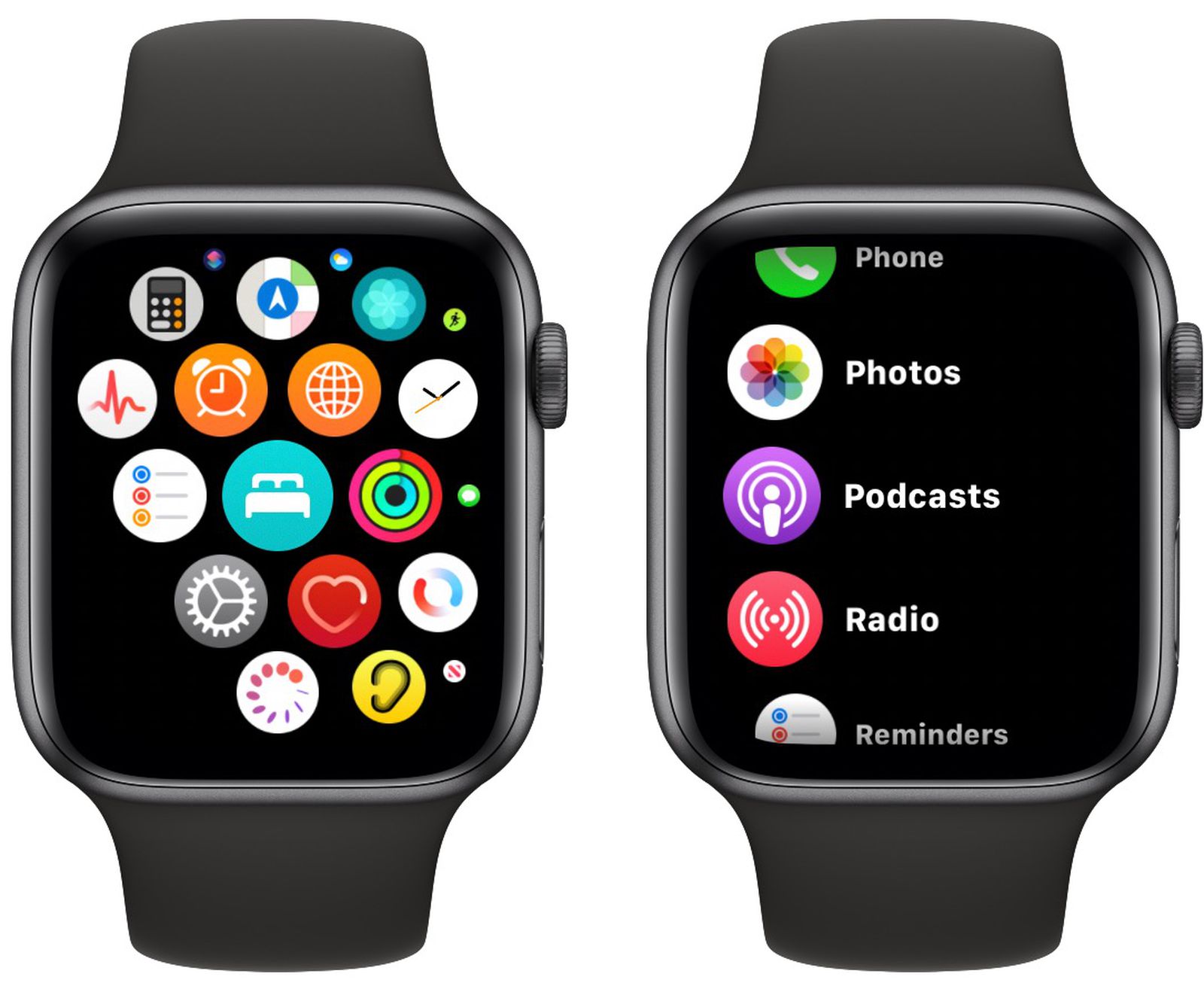
The default bubble-style app grid can lag, especially on older or budget models like the Apple Watch SE.
Enable List View
- Press Digital Crown to return to home.
- Swipe left or right to cycle through views.
- Select list view.
Many users report faster app launches and smoother navigation in list mode.
Unpair and Re-pair Apple Watch
When multiple apps fail or syncing is broken, resetting the pairing clears deep-level corruption.
Steps to Re-pair
- On iPhone: Watch app > All Watches > (i) > Unpair Apple Watch.
- Confirm—this erases the watch.
- Set up as new or restore from encrypted backup.
Pro Tip: Encrypted iPhone backups preserve health data, settings, and app layouts—use them when restoring.
Erase All Content and Settings
For system-wide app crashes, a factory reset often works when nothing else does.
Full Reset Procedure
- On Apple Watch: Settings > General > Reset > Erase All Content and Settings.
- Enter passcode.
- Choose whether to keep or remove your cellular plan (if applicable).
- Wait for erasure.
- Re-pair via iPhone.
This is the most effective fix for persistent, unexplained app failures.
Fix iPhone Watch App Crashes (Extreme Case)
If the My Watch app on your iPhone won’t open, standard fixes fail. You need a deep system cleanup.
Full Recovery Sequence
- Erase All Content and Settings on Apple Watch.
- Forget Apple Watch in Bluetooth settings on iPhone.
- Remove Watch from Apple ID at appleid.apple.com.
- Turn Off Find My iPhone temporarily.
- Delete Watch App Backups in iPhone Storage settings.
- Hard Reset iPhone (Volume Up, Volume Down, hold Side button).
- Unpair Watch via Watch App immediately after restart.
- Delete the Watch App from your iPhone (including App Library).
- Reinstall Watch App from the App Store.
- Pair Apple Watch Fresh.
This clears deep corruption in caches, backups, and system data—resolving even the most stubborn failures.
Prevent Future App Failures
Avoid recurring issues with smart maintenance.
Keep Software Updated
Enable Automatic Updates for iOS, watchOS, and apps.
Monitor Storage Monthly
Check Watch app > General > Usage to avoid running out of space.
Restart Weekly
A weekly restart clears memory and prevents lag.
Avoid Overheating
Don’t leave your watch in direct sunlight or on the charger longer than needed.
Limit Background Apps
Close unused apps by pressing the side button to exit, then returning home.
Stick to Reliable Apps
Use well-reviewed, frequently updated apps. Avoid ones abandoned by developers.
Summary: Step-by-Step Fix Sequence
Follow this order for the fastest results:
- Force restart Apple Watch
- Update iOS and watchOS
- Update all apps
- Check and free up storage (keep >1GB free)
- Remove and reinstall problematic app via iPhone
- Restart iPhone and watch
- Reset network settings on watch
- Try app in Airplane Mode
- Switch to list view
- Unpair and re-pair Apple Watch
- Erase All Content and Settings (if still failing)
- Full iPhone-side cleanup (for Watch app crashes)
Final Note: Most Apple Watch apps not working issues are software-related—not hardware defects. By following this structured troubleshooting path, you can resolve nearly all app problems across Apple Watch SE, Series, and Ultra models. Start simple, escalate only when needed, and keep your devices updated and clean.





