
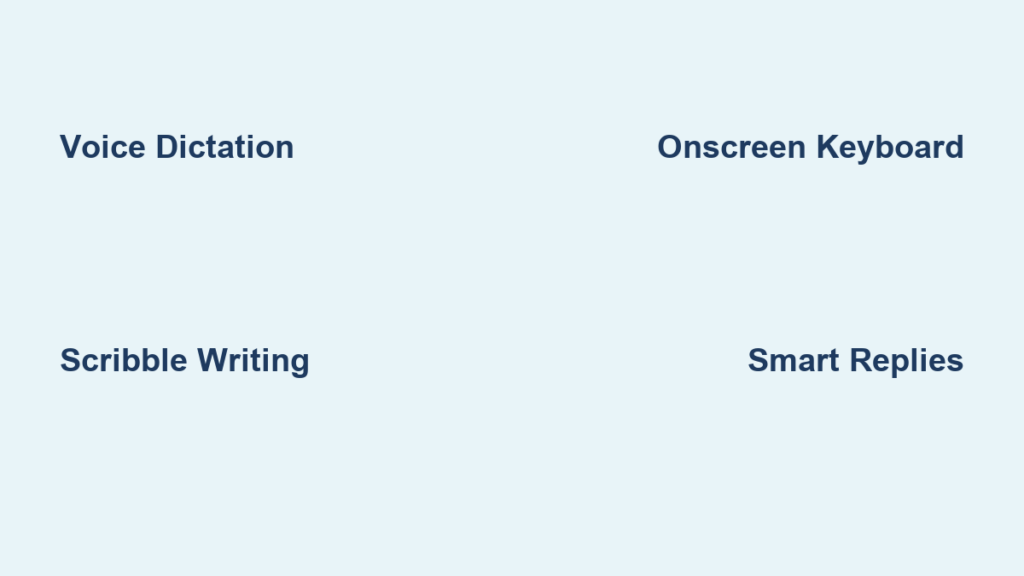
You’re mid-run, your hands are full with groceries, or you’re in a meeting where pulling out your phone feels rude—but someone just sent a message you need to answer. That’s where the Apple Watch becomes indispensable. With powerful tools built right into the wrist, you can reply instantly using voice, handwriting, swipe typing, or even sketches and emoji. No phone required.
Whether you’re using an older Apple Watch Series 3 or the latest Ultra 2, texting on an Apple Watch is faster and more versatile than most people realize. From dictating full sentences to sending money with Apple Pay, this guide breaks down every method available—step by step—so you can communicate efficiently, safely, and expressively without ever touching your iPhone.
Let’s explore how to unlock your Apple Watch’s full messaging potential.
Send Texts Using Voice Dictation
Dictation is the fastest way to reply when you’re on the move. Just speak, and your Apple Watch turns your voice into text.
Activate and Use Dictation
- Open a message thread or start a New Message.
- Tap the microphone icon in the input toolbar.
- Speak clearly: “Running late—be there in 15 minutes.”
- Use voice commands for punctuation: say “period”, “comma”, or “new line”.
- Tap Send when your message is complete.
The watch transcribes your words in real time. On newer models (Series 6 and up), speech processing happens directly on the device—no iPhone needed—making dictation faster and more private.
Pro Tip: In noisy environments, move to a quieter spot or switch to Scribble. Background noise can reduce accuracy.
Fix Common Dictation Problems
- No response? Check that your mic isn’t blocked and Water Lock is off.
- Wrong words? Speak slowly and enunciate. Accents or fast speech may affect recognition.
- Not available? Ensure you’re on watchOS 3 or later and using a supported language.
Dictation shines during workouts, commutes, or any time your hands are busy.
Write Messages with Scribble Handwriting
Can’t talk aloud? Scribble lets you write messages letter by letter using your finger—perfect for quiet offices or libraries.
How to Use Scribble
- Tap a text field.
- Switch to Scribble mode (tap the handwriting icon).
- Write each letter one at a time in the center of the screen.
- Lift your finger after each stroke—the watch predicts the character.
- Watch word suggestions appear above; tap to accept.
- Tap Send when done.
Scribble supports most printed letters, numbers, and symbols like “@” or “&.” It’s surprisingly accurate once you get the rhythm.
Improve Your Scribble Accuracy
- Don’t connect letters—write them separately.
- Use light touches—pressing too hard can cause lag.
- Swipe left to delete the last character.
- Wait for suggestions—they speed up input significantly.
Note: Scribble requires Apple Watch Series 3 or later with watchOS 4+. It’s not available in all languages.
Type Messages with the Onscreen Keyboard
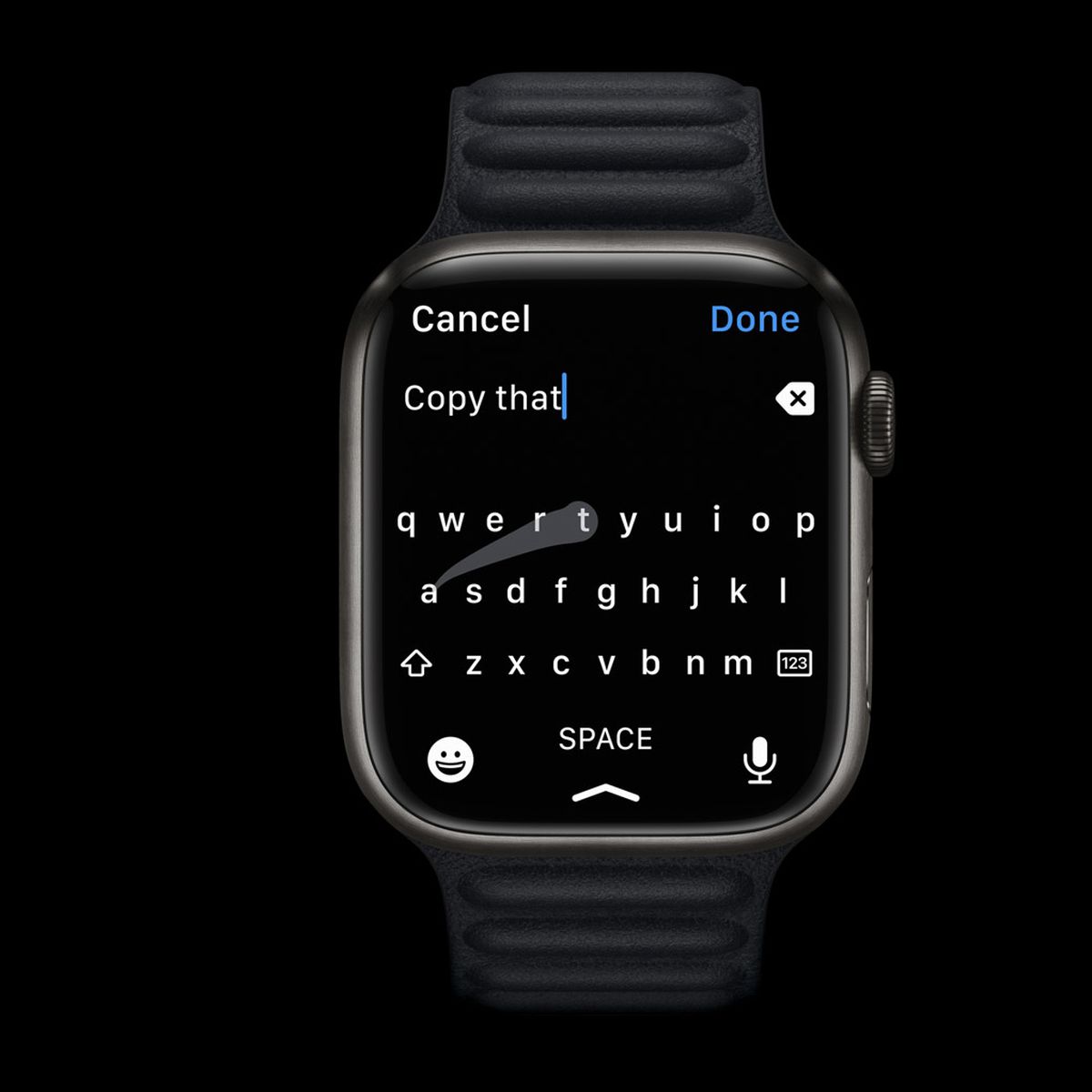
For those who prefer tapping, the onscreen QWERTY keyboard brings full typing to your wrist—on compatible models.
Access the Keyboard
- Open a message.
- Swipe up from the bottom of the text field.
- Tap the Keyboard icon.
- Begin typing with your fingertip.
This feature is only available on Series 5 and later, including SE (2nd gen) and Ultra, thanks to their larger displays.
Use QuickPath Swipe Typing
Available on Series 7 and newer, QuickPath lets you glide your finger across letters to form words—just like on your iPhone.
- Drag from S to w to i to p to type “swipe.”
- The watch predicts your word as you go.
- Works best with slow, deliberate movements.
If swipe typing feels awkward, stick to tapping individual keys. Both methods support predictive text above the keyboard.
Pro Tip: Use the iPhone keyboard method (below) for long messages. The watch keyboard is best for short replies.
Switch Between Input Methods Instantly
You’re not locked into one way to text. Switch between dictation, Scribble, and keyboard anytime.
Cycle Input Modes
- Tap the input button (bottom-right corner of the text field).
- Choose:
- Microphone for dictation
- Handwriting for Scribble
- Keyboard for typing
Your last-used method is remembered per app, so you don’t have to switch every time.
Which Method Works on Your Watch?
| Input Method | Minimum Model | Ideal For |
|---|---|---|
| Dictation | Series 1+ | Quick voice replies |
| Scribble | Series 3+ | Quiet environments |
| Onscreen Keyboard | Series 5+ | Short typed messages |
| QuickPath | Series 7+, SE 2, Ultra | Faster swipe input |
Older models will automatically hide unsupported options.
Add Emoji, Stickers, and GIFs to Messages
Make your texts more expressive with visuals—right from your wrist.
Insert Emoji
- While typing, tap the smiley face button.
- Slide left/right to browse categories.
- Tap any emoji to insert it.
- Long-press on faces or hands to choose skin tone or gender.
Your most-used emoji appear at the top for faster access.
Send Stickers and GIFs
- Tap the A icon next to the text field.
- Choose Sticker or GIF.
- Search for terms like “birthday” or “congrats.”
- Tap to send instantly.
You can pin favorite stickers for one-tap access later.
Tip: Install apps like GIPHY on your iPhone to unlock more sticker packs.
Send Sketches and Digital Touch Messages
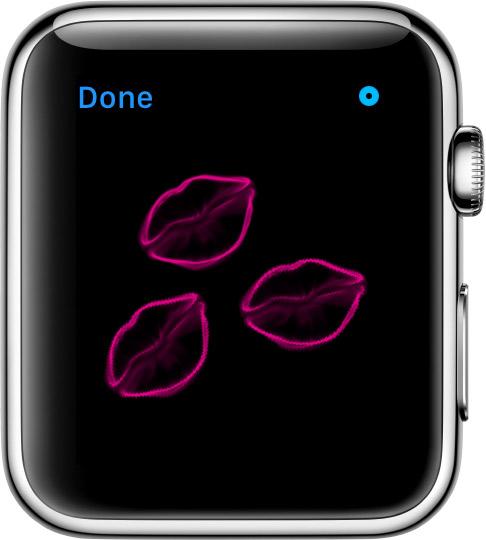
Draw a heart, doodle a smiley, or send a quick sketch—directly in a conversation.
How to Draw a Sketch
- Open a message.
- Tap the A icon.
- Select the drawing tool (heart icon).
- Pick a color (tap the circle in the top-right).
- Draw freely with your finger.
- Tap Send.
The recipient sees your sketch animate in real time—perfect for a sweet “I love you” or a fun inside joke.
- Works only over iMessage.
- If they don’t have an Apple Watch, they’ll get a static image.
Use Smart Replies for Instant Responses
Get AI-powered suggestions based on the message you received—no typing needed.
How Smart Replies Work
When someone asks, “Want to meet for lunch?” your watch might suggest:
– “Yes!”
– “Not today.”
– “Let’s do dinner instead.”
Just tap one to send it instantly.
- Available on watchOS 7+.
- Learns from your habits over time.
- Best in English and major European languages.
Pro Tip: Use Smart Replies when you’re driving, working out, or in a noisy place.
React to Messages with Emoji
Acknowledge a message without typing a word.
Add a Reaction
- Press firmly on a message bubble.
- Choose from six reactions:
– ❤️ Heart
– 👍 Thumbs Up
– 😂 Laugh
– 😢 Cry
– 😠 Angry
– 😮 Surprised - Tap to send.
Or tap the emoji button below the message.
Reactions sync across all your Apple devices—great for quick thanks or “I saw that” replies.
Have Siri Read Messages Aloud
Keep your eyes on the road or your workout—let Siri read texts to you.
Enable Announce Messages
- On your iPhone, open the Watch app.
- Go to Notifications > Messages.
- Turn on Announce Messages with Siri.
How It Works
- When a message arrives and you’re wearing AirPods, Beats, or compatible headphones, Siri says: “You have a message from Jamie.”
- After a pause, it reads the full message.
- Say “Reply” and speak your response.
Requirements: watchOS 8+, iOS 15+, and Bluetooth headphones.
Perfect for driving, running, or multitasking.
Share Your Location in a Message
Let someone know where you are—for a set time or indefinitely.
Send Your Location
- Open a message.
- Tap the A icon > Location.
- Choose:
– Send Once (one-time pin)
– Share for One Hour
– Until End of Day
– Indefinitely
The recipient sees your location in Maps.
Stop Sharing
- Open the same menu.
- Tap Stop Sharing.
- A notification reminds you when sharing is active.
Ideal for meeting up or letting family know you’ve arrived safely.
Send Money with Apple Pay in Messages

In the U.S., send cash instantly—right inside a conversation.
How to Send Apple Cash
- Tap the A icon > Apple Pay.
- Rotate the Digital Crown to set the amount.
- Tap the amount to adjust cents.
- Tap Pay, then double-press the Side button to confirm.
The money goes to the recipient’s Apple Cash card in Wallet.
Requirements: Apple Cash enabled, two-factor authentication, and Apple Pay set up on iPhone.
Great for splitting dinner or repaying a friend—no app switching.
Type on Your iPhone for Apple Watch
Need to write a long message? Use your iPhone’s full keyboard instead.
Use iPhone to Type
- Start a message on your Apple Watch.
- A notification appears: “Apple Watch Keyboard Input” on your iPhone.
- Tap it.
- Type using your iPhone’s keyboard.
- Tap Done—text appears instantly on your watch.
You can use autocorrect, dictation, or paste text—just like normal.
Best for: Long replies, work emails, or messages with links.
Requirements: iPhone and Apple Watch within Bluetooth range (~30 feet).
Optimize Message Notifications
Ensure you never miss a text.
On iPhone (Watch App)
- Open Watch app > Notifications.
- Under Messages, enable:
– Show on Apple Watch
– Notifications Indicator
– Tap to Show Full Notification - Set Alert Style to Persistent or Mirror iPhone.
On Apple Watch
- Go to Settings > Notifications.
- Turn on:
– Show Notifications
– Show on Wrist Down
Pro Tip: In the iPhone’s Messages app, set favorite contacts to always notify—even in Do Not Disturb.
Troubleshoot Common Texting Issues
Fix problems fast:
- Dictation not working? Check internet, mic, and restart devices.
- Scribble not responding? Clean screen, restart watch.
- Keyboard missing? Swipe up and tap Keyboard manually.
- No notifications? Check Do Not Disturb and Bluetooth.
- Apple Pay failed? Confirm Apple Cash is active and funds are available.
Final Note: Texting on an Apple Watch is far more capable than most users realize. With dictation, Scribble, QuickPath, Smart Replies, and Apple Pay, your wrist becomes a full communication hub. By mastering these tools and optimizing your settings, you’ll stay connected—quickly, safely, and expressively—whether you’re running, driving, or just hands-free. The Apple Watch isn’t just a phone companion; it’s a powerful messaging device all on its own.





