

You’re deep in focus, settling into bed, or simply need a break from constant alerts—turning on Do Not Disturb on Apple Watch is the fastest way to silence notifications and reclaim your peace. With modern versions of watchOS, Apple has integrated Do Not Disturb (DND) into the Focus system, making it smarter but slightly less intuitive to access than before. The good news? You can activate it in seconds directly from your wrist.
This guide walks you through exactly how to turn on Do Not Disturb on Apple Watch, customize its behavior, prevent unwanted syncing with your iPhone, and troubleshoot common quirks like missing duration options or unresponsive icons. Whether you want DND for one hour or every night at bedtime, you’ll learn how to control interruptions your way—without confusion or wasted taps.
Activate Do Not Disturb From Control Center
The fastest way to silence your Apple Watch is through the Control Center. This method works on all Apple Watch models running watchOS 7 or later and takes just seconds.
Open Control Center
Press and hold the side button on your Apple Watch—don’t press it all the way down to power off. Just hold it until the Control Center appears as a grid of icons, including Airplane Mode, Battery, and Focus.
Tip: If you accidentally start powering off, tap the screen or press the Digital Crown to cancel.
Tap the Focus Icon
Look for the crescent moon icon—this is the Focus control. If no Focus mode is active, it will appear grayed out. Tap it.
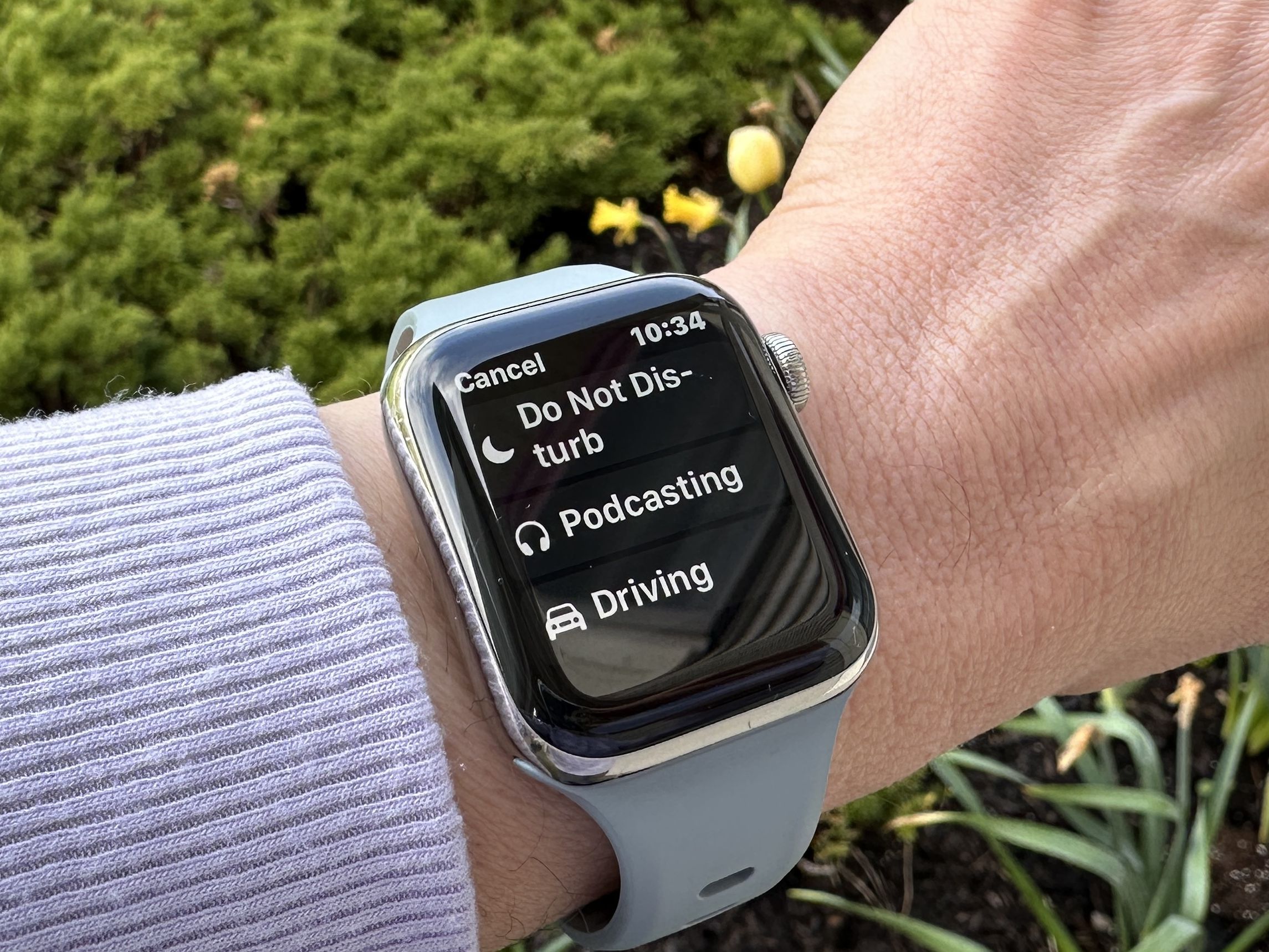
A list of available Focus modes will appear:
– Do Not Disturb
– Work
– Sleep
– Custom Foci (if you’ve created any)
Select Do Not Disturb.
Choose Duration
After selecting Do Not Disturb, choose how long you want it active:
– On – Remains active until manually turned off
– On for 1 hour
– On until this evening
– On until I leave – Ends when you exit a saved location
– On until end of event – Turns off after your next calendar event ends
Note: The option “On until tomorrow morning” only appears in the evening or at night, typically after 8 PM. It’s context-aware and won’t show during daytime hours.
Once selected, DND activates immediately. A crescent moon icon appears at the top of your watch face, confirming it’s on.
Turn Off Do Not Disturb
To disable:
1. Open Control Center again.
2. Tap the active Focus icon (now highlighted or colored).
3. Tap Off.
Your alerts and notifications will resume normally.
Fix Missing “Until Tomorrow Morning” Option
Many users report that “On until tomorrow morning” doesn’t appear when turning on DND during the day. This isn’t a bug—it’s intentional.
Why It’s Not Showing
- The option only appears late in the day, usually after 8 PM.
- During daytime hours, the system defaults to “On until this evening”.
- Apple uses time-based logic: if it’s already nighttime, “tomorrow morning” makes sense as an endpoint.
Workaround: If you want DND to end at 7 AM daily, schedule it instead of relying on manual activation.
Visual Bug: Icon Doesn’t Turn Purple
Even when “On until tomorrow morning” is active:
– The Focus icon in Control Center stays gray or white, not purple.
– However, DND still works—notifications are silenced.
– The iPhone’s DND icon turns purple, confirming it’s active.
This is a known visual bug affecting multiple Apple Watch models (Series 3 to Series 8). It doesn’t impact functionality.
Solution:
– Verify DND status on your iPhone.
– Restart your Apple Watch if the icon bothers you.
– Use scheduled Focus modes for consistent timing.
Stop Apple Watch From Mirroring iPhone DND
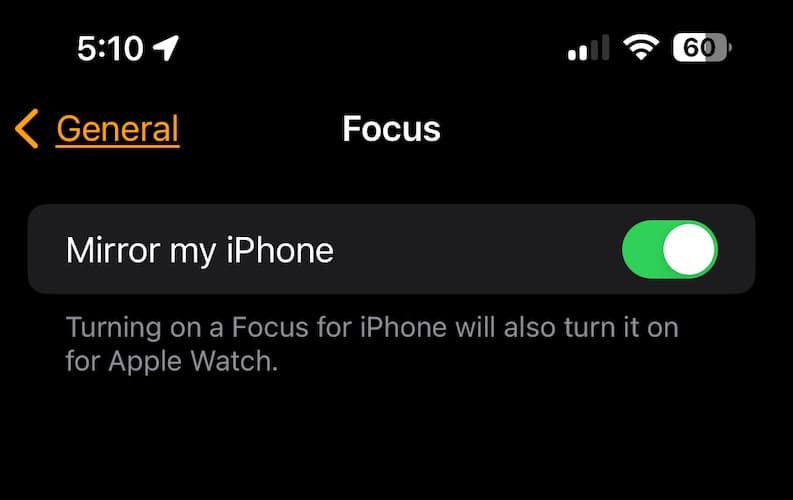
By default, turning on DND on your Apple Watch also turns it on on your iPhone—and vice versa. If you want to silence just your wrist, you need to disable mirroring.
Disable Mirror iPhone Setting
- On your iPhone, open the Apple Watch app.
- Go to My Watch tab > General > Focus.
- Turn off “Mirror my iPhone”.
Now, you can control Do Not Disturb independently on each device.
Example: Keep your phone silent during sleep but leave your watch on for alarms or heart rate alerts.
Prevent Cross-Device Syncing
Even with mirroring off, Focus settings can still sync across devices via iCloud.
To stop this:
1. On iPhone, go to Settings > Focus.
2. Toggle off “Share Across Devices”.
With both settings disabled, your Apple Watch DND won’t affect your iPhone, iPad, or Mac.
Schedule Do Not Disturb Automatically
Instead of turning on DND manually every night, schedule it to activate at the same time daily—perfect for sleep, work, or focus hours.
Set Schedule on Apple Watch
- Open Settings on your watch.
- Tap Focus.
- Select Do Not Disturb.
- Tap Add new under Schedules.
- Set From and To times (e.g., 10:00 PM to 7:00 AM).
- Choose days of the week.
- Tap the back arrow to save.
Your watch will now go silent automatically each night.
Set Schedule on iPhone
For more control:
1. On iPhone, open Settings > Focus > Do Not Disturb.
2. Tap Add Schedule.
3. Set time, days, or even location-based triggers (e.g., “When I arrive home”).
Schedules sync to your watch if Share Across Devices is enabled.
Create Custom Focus Modes With DND Rules
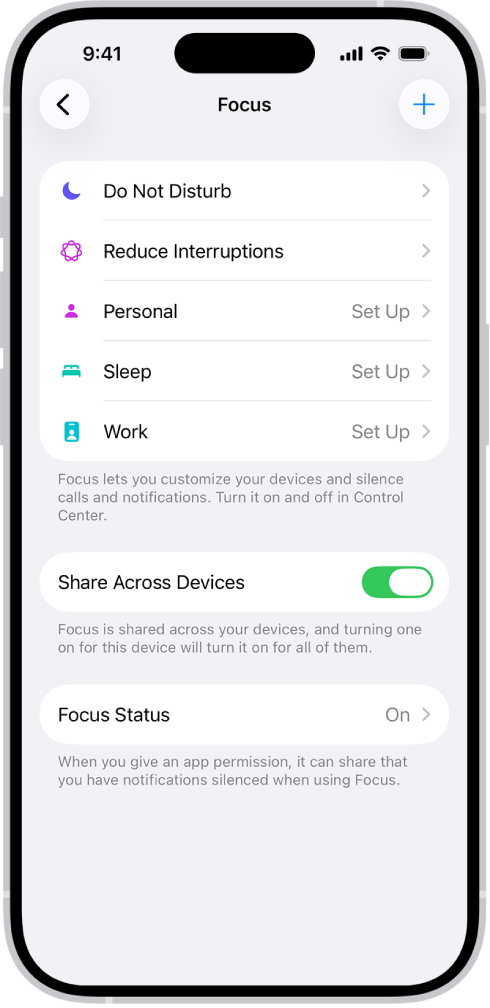
Want more control than standard DND? Create a custom Focus that silences most apps but allows alerts from specific people or apps.
Build a Custom Focus on iPhone
- Open Settings > Focus on iPhone.
- Tap the + (Add) button.
- Choose Custom.
- Name it (e.g., “Reading Time” or “Work Focus”).
- Pick an icon and color.
- Under People, allow calls from:
– Family
– Favorites
– Specific contacts - Under Apps, choose which apps can notify you.
- Enable Time-Sensitive Notifications if desired.
- Tap Done.
Your custom Focus appears automatically in Control Center on Apple Watch.
Pro Tip: Combine with auto-activation using time, location, or app usage (e.g., “When I open Fitness app”).
Assign a Watch Face to Do Not Disturb
Want your watch to look different when DND is active? Assign a dedicated watch face that appears only during Focus periods.
Link a Face to a Focus
- On iPhone, go to Settings > Focus.
- Select a Focus (e.g., Sleep or Do Not Disturb).
- Scroll to Customize Screens.
- Tap Choose under the Apple Watch preview.
- Pick a face from your collection (e.g., a minimalist face with no complications).
- Tap Done.
Now, when DND activates, your watch face changes automatically—reducing visual distractions.
Example: Use a dark, simple face during sleep hours to minimize stimulation.
Use Theater Mode vs. Do Not Disturb
Don’t confuse Theater Mode with Do Not Disturb—they serve different purposes.
Key Differences
| Feature | Do Not Disturb | Theater Mode |
|---|---|---|
| Silences sounds and alerts | ✅ | ✅ |
| Prevents screen from lighting up | ❌ | ✅ |
| Allows call exceptions | ✅ | ❌ |
| Can be scheduled | ✅ | ❌ |
| Mirrors to iPhone | ✅ (if enabled) | ❌ |
When to use each:
– Do Not Disturb: Best for sleep, focus, or quiet hours when you want selective alerts.
– Theater Mode: Ideal for movies, meetings, or dark rooms where you don’t want the screen flashing.
You can use both together:
1. Enable Theater Mode (silences sound and disables wake-on-wrist raise).
2. Turn on Do Not Disturb to filter notifications.
Troubleshoot Common Do Not Disturb Issues
Even with correct settings, DND may not behave as expected. Here’s how to fix common problems.
DND Turns On iPhone Automatically
Cause: “Mirror my iPhone” is enabled.
Fix:
– Open Apple Watch app on iPhone.
– Go to General > Focus.
– Turn off Mirror my iPhone.
Custom Focus Not Showing on Watch
Cause: Sync delay or iCloud issue.
Fix:
– Reboot both iPhone and Apple Watch.
– Ensure both devices are signed into the same Apple ID.
– Check Wi-Fi or Bluetooth connection.
Can’t Find “Mirror iPhone” Option
Cause: You’re looking in the wrong place.
Fix:
– It’s under Apple Watch app > My Watch > General > Focus—not in the iPhone’s Settings app.
DND Won’t Turn Off
Cause: Active schedule or automation.
Fix:
– Check Settings > Focus on watch or iPhone.
– Disable any active schedules.
– Turn off automations in Shortcuts app.
Advanced Tips for Better DND Control
Take full advantage of Focus with these expert-level tricks.
Use Location-Based DND
Set DND to turn on automatically when you arrive at work or get home.
- On iPhone, go to Settings > Focus > [Your Focus].
- Tap Add Condition.
- Select Location.
- Choose a place (e.g., “At the Gym”).
- Set trigger: “When I arrive” or “When I leave.”
Now your watch silences itself when you enter sensitive zones.
Automate With Shortcuts
Use the Shortcuts app to trigger DND based on routines.
Example automation:
– When: I start a workout
– Then: Turn on Do Not Disturb
– End: When workout ends
This keeps you focused without manual steps.
Save Battery With Scheduled DND
While DND itself doesn’t save much power, combining it with Theater Mode or dark watch faces reduces screen activity—extending battery life during sleep or long meetings.
Compatibility and Requirements
Not all Apple Watches support modern DND features. Check your device:
| Feature | Supported On |
|---|---|
| Focus System (DND) | Apple Watch Series 3 and later |
| watchOS Version | watchOS 7 or later |
| iPhone Compatibility | iPhone 6s or later with iOS 14+ |
| Custom Focus Icons | watchOS 8+ / iOS 15+ |
| Scheduled Focus | All supported models with watchOS 7+ |
Note: Series 1 and 2 run outdated OS versions and lack Focus support. They use legacy DND settings.
Summary: Key Actions at a Glance
| Task | How to Do It |
|---|---|
| Turn on DND now | Control Center > Focus > Do Not Disturb > Pick duration |
| Use DND on watch only | Disable Mirror my iPhone in Watch app |
| Schedule nightly DND | Settings > Focus > Add Schedule (on watch or iPhone) |
| Fix missing “tomorrow” option | Activate DND in the evening; use schedules |
| Allow calls from family | Create custom Focus on iPhone |
| Change face during DND | Settings > Focus > Customize Screens > Choose face |
| Silence screen and sound | Use Theater Mode + Do Not Disturb together |
Final Note: Turning on Do Not Disturb on Apple Watch is simple once you know where to look. Use Control Center for quick access, schedule it for daily use, and customize Focus modes to fit your lifestyle. Whether you’re optimizing for sleep, productivity, or peace, mastering DND puts you in control of your attention—one tap at a time.





