
You’re in a meeting, settling into bed, or just need a moment of quiet—your Apple Watch suddenly chimes with a notification, breaking the silence. The good news? You can completely turn off the volume on your Apple Watch in seconds, stopping all sounds while still receiving silent haptic (vibration) alerts. Whether you own an older Series 3 or the latest Apple Watch Ultra 2, this guide shows you exactly how to mute your Apple Watch using multiple methods—quickly, reliably, and without missing important alerts.
Silencing your watch isn’t just about convenience; it’s about control. You’ll learn how to use Silent Mode, Control Center, Do Not Disturb, and iPhone sync settings to eliminate audio from alerts, Siri, media, and apps. We’ll also cover how to keep vibrations active, troubleshoot common mute issues, and even schedule automatic silence. By the end, you’ll have full command over your Apple Watch’s sound—no more surprise beeps, no accidental disruptions.
Instantly Mute Your Apple Watch with Silent Mode
Silent Mode is the fastest way to cut all system sounds—notifications, alarms, timers, and call alerts—while letting you keep vibration feedback.
Use Control Center for One-Tap Muting
The quickest method to silence your watch:
- Swipe up from the watch face to open Control Center.
- Tap the bell icon with a slash (🔇).
– When active, the icon turns solid gray. - Feel a single haptic tap—your watch is now silent.
✅ Pro Tip: If you don’t see the bell icon, Silent Mode may already be on. Swipe down from the top of the screen to check your Control Center layout.
Press and Hold the Side Button (Emergency Mute)
Need to silence your watch instantly—like during a presentation or in a quiet room?
- Press and hold the side button until the Power Off screen appears.
- Tap Silent Mode instead of sliding to shut down.
– This mutes all sound immediately.
⏱️ Best For: Urgent situations where swiping isn’t fast enough. No need to unlock or navigate—just one press and tap.
Enable Silent Mode Permanently via Settings
If you prefer your watch to stay muted all day:
- Open the Settings app on your Apple Watch.
- Tap Sounds & Haptics.
- Toggle Silent Mode on.
Or, use your iPhone for more stable syncing:
- Open the Watch app.
- Go to My Watch > Sounds & Haptics.
- Toggle Silent Mode on.
🔁 Sync Advantage: iPhone settings often apply more reliably, especially after software updates.
Keep Vibration On While Turning Off Sound

Many users want zero sound but full haptic feedback—ideal for meetings, sleep tracking, or noisy environments where you rely on touch alerts.
Ensure Haptic Alerts Are Enabled
Muting sound doesn’t automatically mean you’ll feel vibrations. You must manually enable haptics:
On iPhone:
1. Open the Watch app.
2. Tap My Watch > Sounds & Haptics.
3. Confirm:
– Silent Mode: On
– Haptic Alerts: On
4. Adjust Haptic Intensity to High if alerts feel weak.
On Apple Watch:
1. Open Settings > Sounds & Haptics.
2. Toggle Haptic Alerts on.
3. Use the slider to boost vibration strength.
❗ Common Issue: After enabling Silent Mode, some users lose vibration. This almost always means Haptic Alerts is turned off—a frequent oversight after updates or setup.
💬 User Experience:
“I keep both devices on silent all day. My watch still vibrates—just make sure Haptic Alerts is on and intensity isn’t set too low.”
Mute System Sounds Completely (Alerts, Alarms, Timers)

Even with Silent Mode off, you can manually set system volume to zero for full control.
Set Ringer and Alerts Volume to 0%
- On Apple Watch, open Settings.
- Tap Sounds & Haptics.
- Scroll to Ringer and Alerts.
- Drag the slider all the way left to 0%.
Or via iPhone:
– Open Watch app > My Watch > Sounds & Haptics.
– Drag Ringer and Alerts Volume to 0%.
🔄 Sync Note: Changes on iPhone apply automatically—unless you’ve customized the watch separately.
Use Automatically Adjust Volume (Newer Models Only)
Available on Apple Watch SE (3rd gen), Series 9, and Ultra 2:
- In Sounds & Haptics, turn on Automatically Adjust Volume.
- Choose Quieter to lower default alert levels.
⚠️ Note: This feature adjusts volume based on ambient noise but never exceeds safe limits. To fully mute, set manual volume to 0%.
Silence Siri Voice Responses
Siri can speak aloud—helpful at home, awkward in public. Here’s how to make Siri respond silently.
Mute Siri Voice Output
- Ask Siri a question.
- While Siri speaks, rotate the Digital Crown down until the volume bar disappears.
– Or go to: - Settings > Siri > Siri Responses > Voice Volume.
- Turn off Automatically Adjust Volume.
- Drag the slider to 0%.
Via iPhone:
– Watch app > My Watch > Siri > Siri Responses > Voice Volume > 0%
✅ Result: Siri responds with text only—no voice output.
Mute Media Playback (Music, Podcasts, Audiobooks)
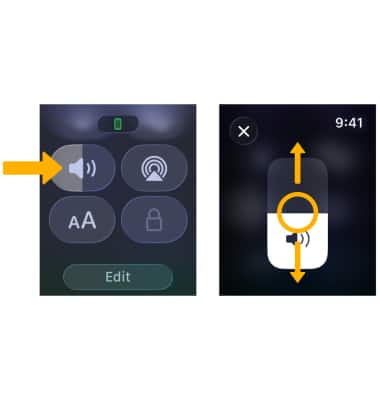
Media volume is separate from system sounds. Even in Silent Mode, music can still play.
Use Control Center to Mute Media
- Start playing music or a podcast.
- Swipe up to open Control Center.
- Tap the speaker icon.
- Drag the volume slider to 0%.
Rotate the Digital Crown
- While media plays, turn the Digital Crown down until volume hits zero.
- Works instantly on all models.
🔊 Note: This only affects current playback. The next session starts at your last volume setting.
🔄 iPhone Sync Tip: Control volume from your iPhone’s Now Playing widget—changes reflect on the watch.
Schedule Automatic Silence with Do Not Disturb
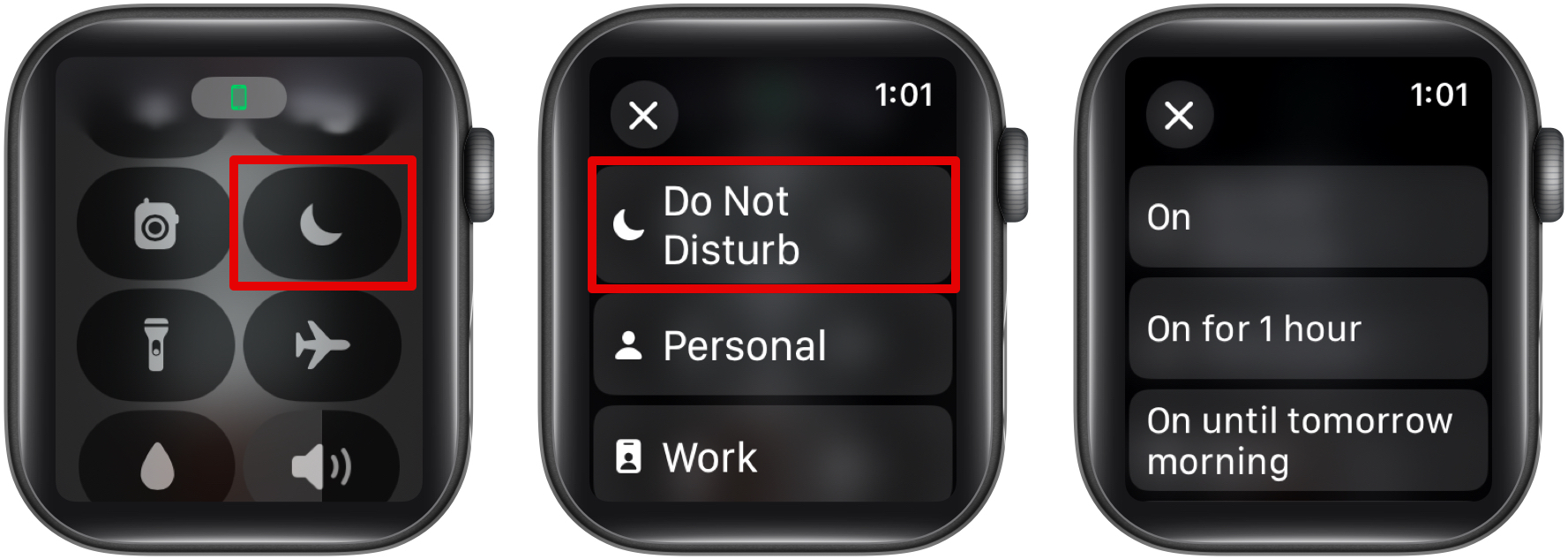
Want your Apple Watch to mute every night? Use Do Not Disturb (DND) to silence alerts on a schedule.
Set a Daily DND Schedule
On Apple Watch:
1. Open Settings > Do Not Disturb.
2. Toggle on Scheduled.
3. Set Start and End times (e.g., 10 PM – 7 AM).
On iPhone:
– Watch app > My Watch > Do Not Disturb > Scheduled > Set Time
Customize exceptions:
– Allow calls from specific contacts
– Enable repeated calls (for emergencies)
– Disable screen wake on wrist raise
Activate DND Manually
- Swipe up to Control Center.
- Tap the crescent moon icon.
– A moon appears at the top of the watch face.
✅ Pro Combo: Use Silent Mode + DND for total quiet—no sound, no screen wake, but haptics can still be preserved.
Mute Specific Apps Only
Don’t want to silence everything? Disable sound (and vibration) for individual apps.
Disable Notifications Per App
- Open Watch app on iPhone.
- Tap Notifications.
- Select an app (e.g., Instagram, Slack).
- Toggle off:
– Sound (mutes audio)
– Haptic (disables vibration)
✅ Use Case: Keep text and call alerts active, but mute social media pings.
💬 User Insight:
“The Watch app on iPhone is where the real control lives. It mirrors your phone—unless you customize it.”
Visual Indicators: Know When Your Watch Is Muted
Apple Watch shows clear icons so you can confirm mute status at a glance.
- Silent Mode On: Bell icon with slash (🔇) at the top
- Do Not Disturb On: Crescent moon (🌙)
- Both Active: Both icons visible
✅ Quick Check: If no icon appears, your watch is not muted.
🔁 Refresh Tip: Restart the watch if icons disappear or settings don’t apply.
Troubleshoot Common Muting Issues
No Vibration in Silent Mode?
Cause: Haptic Alerts is off or intensity is too low.
Fix:
1. Open Watch app on iPhone.
2. Go to My Watch > Sounds & Haptics.
3. Turn Haptic Alerts on.
4. Set Haptic Intensity to High.
Sound Still Playing After Muting?
Possible Causes:
– Media is playing (music, podcast)
– Call audio is active
– Automatic volume adjustment is overriding settings
– Settings not synced from iPhone
Solutions:
– Pause media or lower volume via Control Center
– During calls, use iPhone to mute or route audio
– Disable Automatically Adjust Volume in Sounds & Haptics
– Reapply settings in Watch app and restart the watch
Silent Mode Missing in Control Center?
Cause: Already active or interface glitch.
Fix:
– Swipe down from the top—check if Control Center is customized
– Go to Settings > Sounds & Haptics and toggle Silent Mode manually
– Restart the watch to reset UI elements
Advanced Tips for Full Audio Control
Use Focus Modes for Smart Muting
Beyond DND, Focus modes (Sleep, Work, Personal) can auto-mute based on time or location.
- Open Watch app > Focus.
- Select a Focus (e.g., Sleep).
- Customize:
– Sound: Off
– Haptics: On or Off
– Allowed Notifications
✅ Example: At bedtime, Sleep Focus silences all alerts but still vibrates for alarms.
Prevent Accidental Unmuting
- Avoid turning the Digital Crown during media playback.
- Use Guided Access (iPhone Accessibility) to lock settings in shared environments.
Battery Impact of Muting
- Muting sound saves negligible battery.
- Haptics use slightly more power than audio—but the difference is minor.
- Fully muted watches may last 5–10% longer during sleep tracking or long workouts.
Complete Volume Control Summary
| Function | How to Mute | Best Method | Device Needed |
|---|---|---|---|
| System Sounds | Enable Silent Mode or set volume to 0% | Control Center or iPhone app | Watch or iPhone |
| Siri Voice | Set Voice Volume to 0% | Settings > Siri | Watch or iPhone |
| Media Playback | Use volume slider or Digital Crown | Control Center or Crown | Watch only |
| App Notifications | Disable Sound per app | Watch app > Notifications | iPhone |
| Scheduled Silence | Use Do Not Disturb | Scheduled mode | Watch or iPhone |
| Keep Vibration | Enable Haptic Alerts | Sounds & Haptics > Haptics ON | Watch or iPhone |
Final Note:
Apple Watch doesn’t have a physical mute switch like the iPhone. But with Silent Mode, Control Center, and iPhone sync, you have more precise control than ever. You can silence all sound while keeping haptic alerts, schedule quiet hours, or mute just one app.
Remember:
– Silent Mode = no sound, haptics optional
– Do Not Disturb = suppresses alerts, screen stays dark
– Haptics must be turned on manually—don’t assume they work by default
Now you can enjoy silence—without missing a thing.




