
You’re upgrading to a new Apple Watch, selling your current one, or giving it away — great decisions. But before you hand it over, there’s one critical step you absolutely must take: unpair your Apple Watch from your iPhone. Skipping this process leaves Activation Lock active, which means the new user won’t be able to set up or use the device, even after a factory reset. Worse, your personal data — including health metrics, messages, app logins, and more — could still be at risk.
The good news? Unpairing is quick, secure, and straightforward when you know how. Whether you still have your iPhone or not, this guide covers every method to fully unpair, erase, and release your Apple Watch from your Apple ID. We’ll walk you through the only method that backs up your data, how to remove Activation Lock remotely, and what to do if you’re the new owner stuck behind a locked screen.
Use the Apple Watch App on iPhone to Unpair

This is the gold standard for unpairing — the only method that backs up your data, fully erases the watch, and removes Activation Lock in one seamless process. If you still have access to your iPhone and Apple Watch, this is the way to go.
Confirm You Meet the Requirements First
Before starting, ensure:
– Your Apple Watch has at least 50% battery
– It’s within Bluetooth range of your iPhone
– You know your Apple ID password and Apple Watch passcode
– Find My Apple Watch is turned on (it usually is by default)
⚠️ Never skip the Apple ID password step — without it, Activation Lock stays active, rendering the watch unusable for the next owner.
Start the Unpairing Process in the Watch App
- Open the Apple Watch app on your iPhone.
- Tap the My Watch tab at the bottom.
- Tap All Watches in the top-left corner.
- Find your Apple Watch and tap the (i) info button next to it.
- Tap Unpair Apple Watch.
- Confirm by tapping Unpair [Watch Name].
The iPhone will now:
– Create a complete backup of your watch (apps, watch faces, Health data, settings)
– Erase all content and settings
– Remove the device from your Apple ID
– Disable Activation Lock
✅ The process takes a few minutes. The Apple Watch will restart and show the Apple logo. Don’t interrupt it.
Handle Your Cellular Plan (If You Have One)
If you own a cellular Apple Watch, you’ll be prompted to choose:
– Keep Plan: Only if you’re temporarily unpairing and plan to re-pair the same watch later.
– Remove Plan: Choose this if you’re selling or gifting the watch.
Even after selecting “Remove Plan,” contact your carrier (AT&T, Verizon, T-Mobile, etc.) to cancel or suspend the line and avoid future charges.
Verify the Unpairing Was Successful
After completion:
– Open the Find My app on your iPhone.
– Go to Devices.
– Confirm your Apple Watch no longer appears in the list.
✅ If it’s gone, you’re done. The watch is clean, unlinked, and ready to transfer.
Remove Apple Watch Remotely via iCloud
Use this method if you no longer have your iPhone — perhaps it’s lost, broken, or already sold. You can still unpair and erase your Apple Watch using iCloud from any web browser.
Sign In and Access Find My
- Visit iCloud.com on any device.
- Sign in with your Apple ID.
- Click Find iPhone (or Find in newer interfaces).
- Click Devices at the top.
Erase and Remove the Watch from Your Account
- Select your Apple Watch from the list.
- Click Erase Apple Watch.
- Confirm the action and enter your Apple ID password.
- Once erased, click Remove from Account.
✅ This removes the device from your iCloud, disables Activation Lock, and prepares it for a new user.
Leave a Message (Optional but Helpful)
During remote erase, you can:
– Display a custom message like “If found, contact me at 555-1234”
– Prevent further tracking via Find My
⚠️ No backup is created — all data is permanently erased.
Factory Reset the Apple Watch On-Device (Last Resort)
Use this only if you don’t have the paired iPhone. You can erase the watch directly, but Activation Lock remains active — meaning the new user still can’t use it.
Perform a Full Reset on the Watch
- On the Apple Watch, open Settings.
- Tap General > Transfer or Reset Apple Watch.
- Tap Erase All Content and Settings.
- Enter your passcode.
- For cellular models, choose Remove Plan if transferring ownership.
- Tap Erase All.
✅ The watch will reset and return to the setup screen.
Why This Isn’t Enough
- The device still shows “This Apple Watch is linked to an Apple ID”
- The new user cannot proceed without the original owner’s Apple ID and password
To fully release it, the original owner must:
– Remove it from iCloud via iCloud.com
– Or contact Apple Support with proof of purchase
Fix Activation Lock for New Owners
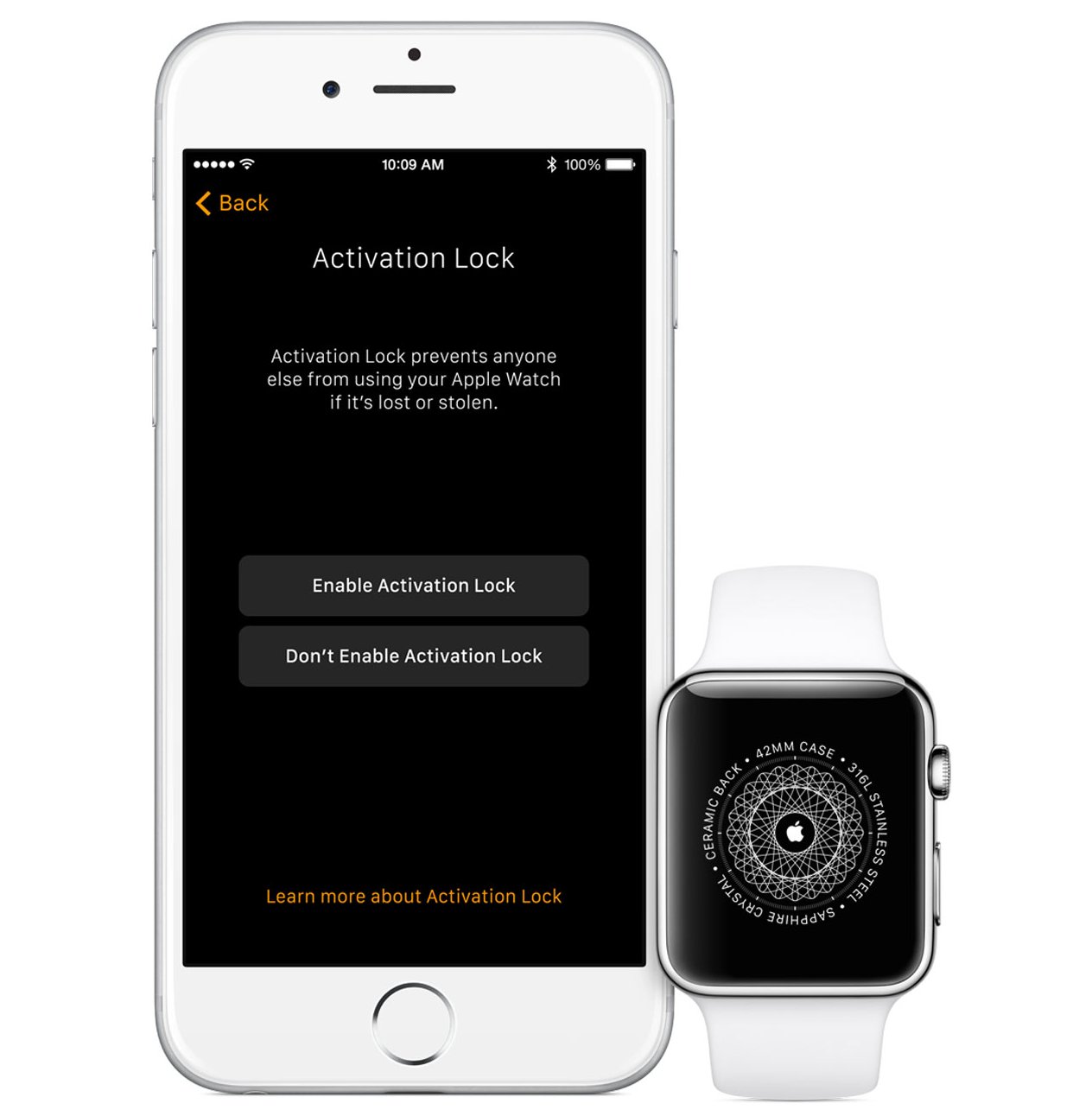
If you’re the new owner and stuck at the Activation Lock screen, don’t panic — but know you can’t bypass it alone.
Restart and Retry Setup
- Turn off both the iPhone and Apple Watch.
- Restart the iPhone first, then the Apple Watch.
- Open the Watch app, tap Pair Apple Watch, and use the six-digit code shown on the watch.
Sometimes, a simple restart fixes temporary sync issues.
Ask the Original Owner to Remove the Watch
They must:
– Go to iCloud.com
– Sign in with their Apple ID
– Open Find My > Devices
– Erase and Remove the Apple Watch
Without this, the watch cannot be activated.
Contact Apple Support to Remove Activation Lock
If the original owner can’t access their Apple ID or device, Apple can help — but only with proof of ownership.
How to Submit a Request
- Go to Apple Support.
- Select Apple Watch > Activation Lock.
- Choose Chat or Call.
- Explain: “I transferred the watch but couldn’t unpair it.”
- Provide proof of purchase — receipt, invoice, or box with serial number.
✅ Digital receipts (PDFs, emails) are accepted.
Apple will verify and may remove the lock remotely.
Visit an Apple Store for Immediate Assistance
For the fastest resolution, visit a Genius Bar with:
– The Apple Watch
– Proof of purchase
– The original owner (if possible)
An Apple Specialist can:
– Confirm ownership
– Remove Activation Lock
– Help set up the watch on the spot
✅ In-person visits often resolve cases faster than remote support.
Understand How Activation Lock Works
What It Does
Activation Lock activates when Find My Apple Watch is on. It ties the device to your Apple ID, preventing unauthorized use.
What It Means for Buyers
- The watch cannot be set up without the previous owner’s Apple ID and password
- No bypass exists — Apple enforces this strictly for security
💡 Always check for Activation Lock before buying a used Apple Watch
Manage Your Cellular Plan After Unpairing
Cancel Your Subscription
Even if you removed the plan during unpairing, contact your carrier to:
– Confirm the Apple Watch line is canceled or suspended
– Avoid surprise charges
Transfer to a New Watch
When setting up a new cellular Apple Watch:
– You’ll be prompted to transfer your plan
– Follow the on-screen steps — no carrier call needed
Back Up Your Data Before Unpairing
Only One Method Saves Your Data
Only unpairing via the iPhone app creates a backup, including:
– Watch faces and complications
– App layouts and settings
– Health and Fitness history
– Installed apps
💡 When setting up a new Apple Watch, choose “Restore from Backup” for a seamless transition.
Methods 2 and 3 erase everything permanently — no recovery possible.
Troubleshoot Common Unpairing Issues
| Issue | Solution |
|---|---|
| “Unpair” option missing | Ensure the watch is on and nearby. Restart both devices. |
| Watch stuck on Apple logo | Wait up to 10 minutes. If no progress, force restart: Hold side button + Digital Crown for 10+ seconds. |
| Activation Lock still active | Go to iCloud.com > Find My > Devices > Remove from Account. |
| “Linked to Apple ID” error | Original owner must remove it from iCloud or contact Apple with proof of purchase. |
Compare All Unpairing Methods
| Method | iPhone Needed | Backup? | Activation Lock Removed? | Best For |
|---|---|---|---|---|
| iPhone App | ✅ Yes | ✅ Yes | ✅ Yes | Selling, upgrading, gifting |
| iCloud Remote | ❌ No | ❌ No | ✅ Yes | Lost or sold without unpairing |
| On-Watch Erase | ❌ No | ❌ No | ❌ No | Emergency reset only |
✅ Always use the iPhone app method when possible — it’s the only one that backs up and fully unlinks.
Final Tips and Warnings
For Sellers and Givers
- Unpair before handing it over — it protects your privacy and ensures a smooth transfer
- Keep your receipt — future owners may need it for Activation Lock removal
- Clean the watch and remove the band before gifting or selling
For Buyers
- Never buy a used Apple Watch without verifying Activation Lock is off
- Ask the seller to unpair it in front of you
- If already purchased, request they remove it from iCloud
🔗 Official Apple Resources:
– Set Up Your Apple Watch
– About Activation Lock
Unpairing your Apple Watch is fast, secure, and essential. Whether you’re upgrading, selling, or troubleshooting, doing it right ensures your data stays safe and the next user can enjoy the device without issues. Use the iPhone app method whenever possible — it’s the only one that does it all. If not, iCloud or on-device erase can still get the job done, with a few extra steps. Stay smart, stay secure, and unpair the right way.





