

If your Apple Watch dies before dinner, you’re not imagining things—many users struggle with Apple’s “up to 18 hours” battery claim. While that number appears across nearly every standard Apple Watch model, real-world performance varies dramatically based on your settings, usage, and model generation. Whether you’re relying on your watch for sleep tracking, workouts, or constant notifications, understanding Apple Watch battery life and charging time is key to avoiding daily charging panic. This guide breaks down exactly how long each model lasts, what drains your battery fastest, and proven strategies to stretch your charge—sometimes doubling your runtime. You’ll also learn how to charge smarter, when to replace your battery, and whether upgrading or switching to a Garmin is worth it for better endurance.
How Long Each Apple Watch Model Really Lasts

Standard Apple Watch: 18 Hours (But Often Less)
Apple rates every non-Ultra model from Series 4 through Series 10 and SE at up to 18 hours of battery life under “normal use.” This includes 96 time checks, 48 notifications, one hour of app use, 90 minutes of workout tracking, and overnight sleep monitoring. However, real-world results frequently fall short—especially with heavy use. An LTE model using GPS and music during a long run might drop 25–35% in just one hour. Conversely, light users with optimized settings report getting 24–30 hours, proving that how you use your watch matters more than the official spec.
Despite the unchanged 18-hour rating, newer models like the Series 9 and Series 10 deliver noticeably better efficiency. One user reported only dropping to 88% after 7 hours of active use—thanks to faster processors and smarter power management. Even without hardware changes, software updates continue to refine energy use.
Apple Watch Ultra: Built for Multi-Day Use
The Apple Watch Ultra series is designed for extreme endurance. In normal mode, it lasts up to 36 hours—perfect for marathoners, hikers, and weekend adventurers. But its real strength is Low Power Mode:
- Ultra (1st Gen): Up to 60 hours
- Ultra 2: Up to 72 hours
This means you can wear it for two to three days straight without charging, making it the only Apple Watch truly suited for extended off-grid use. With careful settings—like disabling Always-On Display and limiting notifications—some users report nearly three full days of use.
Pro Tip: Activate Low Power Mode before long hikes or races. You’ll retain GPS, heart rate, and emergency features while cutting non-essential functions.
What Drains Your Apple Watch Battery the Fastest
Always-On Display: The #1 Power Hog
If your screen stays visible when your wrist is down, you’re using one of the biggest battery drains. Disabling Always-On Display can add 10+ hours of life. One Series 10 user stretched their runtime to 29+ hours simply by turning it off.
- Path:
Settings > Display & Brightness > Always On - Trade-off: You’ll need to raise your wrist or tap the screen to see the time—but the battery savings are massive.
GPS, Workouts, and Health Sensors
Activities that use GPS, heart rate monitoring, ECG, or blood oxygen significantly increase power use. A one-hour outdoor run with music streaming can consume 25–35% of your battery. Background health tracking adds continuous drain, especially during sleep or long workouts.
Fix: Use Theater Mode or manually enable Low Power Mode during long activities to reduce sensor polling and background tasks.
Cellular vs. Bluetooth: Why LTE Uses More Power
LTE models consume more energy—especially when out of range of your iPhone. Without Bluetooth, the watch relies on Wi-Fi or cellular to sync data, increasing transmission power. Weak signal strength forces the watch to work harder, accelerating drain.
User Insight: One user saw improved battery life after switching from AT&T to T-Mobile, likely due to better local coverage and reduced signal strain.
Notifications and Background Activity
Every alert wakes the screen and processor. Frequent notifications from apps like Messages, Email, or Slack lead to constant micro-drains. Background app refresh, though rare, can also run unseen processes.
Quick Fix: Disable non-essential alerts in the iPhone Watch app > Notifications.
Cold Weather: Temporary Battery Drop
Low temperatures reduce lithium-ion battery efficiency. Your watch may shut down at 30% charge in freezing conditions—even if the battery is healthy. Performance returns once warmed.
Avoid: Leaving your watch in cold cars or exposed to snow for long periods.
Battery Health: When to Replace and How Long It Lasts
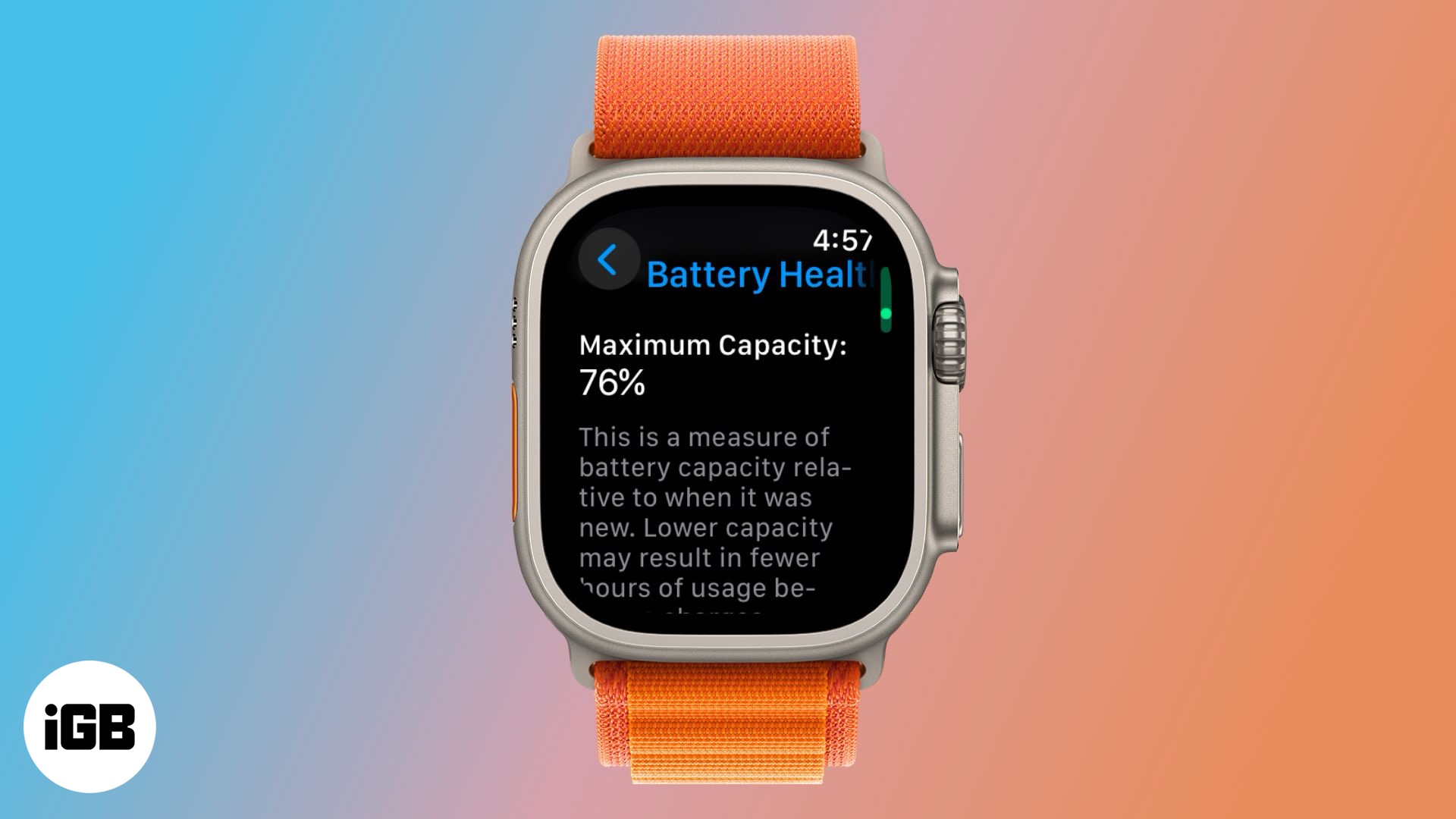
Check Battery Health on Series 4 and Later
Apple Watch Series 4 and newer include Battery Health monitoring.
- Path:
Settings > Battery > Battery Health - Shows maximum capacity as a percentage of original
A healthy battery should be above 80%. Below that, Apple recommends service.
When to Replace Your Battery
Apple doesn’t offer standalone battery replacements. If your capacity drops below 80%, you qualify for a $99 out-of-warranty replacement—you’ll receive a refurbished unit with a new battery. The process takes about a week and requires shipping.
Warning: High battery impedance can cause unexpected shutdowns—even at 40–50% charge—due to inability to deliver peak power.
Lifespan: 2–4 Years of Reliable Use
Most Apple Watches maintain good health for 2–4 years. One Series 5 user reported 87% health after 2 years, lasting ~15.5 hours per charge. Another SE 2 dropped below 80% after two years, needing mid-day top-ups.
Battery degradation is inevitable—lithium-ion cells degrade chemically over time, regardless of care.
Charging Time and Smart Charging Habits
How Long to Fully Charge?
- 0% to 80%: ~90 minutes
- Full charge (0% to 100%): ~2 hours
Newer models (Series 7+, SE 2, Ultra, Series 10) support fast charging, making top-offs quicker.
User Hack: A 40–60 minute charge every other morning can sustain a two-day cycle with optimized settings.
Best Charging Practices
Avoid overnight charging. Keeping the battery at 100% for hours accelerates wear and generates heat.
Instead:
– Charge during morning routines (shower, breakfast)
– Or charge in the evening before sleep tracking
Use Optimized Battery Charging
Available on watchOS 7+, this feature learns your routine and delays full charge until you wake.
- Path:
Settings > Battery > Battery Health > Optimized Battery Charging - Holds charge at 80% until your usual wake time
- Reduces battery stress and extends lifespan
Success Story: One user maintains 100% battery health on a Series 8 by charging 40 minutes every other morning and using Optimized Charging.
Maximize Battery Life: 5 Key Settings
1. Turn Off Always-On Display
The single most effective change. Gains of 8–12 extra hours are common.
2. Enable Low Power Mode (watchOS 9+)
Deactivates at 10% or manually via Control Center. It disables:
- Always-On Display
- Background app refresh
- Automatic updates
- Some sensor polling
Core features like time, alarms, workouts, and emergency SOS remain active.
Result: One user extended a 14-hour runtime to 27 hours.
3. Lower Screen Brightness
Even a 20–30% reduction helps. Use Adaptive Brightness (Settings > Display & Brightness) to auto-adjust.
4. Limit Notifications & App Refresh
Disable alerts for non-essential apps. Turn off Background App Refresh for rarely used apps.
Pro Tip: Use Theater Mode during meetings or flights to prevent accidental wake-ups.
5. Disable Wrist Raise
If you don’t check your watch constantly, turn off Wake on Wrist Raise. You’ll need to tap the screen, but it cuts unnecessary activations.
Sleep Tracking Without Sacrificing Charge
The Charging Dilemma
Sleep tracking requires wearing the watch all night—but you need to charge daily.
Evening Charging Routine
Charge before bed:
– Plug in at 8:30 PM, unplug at 10:00 PM
– Ensures full charge for sleep tracking
– Avoids waking up to a dead watch
Split Charging: Morning + Evening
Ideal for 24/7 wear:
– Morning: 30–45 minutes during shower
– Evening: 30–45 minutes before bed
Maintains ~90% battery all day.
Caution: Missing a charge means losing sleep data—set a reminder.
Is Upgrading Worth It for Better Battery?
Yes—especially from older models. While Apple claims “18 hours” across generations, newer watches last longer in practice.
- Series 2 (2019): Struggles to last a day
- Series 9: Drops to 88% after 7 hours
- Series 10: Achieves 29+ hours with optimization
- Ultra: 36–72 hours depending on mode
User Verdict: One person traded a Series 5 for a Series 9 for $300 net—called it “well worth it” for battery and screen clarity.
Alternatives: Garmin for True Multi-Day Battery
Why Garmin Wins on Battery
- 7+ days on a single charge
- Solar charging on Fenix, Epix, Instinct, and Edge models
- Syncs with iPhone and health apps
Reality Check: Only the Instinct Solar can theoretically run forever under ideal sunlight.
Why Apple Watch Isn’t Solar-Powered
Solar would require:
– Thicker design
– Smaller battery or display
– Compromised aesthetics
Bottom Line: Solar works as a range extender (Garmin), but not for full-featured smartwatches.
Final Note: The Apple Watch is designed for daily charging—except the Ultra line. Real battery life depends more on your settings than your model. Disabling Always-On Display and using Low Power Mode can double your runtime. Charge smart with Optimized Battery Charging and split sessions to avoid overnight wear. If your battery health drops below 80%, consider the $99 replacement. For true multi-day use, explore Garmin with solar—but if you want full iOS integration, the Apple Watch Ultra remains the best long-life option.





