

If your Apple Watch shows a green cellular icon but won’t make calls, send messages, or load data without your iPhone nearby, you’re facing one of the most frustrating and misunderstood issues in the Apple ecosystem. The problem — Apple Watch cellular not working — strikes across models (Series 3 to Ultra 3), carriers (Verizon, AT&T, T-Mobile, Visible+, Consumer Cellular), and regions. Despite displaying an active plan, users report “No Connection,” “Plan Not Available,” or endless spinning during setup.
This isn’t always a hardware failure or user error. Often, it’s a hidden software bug, a carrier backend glitch, or a silent eSIM provisioning failure. But here’s the good news: most cases are fixable — if you know the right steps.
This guide delivers proven fixes, carrier-specific workarounds, and real-world tests from users who’ve solved the same problem. You’ll learn how to verify true standalone functionality, bypass activation blocks (like Screen Time filters), and reset stubborn eSIM issues — even when Apple and carrier support fail.
Whether the issue started after a software update, carrier change, or out of nowhere, this step-by-step approach puts you back in control — fast.
Confirm Your Apple Watch Has Cellular
Check for LTE or Cellular Labeling
Not every Apple Watch can connect independently. First, confirm yours has cellular:
- Flip the watch over: Look for “LTE” or “Cellular” engraved on the back.
- On Ultra models: An orange Digital Crown means cellular.
- On other models: A red or black Digital Crown indicates cellular capability.
⚠️ Warning: GPS-only models show a greyed-out Cellular option in settings. No software trick enables cellular on these models.
Verify Carrier and OS Compatibility
| Model | Network Support |
|---|---|
| Series 3–10, SE (1st–3rd gen), Ultra 1–3 | 4G LTE + 3G fallback |
| Series 11, SE 3, Ultra 3 | 4G LTE + 5G (with supported plan) |
✅ Note: 5G requires both carrier support (e.g., Verizon 5G UW, T-Mobile 5G) and a compatible plan. Check your carrier’s website before assuming 5G availability.
Fix Airplane Mode and Connectivity Settings
Turn Off Airplane Mode on Both Devices
A stuck Airplane Mode disables cellular, even if the icon isn’t obvious.
On Apple Watch:
1. Press the Side Button to open Control Center
2. Tap the Airplane icon to disable it
3. Wait 15 seconds for the network to reconnect
On iPhone:
– Repeat the same step in Control Center
🔧 Pro Tip: If the Airplane icon stays highlighted, perform a force restart of the watch.
Enable Cellular in Control Center
Even with a plan, cellular may be manually disabled.
- On Apple Watch: Swipe up → Tap the Cellular icon
- Ensure Cellular, Cellular Data, and Data Roaming (if traveling) are enabled
📶 Visual Cue: A green tower icon means you’re using LTE. A white icon means connection is via iPhone (Bluetooth/Wi-Fi).
Update iOS and watchOS to Fix Bugs
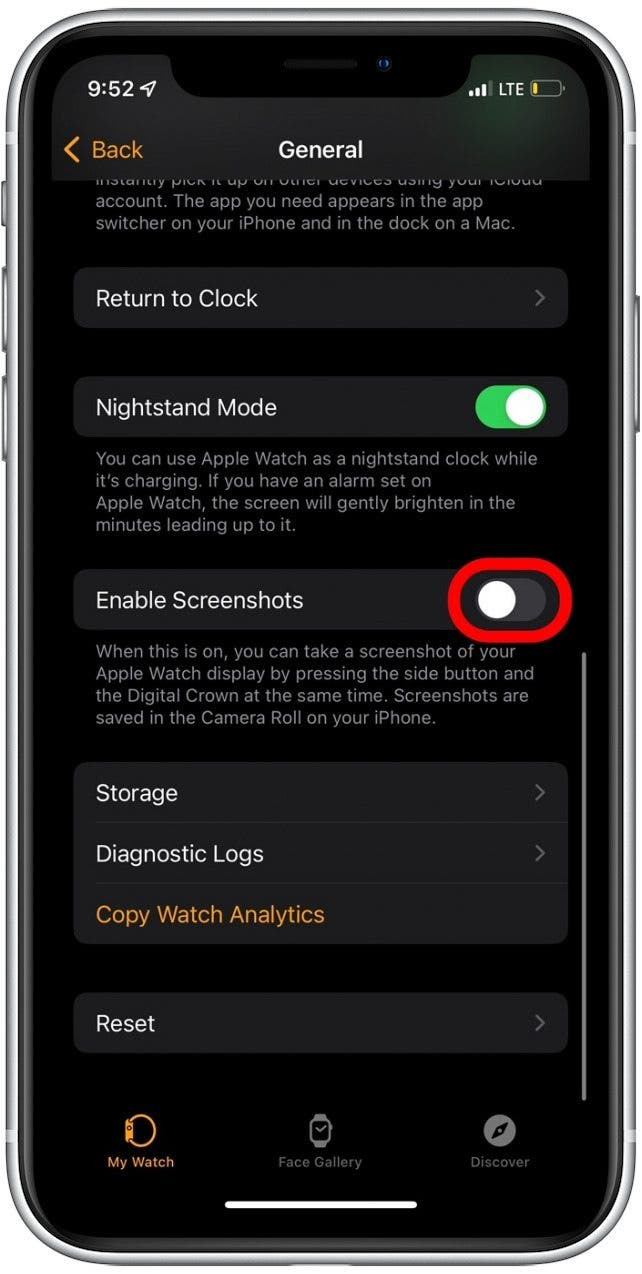
Always Update iPhone First
Apple requires the iPhone to be on the latest iOS before updating the watch.
Steps:
1. Open Settings > General > Software Update on iPhone
2. Install any available update
3. Reboot if prompted
Then Update Apple Watch
After iPhone is up to date:
- Press Digital Crown → Open Settings > General > Software Update
- Wait for download — this can take 10+ minutes
- Keep the watch on the charger
🔄 Why it matters: Known bugs (e.g., watchOS 4.3) break T-Mobile LTE. Updates often resolve eSIM handshake failures and carrier compatibility.
Install Carrier Settings Updates
Carrier updates fix hidden network issues.
On iPhone:
1. Go to Settings > General > About
2. If a carrier update appears (e.g., “ATT 42.1”), tap Update
No prompt? No update is available. These are pushed automatically over time.
Test True Standalone Functionality
Can Your Watch Work Without the iPhone?
Many assume cellular works when it doesn’t. Here’s how to test real independence:
- Power off your iPhone
- On Apple Watch: Disable Wi-Fi and Bluetooth (via Control Center)
- Try:
– Make a phone call
– Send an iMessage
– Stream Apple Music
– Load a webpage in Safari
– Refresh the Weather app
✅ Success: Native Apple apps work → Cellular is functional
❌ Failure: “Not Connected” errors → Cellular is not working
💡 Critical Insight: Third-party apps like WhatsApp or Messenger require the iPhone to be on. Only Apple apps work fully standalone.
Remove and Re-Add Your Cellular Plan

Delete the Existing Plan
Stale eSIM data causes persistent failures.
On iPhone:
1. Open Watch app > My Watch > Cellular
2. Tap the info (i) next to your carrier
3. Select Remove [Carrier] Plan
4. Confirm
⏳ Wait 60 seconds — allow the system to fully clear the eSIM.
Re-Add the Plan
Now re-add it:
- Tap Add Cellular Plan
- Wait — 5+ minutes is normal for eSIM download
- Do not close the app or skip steps
✅ User Success (mcolemanplaw): “Tried everything. This fixed it.”
Reset Network and Cellular Settings
Force Restart the Apple Watch
Clears temporary glitches in the cellular stack.
Steps:
1. Press and hold Digital Crown + Side Button
2. Hold until the Apple logo appears (~10–15 seconds)
3. Release
🛠️ Works for watches stuck on “Connecting…” or showing “No Service.”
Restart Your iPhone
Refreshes Bluetooth and network handshake.
- Power off → Wait 10 seconds → Power on
Reset iPhone Network Settings
Erases corrupted Wi-Fi, Bluetooth, and cellular profiles.
On iPhone:
– Settings > General > Reset > Reset Network Settings
– Enter passcode
– Reboot
⚠️ Warning: You’ll lose saved Wi-Fi passwords.
Remove All Cellular Data on Watch
Last resort for persistent failures.
On Apple Watch:
1. Go to Settings > General > Reset
2. Tap Remove All Cellular Data Plans
3. Confirm
Then return to the Watch app on iPhone and re-add the plan.
✅ User Fix (winter-finch): Solved a Verizon activation loop.
Solve Carrier-Specific Problems

Verizon: Screen Time Blocks Activation
Problem: Setup fails — can’t reach verizon.com
Cause: Screen Time restrictions block web access
Fix:
1. On iPhone: Settings > Screen Time > Content & Privacy Restrictions
2. Tap Web Content
3. Select Allow All Websites
4. Retry setup in Watch app
5. After success, re-enable restrictions
✅ User Confirmed (Wogoman): “Connected immediately after allowing all websites.”
AT&T: Plan Shows Inactive
Problem: Plan visible but greyed out or says “Inactive”
Fix: Use the “+” button to force re-provisioning
- In Watch app > Cellular > Tap “+” (top right)
- Select AT&T
- Re-enter account info if prompted
Even if the plan appears listed, tapping “+” triggers backend refresh.
T-Mobile / Visible+: Billing Cycle Lock
Problem: After upgrading to Visible+ 2.0, watch shows “No Connection”
Root Cause: Backend retains old provisioning state
Fix:
1. Remove the watch from your carrier account (via portal)
2. Wait 7 days (until next billing cycle)
3. Re-add the device and re-setup cellular
⏳ Why wait? Carrier systems only clear stale records at billing boundaries.
🔥 User Case: Only fix after 30+ hours of failed support calls.
Consumer Cellular: E911 Address Error
Error: AttWearablesProxy591000: Create E911AddressFailed
Cause: Address format rejected during setup
Fix:
1. Try a simplified address (e.g., “123 Main St, Apt 4”)
2. Avoid special characters
3. Call support — request manual E911 override
❌ No self-service fix. Requires agent intervention.
Etisalat: Server Connection Lost
Error: “Connection Failed. The connection to the server was lost.”
Cause: iPhone not using cellular data during setup
Fix:
1. Turn off Wi-Fi on iPhone
2. Ensure iPhone has strong cellular signal
3. Retry setup
Forces iPhone to communicate directly with Etisalat servers.
Full Unpair and Re-Pair (Last Resort)
Use this when all else fails — especially for Visible+, T-Mobile, or recurring issues.
Step-by-Step Reset
- Remove watch from carrier account (via online portal)
- Wait 1–7 days (critical for billing sync)
- On iPhone: Open Watch app > Select watch > Unpair Apple Watch
- Back up when prompted
- (Optional) Reset iPhone network settings
- Re-pair watch — follow setup steps
- Skip cellular setup during initial pairing
- After setup: Go to Watch app > Cellular > Add Plan
- Wait 5+ minutes for eSIM download
- Power off watch for 30 minutes, then restart
✅ User Win: Only resolution after repeated failures on Visible+.
When to Contact Support
Call Your Carrier If:
- Plan status is unclear
- eSIM won’t provision
- Activation portal inaccessible
- E911 or billing errors persist
📞 Tip: Call support — not chat. Verizon users report 800-922-0204 resolves issues chat can’t.
Contact Apple If:
- Multiple resets fail
- Watch replaced but same issue
- Suspect hardware defect (e.g., antenna)
🔍 Reality Check: Apple may replace the watch, but software bugs persist across devices — push for backend carrier fixes.
FAQs: Clearing the Confusion
Does the iPhone need to be on?
- Apple apps (Phone, Messages, Music): ❌ No — works with iPhone off
- Third-party apps (WhatsApp, Messenger): ✅ Yes — requires iPhone on and connected
Confirmed via user tests: iPhone powered off → native apps worked fine.
Why green tower but no service?
Icon shows plan is recognized — not that LTE is active.
Likely causes:
– eSIM handshake failed
– Carrier backend glitch
– Software bug
Fix: Force restart + remove/re-add plan.
Can iPhone and Watch use different carriers?
- Standard use: ❌ No — must be same carrier
- Family Setup (kids’ watches): ✅ Yes — can assign different lines
Example: Your iPhone on AT&T, child’s Apple Watch on Verizon via Family Setup.
How to check cellular data usage?
On iPhone:
– Watch app > My Watch > Cellular
– Scroll to Cellular Data Usage
Shows daily/monthly use by app.
What does white vs. green icon mean?
- White: Plan active, but using iPhone (Bluetooth/Wi-Fi)
- Green: Actively using cellular network
Move away from iPhone or disable Wi-Fi to force green.
Quick Fix Summary (Cheat Sheet)
| Fix | When to Use | Success Rate |
|---|---|---|
| Force restart watch | First step for frozen state | High |
| Update iOS + watchOS | After any OS glitch | High |
| Remove/re-add plan | Most common fix | High |
| Toggle Airplane Mode | Quick reset | Medium |
| Reset iPhone network settings | After carrier switch | Medium |
| Disable Screen Time (Verizon) | Activation fails | High (specific) |
| Full unpair + wait + re-pair | Visible+/T-Mobile sync | Only known fix |
| Call carrier phone support | Stuck in loop | Variable |
Final Tips for Long-Term Success
- Check updates monthly — carrier settings change silently
- Avoid Wi-Fi during setup — use cellular-only mode
- Keep billing current — overdue payments disable eSIM
- Use same Apple ID on iPhone and Watch
- Wait after resets — eSIM download can take minutes
Bottom Line: Apple Watch cellular failure is rarely just “your fault.” Known bugs (watchOS 4.3 + T-Mobile), carrier backend locks, and eSIM provisioning delays are real. The fix often lies in patience, carrier coordination, and systematic resets — not hardware.
If one step fails, move to the next. Most users resolve the issue within 3–5 steps. Save this guide — it’s the only one that combines user-tested fixes, carrier logic, and Apple’s blind spots into one actionable plan.





