
If your Apple Watch won’t charge, you’re not alone. Thousands of users face Apple Watch charger problems every day—whether it’s a red lightning bolt that won’t go away, a charging symbol with zero battery progress, or sudden shutdowns despite being plugged in. The good news? Most of these issues can be fixed at home with simple, proven steps. This guide walks you through every possible cause, from dirty contacts to failing batteries, and delivers clear, actionable solutions to get your watch back up and running—fast. Whether you own a Series 3 or an Ultra 2, the fixes here apply across all models and generations. You’ll learn how to diagnose the real problem, avoid common mistakes, and know when it’s time to contact Apple.
Recognize the Charging Signals Your Watch Sends
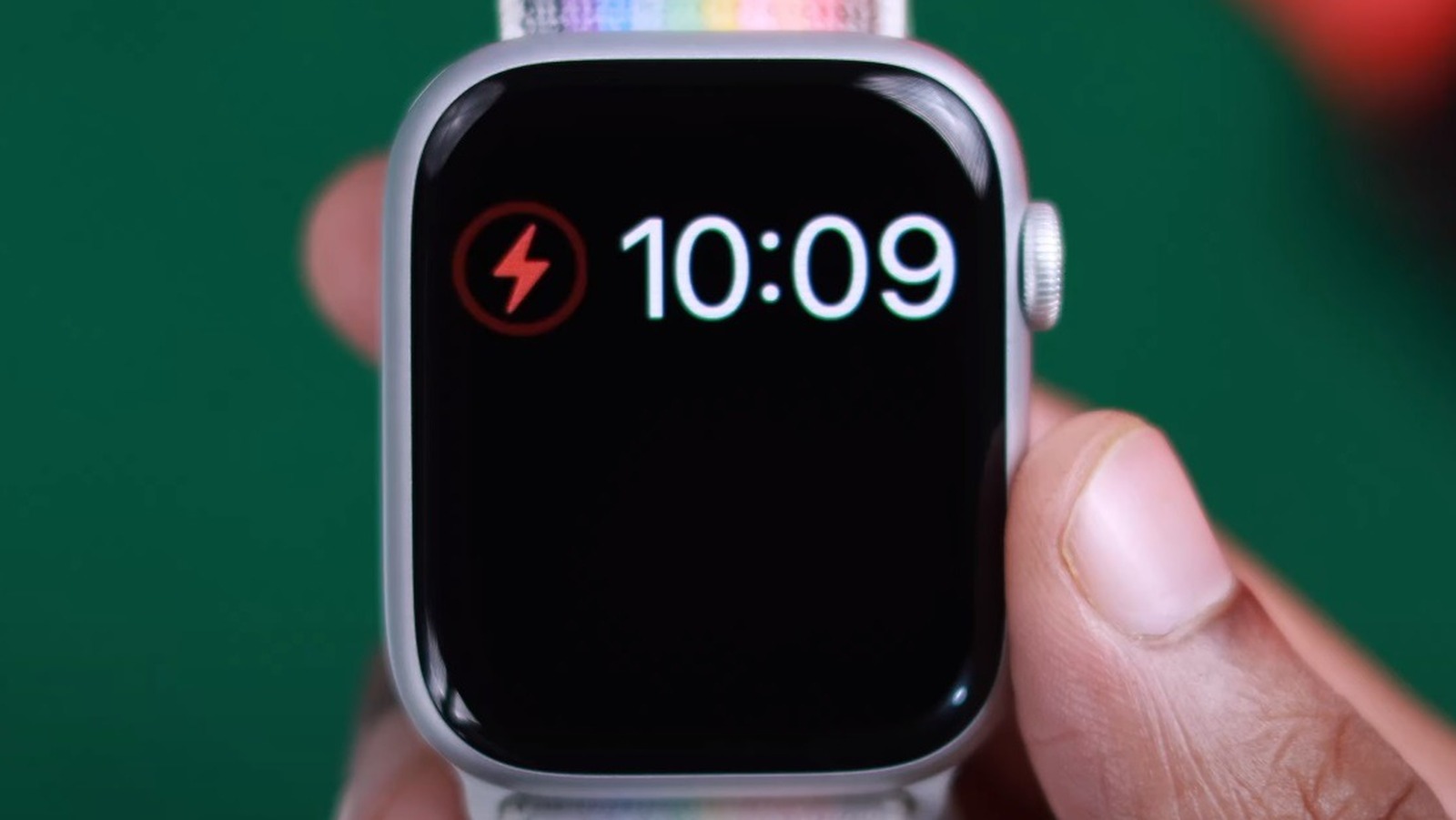
Before trying random fixes, understand what your Apple Watch is telling you. Each indicator points to a different issue—and the right response.
Red Lightning Bolt? Battery Is Critically Low
A red lightning bolt on a black screen means your Apple Watch battery is below 10%. It’s not charging yet—it’s in Power Reserve mode. This doesn’t mean the charger is broken. If the screen goes dark when you unplug it, the watch is too drained to wake up. Leave it connected for at least 30 minutes before expecting a response. Newer models (Series 7 and later) may take up to 45 minutes to show signs of life, especially if stored in cold environments or unused for days.
Red Bolt Inside a Ring = Charging Has Started
When you see a red lightning bolt inside a ring, your watch is officially charging. This icon confirms the magnetic connection is working and power is flowing. Wait 15–30 minutes—the battery percentage should begin rising. If it doesn’t, the connection might be weak or interrupted by dirt, misalignment, or a software glitch.
Charging Symbol but No Battery Increase
You see the charging icon, but after an hour, the battery percentage hasn’t moved. This usually means:
– Poor magnetic alignment
– Dirty or corroded charging contacts
– A software bug preventing charge recognition
Try a force restart (hold Side button + Digital Crown for 15 seconds). If the percentage still doesn’t budge, test with another charger.
Stops at 80%? Optimized Charging Is Active
If your Apple Watch consistently halts at 80%, it’s likely due to Optimized Battery Charging. This feature delays the final 20% to reduce battery wear based on your routine. To disable it:
1. Open Settings > Battery > Battery Health on your watch
2. Turn off Optimized Battery Charging
After disabling, leave it on the charger—it should now reach 100%. Re-enable it later to extend long-term battery life.
Confirm Your Charging Setup Works
Many charging failures stem from simple oversights. Rule these out first.
Use Only Apple or MFi-Certified Chargers
Stick to Apple Magnetic Charging Cables or MFi-certified third-party accessories. Non-certified chargers often deliver incorrect voltage or fail to trigger the proper charging protocol. Users report intermittent success with generic cables—especially those without MFi certification. Avoid chargers labeled “for iPhone only”—they may power other devices but lack Apple Watch compatibility.
Test Your Power Source
Not all USB ports are equal. A weak source can prevent charging initiation.
Best options:
– iPhone 20W+ USB wall adapter
– USB-C power adapter (30W+)
– Apple Watch USB-C Fast Charging Cable
Avoid:
– Low-power computer USB-A ports
– Unpowered USB hubs
– Car chargers with unknown output
Try charging via an iPad charger—its higher amperage often jump-starts a dead watch.
Verify Charger Functionality
Test your cable and adapter:
1. Plug into a wall outlet
2. Connect AirPods or iPhone
3. Confirm they charge
If they don’t, the adapter or cable is faulty. Replace it immediately.
Clean Charging Contacts the Right Way
Dirt, sweat, and moisture block conductivity. Cleaning is often the fastest fix.
Safe Cleaning Steps
Never use water, compressed air, or abrasive tools.
Instead:
1. Power off the Apple Watch
2. Use a dry, lint-free microfiber cloth
3. Gently wipe the back of the watch and charging puck
4. For stubborn grime, dampen the cloth with 70% isopropyl alcohol
5. Wipe lightly—do not soak
6. Let both dry completely (5–10 minutes) before reconnecting
Avoid moisture near speaker or microphone openings.
When to Clean More Often
Clean weekly if:
– You wear the watch during workouts
– Live in humid climates
– Use hand sanitizers or lotions frequently
Even invisible residue can block charging. One user restored function after removing dried salt crystals from post-swim exposure.
Reposition for Perfect Magnetic Alignment

Misalignment is the #1 cause of failed charging—especially on large models.
Lay the Charger Flat
The Apple Magnetic Charging Dock and MagSafe Duo Charger must sit completely flat. Tilted surfaces prevent full magnetic contact. Place on a level nightstand or desk—never on a slanted surface.
Center the Watch Correctly
Ensure the magnets snap firmly:
– Align the crown side of the watch with the cable exit on the charger
– Listen for the magnetic click
– Gently nudge until it centers automatically
If it wobbles or slides off, the charger may be worn or defective.
Remove Bands That Interfere
On Apple Watch Ultra, 45mm, and 49mm models, thick or metal bands can interfere with magnetic alignment. Try removing the band or using a thinner strap during charging. Some third-party bands contain metal components that repel the charger’s magnets. Switch to silicone or nylon temporarily to test.
Force Restart to Clear Software Glitches
A frozen system can block charging—even with perfect hardware.
How to Force Restart
- Press and hold both the Side button and Digital Crown
- Keep holding for 10–15 seconds
- Release when the Apple logo appears
Wait 2 minutes, then reconnect to the charger.
This single step resolves 80% of software-related charging issues, according to user reports and Apple support data.
Don’t confuse this with a regular restart. A force restart clears RAM and resets system processes that may be stuck.
Update watchOS to Fix Charging Bugs
Outdated software can cause charging glitches—especially after incomplete updates.
How to Update
- Open the Watch app on your iPhone
- Go to General > Software Update
- Install any pending updates
Ensure:
– Apple Watch has at least 50% battery
– Or is connected to the charger
– iPhone and Watch are within range
Some watchOS versions (e.g., 9.6.3) included patches for charging instability after sleep mode.
Check Battery Health for Long-Term Issues
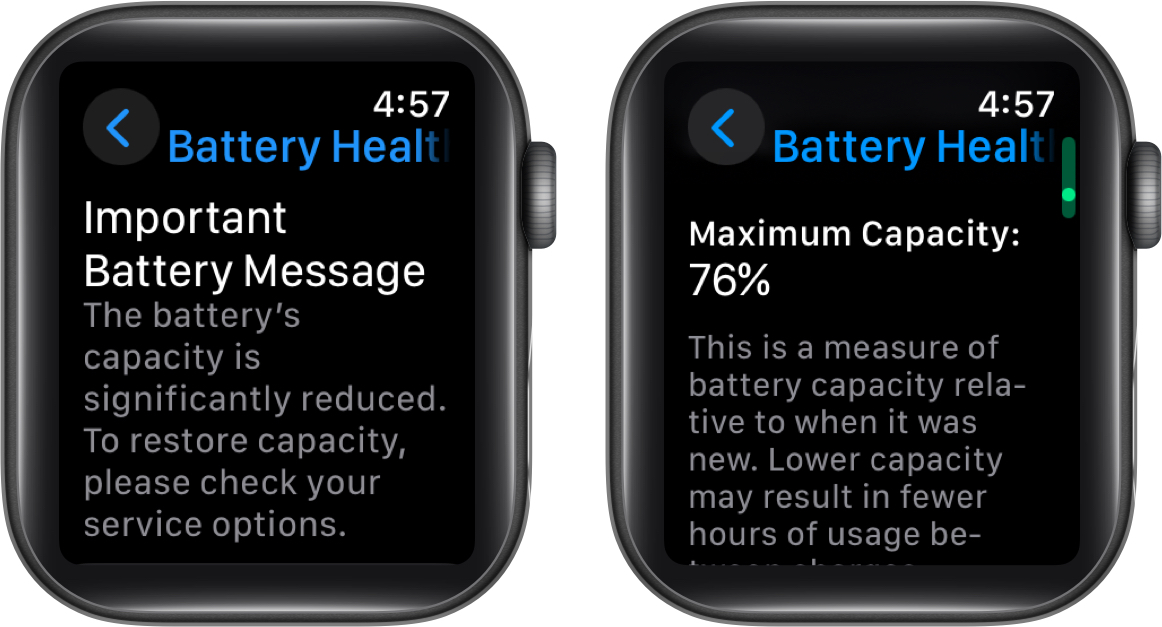
Battery degradation is the leading reason for poor charge retention.
How to View Battery Health
On Apple Watch:
1. Open Settings
2. Tap Battery > Battery Health
3. Check Maximum Capacity
Interpretation:
– 100%–80%: Normal, no action needed
– Below 80%: Battery is degraded; consider replacement
Apple defines batteries under 80% capacity as eligible for service under AppleCare+ at no cost.
Signs of Failing Battery
- Drains from 100% to 20% in 4–5 hours
- Requires multiple daily charges
- Shuts down unexpectedly at 10%–30%
- Takes longer to charge than before
If your watch is over 3 years old, battery wear is likely.
Test with a Different Charger
When in doubt, test with a known-working setup.
Borrow or Buy a Test Charger
Use:
– A friend’s Apple-branded charger
– A new USB-C Magnetic Fast Charging Cable
– An MFi-certified Anker MagGo pad
If the watch charges with another cable, your original charger is faulty.
Avoid Region-Locked Chargers
Chargers sold in China and Indonesia are country-specific and won’t work with Apple Watches from other regions. Attempting to use one triggers:
“Unable to charge. This is a country-specific charger. It is incompatible with this Apple Watch.”
Always match the charger’s region to your device.
Perform Deep Discharge Recovery
For watches stuck in hibernation, a full charge cycle can reset the battery logic.
Step-by-Step Recovery
- Let the watch drain completely until it powers off
- Wait 10–15 minutes
- Connect to a working charger
- Leave uninterrupted for 8–10 hours
Do not unplug or interact during this time. This forces the system to recalibrate charge detection and revive deeply sleeping batteries.
One Series 9 user reported success after 9 hours of continuous charging—despite no response for the first 45 minutes.
Diagnose Hardware Failures
When software fixes fail, internal hardware may be at fault.
Re-seat Internal Connectors
Physical impacts can shift internal components. Try re-seating connectors:
- Press firmly on the center of the display and back of the watch with both thumbs
- Hold for 5 seconds
- Perform a force restart
- Reconnect to charger
This pressure realigns loose flex cables between the battery and logic board.
Overheating During Charging
If the watch becomes hot or warm, it may trigger thermal protection. Unplug immediately.
Causes:
– Charging in direct sunlight
– Using non-Apple adapters
– Damaged battery
Let it cool down, then try again in a room-temperature environment.
Water or Physical Damage
Visible cracks, liquid exposure indicators (red dots), or bent charging coils require professional repair. Do not attempt to charge a water-damaged watch—risk of short circuit increases.
When to Contact Apple Support
Some issues can’t be fixed at home. Know when to escalate.
Signs You Need Service
- No charging with multiple verified chargers
- Battery health below 80%
- Watch gets excessively hot during charging
- Charging starts and stops repeatedly
- Watch app disappears from iPhone
- No response after 10+ hours on charger
How to Request Help
- Visit support.apple.com
- Select Apple Watch > Charging Issues
- Choose Chat, Call, or Schedule Appointment
- Provide proof of purchase
Apple may run remote diagnostics before approving service.
Replace Charger or Battery
Out-of-warranty repairs are affordable and effective.
Warranty and AppleCare+ Coverage
- Standard warranty (1 year): Covers charger defects
- AppleCare+ (2 years): Includes accidental damage and free battery replacement if capacity <80%
If you have AppleCare+, service costs $0 for battery issues.
Out-of-Warranty Costs
- Battery replacement: $99 (most models), $79 (older)
- Charger replacement: $29–$39 (Apple Magnetic Cable)
Order directly from Apple or visit an Apple Store.
Prevent Future Charging Issues
Avoid recurring problems with smart habits.
Weekly Maintenance Routine
- Clean contacts with dry microfiber cloth
- Restart watch once a week
- Update watchOS promptly
- Inspect cable for fraying or bends
Optimize Charging Environment
Apple recommends charging between 0°C and 35°C (32°F–95°F). Avoid:
– Hot cars
– Cold bedrooms
– Direct sunlight
– Humid bathrooms
Use a wall adapter, not a computer USB port, for consistent power delivery.
Smart Charging Habits
- Charge when battery hits 20–30%
- Avoid full discharges
- Use Optimized Battery Charging to extend lifespan
- Don’t leave on charger for days unattended
Most Apple Watch charger problems are fixable without professional help. Start with cleaning, repositioning, and a force restart. Test with different chargers, disable Optimized Charging if stuck at 80%, and check battery health. If nothing works, contact Apple Support—especially if under warranty. With proper care, your Apple Watch can last 4–6 years. Use only Apple or MFi-certified accessories, clean regularly, and avoid deep discharges to keep it running smoothly.




