
You own an Apple Watch, but you also carry two iPhones—one for work and one for personal use. It’s natural to want your Watch to stay connected to both, delivering notifications from both devices without missing a beat. After all, it’s your wrist, and you only want to wear one smartwatch. But if you’ve tried setting this up, you’ve likely hit a hard wall.
Here’s the reality: an Apple Watch cannot connect to two phones at the same time. No matter if you’re using an Apple Watch Series 7, Series 9, or the latest Series 10, Apple’s ecosystem only allows a one-to-one pairing between a single Watch and one iPhone at any given moment. This isn’t a bug or a temporary limitation—it’s by design.
When you pair your Apple Watch with a new iPhone, it automatically unpairs from the previous one. There’s no workaround that bypasses this rule. But before you give up, there’s good news: while simultaneous dual pairing isn’t possible, you can switch between phones manually. And there are smart, practical alternatives that can get you close to the seamless experience you’re looking for.
In this guide, we’ll break down exactly how Apple Watch pairing works, why dual connections aren’t supported, and what real-world solutions exist today. You’ll learn how to switch devices safely, avoid data loss, and choose the best setup for your lifestyle—whether you’re a business traveler, a fitness enthusiast, or just someone juggling two identities on two phones.
Let’s dive into what’s possible—and what to expect in the future.
Apple Watch Only Pairs with One iPhone at a Time
The fundamental rule of Apple Watch connectivity is simple: one Watch, one iPhone. This limitation applies across all models and versions, including GPS-only, cellular, and even the newest watchOS 10 updates.
Apple’s deep integration between the Watch and iPhone ensures secure syncing for Apple Pay, health data, messages, and app functionality. But that tight bond means the system cannot maintain two active connections. If you attempt to pair your Watch with a second iPhone, it will erase itself and disconnect from the first phone.
“Each Apple Watch can only be paired with a single iPhone at a time.”
— Apple Support
This rule is non-negotiable. Even if you use different Apple IDs or try to leverage iCloud syncing, the pairing remains strictly one-to-one. The Watch treats the iPhone as its central hub—without it, most features either degrade or stop working entirely.
Why Apple Doesn’t Allow Dual Pairing
Apple designs the Watch as an extension of the iPhone, not a standalone smart hub. This philosophy drives every technical decision.
Core Technical and Security Constraints
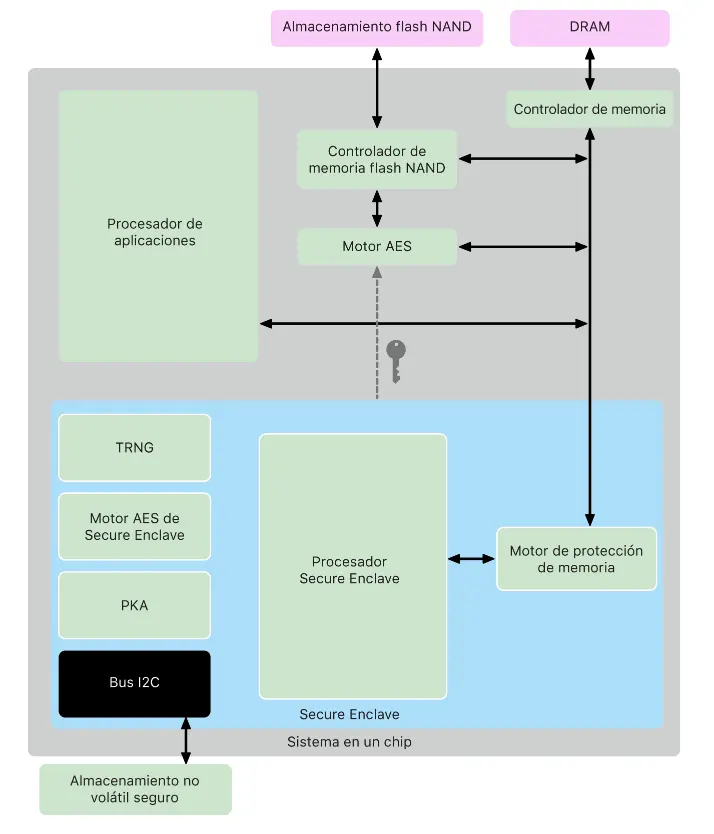
- Secure Enclave dependency: Apple Pay and password autofill rely on encrypted links only possible with one trusted device.
- Health data integrity: Your heart rate, sleep, and workout history sync directly to one Health app. Splitting this across devices could corrupt trends or cause duplicates.
- Notification routing: Calls and messages must come from a single source to prevent delays, missed alerts, or message loops.
- watchOS architecture: The operating system assumes one primary iPhone for app updates, backups, and settings sync.
iCloud helps sync health data across devices, but only after it’s been processed by the paired iPhone. Real-time dual access remains unsupported.
How to Switch Your Apple Watch Between iPhones
You can’t connect to two phones at once—but you can switch your Watch from one iPhone to another. It’s a manual process, but it works.
Step-by-Step: Unpair and Re-Pair
- On your current iPhone, open the Watch app.
- Go to My Watch > All Watches.
- Tap the “i” icon next to your Watch.
- Select Unpair Apple Watch and confirm.
- Wait for the Watch to erase all data (this may take a few minutes).
- On your new iPhone, open the Watch app and follow setup instructions.
- Choose Restore from Backup to bring back apps, settings, and watch faces.
This backup preserves most configurations—but not health data collected while unpaired.
Time and Effort Involved
- Unpairing: ~2 minutes
- Re-pairing: 5–10 minutes
- App and data syncing: 30 minutes to over an hour, depending on app load
You’ll also need to re-authenticate apps like banking tools, password managers, and Apple Pay cards. Frequent switching becomes a chore, not a convenience.
Risks of Switching Phones Frequently
While switching is possible, doing it often comes with real trade-offs.
You Could Lose Health and Fitness Data
Any workout, heart rate reading, or sleep data collected while the Watch is unpaired will only sync to the iPhone it’s currently paired with. That means if you go for a run between switches, that data won’t appear on your original phone—even if it was the one you used yesterday.
The Watch stores up to 30 days of local health data, but it only uploads it to the active paired iPhone.
Reconfiguration Hassles Add Up
Every time you re-pair, you may face:
– Missing app data or broken shortcuts
– Watch faces that don’t restore perfectly
– Music and podcast libraries that need re-syncing
– Apple Pay cards that must be re-added
Some apps simply don’t restore cleanly from backup, leading to frustration.
Battery Drain on Both Devices
The unpairing and re-pairing process is intensive. Both your Watch and iPhone will consume significant battery during setup. You’ll likely need to charge both devices before and after switching.
Best Alternative: Use a Dual-SIM iPhone
If you’re managing two phone numbers, the smartest solution is to use one dual-SIM iPhone instead of two separate devices.
How Dual-SIM Works
Modern iPhones support:
– One physical nano-SIM + one eSIM
– Two active phone lines (personal and work)
– Separate contacts, voicemail, and messaging per line
Your Apple Watch connects to the iPhone—not the SIM—so it receives calls and texts from both numbers seamlessly.
Advantages Over Two Phones
- No switching required
- Full notification support from both lines
- Single device to manage, update, and back up
- Can assign different watch faces or complications per number
This setup is ideal for professionals, international travelers using local eSIMs, or anyone avoiding carrier lock complications.
“Why use two phones? iPhones support two SIMs.”
— Apple Support Community user
Note: Dual-SIM availability depends on carrier and region. Check with your provider before relying on this solution.
Use Two Apple Watches for True Dual-Device Use
For users who need full separation—like corporate-managed and personal devices—the only truly reliable solution is owning two Apple Watches.
How to Set It Up
- Pair one Watch to your personal iPhone
- Pair the second to your work iPhone
- Use the same Apple ID on both iPhones
- Enable iCloud Health sync to unify your health data
This ensures your step count, workouts, and sleep trends stay consistent across devices.
Who This Works Best For
- Business travelers switching regions
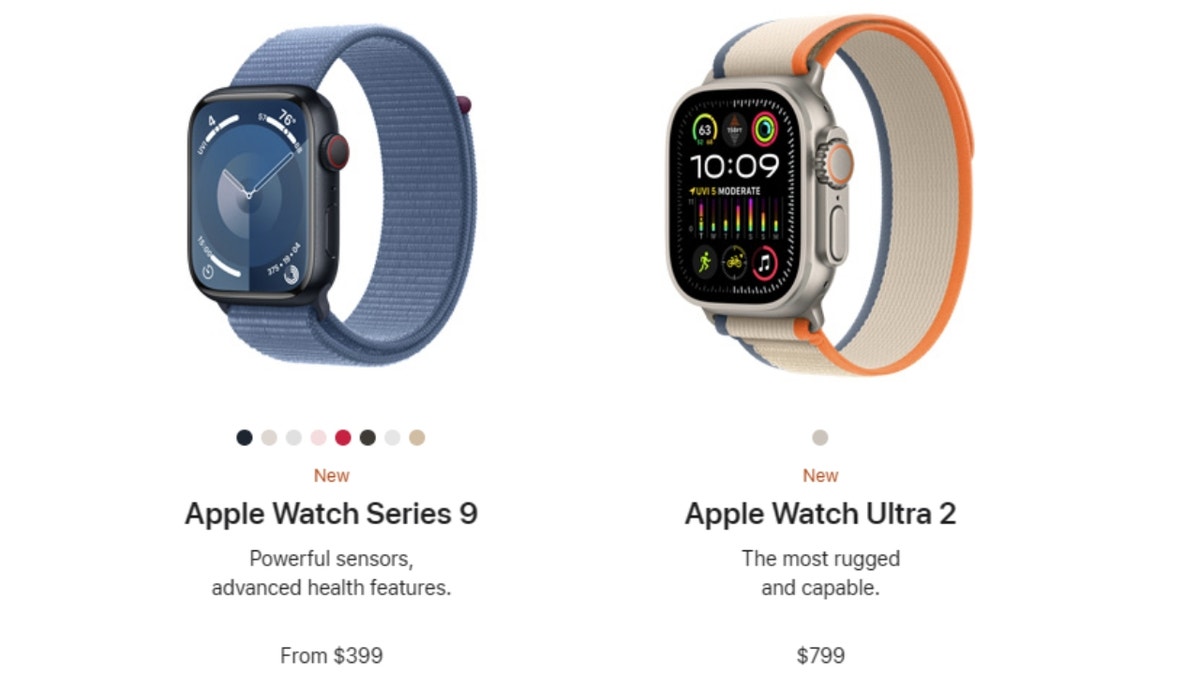
- Users wanting different Watch models (e.g., Ultra 2 for workouts, Series 9 for daily wear)
- Families using Family Setup
- Anyone needing full app and Apple Pay separation
Yes, it’s more expensive—but it’s the only way to avoid switching delays and data loss.
iCloud Health Sync: Your Data Safety Net
If you’re using multiple devices, iCloud Health sync is essential.
How It Helps
- Turns on automatic upload of health data to iCloud
- Makes your data accessible from any iPhone with the same Apple ID
- Preserves long-term trends and history
But remember: your activity rings and daily progress are tied to the paired iPhone. If you switch phones, your ring progress may not update immediately.
Limitations to Know
- Sync delays of several hours are possible
- No real-time health viewing on a secondary iPhone
- Workouts done on a different paired device won’t appear unless manually logged
Still, it’s the best tool for keeping your health history intact.
Avoid Third-Party Workarounds
You might find apps claiming to “bridge” two iPhones to one Watch. Don’t trust them.
Why They Fail
- Apple’s pairing system is locked at the OS level—no app can override it
- Notification forwarding is unreliable and often delayed
- Background syncing drains your Watch battery
- Many require excessive permissions, posing privacy risks
“I tried third-party apps—nothing works reliably.”
— User report
Stick to Apple’s native tools. Unofficial fixes create more problems than they solve.
User Demand Is Rising—Will Apple Respond?
Many users want dual pairing, especially professionals with work-life separation needs.
Common Requests Include:
- A toggle in the Watch app to switch active iPhones
- Location-based auto-switching (e.g., connect to work iPhone at the office)
- App-triggered pairing (e.g., switch when opening Outlook)
- Background notifications from a secondary iPhone
Apple hasn’t implemented these—yet.
Future Possibilities: Could watchOS Change?
Rumors suggest Apple may be testing multi-device support.
What’s Being Explored:
- Pairing one Apple Watch with multiple iPhones
- Direct setup via iPad or Mac (no iPhone required)
- Health app expansion to iPadOS
“Apple is working on letting users sync their Apple Watch with more than one device at a time.”
— Leaker @analyst941
While nothing is confirmed, Family Setup shows Apple can manage multiple Watches from one iPhone. A reverse system—multiple iPhones to one Watch—could be possible in the future.
Can You Use Apple Watch Without an iPhone?
Not really. Even cellular models depend on an iPhone for:
– Initial setup
– App installation
– Apple Pay enrollment
– Health data syncing
You can make calls, track workouts, and play music without the iPhone nearby—but you still need it to set everything up.
Final Tips for Managing Two Phones
If You Must Switch:
- Always back up before unpairing
- Test the process first
- Schedule switches during low-activity times
For Long-Term Use:
- Go dual-SIM if you only need two numbers
- Buy a second Watch for full functionality
- Enable iCloud Health to keep data consistent
What to Avoid:
- Switching more than once a week
- Third-party pairing tools
- Expecting real-time sync from a secondary phone
Bottom Line: Your Options Ranked
| Solution | Simultaneous Use? | Data Sync | Effort | Best For |
|---|---|---|---|---|
| Manual switching | ❌ No | Partial | High | Rare switches |
| Dual-SIM iPhone | ✅ Yes | Full | Low | Two numbers |
| Two Apple Watches | ✅ Yes | Full | Low | Daily dual use |
| Third-party apps | ❌ No | Unreliable | Medium | Not recommended |
The Bottom Line
An Apple Watch cannot connect to two phones at once. Apple’s ecosystem is built for one-to-one pairing, and that’s unlikely to change soon. While you can switch between iPhones manually, it’s slow, disruptive, and risks losing health data.
Your best options are:
1. Use a dual-SIM iPhone to run two numbers on one device
2. Own two Apple Watches, each paired to a different iPhone
Until Apple introduces multi-device support—rumored but unconfirmed—these are the only reliable ways to keep your wrist in the loop, no matter which phone you carry.
Stay updated. User demand is growing. And with Apple expanding cross-device features in iOS and watchOS, dual pairing might finally arrive in a future update. Until then, work with the system, not against it.





