
If your Apple Watch keeps pausing workout sessions unexpectedly, you’re not imagining things—and you’re definitely not alone. Countless users report their runs, strength training, or even brisk walks being interrupted by sudden pauses, often within seconds of starting. The phrase “Apple Watch keeps pausing workout” isn’t just a common search—it’s a widespread frustration shared across fitness forums, Reddit threads, and Apple support communities.
The good news? This issue is rarely due to a broken device. Instead, it’s usually caused by a combination of overly sensitive sensors, default software settings, or environmental factors like sweat, tattoos, or loose bands. And in most cases, it can be fixed quickly—sometimes in under a minute.
Whether your watch pauses every 10.51 seconds, stops during weightlifting reps, or halts mid-run for no reason, this guide delivers proven fixes, step-by-step instructions, and real user-tested solutions. By the end, you’ll know exactly how to stop the pausing for good—and ensure your workouts are tracked accurately, every time.
Disable Auto-Pause Feature
The Auto-Pause function is the number one reason Apple Watch interrupts workouts. Designed to pause tracking when you stop moving—like at a traffic light during a run—it often misinterprets natural movement breaks as workout endings.
Turn Off Running & Cycling Auto-Pause
If you’re doing interval training, trail running, or gym circuits, Auto-Pause can be more of a liability than a help. Even brief pauses between sets or hill climbs can trigger it.
How to disable:
1. Open the Watch app on your iPhone.
2. Tap My Watch > Workout.
3. Toggle off Running Auto-Pause and Cycling Auto-Pause.
You can also disable it directly on your Apple Watch:
– Open Settings > Workout > Auto-Pause, then toggle it off.
With Auto-Pause disabled, your workout will continue tracking—even if you walk, rest, or take a breather.
✅ Pro Tip: Keep this off if you do HIIT, strength training, or any workout with intermittent motion.
Fix Wrist Detection Sensor Issues
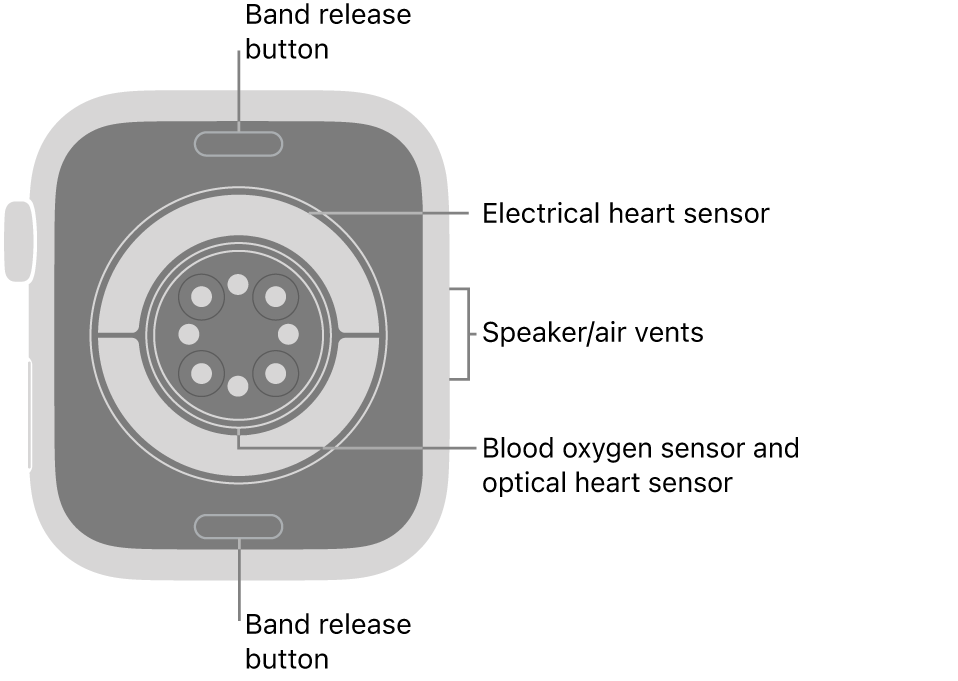
Your Apple Watch relies on infrared sensors to determine whether it’s still on your wrist. If it thinks you’ve removed it—even briefly—it locks the screen and pauses your workout. This can happen during intense movement, especially if conditions interfere with sensor accuracy.
Avoid Tattoo Interference
Dark tattoos, especially black ink or full sleeves, absorb infrared light, preventing the sensors from detecting your skin. This tricks the watch into thinking it’s been taken off.
What You Can Do:
- Switch wrists: Move the watch to your non-tattooed arm. Many users report immediate resolution.
- Reposition slightly: Shift the watch up or down 1–2 cm to place the sensors over untattooed skin.
- Use IR reflector discs: Stick-on adhesive patches (available online) boost signal return over dark ink.
📣 User Confirmed: “Switched to my right wrist—no more pausing. What. The. Fuck.” – frank-and-beanss
Stop Sweat-Induced Pausing
Sweat creates a reflective film between the sensor and your skin, disrupting the optical signal. This is common during high-intensity cardio or hot weather.
Prevention Tips:
- Dry your wrist before starting.
- Tighten the band so the watch stays flush.
- Wipe the back of the watch mid-workout if soaked.
✅ Quick Fix: Remove, dry both skin and sensor, then restrap securely.
Clean Dirty Sensors
Dirt, lotion, or dried sweat can block the red and green LEDs on the back of the watch, leading to inaccurate readings.
Maintenance routine:
1. Power off the watch.
2. Gently wipe the rear sensor cluster with a microfiber cloth or 70% isopropyl alcohol wipe.
3. Dry completely before wearing.
🔍 Visual Check: Look for grime covering the circular sensor array.
Prevent Accidental Button Presses
During push-ups, lifts, or arm swings, pressing the Digital Crown and Side Button together triggers the Press to Pause feature—same as taking a screenshot.
Disable Double-Press to Pause
This feature is useful for intentional pauses but disastrous during gym workouts.
Steps to disable:
1. Open Watch app > Workout.
2. Toggle off “Press to Pause” or “Double Press to Pause”.
Now, you can move freely without fear of accidental pauses.
✅ Best for: Weightlifting, boxing, yoga flows.
Use Water Lock During Exercise
Water Lock disables the screen, preventing accidental touches.
How to enable:
– Start your workout.
– Turn the Digital Crown until “Lock” appears.
– Confirm.
To unlock later, turn the crown again.
✅ User Favorite: “Turn on Water Lock—game changer.” – Responsible_Golf_496
Solve Software & Firmware Bugs
Some users experience pausing at exact intervals—like 10.51 or 10:29 seconds—pointing to a software bug, often after a watchOS update.
Force Restart the Watch
A hard reset clears temporary glitches.
Steps:
1. Press and hold Side Button + Digital Crown.
2. Hold for 10 seconds until the Apple logo appears.
3. Release and wait for reboot.
✅ When to do it: After an update or if pausing started suddenly.
Update to Latest Software
Apple frequently patches sensor and workout tracking bugs.
Check versions:
– iPhone: Settings > General > Software Update
– Apple Watch: Watch app > General > Software Update
Ensure both run the latest:
– iOS 18.6.1+
– watchOS 11.6.1+
Turn Off Wrist Detection (Advanced Fix)
This nuclear option disables the sensor-based lock system. Your watch won’t pause if it loses skin contact.
How to Disable:
- Open Watch app > Passcode.
- Toggle off Wrist Detection.
⚠️ Trade-offs:
– Watch stays unlocked when off your wrist.
– Disables automatic iPhone unlock, sleep tracking, and reduces fall detection reliability.✅ Worth it? Yes—if you have tattoos, sweat heavily, or need uninterrupted tracking.
📢 Verified Fix: “Turn off Wrist Detection—fixed it 100%.” – xTLeGiiT
Disable iPhone Mirroring
When enabled, iPhone Mirroring syncs data in real time. A brief Bluetooth drop can cause the watch to pause.
Turn It Off:
- Open Watch app > Workout > iPhone Mirroring.
- Toggle off.
Now your watch tracks independently—even if your phone is out of range.
✅ Best for: Runners, cyclists, hikers.
Optimize Band Fit & Position
A loose band breaks sensor contact during motion.
Tighten the Strap
- Use a snug fit—only one finger should fit underneath.
- Avoid leather or stretchy bands for intense workouts.
- Opt for Sport Band or Nylon Braided Loop.
✅ User Proof: “Tightened the strap—no more pausing during lifts.” – Czech_the_dj
Adjust Watch Placement
- Wear it higher on the forearm to reduce button presses.
- Or lower to avoid sleeve interference.
Use Third-Party Workout Apps
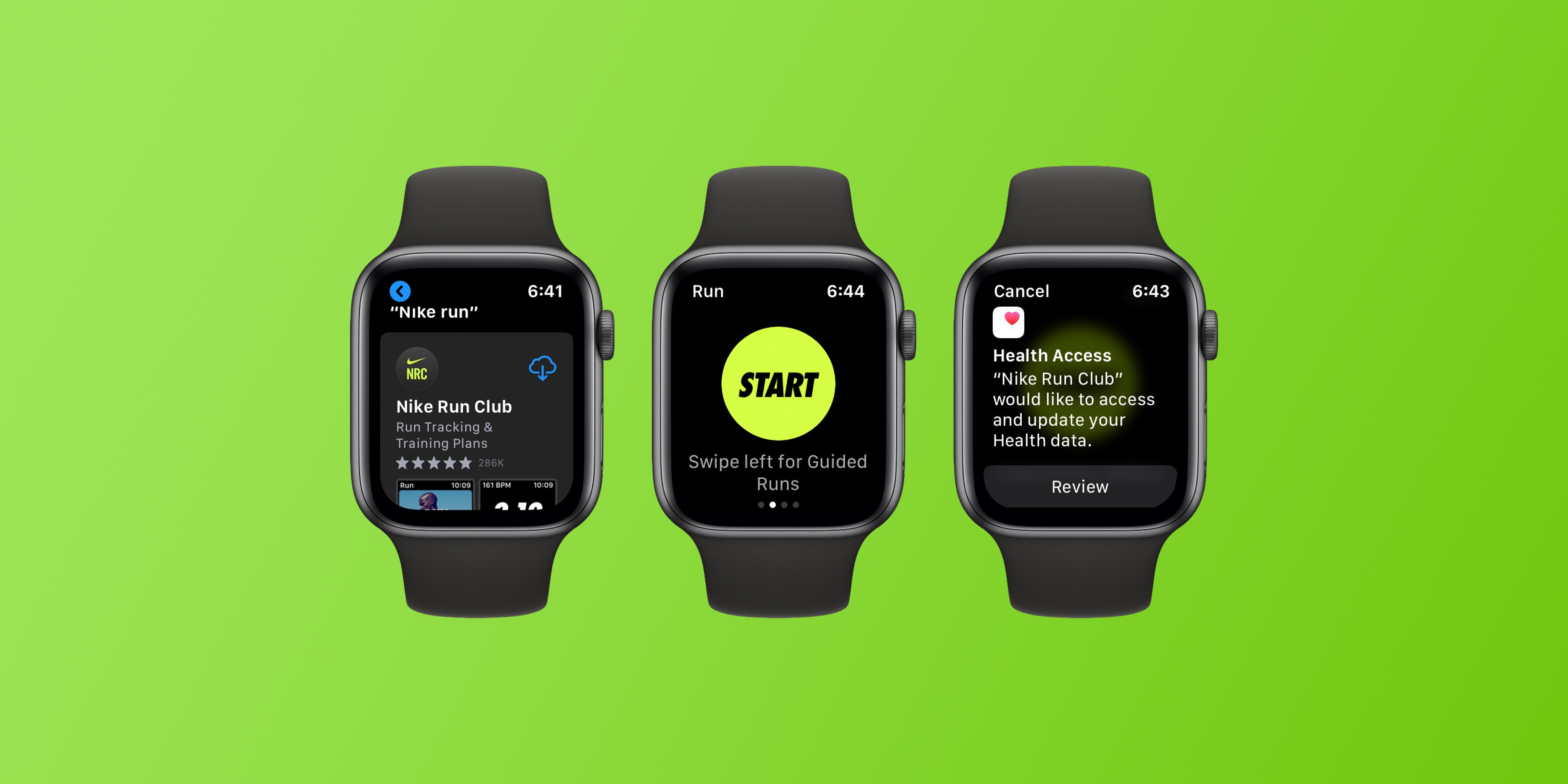
The native Workout app is sensitive. Third-party apps often track more reliably.
Top Alternatives:
- WorkOutDoors (Free): Open-source, excellent GPS, ignores minor pauses.
- Nike Run Club (NRC): Smoother interval tracking.
- Strava: Continues logging even if Apple Watch pauses.
✅ Why it works: These apps prioritize GPS and motion over wrist detection.
Try an External Heart Rate Monitor

Bypass wrist sensors entirely with a Bluetooth chest strap.
Best Models:
- Polar H10
- Wahoo TICKR
- Garmin HRM-Pro
Setup:
1. Pair via Bluetooth in the Workout app.
2. Start workout—the watch uses chest data instead.
✅ Pro Advantage: No tattoo/sweat/cold issues. More accurate HR readings.
Reset Calibration & Motion Data
Inaccurate calibration can confuse the watch’s motion detection.
Reset Calibration:
- Watch app > My Watch > Workout.
- Tap Reset Calibration Data.
- Confirm.
Then complete a 20-minute outdoor walk or run with clear sky view.
✅ Result: Improved GPS and motion tracking.
Unpair and Re-pair Your Watch
For deep software issues, a clean setup often helps.
Steps:
- In Watch app, tap i next to your watch.
- Select Unpair Apple Watch.
- Set up as new device (don’t restore backup yet).
- Test workout tracking.
If it works, restore data gradually.
⚠️ Warning: Restoring from backup may bring back the bug.
When to Contact Apple Support
If none of the above work, and:
– Pausing happens on both wrists
– You have no tattoos or sweat issues
– Wrist raise isn’t working
– Sensors fail in other apps
…it could be a hardware defect.
What Apple Can Do:
- Run diagnostics
- Replace the sensor module
- Offer repair or replacement
📍 Next Step: Visit an Apple Store or contact support online.
Prevention Checklist: Stop Pausing Before It Starts
| Action | Why It Matters |
|---|---|
| ✅ Disable Auto-Pause | Stops misread stops |
| ✅ Turn off Press to Pause | Prevents accidental presses |
| ✅ Tighten band | Ensures sensor contact |
| ✅ Clean sensors weekly | Avoids grime buildup |
| ✅ Use Water Lock | Blocks screen touches |
| ✅ Update software | Catches bug fixes |
| ✅ Try third-party apps | More reliable tracking |
| ✅ Pair chest HR monitor | Bypasses wrist limits |
Final Thoughts: Is Apple Watch Reliable for Workouts?
Despite its seamless design and health features, the Apple Watch keeps pausing workout sessions for many users—especially those with tattoos, cold sensitivity, or gym-heavy routines. Apple hasn’t officially acknowledged tattoo interference, and there’s still no “Always Track” mode.
But with the right setup—disabled auto-pause, tight fit, updated software, and strategic use of third-party tools—you can achieve stable, uninterrupted tracking.
For serious athletes or users with persistent issues, external heart rate monitors or alternative apps are essential. Until Apple improves infrared sensing or adds a “no pause” option, manual configuration is your best defense.
Don’t let a small sensor flaw ruin your fitness journey. Fix it once—and get back to tracking with confidence.





