
Your Apple Watch powers on, the glowing Apple logo appears—and it never goes away. No home screen, no apps, no response. You’re stuck in a boot loop. This frustrating issue affects Apple Watch models from Series 1 to Ultra 2, often after a software update, unexpected restart, or even out of nowhere. The good news? In most cases, it’s fixable without losing your data—and you don’t need to visit a repair shop right away.
The “Apple Watch stuck on Apple logo” problem usually stems from software glitches, low battery, or corrupted settings. Rarely, it points to hardware failure. Whether your watch froze mid-update, won’t pass the logo screen, or keeps rebooting endlessly, this guide delivers step-by-step solutions—starting with simple fixes and progressing to advanced resets. You’ll learn how to force restart, drain residual power, adjust regional settings, and even unpair and restore your device. Follow the right sequence, and you’ll likely have your watch back in action within minutes—or at worst, a few hours.
Force Restart Your Apple Watch
This is the first and most effective fix for a frozen Apple Watch. A force restart clears temporary system errors without deleting your data.
How to Force Restart Any Apple Watch
Press and hold both the Side Button and Digital Crown at the same time. Keep holding for 10 to 15 seconds, or until the screen goes dark and the Apple logo reappears. Once you see the logo, release both buttons and wait up to 2 minutes for the watch to boot fully.
Pro Tip: If the watch is completely unresponsive, place it on the charger before attempting the force restart. Some users need to hold the buttons for up to 20 seconds for older or low-power models.
Watch Won’t Restart While Charging?
Try this variation:
– Connect your Apple Watch to the charger.
– Wait 1 minute—let it draw power.
– Now press and hold both buttons for 15+ seconds.
– If the screen flickers or vibrates, keep holding.
This method often works when the battery is critically low but not fully dead.
Charge Properly and Check Power
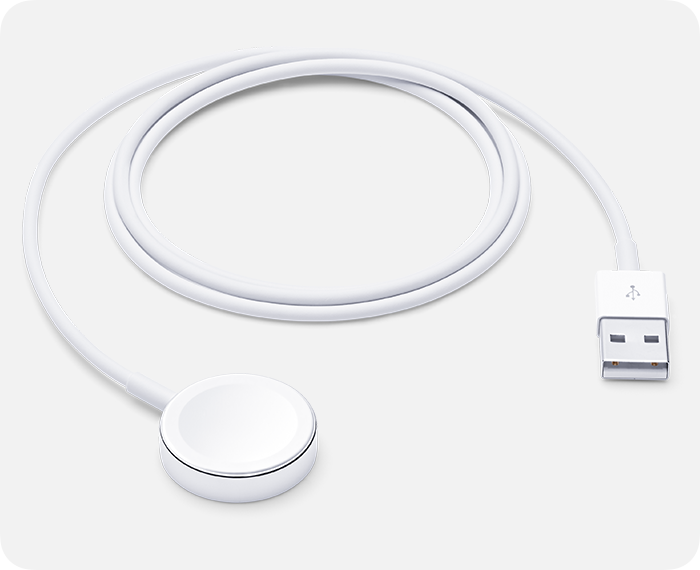
A weak or interrupted charge is a leading cause of boot failure. Your watch may appear to be charging but not receive enough power to complete the startup process.
Use the Right Charger and Outlet
Always use the original Apple magnetic charger or an MFi-certified alternative. Plug into a wall adapter, not a low-power USB port on a computer or speaker. These often deliver insufficient voltage to power a struggling device.
Charge for at least 5–6 hours, preferably overnight. Even if the Apple logo appears, don’t interrupt the charge. Let the battery build a stable charge before retrying a restart.
Clean Charging Contacts
Dirt, sweat, or lint on the charging pins can block power delivery.
Steps to Clean Safely:
- Power off the watch (if possible).
- Use a dry, lint-free cotton swab.
- Gently wipe the metal contacts on the back of the watch.
- Clean the inside of the magnetic charger.
- Avoid liquids, compressed air, or metal tools.
Reconnect and charge for 30+ minutes before attempting another force restart.
Drain Battery and Recharge
If standard charging and restarts fail, the watch may be trapped in a false power state. Fully draining the battery can reset the system.
How to Perform a Full Drain
Leave your Apple Watch disconnected from the charger and untouched. Wait 1 to 2 days until it’s completely dead. The watch is fully drained when pressing the Side Button shows no response—not even a dim screen or charging icon.
Once drained:
– Reconnect to the charger.
– Let it charge for 5–6 hours.
– Attempt a force restart.
User Success: One case resolved after 16 days of complete discharge—suggesting deep system hibernation can trap residual power.
Fix Regional and Calendar Settings
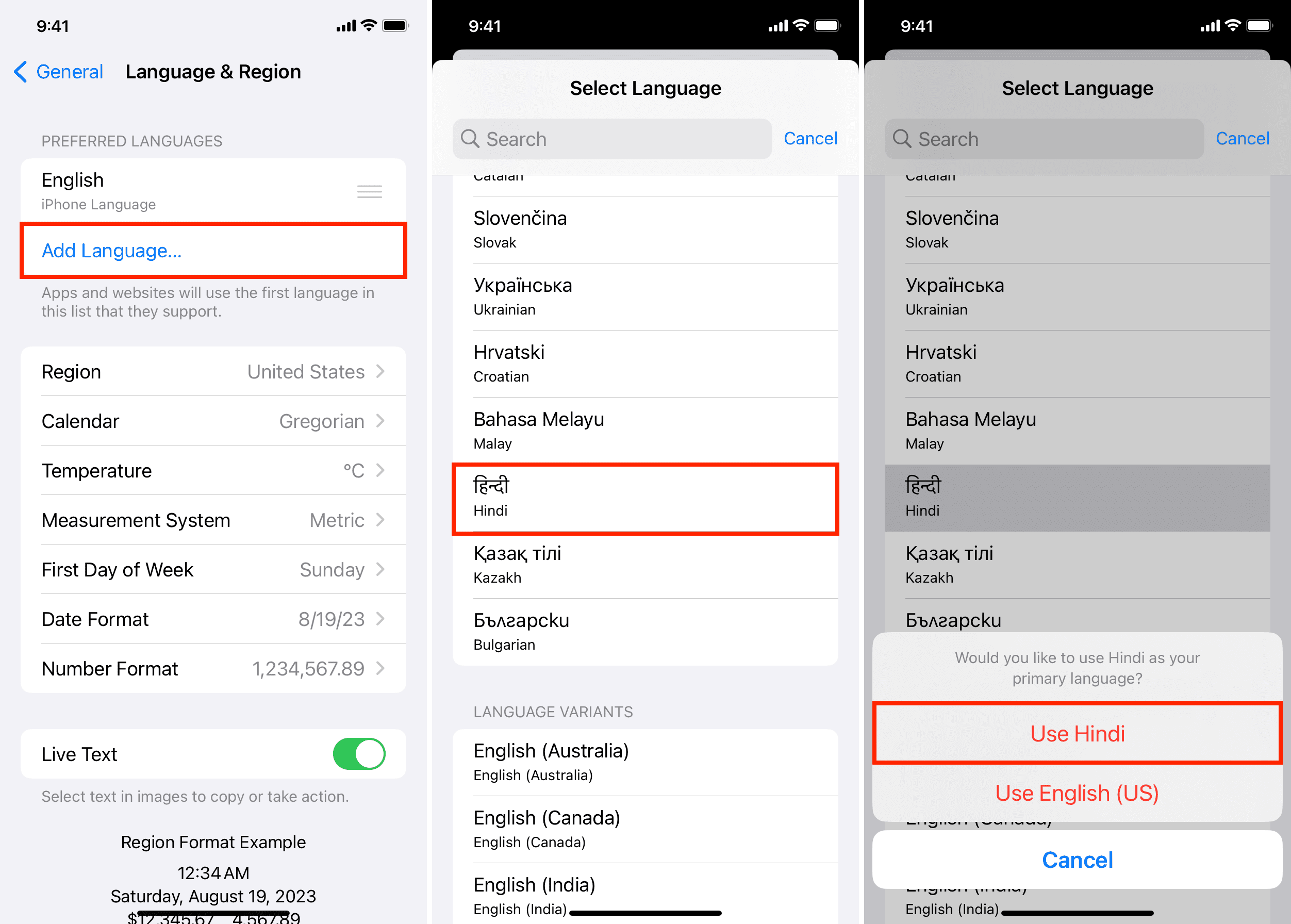
A surprising but confirmed cause: non-Gregorian calendar settings (like Buddhist calendar in Thailand) can prevent the Apple Watch from booting.
How to Fix It from iPhone
You don’t need to access the watch. Use your paired iPhone:
- Open the Watch app.
- Go to General > Language & Region.
- Change Calendar to Gregorian.
- Optionally, set Region to United States or another Gregorian-using country.
- Force restart your Apple Watch.
Real-World Impact: This fix has resolved boot loops for users in Thailand, India, and Southeast Asia—especially after updates to watchOS 11.
Disable Accessibility Features Remotely
Sometimes, your Apple Watch is booting—but you can’t see it. Features like Screen Curtain or VoiceOver can make the display appear black or frozen.
Turn Off Screen Curtain via iPhone
- Open the Watch app on your iPhone.
- Tap General > Accessibility.
- Disable Screen Curtain and VoiceOver.
- Return to your Apple Watch and try a force restart.
If the watch was running but invisible, it should now respond normally.
Ring My Watch to Wake It
A hidden trick: triggering a sound can wake a frozen device stuck in a soft loop.
Steps to Trigger a Wake Signal
- Open the Watch app on iPhone.
- Tap your watch name.
- Tap the “i” (info) icon.
- Select Find My Apple Watch > Play Sound.
- Wait 20 seconds.
Even if the screen stays on the Apple logo, the internal system may respond and break the loop. Try a force restart immediately after.
Cancel Pending Updates or Downloads
An interrupted software or app update can corrupt the boot process.
Stop Ongoing Installations
- On iPhone, open the Watch app.
- Go to Available Updates or Downloads.
- Cancel any pending watchOS updates or app installations.
- Wait 2–3 minutes.
- Attempt a force restart.
Expert Tip: If the watch is stuck mid-update, repeatedly tap “Set New Watch Face” in the Watch app. This sometimes forces a system refresh.
Factory Reset Your Apple Watch
When software corruption is suspected, a factory reset clears the issue—but erases all data. Ensure you have a recent backup before proceeding.
Reset from iPhone (Best Method)
- Open the Watch app.
- Go to General > Reset > Erase All Content and Settings.
- Enter your passcode if prompted.
- Confirm.
The watch will reboot and begin erasing. This takes 5–10 minutes.
Reset from Watch (If Accessible)
If you can briefly access the watch:
– Connect to charger.
– Press and hold the Side Button until “Slide to Power Off” appears.
– Release, then press and hold the Digital Crown.
– Tap Erase All Content and Settings.
Unpair and Re-Pair Your Watch
Unpairing removes all cached data and Bluetooth pairing issues. It also triggers an automatic backup.
How to Unpair and Restore
- Open Watch app on iPhone.
- Go to My Watch > All Watches.
- Tap the “i” icon next to your watch.
- Tap Unpair Apple Watch.
- Confirm with Apple ID password.
After unpairing:
– The iPhone will back up your watch automatically.
– Tap Start Pairing and follow setup steps.
– Choose Restore from Backup—or set up as new if the loop returns.
Critical Advice: If the boot loop comes back after restore, set up as new. Corrupted data in the backup may be causing the issue.
Try Advanced Recovery Methods
These are not Apple-endorsed but have worked for some users in desperate situations.
Freezer Method (Low Risk)
Theory: Cold contracts components and drains residual charge.
- Place Apple Watch in a sealed plastic bag.
- Put in freezer for 10–15 minutes.
- Remove and let sit at room temperature for 5–10 minutes.
- Attempt a force restart.
Safety Note: Apple Watches operate in cold environments. This method is low-risk and worth trying before hardware service.
Physical Reset Techniques
Some users fixed the loop through physical interaction:
– Tap the Side Button 15–20 times—dislodges sticky mechanisms.
– Press firmly on the screen or back for 10–20 seconds.
– Rotate the Digital Crown rapidly—simulates input during freeze.
These suggest possible hardware jams—especially after water exposure or drops.
When to See an Apple Technician
If none of the above steps work, the issue may be hardware-related.
Signs of Hardware Failure
- Watch charges but never boots past Apple logo.
- No response to force restart, reset, or unpairing.
- Visible cracks, dents, or water damage.
- Device doesn’t pair or respond to iPhone commands.
Get Professional Help
- Contact Apple Support at support.apple.com.
- Schedule a Genius Bar appointment.
- Visit an Apple Authorized Service Provider.
- Use mail-in repair if available.
Note: Apple often replaces rather than repairs watches—especially under warranty or AppleCare+. Turnaround can take 1–3 weeks.
Final Note: Most Apple Watch boot loops are software-related and fixable at home. Start with a force restart and proper charging. If that fails, adjust regional settings, disable accessibility features, or perform a factory reset. When in doubt, set up as new—it breaks recurring loops caused by corrupted backups. Avoid risky fixes like oven heating. With patience and the right steps, your Apple Watch can come back to life—no data loss required.





