
You reach for your wrist to check a message, only to see a red iPhone icon on your Apple Watch. No calls, no texts, no notifications—your smartwatch has lost its connection. When an Apple Watch is not connected to iPhone, it becomes little more than a fancy fitness tracker. But this common issue is usually fixable in minutes. Whether you’re dealing with a sudden disconnect, failed pairing, or missing alerts, the root cause typically lies in Bluetooth settings, software glitches, or pairing conflicts. The good news? You don’t need technical expertise to fix it. This comprehensive guide walks you through proven troubleshooting steps—from simple checks to advanced resets—that restore connectivity fast. By the end, you’ll know exactly how to diagnose, repair, and prevent connection problems between your Apple Watch and iPhone.
Check the Red iPhone Icon and Missing Notifications
Before jumping into fixes, confirm the disconnection with visual and functional clues.
Look for the Red iPhone Icon in Control Center
The most direct sign your Apple Watch is disconnected is a red iPhone icon in the Control Center. To check:
- Swipe up from the watch face to open Control Center
- Look at the top-left corner: a red icon means disconnected, a green one means connected
If it’s red, your watch can’t communicate with your iPhone. This usually points to Bluetooth or Wi-Fi issues. Don’t panic—this is often resolved with a quick restart or settings adjustment.
Verify Delayed or Missing Notifications
Another clear indicator is when your iPhone receives messages, calls, or calendar alerts—but your watch doesn’t. This includes:
- iMessages and SMS
- Phone call alerts
- Email and app notifications (e.g., WhatsApp, Slack)
- Calendar reminders
If notifications only appear on your phone, the sync link is broken. This often happens after an iOS update, a failed restart, or accidental Airplane Mode activation.
Keep Your Devices Within Close Range
Distance and interference can break the Bluetooth connection instantly.
Stay Within 1–2 Feet During Troubleshooting
Apple Watch uses Bluetooth to stay paired with your iPhone. For reliable communication, keep both devices within 1 to 2 feet (30–60 cm) of each other. Walls, metal objects, microwaves, and other wireless devices can interfere with the signal. Avoid testing the connection while your phone is in another room or inside a bag.
Pro Tip: If you’re trying to pair or re-pair, place both devices side by side on a table. Ensure nothing blocks the camera (for pairing animation) or the watch sensors.
Enable Bluetooth, Wi-Fi, and Disable Airplane Mode
Misconfigured settings are the top cause of connection failures.
Turn On Bluetooth on Your iPhone
Bluetooth is essential for Apple Watch pairing. If it’s off, your watch can’t connect.
- Open Settings > Bluetooth on your iPhone
- Make sure the toggle is green
If Bluetooth won’t turn on, restart your iPhone first. A frozen Bluetooth module is often fixed with a reboot.
Connect Both Devices to the Same Wi-Fi Network
Even though pairing uses Bluetooth, Wi-Fi helps maintain background syncing and improves reliability.
- On iPhone: Go to Settings > Wi-Fi and ensure it’s on and connected
- On Apple Watch: Open Settings > Wi-Fi and verify it’s joined the same network
This is especially helpful when your phone is out of Bluetooth range but on the same network—your watch can still receive messages over Wi-Fi.
Turn Off Airplane Mode on Both Devices
Airplane Mode disables all wireless signals, including Bluetooth and Wi-Fi.
On iPhone:
– Swipe down to open Control Center
– Tap the airplane icon if it’s orange (enabled)
On Apple Watch:
– Swipe up to open Control Center
– Tap the airplane icon if highlighted
Warning: Leaving Airplane Mode on—even accidentally—will prevent any connection. Always disable it unless you’re intentionally disconnecting.
Restart Both Devices with a Hard Reset
A hard reset clears temporary software glitches affecting Bluetooth and network services.
Force Restart Your Apple Watch
Don’t just power it off—perform a full system reboot.
- Press and hold the side button and Digital Crown for 10+ seconds
- Release when the Apple logo appears
Wait 30 seconds for the watch to fully boot. After restart, swipe up to check for the green iPhone icon.
Restart Your iPhone
Same principle: a complete shutdown clears system errors.
For iPhone 8 and later:
– Press and hold Side + Volume Up until the power slider appears
– Slide to power off
– Wait 30 seconds, then press and hold the Side button to restart
For iPhone 7/7 Plus:
– Hold Side + Volume Down until the slider shows
After both devices restart, wait up to a minute. Most connection issues resolve at this stage.
User Insight: Some users report success on the third or fourth restart. Persistent resets can clear stubborn Bluetooth stack errors.
Update iOS and watchOS to the Latest Version
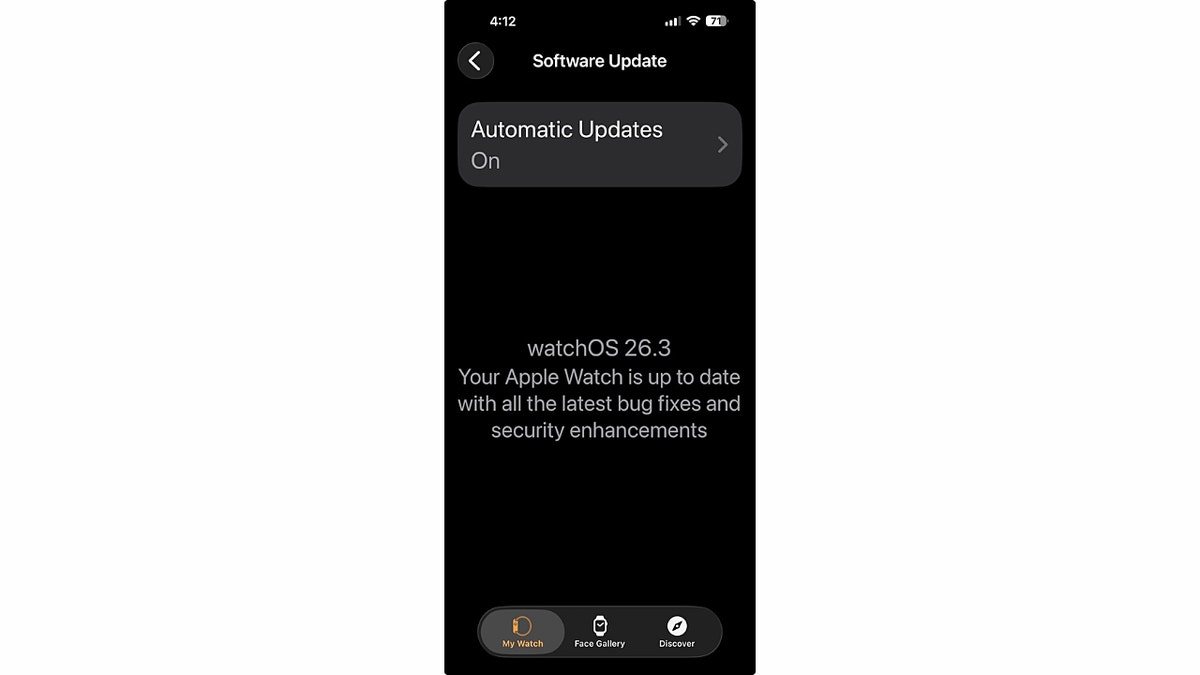
Outdated software can prevent proper pairing and syncing.
Update Your iPhone’s iOS
An old iOS version may not support your Apple Watch model.
- Go to Settings > General > Software Update
- Download and install any available updates
Your iPhone must be on iOS 14 or later for most modern Apple Watches. For Apple Watch Series 9 or Ultra 2, you need iOS 17+ and an iPhone XS or newer.
Update Apple Watch Operating System
Mismatched OS versions break connectivity.
- On Apple Watch: Open Settings > General > About
- Check the Software Version
If outdated:
– Open Apple Watch app on iPhone
– Tap General > Software Update
– Keep the watch on charger and near iPhone during installation
Expert Note: watchOS 11 requires iOS 17. If your iPhone can’t update, it won’t pair with newer watch models.
Reset Sync Data Without Losing Your Watch Content
This non-destructive fix clears corrupted sync data.
Use Reset Sync Data to Fix Notification Issues
If your watch is paired but not receiving messages or calls:
- On Apple Watch: Settings > General > Reset > Reset Sync Data
- Confirm the action
The watch will restart and re-sync contacts, calendars, and messages from the iPhone.
Note: Your apps, settings, and health data remain safe. Only synced content is temporarily cleared.
Reset iPhone Network Settings to Clear Bluetooth Conflicts
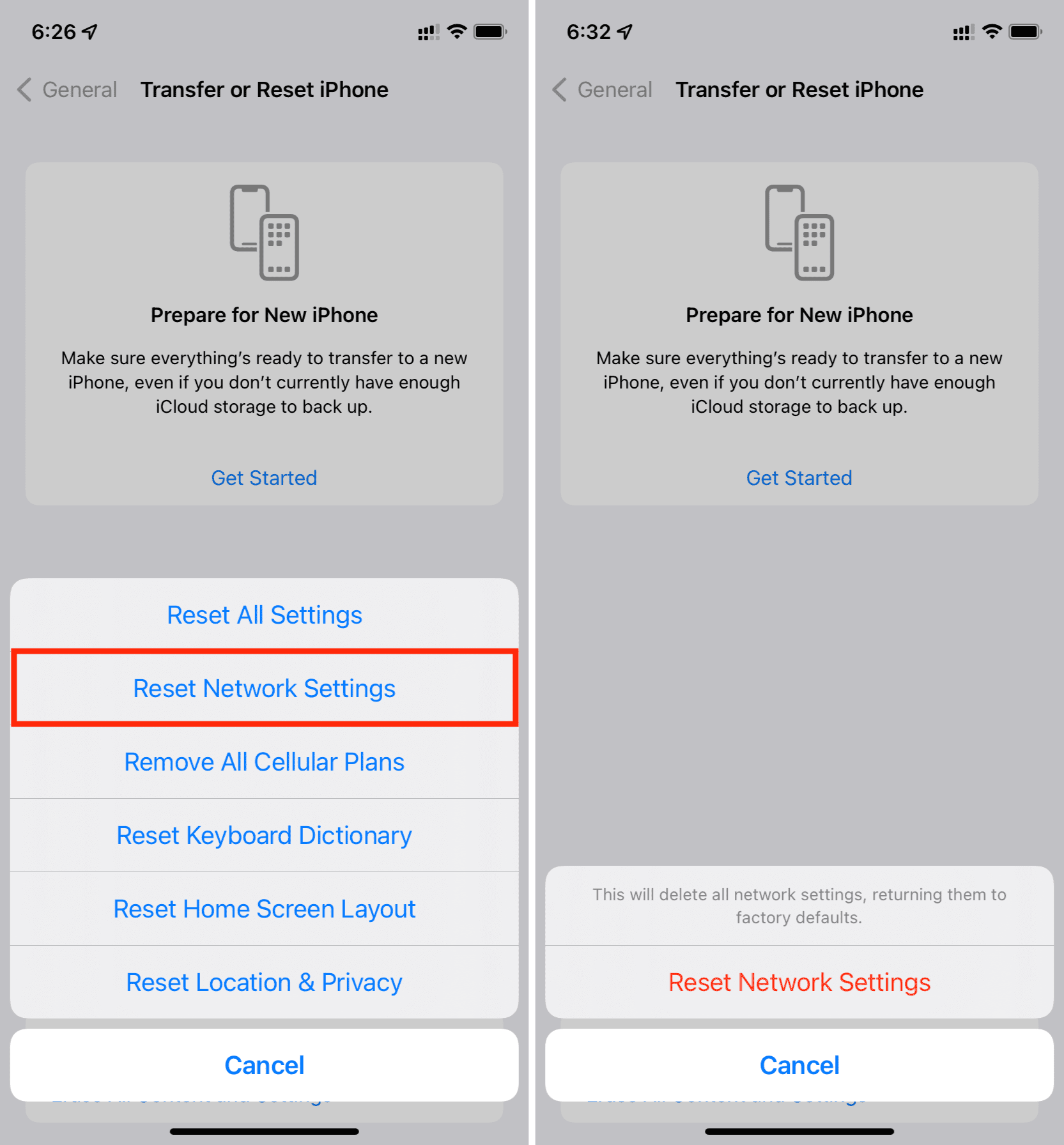
Corrupted network profiles can block Apple Watch pairing.
Erase Saved Wi-Fi and Bluetooth Connections
- On iPhone: Settings > General > Transfer or Reset iPhone > Reset > Reset Network Settings
- Enter your passcode when prompted
After the reset:
– Reconnect to Wi-Fi
– Open Apple Watch Control Center to check for the green iPhone icon
Caution: You’ll lose saved Wi-Fi passwords, but this often resolves hidden Bluetooth pairing issues.
Manually Pair Your Apple Watch If Camera Sync Fails
When the pairing animation doesn’t appear, use manual mode.
Enter the 6-Digit Code to Pair
- On Apple Watch: Tap “Pair Apple Watch Manually”
- Open Apple Watch app on iPhone
- Tap Start Pairing > Set Up Apple Watch
- Select your watch and enter the 6-digit code shown on the watch screen
When to Use: Cracked screen, dirty camera, or alignment issues prevent automatic pairing.
Unpair and Re-pair Your Apple Watch for a Clean Connection
For stubborn issues, a full re-pair often works best.
Safely Unpair Through the Apple Watch App
- Open Apple Watch app on iPhone
- Tap My Watch > All Watches
- Tap the “i” icon next to your watch
- Tap Unpair Apple Watch and confirm
This erases the watch and creates a backup. After unpairing, set it up again and restore from backup.
Backup Tip: Always unpair through the app to preserve health and app data.
Erase Apple Watch Without iPhone or Passcode
Lost your phone or forgot your passcode? You can still reset.
Factory Reset Using Side Button and Digital Crown
- On Apple Watch: Settings > General > Reset > Erase All Content and Settings
- Enter passcode if required
If you forgot the passcode:
– Place watch on charger
– Hold side button until power slider appears
– Hold Digital Crown and tap Reset
Security Note: Activation Lock remains active. You’ll need the original Apple ID and password to pair again.
Fix a Stuck or Frozen Pairing Screen
If the Apple logo won’t go away during setup:
Force Restart and Reset
- Hold Digital Crown + Side Button until Apple logo appears
- Once rebooted, press and hold Digital Crown
- Tap Reset when prompted
- Start pairing again using your iPhone
Visual Cue: If the screen is black or frozen for over 2 minutes, this reset is essential.
Transfer Apple Watch to a New iPhone
Switching phones? Follow the right steps to keep your data.
If Old iPhone Is Available
- Unpair watch from old iPhone
- Set up new iPhone and sign in with same Apple ID
- Open Apple Watch app and restore from backup
If Old iPhone Is Lost
- Erase Apple Watch completely
- Set up new iPhone
- Pair and restore from iCloud backup if available
Data Warning: Without a backup, unsynced Health and Activity data may be lost forever.
Why iPhone Doesn’t Prompt to Pair
No setup screen? The watch may still be linked to another device.
Break the Old Connection First
- Unpair from the previous iPhone
- Or erase the Apple Watch
Then bring both devices close—the pairing prompt should appear.
Model Compatibility: Check If Your iPhone Supports Your Watch

Not all iPhones work with all Apple Watches.
| Apple Watch Model | Minimum iPhone Requirement |
|---|---|
| Series 9 / Ultra 2 | iPhone XS or later (iOS 17+) |
| Series 7–8 | iPhone 6s or later (iOS 14+) |
| SE (2nd gen) | iPhone 8 or later (iOS 15+) |
Fact: An iPhone 7 cannot pair with Apple Watch Series 9.
Final Connection Checklist
After any fix, verify success:
✅ Red icon replaced with green iPhone icon
✅ Notifications appear on watch
✅ Calls and messages sync instantly
✅ Watch appears in Apple Watch app > All Watches
✅ Both devices run latest OS
✅ Connection survives restarts
When to Contact Apple Support
Seek help if:
– Pairing fails repeatedly
– Activation Lock won’t accept your Apple ID
– Buttons or screen are unresponsive
– Bluetooth isn’t detected
Visit support.apple.com or schedule a Genius Bar appointment.
Step-by-Step Fix Summary
Follow this order:
- Check range and settings
- Restart both devices
- Update iOS and watchOS
- Reset Sync Data
- Reset iPhone Network Settings
- Unpair and re-pair
- Erase and restore if needed
- Contact Apple Support if unresolved
Final Tip: Always back up before erasing. While iCloud syncs health data, app settings rely on local backups.
With these steps, your Apple Watch will be reconnected and fully functional—usually in under 15 minutes.





