
If your Apple Watch won’t connect to your iPhone 15 Pro Max, you’re facing one of the most common—and frustrating—setup issues since the launch of Apple’s latest flagship phone. Whether you’re migrating from an older iPhone or setting up a new device, users report symptoms like a red “X” on the watch face, frozen pairing screens, failed watchOS updates, and the dreaded “Make sure your Apple Watch is nearby” message—even when both devices are side by side. The good news? This is almost always fixable. In this guide, we’ll walk you through 10 proven solutions, starting with simple resets and progressing to full re-pairing—so you can restore full sync between your Apple Watch and iPhone 15 Pro Max.
Update Both Devices Before Pairing
A mismatched iOS or watchOS version is the #1 reason for failed connections. Your iPhone 15 Pro Max runs iOS 17 or later, which requires watchOS 10 or newer on your Apple Watch for compatibility.
Update iOS on iPhone 15 Pro Max
- Go to Settings > General > Software Update.
- Download and install iOS 17.0.1 or newer if available.
- Restart your phone after installation.
Pro Tip: Connect to Wi-Fi and plug into power—iOS 17 updates can take 20–30 minutes.
Update Apple Watch to watchOS 10+
If your watch is still paired:
– Open the Watch app > General > Software Update.
– Download and install watchOS 10.0.1 or later.
If it’s unpaired or stuck:
– You’ll need to erase and reset the watch first (see reset section below), then update during setup.
Why This Matters: Users like HHMMKKYY (Oct 2023) confirmed: “I should have updated the watchOS prior to turning on the new phone. Learned that the hard way.”
Enable Accessories Access in Face ID Settings

A hidden security setting introduced to counter the Flipper Zero exploit can block Apple Watch pairing—even with Bluetooth on.
Turn On “Accessories” Setting
- On your iPhone 15 Pro Max, open Settings > Face ID & Passcode.
- Enter your passcode.
- Scroll down and toggle “Accessories” ON.
- Open the Watch app and try pairing again.
User Confirmed: Multiple users found this was the only fix needed despite updated software and strong signals.
After successful pairing, you can disable this setting if it interferes with CarPlay.
Reset Bluetooth and Network Connections
Even with Wi-Fi and Bluetooth enabled, temporary glitches can block the handshake.
Use Airplane Mode to Reset Wireless
- Swipe up to open Control Center.
- Tap Airplane Mode.
- Wait 10 seconds.
- Tap again to turn it off—Wi-Fi and Bluetooth will restart automatically.
- Try pairing immediately.
Reset Network Settings (If Problems Persist)
- Go to Settings > General > Transfer or Reset iPhone > Reset.
- Tap Reset Network Settings.
- Confirm.
Note: You’ll need to re-enter Wi-Fi passwords, but this often resolves stubborn Bluetooth issues.
Remove Old Pairing Data from Previous iPhone
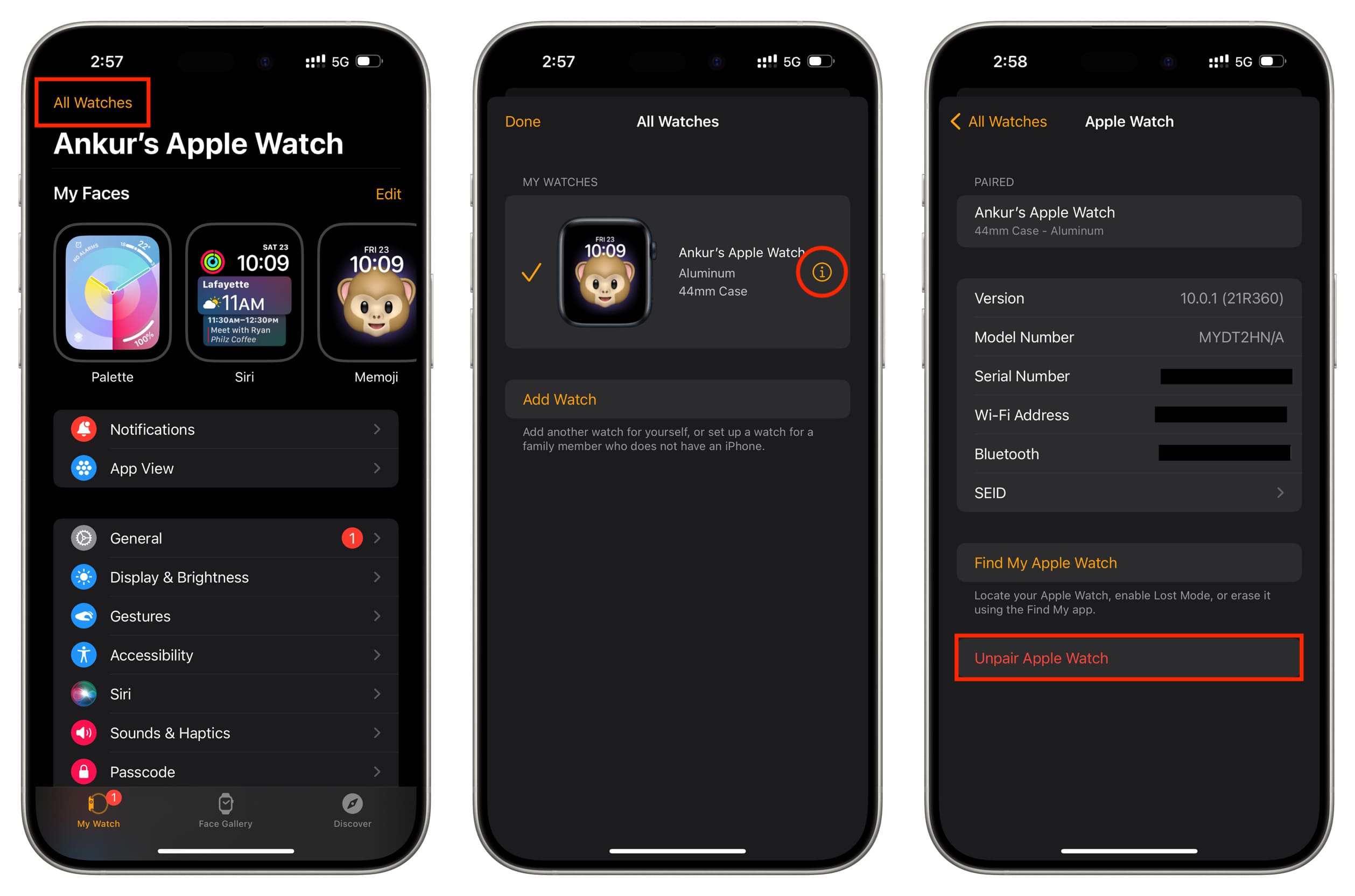
If you upgraded from an older iPhone, your Apple Watch may still be linked—even if you erased the old phone.
Unpair from Old iPhone (Best Practice)
- On the old iPhone, open the Watch app.
- Tap All Watches > Select Your Watch > Unpair Apple Watch.
- Confirm with your Apple ID password.
This removes Activation Lock and iCloud ties.
Warning: Simply erasing the watch does not remove Activation Lock.
Remove from iCloud (If Old Phone Is Gone)
- On your iPhone 15 Pro Max, go to Settings > [Your Name] > iCloud > Find iPhone > All Devices.
- Select your Apple Watch.
- Tap Remove from Account.
Now it’s free to pair.
Fix Activation Lock During Setup
Activation Lock prevents unauthorized use but can block legitimate pairing if not cleared.
When It Triggers:
- Watch was erased, not unpaired.
- Apple ID not removed from iCloud.
- Original Apple ID credentials not entered.
How to Resolve:
- During setup, enter the Apple ID and password used to set up the watch originally.
- If you’ve forgotten, visit iforgot.apple.com.
User Confirmed: Merrylj (Jan 2024): “When you erase Apple Watch instead of unpairing it, the watch is still protected by Activation Lock.”
Perform a Full Factory Reset on Apple Watch
When nothing else works, a clean slate is the most reliable fix.
Erase All Content and Settings
- On the watch: Settings > General > Reset > Erase All Content and Settings.
- Confirm twice.
- Wait for restart and Apple logo.
Forgot Passcode?
– Press and hold Side button + Digital Crown until Apple logo appears.
– Hold Digital Crown until “Erase All Content and Settings” appears.
– Tap Reset and confirm.
Pair Apple Watch Without Losing Data
Want to keep fitness history, apps, and settings? Follow this method.
How to Migrate Safely
- On old iPhone: Unpair via Watch app > All Watches > Unpair.
- Power off the old iPhone completely.
- Set up iPhone 15 Pro Max and restore from backup.
- Plug both devices into power.
- Restart both.
- Open Watch app > Pair to Existing Watch.
- Follow prompts—let sync complete uninterrupted.
User Confirmed: MarkfromCO (Aug 2024): “That’s it!! Hope it works for you also :)” — success with Apple Watch SE.
Key Insight: Charging both devices prevents update failures during watchOS install.
Try a Hard Reset on Both Devices
A non-destructive fix that clears temporary software freezes.
Reboot in Correct Order
- Turn OFF Apple Watch.
- Turn OFF iPhone 15 Pro Max.
- Turn ON Apple Watch first.
- Then power on iPhone.
- Open Watch app and try pairing.
User Confirmed: shendurance (Oct 2023): “That’s it! Worked for me, try it out before erasing your device.”
This resets internal services and often clears failed connection states.
Force watchOS Update via iPhone
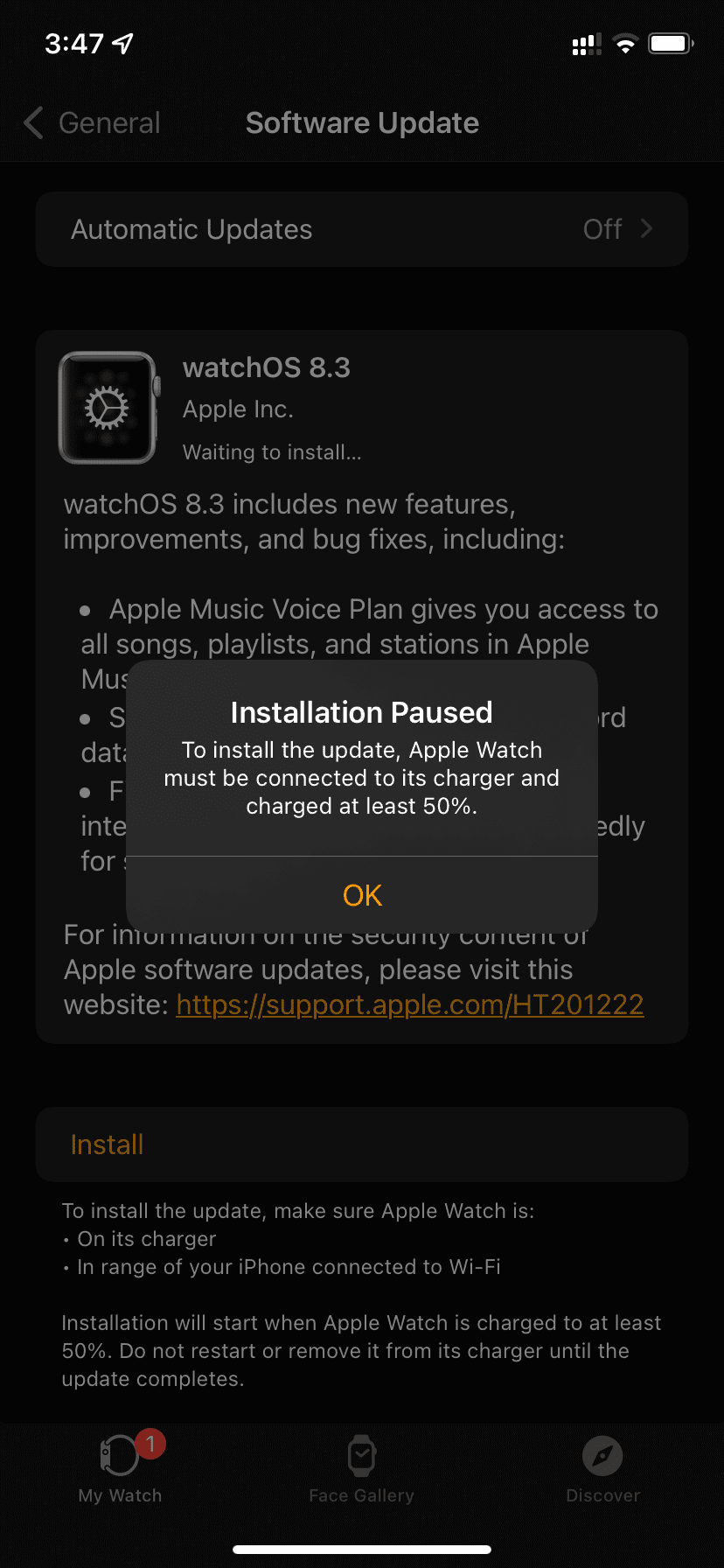
If the watch gets stuck on “Installing update,” force the download from the iPhone.
Manually Install watchOS
- Open Watch app > My Watch > General > Software Update.
- Tap Download and Install.
- Enter passcode when prompted.
- Keep both devices close and charging.
Tip: If it fails, wait 10 minutes and retry. Multiple attempts are normal.
Optimize Your Pairing Environment
Signal interference can derail even perfect setups.
Best Practices for Success
- Turn off other Bluetooth devices (headphones, speakers).
- Disable VPNs, especially Google One VPN.
- Use Airplane Mode + Wi-Fi only.
- Connect to a 5GHz Wi-Fi network.
- Keep devices within 3 inches.
- Plug both into power during setup.
User Confirmed: Andeez76 (Dec 2023): “My Google One VPN was connected and preventing pairing… Once I deleted the app, pairing worked immediately.”
Check Compatibility and Hardware Limits

Not all Apple Watches work seamlessly with the iPhone 15 Pro Max.
| Apple Watch Model | Compatible? | Notes |
|---|---|---|
| Series 9, Ultra 2 | ✅ Yes | Full functionality |
| Series 4–8, SE | ✅ Yes | May require reset |
| Series 3 or older | ❌ Limited | No watchOS 10 support |
Key Limitations:
- Series 3 and earlier cannot run watchOS 10.
- Older watches may fail to update due to battery degradation.
- If battery health is below 80%, consider servicing.
User Confirmed: Michael from central islip (Oct 2023): “There is a compatibility issue with iPhone 15 and so it will not work.”
Prevent Future Connection Issues
Once paired, keep your setup stable.
Enable Automatic Backups
Your Apple Watch backs up when:
– Paired with iPhone
– On charger
– Connected to Wi-Fi
– iPhone is nearby
Check status: Watch app > General > Usage > Apple Watch Backups
Warning: Third-party app data may not restore—even with iCloud backup.
Monitor Battery Health
- Open Watch app > Battery > Battery Health.
- Replace if capacity is below 80%.
When to Contact Apple Support
If you’ve tried everything and still can’t connect:
- Open the Apple Support App or visit support.apple.com.
- Schedule a Genius Bar appointment.
- Or call Apple directly.
Possible Hardware Issues:
- Damaged Bluetooth module
- Water damage
- Charging cable issues affecting updates
Final Tip: If software fixes fail, Apple may offer repair or replacement under warranty or AppleCare+.
Final Note: While pairing your Apple Watch to the iPhone 15 Pro Max can be frustrating, nearly every case is fixable. Start with updating both devices, enable the Accessories setting, remove old pairing data, and reset if needed. With patience and the right steps, you’ll regain full functionality—including health tracking, Apple Pay, and notifications.





