
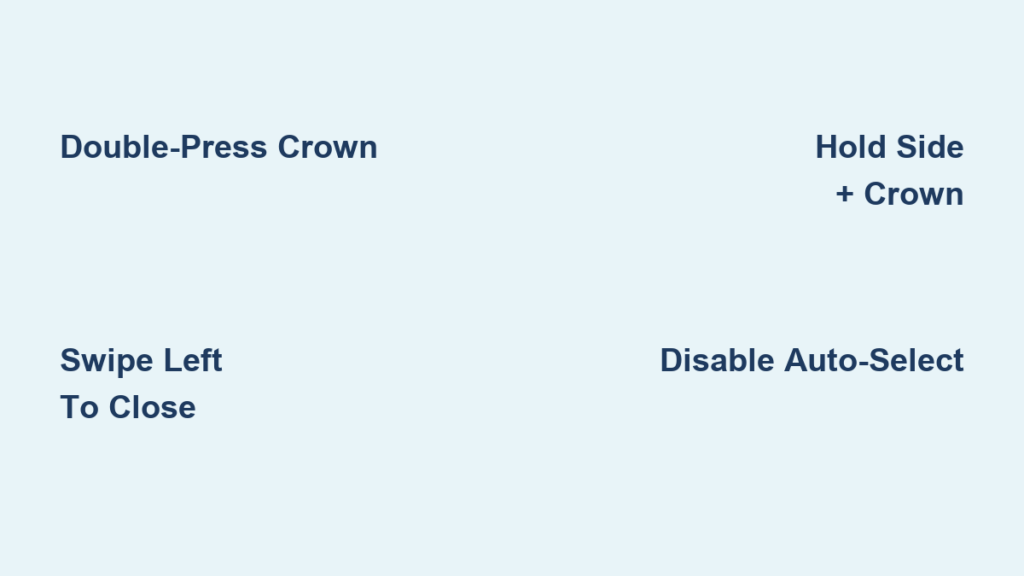
You’ve probably heard someone say, “How do I close tabs on my Apple Watch?” But here’s the truth: Apple Watch doesn’t use tabs like a browser. Instead, what users often call “tabs” are actually recently opened apps or swipe-up widgets. Knowing how to properly close apps—or manage these features—is essential when your watch lags, an app freezes, or you’re trying to troubleshoot performance. Whether you’re using an Apple Watch Ultra, Series 9, or an older model, this guide walks you through the correct way to close apps across all watchOS versions, explains why the method changed, and helps you fix common issues like the App Switcher disappearing too fast.
Let’s clarify one thing upfront: you’re not closing “tabs.” You’re managing open apps in the App Switcher, and sometimes customizing widgets. Both serve different purposes, and neither works like a mobile browser. Apple’s watchOS handles multitasking differently—it automatically suspends apps when you leave them, so manual closing isn’t needed daily. But when things go wrong, knowing the right gesture or force-quit method can save you from a restart.
Access the App Switcher on watchOS 10 and Later
If your Apple Watch runs watchOS 10, 11, or 12, Apple redesigned how you access recently used apps. The old method—holding the Side Button—is gone. Now, everything revolves around the Digital Crown.
Double-Press the Digital Crown to Open App Switcher
To see recently used apps:
- From any screen—watch face, app, or Home—quickly double-press the Digital Crown.
- The App Switcher appears, showing small, stacked app previews.
- Keep your finger still—do not tap any app, or it will launch instead of letting you close it.
✅ This method works on Apple Watch Ultra, Series 9, SE (2nd and 3rd gen), and any model updated to watchOS 10 or later.
This new design streamlines navigation but can be tricky at first. Many users accidentally open an app instead of closing one because they tap the preview. The key is to keep the apps in preview mode and avoid touching the screen until you’re ready to swipe.
Swipe Left to Close One App
Once the App Switcher is open:
- Swipe left on the app tile you want to close.
- A red × (Close button) appears on the right side.
- Tap the × to close that app.
- Repeat for others if needed.
- Press the Digital Crown once to exit back to the Home screen.
❗ There is no “Close All” option in watchOS 10+. You must close apps one at a time.
💡 Pro Tip: If you have Hold to Close enabled in Accessibility settings, you can press and hold an app preview to close it instantly—no swiping needed.
Close Apps on Older watchOS Versions (watchOS 9 and Earlier)
If your Apple Watch hasn’t updated to watchOS 10—perhaps it’s a Series 4, 5, 6, 7, 8, or first-gen SE—the process is different.
Hold the Side Button to Open App Switcher
- Press and hold the Side Button until the App Switcher appears.
- You’ll see a stack of open apps.
- To close one: Tap the app preview, then tap the × that appears.
- To close all: Tap “Close All” in the top-left corner.
⚠️ This method does not work on watchOS 10+. The Side Button now only brings up the power menu or Emergency SOS.
✅ Compatible with Apple Watch Series 4 through 8, SE (1st gen), and older models.
This older method was faster for clearing multiple apps, but Apple removed it to encourage automatic system management. While some users miss the “Close All” button, Apple argues that manual app closure is rarely necessary.
Force Close a Frozen App on Any Apple Watch
Sometimes, an app freezes, stops responding, or gets stuck on a loading screen. In these cases, normal closing won’t help—you need to force quit the app.
Press Side Button + Digital Crown Together
- Press and hold the Side Button until the Emergency SOS slider appears.
- Keep holding the Side Button, then press and hold the Digital Crown at the same time.
- After 1–2 seconds, the current app will flicker and disappear.
- Release both buttons.
✅ This works on all Apple Watch models, from Series 1 to Ultra.
🛠️ Use this method when:
– An app won’t respond to taps
– It’s stuck on a loading screen
– Data isn’t updating
– The interface is frozen
Unlike regular closing, force quitting resets the app entirely. When you reopen it, it reloads from scratch—often showing the full startup animation. This is the most effective way to resolve app-specific glitches.
Fix App Switcher Closing Too Fast (watchOS 10.5+ Issue)

Many users report that after updating to watchOS 10.5 or later, the App Switcher closes in under two seconds—too fast to swipe and close apps.
Why It Happens: Auto-Select Focused App
Apple enables a feature by default called Auto-Select Focused App. If an app is centered in the switcher, the system automatically opens it after a brief delay, skipping the chance to close it.
How to Fix It
- Open the Watch app on your iPhone.
- Go to Accessibility > App Switcher.
- Turn off Auto-Select Focused App.
✅ Once disabled, the App Switcher will stay open long enough for you to swipe and close apps.
💡 This is the most common fix for users who can’t close apps—yet Apple doesn’t highlight it during setup.
Manage Swipe-Up Widgets (Not Apps)
A major source of confusion: users think swipe-up panels (like Activity, Weather, or Calendar) are “open apps” that need closing. They’re not.
These are widgets—static, glanceable previews that don’t run in the background or use battery.
How to Edit or Remove Widgets
- From the watch face, swipe up.
- Press and hold any widget.
- Tap “Edit”.
- To remove: Tap the × on a widget.
- To add: Tap +, then choose a new one.
📌 Widgets are not apps. They don’t need closing and don’t affect performance.
❌ You cannot “close” widgets like apps—but you can customize which ones appear.
When Should You Actually Close Apps?
Apple designs watchOS to manage apps efficiently. Apps are automatically suspended when you leave them, and the system closes them when memory is needed.
Close Apps Only When:
- ✅ An app is frozen or unresponsive
- ✅ Your watch is lagging or slow
- ✅ An app shows outdated or incorrect data
- ✅ You’re troubleshooting syncing issues
No Benefit in Daily Closing:
- ❌ Closing apps does not improve battery life
- ❌ It doesn’t make your watch faster
- ❌ It can slow down relaunch times (apps have to reload from scratch)
🧠 Apple’s stance: Only close apps when something’s wrong. Let the system handle the rest.
Pro Tips for Better App Management
Use Hold-to-Close (If Enabled)
In Accessibility > App Switcher, turn on Hold to Close. Then, in the App Switcher, press and hold an app preview to close it instantly—no swiping required.
Restart to Clear All Apps
If multiple apps are acting up:
- Press and hold the Side Button + Digital Crown.
- Keep holding until the Apple logo appears.
- Your watch restarts—clearing all active apps and cached data.
💬 Community Tip: “A full restart fixes more glitches than closing apps one by one.”
Check Battery Usage Instead
If your battery drains fast:
- Open Settings on Apple Watch.
- Tap Battery.
- See which apps are using the most power.
⚠️ Closing apps won’t fix high battery usage. Look for misbehaving apps instead.
watchOS Version Comparison: Closing Apps at a Glance

| watchOS Version | Open Switcher | Close App | Batch Close? |
|---|---|---|---|
| 10, 11, 12 | Double-press Crown | Swipe left → Tap × | ❌ No “Close All” |
| 9 and earlier | Hold Side Button | Tap × or “Close All” | ✅ Yes |
| All versions | Side + Crown | Force closes app | ✅ For frozen apps |
✅ All Apple Watch models support app closure—methods just vary by software.
Final Recommendations
- For most users: Let watchOS manage apps. No daily closing needed.
- To close a recent app: Use double-press + swipe left (watchOS 10+).
- To force quit a frozen app: Use Side Button + Digital Crown.
- If App Switcher closes too fast: Disable Auto-Select Focused App.
- To clean up widgets: Edit or remove them—don’t confuse them with apps.
- For persistent issues: Restart your watch or update to the latest watchOS.
Closing apps on Apple Watch isn’t about routine maintenance—it’s about targeted troubleshooting. With the right method and settings, you can manage apps efficiently, avoid frustration, and keep your watch running smoothly.




