
You’ve forgotten your Apple Watch passcode, or you bought a secondhand device that won’t let you past the lock screen. You need to wipe it clean—but you don’t have the password. Is there any way to reset it? Yes, under the right conditions, you can factory reset an Apple Watch without a password. But success depends on your Apple Watch model, screen condition, and whether Activation Lock is active.
This guide walks you through every verified method to erase a locked Apple Watch—even if you can’t enter the passcode. You’ll learn how to trigger hidden reset options, use your paired iPhone to wipe the device remotely, and troubleshoot common failures. Most importantly, you’ll understand Activation Lock, the security feature that stops most people from using a reset Apple Watch unless they have the original Apple ID and password.
Whether you’re trying to fix your own device, resell a forgotten watch, or troubleshoot a broken screen, this step-by-step guide covers models from Series 1 to Ultra 2—and separates real solutions from myths.
Erase Without Passcode: What Actually Works
Contrary to popular belief, you do not always need the passcode to erase an Apple Watch. Apple includes built-in recovery options for exactly this scenario—when you’ve forgotten your passcode or can’t access the device normally.
The key is triggering the “Erase All Content and Settings” option directly on the watch. This hidden prompt appears only when specific button combinations are held in sequence. Once confirmed, the watch wipes itself completely—no password required.
However, not all models support the same method. Newer watches use one technique; older ones require a different gesture. Your success hinges on matching the correct reset method to your Apple Watch’s hardware and software version.
Use Side Button + Digital Crown (Series 4 and Newer)

This is the most reliable on-device method for Apple Watch Series 4, 5, 6, 7, 8, 9, Ultra, and SE running WatchOS 6 or later.
- On the passcode screen, press and hold the Side Button.
- When the Power Off slider appears, keep holding the Side Button.
- Now press and hold the Digital Crown at the same time.
- Hold both for 10–15 seconds.
- Release when “Erase All Content and Settings” appears.
- Tap Reset to confirm.
The watch will reboot and begin erasing data. This process takes 5–10 minutes. Once complete, it displays the “Hello” screen, ready for setup.
✅ Pro Tip: Keep the watch on the charger. A low battery can interrupt the reset, especially on older models.
❗ Warning: If the screen reverts to the passcode entry or freezes, the gesture failed. Try again—this time press both buttons firmly and hold for the full 15 seconds.
Try Side Button + Screen Press (Series 1–3)
For Apple Watch Series 1, 2, and early Series 3 (especially on WatchOS 2–5), the Digital Crown method won’t work. Instead, you must use a force press on the screen.
- Press and hold the Side Button until the Power Off slider appears.
- Do not release the Side Button.
- With your finger still on the screen, press down firmly for 2–3 seconds.
- If successful, “Erase All Content and Settings” will appear.
- Tap Reset to erase the device.
This gesture mimics a legacy “force touch” command. Some users report needing multiple attempts—especially if the screen is cracked or unresponsive.
✅ Verified: Users with Series 3 watches have confirmed this bypasses the passcode lock when the standard method fails.
❌ Failure Sign: If the watch simply restarts or returns to the lock screen, the gesture wasn’t recognized. The OS may not support it, or the screen may be damaged.
Remote Reset Using Paired iPhone
If you still have access to the iPhone used to pair the Apple Watch, you can erase it remotely—no passcode or working screen needed.
This is the most reliable method when the watch is locked, frozen, or has a broken display.
Steps to Erase via iPhone
- Open the Apple Watch app on your iPhone.
- Tap the My Watch tab.
- Tap All Watches at the top.
- Select your locked Apple Watch.
- Tap the (i) info icon.
- Choose Erase Apple Watch Content and Settings.
- Confirm the action.
The iPhone sends a wireless erase command via Bluetooth or iCloud. Even if the watch is unresponsive, the wipe will begin as soon as it connects.
✅ Key Benefit: This method works even if the watch isn’t nearby—just as long as it can connect to iCloud.
❗ Note: After erasure, the watch automatically unpairs from the iPhone. You’ll need to re-pair it if you plan to use it again.
Broken Screen? Try These Fixes

A cracked, black, or frozen screen blocks touch-based resets. But you’re not out of luck—if you have the paired iPhone.
Remote Erase Is Your Only Real Option
As above, use the Apple Watch app on the paired iPhone to trigger a full reset. Since the command is sent wirelessly, physical screen damage doesn’t matter.
Even if the watch only powers on intermittently, the erase process may complete in the background.
Try VoiceOver (If Previously Enabled)
If Accessibility > VoiceOver was turned on before the screen failed, you might be able to navigate the device using voice feedback.
- Double-tap the screen to select.
- Swipe up/down to move between options.
- Use the Side Button + Digital Crown combo to trigger the erase prompt.
💡 Tip: Plug in headphones to hear VoiceOver clearly.
❌ Limitation: This only works if VoiceOver was enabled before the screen stopped working. There’s no way to enable it on a locked, broken screen.
Activation Lock: The Hidden Obstacle
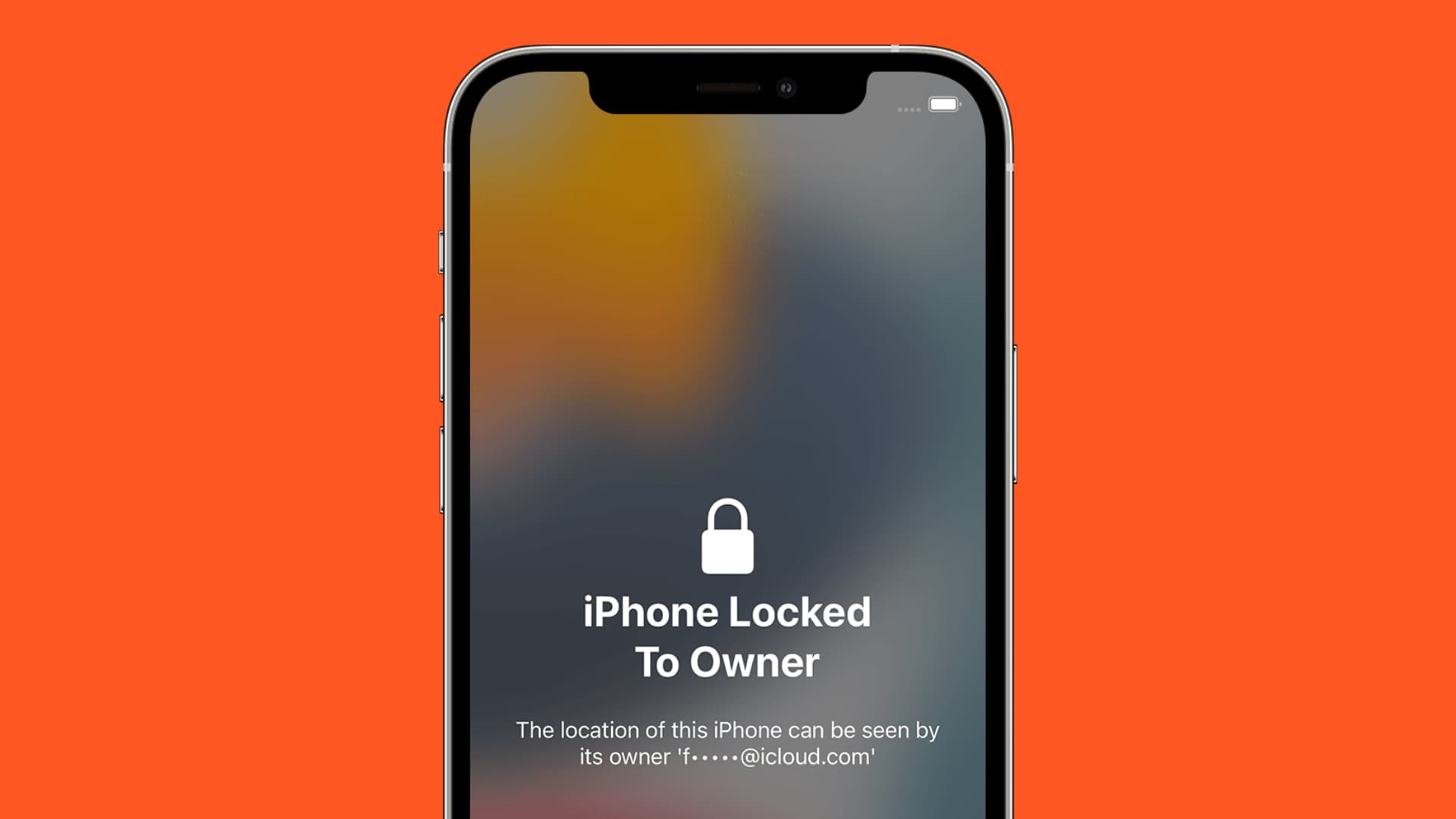
Here’s the hard truth: You can erase a locked Apple Watch—but you can’t use it afterward unless you have the original Apple ID and password.
Apple’s Activation Lock is enabled by default when you set up Find My Apple Watch. It ties the device to the iCloud account used during setup.
What Happens After Reset?
After erasure, during setup, the watch will ask for:
– The Apple ID email address
– The password used to set up the watch
Without these, the device is bricked—it can’t be paired, used, or sold.
🔒 Real-World Example: A buyer pays $100 for a “like new” Apple Watch. After resetting it, they hit Activation Lock. The device becomes a $10 paperweight.
Can You Remove Activation Lock Without Apple ID?
No—not through any third-party tool, hack, or reset method.
Apple Support May Help—With Proof
If you’re the original owner or bought the watch legally, Apple can remove Activation Lock—but only with proof of purchase.
Bring:
– Original receipt
– Serial number
– Device packaging (if available)
Visit an Apple Store or contact Apple Support. They’ll verify ownership and disable the lock.
🚫 No exceptions: No receipt = no unlock. No third-party service can do this safely or legally.
Fixing Common Reset Failures
Not every attempt works. Here’s how to solve the most frequent issues.
“Erase” Option Doesn’t Appear
Causes:
– WatchOS too old
– Gesture not held long enough
– Screen damage
Fix:
– Use remote erase via iPhone.
– For older models, use Side Button + screen press.
– Hold gestures for 15+ seconds.
Watch Restarts But Stays Locked
This means the reset command wasn’t triggered—just a regular reboot.
Solution:
– Ensure battery is above 50%.
– Use a fast charger.
– Repeat the button combo slowly and precisely.
Frozen or Unresponsive Device
If the watch won’t turn on:
- Force restart: Hold Side Button + Digital Crown for 10+ seconds.
- Wait for the Apple logo.
- Once booted, retry the erase method.
If it still doesn’t respond, remote erase via iPhone is your best bet.
Model-Specific Success Rates
| Model | Best Method | Success Rate |
|---|---|---|
| Series 4+ (WatchOS 6+) | Side Button + Digital Crown | ✅ High |
| Series 3 (older) | Side Button + screen press | ✅ Medium |
| Series 1–2 | Screen press or iPhone erase | ✅ Low–Medium |
| Any model (broken screen) | iPhone remote erase | ✅ High (if iPhone available) |
Newer models support reliable passcode-free resets. Older ones are less consistent—especially with damaged screens.
Buying or Selling a Locked Apple Watch?
For Buyers: Avoid Locked Devices
Never buy a used Apple Watch unless the seller:
– Unpairs it in front of you
– Erases it completely
– Confirms no Activation Lock
Check the serial number at icloud.com/activationlock.
⚠️ Red Flag: “For parts” or “locked” listings are almost always unusable.
For Sellers: Erase Before Sale
To protect your data and ensure buyer trust:
- Unpair via iPhone.
- Let the erase process complete (removes Activation Lock).
- Hand over a clean, reset device.
This avoids disputes and ensures full resale value.
Prevent Future Lockouts
Avoid this mess with these habits:
- Enable iCloud Backup: Go to iPhone > Watch app > General > Reset > Erase Apple Watch Content and Settings.
- Remember Your Apple ID: Store it securely in a password manager.
- Use a Simple Passcode: A 4-digit code is easier to recall than a 6-digit one.
Final Note: You can factory reset an Apple Watch without a password—if the screen works or you have the paired iPhone. But without the original Apple ID and password, Activation Lock will block all future use. Always verify ownership and erase status before buying or selling. When in doubt, contact Apple Support with proof of purchase to remove Activation Lock safely.





