
You just got your Apple Watch and want to start using apps like Spotify, Strava, or Headspace right from your wrist. But how do you actually get them installed? Unlike iPhones, Apple Watches don’t download apps the same way—instead, they rely on your iPhone or a tiny built-in App Store. The good news: adding apps is simple once you know the right method.
Most users install apps through the Watch app on their iPhone, which automatically detects compatible apps and syncs them seamlessly. Others prefer installing directly on the watch using voice, scribble, or the onscreen keyboard—though it’s slower. Either way, the process requires your Apple Watch to be paired, charged, and connected to Wi-Fi or cellular.
In this guide, you’ll learn the fastest and most reliable ways to install apps, how to enable automatic installations, what to do when apps won’t show up, and tips to avoid common pitfalls. Whether you’re using an Apple Watch Series 4 or the latest Ultra 2, these steps work across all models running watchOS 6 and later.
Install Apps from Your iPhone (The Fastest Way)
This is the most efficient method for getting apps onto your Apple Watch—and the one Apple recommends.
Open the Watch App on iPhone
Start by unlocking your iPhone and tapping the Watch app, which looks like a watch face icon. It comes preinstalled and only works when your Apple Watch is nearby and connected via Bluetooth.
Once inside, tap the “My Watch” tab at the bottom. This screen shows every app currently installed on your watch, plus those available for installation.
Pro Tip: If you don’t see the Watch app, search for it using the iPhone’s search bar. It may have been moved or hidden.
Find and Install Compatible Apps
Scroll down to the “Available Apps” section. These are iPhone apps you’ve already downloaded that also offer a watchOS version.
Not every app supports Apple Watch—only those with a dedicated companion app will appear here. For example, if you have Spotify on your iPhone but haven’t installed it on your watch, you’ll see a blue “Install” button next to it.
Tap “Install”, and the process begins immediately. Your Apple Watch will begin downloading the app over Wi-Fi or Bluetooth.
What to Watch For: On your watch, the app icon will appear with a circular progress ring. Wait until the ring fills completely before opening the app.
Some apps, like music or fitness trackers, may require you to sign in or set preferences after installation. Launch them directly on the watch to complete setup.
Install Apps Directly on Your Apple Watch (No iPhone Needed)
If your iPhone isn’t available, you can still add apps using the Apple Watch’s own App Store.
Open the App Store on Apple Watch
Press the Digital Crown to go to the Home screen. Look for the App Store app—blue with a white “A” logo—and tap it.
You’ll see curated collections like “Top Charts,” “New Apps,” and “Just for You.” You can browse these or search for a specific app.
Search Using Voice, Scribble, or Keyboard
To find an app:
1. Tap the search icon (magnifying glass).
2. Choose your input method:
– Dictation: Speak the app name aloud—fastest for most users.
– Scribble: Write letters with your finger; the watch converts them to text.
– Onscreen Keyboard: Tap letters one by one—accurate but slow.
Example: Saying “Headspace” takes seconds. Writing it letter-by-letter could take over a minute.
After typing or speaking your query, tap the correct result. Review the app’s description, ratings, and screenshots before proceeding.
Download Free or Paid Apps
Tap “Get” for free apps or the price for paid ones. Then, double-click the side button below the Digital Crown to confirm.
Warning: Even free apps may include in-app purchases or subscriptions. Always check the details before installing.
Installation happens over Wi-Fi or cellular. Make sure your watch is charged and connected to a network.
Real-World Tip: This method works best when you’re away from your phone—like during a workout or travel—but expect longer setup times due to limited input options.
Turn On Automatic App Installation (Save Time)
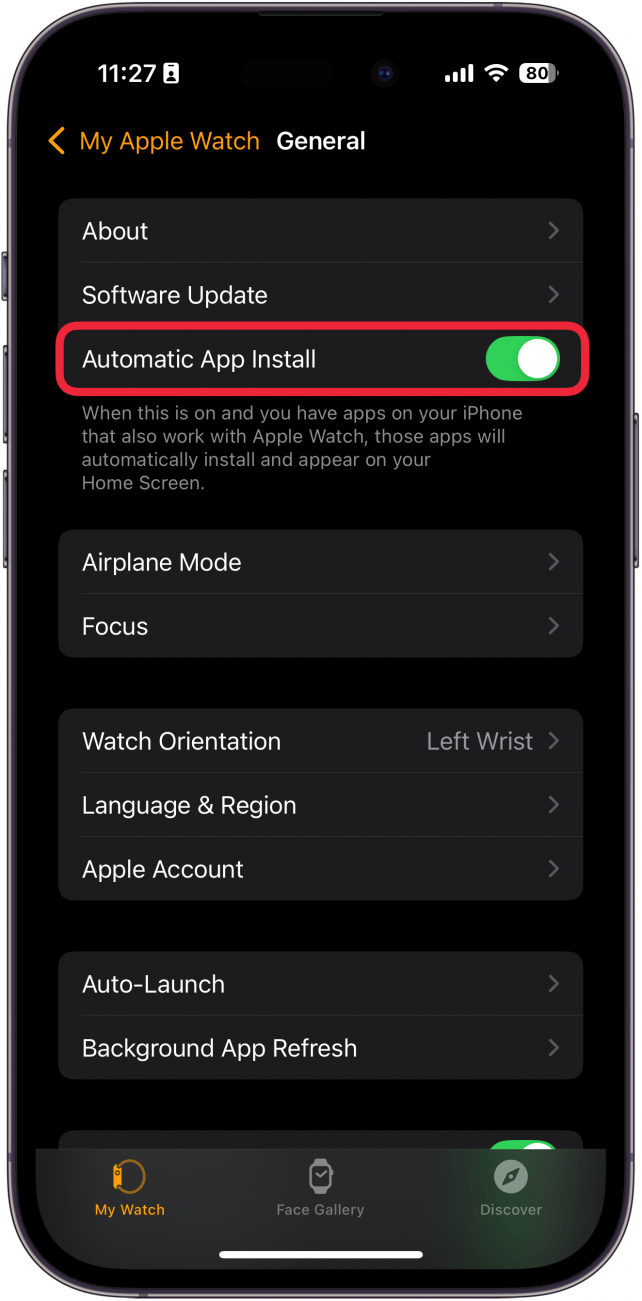
Stop manually installing every compatible app. Let your devices do the work for you.
Enable Auto-Install in Settings
- Open the Watch app on your iPhone.
- Go to General > App Installations.
- Toggle on “Automatic App Install”.
Now, whenever you install a new iPhone app that supports Apple Watch—like Calm, Strava, or Fidelity—the companion app will sync automatically to your watch.
Time-Saving Benefit: No more checking “Available Apps” every time you download something new. Your watch stays updated without extra effort.
Check Compatibility Before Installing

Avoid frustration by confirming your devices meet app requirements.
Verify Software and Model Support
- iPhone: Must run iOS 13 or later (iOS 16+ recommended for newer apps)
- Apple Watch: Requires watchOS 6 or higher (some apps need watchOS 8, 9, or 10)
- Device Models: Most apps support Series 4 and later; advanced health features may require Series 8, Ultra, or Series 9
Update both devices:
– iPhone: Settings > General > Software Update
– Apple Watch: Settings > General > Software Update
Ensure Enough Storage Space
Apps need room to install. If downloads fail, check available storage:
- Open the Watch app on iPhone
- Tap General > Usage > Available Storage
If space is low (under 500MB), delete unused apps, music, or photos.
Quick Fix: Remove old workout recordings or offline playlists you no longer use.
Organize and Manage Your Watch Apps
After installation, customize your app layout for better usability.
Access Installed Apps
Press the Digital Crown to open the Home screen. Apps are displayed in a grid.
Scroll by swiping or rotating the Digital Crown. Newly installed apps usually appear at the end.
Rearrange App Icons
- Long-press any app icon until all icons start jiggling.
- Drag apps to your preferred position.
- Press the Digital Crown to save changes.
Pro Tip: Place frequently used apps—like Workout, Wallet, or Weather—near the top for faster access.
Remove Unwanted Apps
- Long-press the app icon.
- Tap “Remove App”.
- Confirm deletion.
Note: This only removes the app from the watch—not from your iPhone.
Top Apps That Work on Apple Watch
Only apps built specifically for watchOS can run on your device. Here are some top picks:
| App | Key Features |
|---|---|
| Spotify | Download music, control playback without phone |
| Strava | Track runs, rides, and workouts from wrist |
| Headspace | Guided meditation, breathing exercises |
| Fidelity / Robinhood | Check stocks, portfolio updates |
| Weather (Dark Sky legacy) | Rain alerts, hourly forecasts |
| Tesla, BMW Apps | Unlock car, check battery, remote start |
These appear in “Available Apps” only if:
– Installed on iPhone
– Have a watchOS companion version
Fix Common App Installation Problems
Running into issues? Try these proven fixes.
App Missing from Available Apps List
Cause: The app doesn’t have an Apple Watch version.
Fix: Check the iPhone App Store listing for “Includes Apple Watch App” or a watch icon in screenshots.
Installation Fails or Stalls
Common Causes:
– Weak Wi-Fi or Bluetooth connection
– Low battery
– Insufficient storage
Solution:
1. Restart both devices
2. Charge both fully
3. Connect to Wi-Fi
4. Free up space and retry
App Installs But Doesn’t Appear
Wait a few minutes—syncing can take time.
Still missing? In the Watch app:
1. Go to My Watch > Installed
2. Find the app and tap “Show App on Apple Watch”
Can’t Install from Watch App Store
Error: “Passcode Required”
Fix:
1. On Apple Watch, go to Settings > Passcode
2. Turn on passcode if disabled
3. Try again
Without a passcode, direct downloads are blocked for security.
Boost Performance and Battery Life
Too many apps can slow things down or drain your battery.
Limit Background Apps
Avoid leaving these running:
– GPS trackers (Strava, Nike Run Club)
– Continuous heart rate monitors
– Always-on notification apps
Fix: Close apps by swiping up from the app screen or restart your watch weekly.
Keep Apps Updated
Outdated apps cause crashes. Update via:
– iPhone App Store > Updates tab
– Apple Watch App Store > Updates
Best Practice: Enable App Updates in iPhone Settings for automatic updates.
Customize Notifications
Reduce distractions:
1. Open Watch app on iPhone
2. Tap My Watch
3. Scroll to app and adjust notification settings
Turn off non-essential alerts to stay focused.
Best Practices Summary
Follow these expert-backed tips for smooth, hassle-free app management:
✅ Use iPhone Method First – Faster, more reliable, shows all compatible apps at once
✅ Enable Auto-Install – Syncs new compatible apps instantly
✅ Verify Watch Support – Check App Store listing before installing
✅ Keep Software Updated – Ensures compatibility and security
✅ Use Direct Install Sparingly – Only when iPhone isn’t available
✅ Manage Storage Regularly – Delete unused apps and media
Final Note: Installing apps on your Apple Watch should be quick and seamless. By using the iPhone method and enabling auto-install, you’ll have your favorite tools on your wrist in seconds. Whether you’re tracking workouts, checking stocks, or meditating, the right apps make your Apple Watch truly powerful.




