
You’ve just started wearing your Apple Watch and want to track your daily steps—only to realize there’s no clear step counter on the default Activity app. No step goal. No live count on the watch face. It’s frustrating, especially when you’re aiming for 10,000 steps a day. But here’s the good news: your Apple Watch is already counting every step you take. It just doesn’t make it easy to see or manage step-specific goals out of the box.
The Apple Watch uses advanced motion sensors to automatically record your steps, distance, and even flights climbed—all without any setup. However, if you want to view your step count at a glance, set daily step targets, or track progress like a fitness pro, you’ll need to go beyond the default apps. With a few tweaks and the right third-party tools, you can turn your Apple Watch into a powerful, personalized step-tracking machine.
In this guide, you’ll learn exactly how to access your step data, display it on your watch face, set real step goals, and ensure accurate tracking. Whether you’re a fitness beginner or a step-counting veteran, this step-by-step walkthrough will help you take full control of your daily movement.
View Step Count on Apple Watch
Your Apple Watch tracks steps automatically—no apps or settings required. All you need to do is wear it.
Open the Activity App to See Daily Steps
- Press the Digital Crown to return to the home screen.
- Tap the Activity app (the colorful ring icon).
- Scroll down below the Move, Exercise, and Stand rings.
- Look for Total Steps listed with Distance and Flights Climbed.
This number updates in real time as you walk. The watch uses its accelerometer and gyroscope to detect arm swing patterns and calculate steps, so accuracy improves when worn snugly on your wrist.
Pro Tip: If you don’t see steps listed, make sure Fitness Tracking is enabled in the Watch app on your iPhone under Privacy > Motion & Fitness.
While this method works, it’s not the most convenient. You shouldn’t have to open an app every time you want to check your progress. That’s where the next step comes in.
Check Step History on iPhone
For deeper insights into your walking habits, your iPhone gives you access to long-term data.
Use the Fitness App for Daily Overview
- Open the Fitness app on your iPhone.
- Tap your Activity Rings at the top.
- Scroll down to see Total Steps for today.
This data syncs automatically when your iPhone and Apple Watch are connected via Bluetooth or Wi-Fi.
Review Trends in the Health App
Want to see if you’re improving week over week?
- Open the Health app.
- Tap Browse at the bottom.
- Go to Activity > Steps.
- View your step count by day, week, month, or year.
- Tap Show All Data to see every recorded entry.
The Health app pulls data directly from your Apple Watch and stores it securely. You can even spot trends—like whether you walk more on weekends or after setting a fitness goal.
Note: The Health app also lets you export data, share progress, and compare with other metrics like heart rate or sleep.
Add Step Count to Your Watch Face
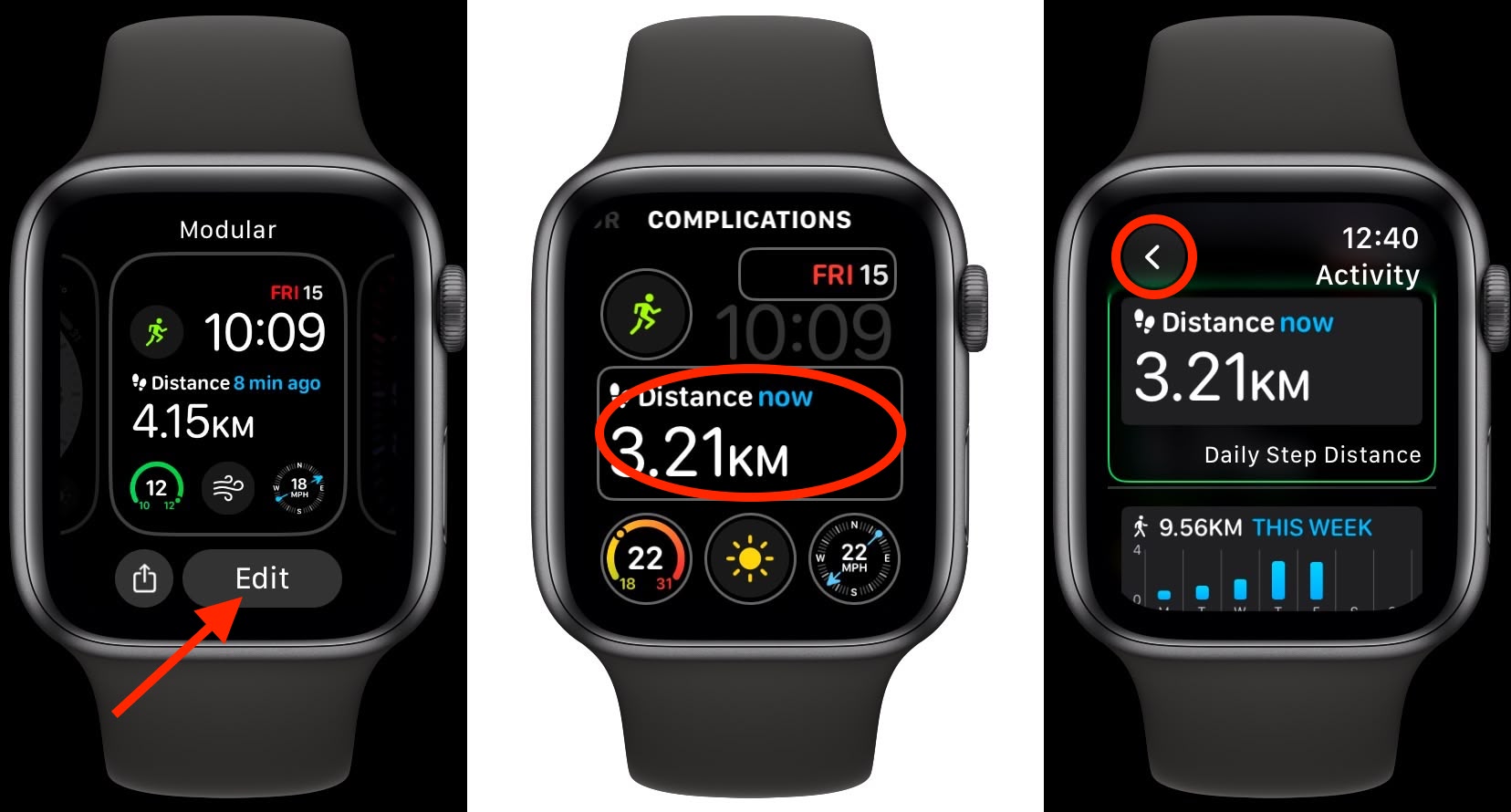
Glanceable data is motivational. Here’s how to see your step count without opening an app.
Use Third-Party Complications for Real-Time Display
Apple doesn’t allow step count complications in the native Activity app. But you can use third-party apps that sync with Health and offer customizable watch face widgets.
Top Apps for Step Complications:
- Pedometer++
- StepsApp
- My Walk – Pedometer & Step Counter
Install First: Download one from the App Store on your iPhone, then sync it to your Apple Watch.
How to Add a Step Counter to Your Watch Face
- Press and hold your current watch face.
- Tap Edit.
- Swipe to choose a face—Modular, Simple, or Utility work best.
- Tap a complication slot (e.g., bottom or side).
- Select your step-tracking app (e.g., StepsApp).
- Choose Step Count, Progress Ring, or Numeric Display.
- Press the Digital Crown to save.
Now, your step count appears every time you raise your wrist.
Pro Tip: Use a Modular face with a large bottom module for a bigger, easier-to-read step display.
Set Step Goals Using Third-Party Apps
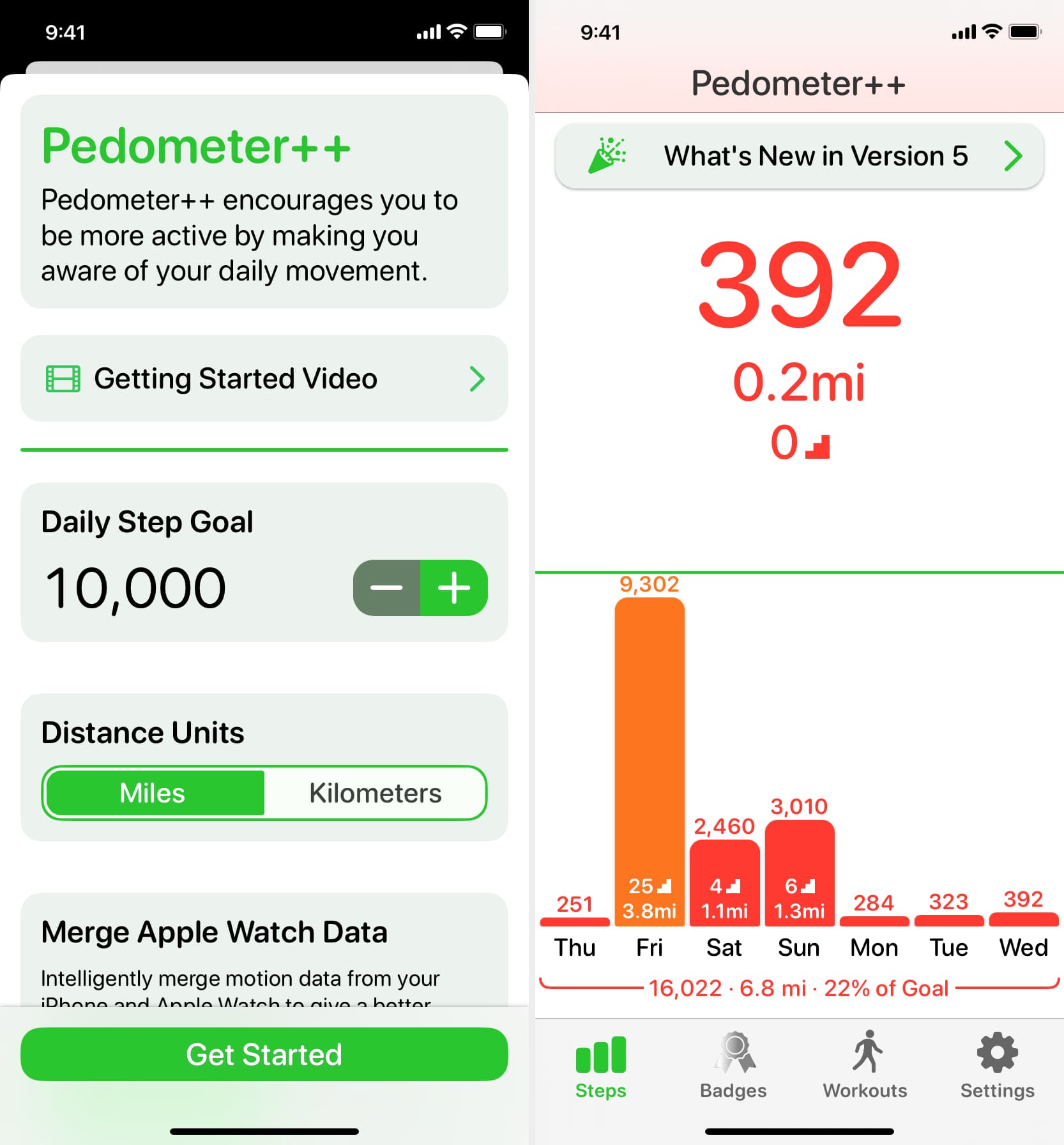
Here’s the catch: Apple Watch doesn’t support step goals natively. The Activity app focuses on calories (Move), exercise minutes, and standing hours—not steps.
But that doesn’t mean you can’t set a 10,000-step target. You just need the right app.
Best Apps for Step Goals
| App | Goal Setting | Motivation Features |
|---|---|---|
| Pedometer++ | ✅ Yes | Milestone alerts, clean UI |
| StepsApp | ✅ Yes | Progress rings, haptic feedback |
| My Walk | ✅ Yes | Voice coaching, pace tracking |
All are free with optional premium upgrades and sync seamlessly with the Health app.
Set a Daily Step Target (Example: StepsApp)
- Open StepsApp on your iPhone.
- Tap Goals.
- Select Daily Step Goal.
- Enter your target (e.g., 8,000 or 10,000 steps).
- Enable Haptic Alerts for 50%, 75%, and 100% completion.
Now, your watch will buzz when you hit milestones—turning step tracking into a game.
Bonus: StepsApp lets you display goal progress as a ring on your watch face—just like your Activity rings.
Troubleshoot Missing or Inaccurate Steps

Steps not showing up? Try these fixes.
Verify Motion & Fitness Permissions
- On iPhone, open the Watch app.
- Go to Privacy > Motion & Fitness.
- Ensure Fitness Tracking and Heart Rate are ON.
Also check:
– Wrist Detection is enabled (Settings > Passcode).
– Your Apple ID is signed in on both devices.
Restart or Re-pair Your Watch
- Restart Apple Watch: Hold side button > slide to power off.
- Restart iPhone.
- If issues persist, unpair and re-pair in the Watch app.
This often fixes sync problems affecting step data.
Check Health App Permissions
- Open Health on iPhone.
- Tap your profile > Apps.
- Select your step app (e.g., Pedometer++).
- Ensure it has Read & Write access to Steps.
Without permission, third-party apps can’t display or update your step count.
Improve Step Accuracy
Your Apple Watch is accurate—but small tweaks make it better.
Wear It Snugly
- Wear the watch one finger’s width above your wrist bone.
- Keep it tight enough so it doesn’t bounce during movement.
- Avoid wearing it too loose, especially when running or lifting weights.
Calibrate for Better Distance and Step Estimates
- Go outside for a 20-minute walk or run.
- Bring your iPhone with you.
- Start an Outdoor Walk or Outdoor Run workout.
- Let it run uninterrupted for at least 20 minutes.
The watch uses GPS and motion data to learn your stride length—making future step and distance estimates far more accurate.
Result: More precise tracking, especially on treadmills or indoors.
FAQs About Step Tracking
Can Apple Watch Track Steps Without iPhone?
Yes. The watch uses built-in sensors to count steps independently. Data syncs later when near your iPhone.
Why Don’t I See Steps on My Watch Face?
The default Activity app doesn’t support step complications. You need a third-party app like StepsApp to add a step counter to your face.
Does It Count Steps During Running or Treadmill Use?
Yes. All steps are tracked—walking, running, treadmill, or stair climbing. For best treadmill accuracy, calibrate first.
How Accurate Are the Step Counts?
Very accurate under normal conditions. Minor inaccuracies may occur if:
– Your arms aren’t swinging (e.g., pushing a stroller).
– The watch is too loose.
– Your height/weight in Health is incorrect.
Update your profile in the Health app for best results.
Best Third-Party Apps Compared
| Feature | Pedometer++ | StepsApp | My Walk |
|---|---|---|---|
| Step Goals | ✅ Yes | ✅ Yes | ✅ Yes |
| Watch Face Complication | ✅ Yes | ✅ Progress Ring | ✅ Numeric |
| Notifications | ✅ Milestone alerts | ✅ Goal reached | ✅ Voice feedback |
| Offline Tracking | ✅ Yes | ✅ Yes | ✅ Yes |
| Syncs with Health | ✅ Yes | ✅ Yes | ✅ Yes |
Best for Simplicity: Pedometer++
Best for Motivation: StepsApp
Full Step Tracking Setup Checklist
- Wear your watch snugly.
- Enable Fitness Tracking in Watch app > Privacy.
- Open Activity app to confirm steps are being recorded.
- Install Pedometer++ or StepsApp from iPhone App Store.
- Set your daily step goal (e.g., 8,000 or 10,000).
- Add a step complication to your watch face.
- Calibrate with a 20-minute outdoor walk.
- Check Health app weekly for trends.
Final Tips for Success
- Glance to motivate: Seeing steps on your face encourages more walking.
- Sync daily: Keep your iPhone and watch connected for smooth data flow.
- Update software: Always run the latest watchOS and iOS.
- Reset if needed: Restart or re-pair if step data stalls.
While Apple doesn’t make step goals obvious, the tools are there—you just need to set them up. With a third-party app and a custom watch face, your Apple Watch becomes a powerful step-tracking companion.
Start today: Set your goal, add the complication, and take your first step toward a more active life.
Final Note: Your Apple Watch is already counting steps—now you’re in control of how you view, track, and achieve your goals.





