
Your Apple Watch suddenly starts narrating every tap, message, and workout update—announcing “Halfway through your run” in the middle of a quiet yoga class or reading your texts aloud during a meeting. If you’re searching for how to turn off voice on Apple Watch, you’re not alone. Unexpected voice output is one of the most common frustrations among Apple Watch users, often triggered by accidental gestures, software updates, or misunderstood accessibility settings.
The good news? You don’t need to reset your device or visit Apple Support. Every source of voice feedback—from VoiceOver to Siri announcements and workout updates—can be silenced with just a few taps. This guide walks you through all voice-related features that might be causing the noise, how to disable them directly on your watch or iPhone, and how to prevent them from turning back on after an update. Whether the voice started after a bump of the Digital Crown or a recent watchOS upgrade, these steps will restore quiet control—fast.
Stop VoiceOver from Announcing Every Tap
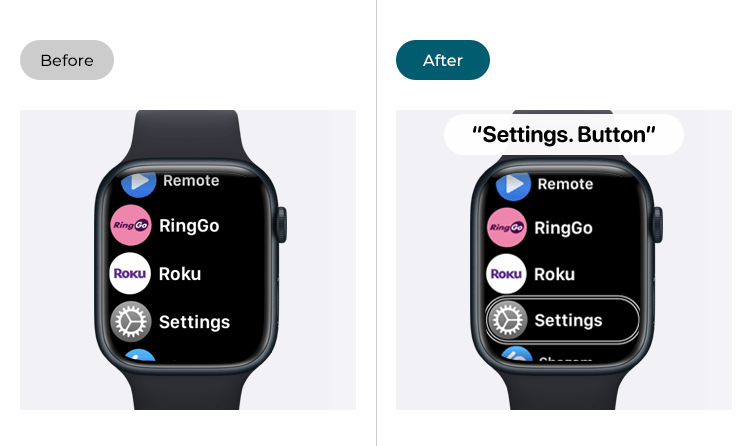
If your Apple Watch speaks every app name, menu option, or button press aloud, VoiceOver is enabled. This screen reader is designed for low-vision users but often activates by accident when the Digital Crown is pressed three times quickly.
Use the Triple-Press Shortcut to Disable Instantly
The fastest way to silence VoiceOver:
– Press the Digital Crown three times in quick succession.
– You’ll hear a voice say “VoiceOver Off” if successful.
This shortcut works even if you can’t see the screen. It’s the most reliable fix when your watch suddenly starts talking uncontrollably. If nothing happens, the Accessibility Shortcut may not be set to VoiceOver—check your settings to confirm.
Turn Off VoiceOver in Settings
To verify VoiceOver is disabled:
1. On your Apple Watch, open Settings.
2. Go to Accessibility > VoiceOver.
3. Toggle VoiceOver to Off (the switch should be gray).
Wait a few seconds for the change to take effect. If the watch still responds with voice feedback, try a force restart.
Prevent Accidental Activation with Shortcut Settings
VoiceOver turns on too easily—especially if you’re adjusting your watch or pressing buttons quickly. To stop this:
1. On your iPhone, open the Watch app.
2. Tap Accessibility > Accessibility Shortcut.
3. Uncheck VoiceOver.
Now, triple-pressing the Digital Crown won’t toggle VoiceOver. You can leave it blank or assign it to another function like Magnifier or Hearing.
Pro Tip: Many users report VoiceOver turning on after updating watchOS. Always disable this shortcut during initial setup to avoid future issues.
Silence Siri Voice Responses
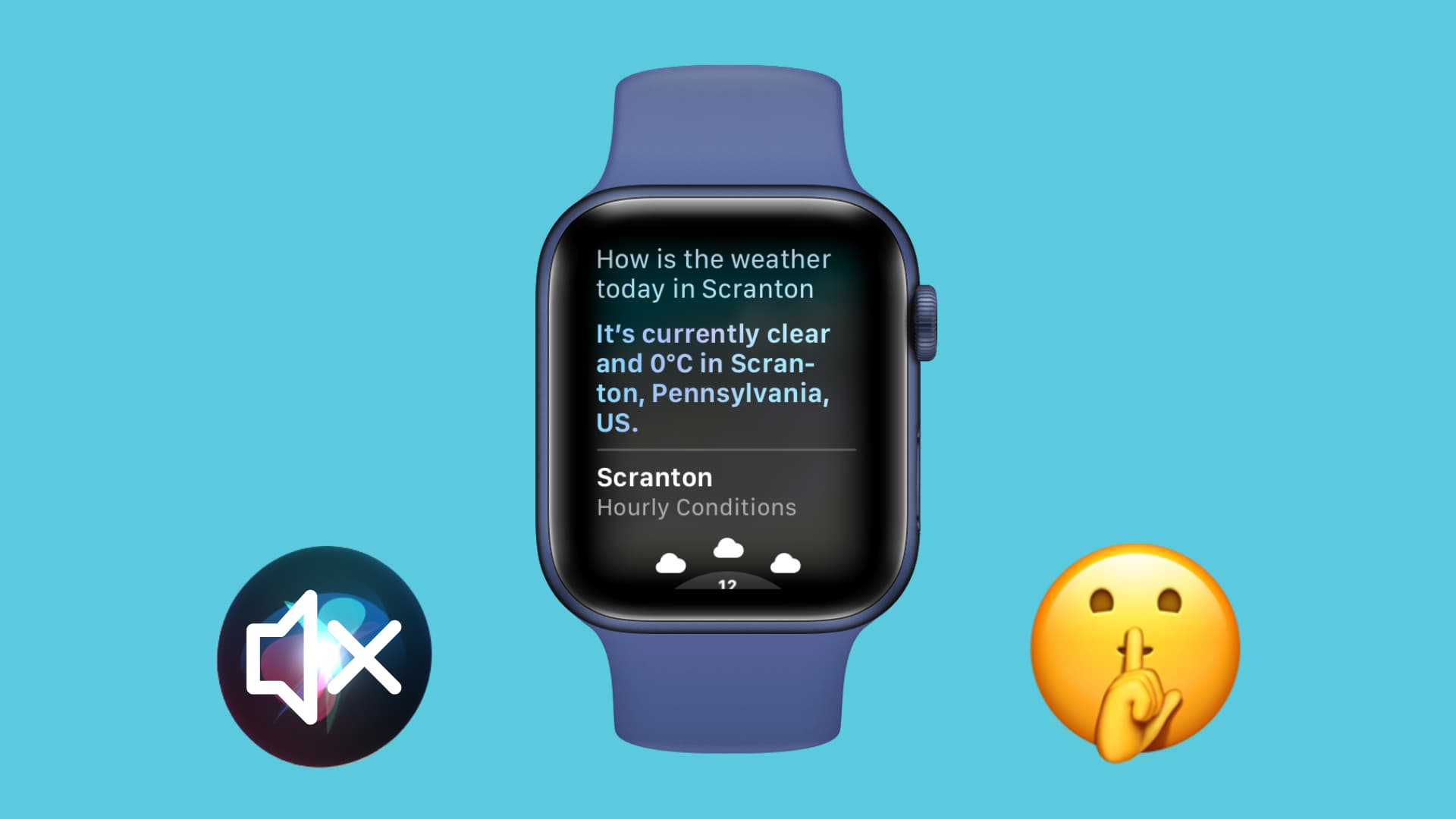
Siri may start speaking answers aloud instead of displaying them on-screen—especially after a software update. This happens when Voice Feedback is set to “Always” or “Only When Silent Mode Is Off.”
Set Siri to Silent Feedback
To stop Siri from speaking:
On Apple Watch:
- Open Settings.
- Tap Siri.
- Select Voice Feedback.
- Choose Silent.
On iPhone:
- Open the Watch app.
- Go to Siri > Voice Feedback.
- Select Silent.
Now, Siri will only show responses as text—no audio output, ever.
Key Difference: “Only When Silent Mode Is Off” allows Siri to speak unless your watch is muted. Choosing Silent disables voice completely, which is ideal if you want zero spoken responses.
Turn Off Message Announcements with Siri
:max_bytes(150000):strip_icc()/01_Announce_Messages_Off-a66c2961ab1a40d2aab0ddf28067297c.jpg)
If your Apple Watch reads incoming iMessages, texts, or emails aloud—especially through AirPods—you have Announce Messages with Siri enabled.
Disable Announce Messages on iPhone
This setting is managed only from your iPhone:
1. Open Settings on your iPhone.
2. Go to Notifications > Announce Messages with Siri.
3. Toggle it Off.
After disabling, Siri will no longer read messages aloud when you’re wearing AirPods or compatible Beats headphones.
Note: This feature only works with Apple’s H1 or W1 chip-equipped headphones. But even if you’re not using them, the setting can activate accidentally during setup or restore.
Stop Notification Voice Alerts
Starting with watchOS 9, Apple introduced Announce Notifications, which uses Siri to read calendar events, reminders, timers, and calls aloud through connected headphones.
Disable Announce Notifications in Watch App
To stop these voice alerts:
1. On your iPhone, open the Watch app.
2. Tap Notifications.
3. Select Announce Notifications.
4. Toggle it Off.
This prevents Siri from verbally announcing non-message alerts, such as “Meeting starting in 5 minutes” or “Timer done.”
Common Trigger: Users often find this setting enabled after restoring from a backup. Always review it post-update or after pairing a new watch.
Mute Workout Voice Feedback
During runs, gym sessions, or yoga, your Apple Watch may announce progress like “One mile completed” or “Workout finished.” This comes from Workout Voice Feedback, which can be disruptive in group classes.
Turn Off Voice Feedback in Workout Settings
To disable:
On Apple Watch:
- Open Settings.
- Go to Workout > Voice Feedback.
- Toggle to Off.
On iPhone:
- Open Watch app.
- Tap Workout > Voice Feedback.
- Turn off the toggle.
Once disabled, no spoken updates will play—whether through the speaker or headphones.
Limitation: Apple doesn’t allow you to disable voice feedback only on the speaker. Turning it off silences all audio during workouts.
Use Silent or Theater Mode for Public Discretion
Want to keep haptics but silence all sound? Two built-in modes give you instant control.
Enable Silent Mode
- Swipe up from the watch face to open Control Center.
- Tap the bell icon with a slash.
- Your watch will stop making sounds but still vibrate.
Ideal for meetings, classrooms, or quiet environments.
Enable Theater Mode
- In Control Center, tap the theater mask icon.
- Your watch stays muted and won’t wake when you raise your wrist.
Perfect for yoga, meditation, or any setting where even a vibration might be distracting.
User Tip: Many fitness instructors recommend enabling Theater Mode before entering group classes to avoid accidental announcements.
Fix Lingering Voice Issues
Sometimes, voice features don’t respond to settings changes. Try these troubleshooting steps.
Restart Your Apple Watch
- Press and hold the side button and Digital Crown for 10 seconds.
- Release when the Apple logo appears.
- After reboot, recheck all voice settings.
A restart often resolves glitches caused by software hiccups.
Check Sound & Haptic Settings
- Open Settings > Sounds & Haptics.
- Manually adjust the Volume slider.
- Disable Prominent Haptic if vibrations feel excessive.
Even if not related to voice, misconfigured sound settings can amplify unintended feedback.
Reset All Settings (Last Resort)
If voice keeps returning:
1. On iPhone, open Watch app.
2. Go to General > Reset > Erase All Content and Settings.
3. Re-pair your watch.
Warning: This removes all apps, data, and preferences. Only use if all other fixes fail.
Prevent Future Voice Activation
Avoid surprise voice output with these proactive steps.
Disable Accessibility Shortcut
The #1 cause of accidental VoiceOver: triple-click activation.
To disable:
1. On iPhone, open Watch app.
2. Go to Accessibility > Accessibility Shortcut.
3. Deselect VoiceOver.
Now, pressing the Digital Crown three times does nothing—or activates another function if assigned.
Review Settings After Updates
iOS and watchOS updates sometimes reset accessibility settings.
After any update:
– Confirm VoiceOver is off.
– Verify Siri Voice Feedback is set to Silent.
– Double-check Announce Messages and Announce Notifications.
Just 60 seconds can prevent weeks of unwanted voice output.
Summary: Voice Features and How to Turn Them Off
| Voice Feature | How to Disable |
|---|---|
| VoiceOver | Triple-press Digital Crown, or Settings > Accessibility > VoiceOver > Off |
| Siri Voice Responses | Settings > Siri > Voice Feedback > Silent |
| Announce Messages with Siri | iPhone Settings > Notifications > Announce Messages with Siri > Off |
| Announce Notifications | Watch app > Notifications > Announce Notifications > Off |
| Workout Voice Feedback | Settings > Workout > Voice Feedback > Off |
| Accidental Activation | Disable Accessibility Shortcut in iPhone Watch app |
Final Tips for Complete Silence
To ensure your Apple Watch stays quiet:
1. Triple-press the Digital Crown if voice starts suddenly—this disables VoiceOver instantly.
2. Disable Accessibility Shortcut to prevent repeat issues.
3. Set Siri to Silent on both devices.
4. Turn off Announce Messages and Announce Notifications on iPhone.
5. Disable Workout Voice Feedback before group activities.
6. Use Silent Mode or Theater Mode when discretion matters.
With these steps, you’ll eliminate every source of unwanted voice output. No more surprise announcements—just quiet, reliable performance from your Apple Watch.





