
You’re lacing up for a morning run, leaving your phone behind, but you still want your go-to playlist pumping through your AirPods. That’s exactly what Spotify on Apple Watch is designed for—when it works. But with confusing setup steps, unreliable streaming, and hidden limitations, many users end up frustrated. The good news? If you have a Spotify Premium account and a compatible Apple Watch, you can listen to music and podcasts without your iPhone—either by streaming over cellular or playing downloaded tracks offline.
This guide breaks down everything you need to know: how to install Spotify, download playlists, pair AirPods, control playback during workouts, and fix common issues like crashes or failed syncs. Whether you own an Apple Watch SE, Series 9, or Ultra, this is your complete roadmap to phone-free Spotify listening.
Install Spotify on Apple Watch
Before you play a single note, Spotify must be installed directly on your watch. Unlike some apps, it doesn’t appear automatically—even if you have it on your iPhone.
Confirm You Have a Supported Setup
Spotify only works reliably on:
– Apple Watch Series 4 or later (including SE, Series 5–9, Ultra)
– WatchOS 10 or higher (required for current app stability)
– iPhone with the latest Spotify app installed
If you’re using an Apple Watch Series 3, the Spotify app will be removed if you update the iPhone app. There’s no workaround.
Install via the iPhone Watch App (Best Method)
For seamless syncing and account linking, use your iPhone:
- Open the Watch app on your iPhone.
- Scroll down to Available Apps.
- Tap Install next to Spotify.
- Wait for the app to appear on your Apple Watch.
Pro Tip: If Spotify doesn’t show up, log into your Spotify account on iPhone and ensure both devices are on Wi-Fi.
Alternative: Download from Apple Watch App Store
If the app isn’t visible on your iPhone, install directly on the watch:
- On your Apple Watch, open the App Store.
- Search for Spotify.
- Tap Get to install.
Use this only if the iPhone method fails—syncing may be less reliable.
Stream Spotify Without Your iPhone

Yes, you can stream music directly from your Apple Watch—but only if you meet specific conditions.
Requirements for Streaming
To play Spotify without your phone:
– GPS + Cellular Apple Watch (e.g., Series 9 Cellular or Ultra)
– Active carrier cellular plan
– Spotify Premium subscription
– Bluetooth headphones (like AirPods) connected to the watch
How to Stream Over Cellular or Wi-Fi
- Pair your headphones to the watch (instructions below).
- Open the Spotify app on your Apple Watch.
- Browse Recently Played, Made For You, or your library.
- Tap a track—music streams over cellular or Wi-Fi.
Reality Check: Streaming isn’t always reliable. Users report success about 75–80% of the time, even with strong signals. Crashes and connection drops are common—especially on older models.
Why Streaming Fails
Common causes:
– Weak cellular signal
– Background app refresh disabled
– WatchOS not updated
– Spotify app crash
Fix: Restart your watch before long sessions to improve stability.
Download Music to Apple Watch for Offline Listening

For reliable, phone-free playback—especially during workouts—download playlists instead of streaming.
What Can You Download?
| Content Type | Downloadable? | Notes |
|---|---|---|
| Music | ✅ Yes | Must be in a playlist |
| Podcasts | ✅ Yes | Full episode support |
| Audiobooks | ❌ No | Streaming only |
| Individual Songs | ❌ No | Add to playlist first |
You can store up to 100 tracks per playlist and roughly 10 hours of audio total.
Download From iPhone (Fastest Method)
- Open Spotify on your iPhone.
- Go to a playlist or album.
- Tap ••• (More Options).
- Select Download to Apple Watch.
- Choose your watch.
Speed Hack: Turn off Bluetooth on iPhone (Settings > Bluetooth) to force Wi-Fi syncing—downloads complete up to 3x faster.
Keep your watch charged and nearby. Leave the Spotify app open on the watch during transfer.
Download Directly on Apple Watch
You can also download from the watch:
1. Swipe right on the home screen.
2. Select a playlist.
3. Tap the download icon (downward arrow).
Note: You can’t search for new content on the watch—only access pre-loaded playlists.
Play Downloaded Music
After downloading:
1. Swipe left from the home screen to open Your Library.
2. Tap Downloads.
3. Select a playlist or podcast.
No internet? No problem. As long as your headphones are connected, music plays offline.
Pair AirPods to Apple Watch
To listen without your phone, your headphones must connect directly to the watch.
How to Pair AirPods
- Place AirPods in the case and open the lid.
- Hold near your Apple Watch.
- On the watch, go to Settings > Bluetooth.
- Tap your AirPods when they appear.
Auto-Connect Tip: Once paired, AirPods will automatically connect to your watch when:
– iPhone is out of range
– You start playing audio on the watch
Switch Between iPhone and Watch
Spotify uses Bluetooth priority, not automatic switching:
– If iPhone is nearby and connected, music plays there
– To force watch playback, turn off iPhone Bluetooth or disconnect manually
For smoother control, use Spotify Connect in the Now Playing screen to switch output devices.
Control Spotify During Workouts
One of the best features: control music without pausing your run.
Use Spotify in Workout Mode
- Open the Workout app on Apple Watch.
- Start your activity (e.g., outdoor run).
- While active, swipe right to access Now Playing.
- Tap to play, pause, or skip tracks.
Adjust volume with the Digital Crown—no need to exit your workout.
Switch Audio Output Mid-Run
Tap the device icon in Now Playing to:
– Switch from iPhone to AirPods on watch
– Move between multiple connected headphones
Warning: If Spotify crashes during a long run, playback may stop permanently until you reconnect to your iPhone. This is a frequent issue on GPS-only models.
Fix Common Spotify Apple Watch Issues
Even with perfect setup, problems happen. Here’s how to fix them fast.
Spotify App Missing on Watch
Solutions:
– Update to WatchOS 10+
– Restart both iPhone and watch
– Reinstall Spotify via iPhone Watch app
– Ensure you’re logged into Spotify on iPhone
Music Won’t Play
Check:
– Are headphones connected?
– Is Wi-Fi or cellular active?
– Is Background App Refresh enabled for Spotify (iPhone Settings)?
– Is your watch storage full?
Try restarting the app or watch.
Can’t Download to Watch
Most common issue. Fixes:
– Keep both devices on the same Wi-Fi network
– Turn off iPhone Bluetooth to speed up sync
– Keep Spotify open on the watch during download
– Don’t close the app or put the watch to sleep
If sync fails repeatedly, unpair and re-pair your watch in the Watch app.
App Crashes During Playback
Frequent complaint—especially on long runs.
Prevent Crashes:
– Restart watch before extended use
– Keep battery above 20%
– Avoid switching between apps rapidly
– Use offline playlists (less strain than streaming)
Users report fewer crashes on Apple Watch Ultra due to better thermal and memory management.
Spotify vs Apple Music on Apple Watch
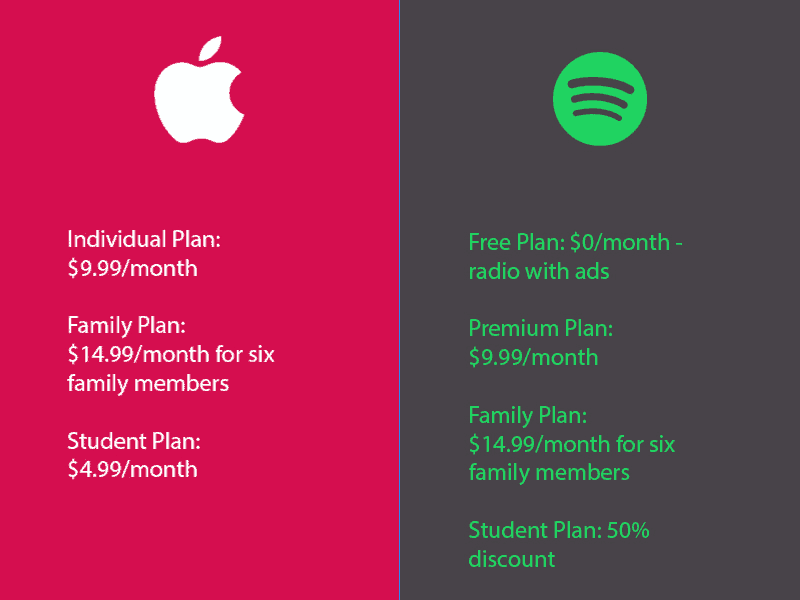
Many users consider switching due to reliability issues.
| Feature | Spotify | Apple Music |
|---|---|---|
| Offline Listening | ✅ Yes (Premium) | ✅ Yes |
| Cellular Streaming | ⚠️ Unreliable | ✅ Stable |
| Search on Watch | ❌ No | ✅ Yes |
| Equalizer | ❌ No | ✅ Yes |
| App Stability | ⚠️ Moderate | ✅ High |
| Workout Integration | ⚠️ Functional | ✅ Seamless |
| Podcast Support | ✅ Excellent | ❌ Limited |
User Reality: “I love Spotify’s playlists, but I use Apple Music for runs because it never crashes.”
Apple Music offers smoother performance, built-in search, and better integration with the Workout app—making it the top choice for athletes.
Tips for Reliable Spotify Performance
Maximize your experience with these expert-backed strategies.
Optimize Download Speed
- Keep watch on charger during sync
- Disable iPhone Bluetooth (forces Wi-Fi transfer)
- Leave Spotify open on watch
- Use 5GHz Wi-Fi if possible
Extend Battery Life
Music playback drains battery fast. Conserve it:
– Use offline mode (reduces cellular/Wi-Fi use)
– Close unused apps
– Lower screen brightness
– Consider a battery case for long sessions
Apple Watch typically lasts 4–6 hours with continuous playback.
Best Setup for Runners
- Pre-download your workout playlist
- Pair AirPods Pro (best fit and connection stability)
- Use Apple Watch Ultra if possible (shows GPS connection status)
- Start workout first, then launch Spotify
- Avoid app switching during playback
Critical Note: Only the Apple Watch Ultra displays a “Connected to GPS” indicator before starting—essential for accurate tracking.
FAQs: Quick Answers
Can I use Spotify on Apple Watch without Premium?
No. Free users can only use the watch as a remote for iPhone playback. No offline downloads or standalone streaming.
Can AirPods connect directly to Apple Watch?
Yes. Once paired, AirPods connect automatically when iPhone is out of range and audio is playing.
Can I run with just my Apple Watch and AirPods?
Yes—if you:
– Have downloaded playlists, or
– Own a cellular model and stream via LTE
No phone required.
Why won’t Spotify play on my Apple Watch?
Most likely causes:
– No Premium account
– App not installed or corrupted
– WatchOS too old
– Bluetooth disconnected
– Sync failed
Try reinstalling the app and restarting both devices.
Can I download audiobooks to Apple Watch?
No. Audiobooks can be streamed from Spotify on the watch, but offline downloads are not supported.
Final Recommendations
Spotify on Apple Watch works—but with caveats.
Who Should Use It?
- Casual users who want quick access to playlists
- Premium subscribers invested in Spotify’s ecosystem
- Cellular model owners who prioritize streaming flexibility
Who Should Consider Alternatives?
- Serious runners needing crash-free playback
- Users who rely on search or equalizer
- GPS-only watch owners with frequent sync issues
Alternative Options:
– Switch to Apple Music for workouts (keep Spotify for phone use)
– Try a Garmin fitness watch with native Spotify support
– Use offline MP3 players for ultra-reliability
Bottom Line
With the right setup—downloaded playlists, paired headphones, updated software—Spotify on Apple Watch delivers a functional, phone-free experience. But don’t expect perfection. Crashes, sync delays, and missing features like search make it less reliable than Apple Music.
For best results:
– Always pre-download music
– Use Wi-Fi for syncing
– Keep apps and OS updated
– Pair with stable Bluetooth headphones
– Monitor app behavior during long sessions
Do this, and you’ll enjoy your music—wherever the run takes you.





