You’re stepping out for a morning run, your Apple Watch secured on your wrist, and you don’t want to carry your phone—just your music. The key? Connecting your earbuds directly to your Apple Watch. Whether you’re using AirPods or third-party Bluetooth earbuds like Sony, Jabra, or Samsung, the Apple Watch supports seamless wireless audio—no iPhone required. This guide walks you through every step: pairing, troubleshooting, switching audio, playing offline music, and using your watch as a standalone audio hub. Let’s get your earbuds connected and your sound flowing.
Pair AirPods Automatically with Your Apple Watch
If you own AirPods (any generation), AirPods Pro, AirPods Max, or Beats earbuds with the H1 or W1 chip, you’re in luck—they’re built to connect effortlessly across Apple devices.
Same iCloud Account Enables Instant Pairing
For automatic pairing to work, your iPhone and Apple Watch must be signed into the same iCloud account. Once your AirPods are set up with your iPhone, they automatically appear in your Apple Watch’s Bluetooth list. No extra steps needed.
Ensure:
– Bluetooth is enabled on both devices.
– AirPods are charged and nearby.
– Your Apple ID is consistent across iPhone, iPad, and Apple Watch.
When you start playing music or a podcast on your watch, your AirPods will connect instantly—no need to manually select them.
Example: After setting up AirPods with your iPhone, open the Music app on your Apple Watch. Tap play—within seconds, audio streams to your AirPods.
Seamless Audio Switching Between Devices
Thanks to the H1 or W1 chip, your AirPods intelligently switch audio between your iPhone, iPad, Mac, and Apple Watch—whichever device is actively playing media.
For instance:
– Watching a video on your iPad? Audio plays there.
– Start a workout on your Apple Watch? The sound switches to your watch and earbuds automatically.
To enable this:
1. On your iPhone, go to Settings > Bluetooth.
2. Tap the “i” icon next to your AirPods.
3. Turn on “Automatically Switch to This Device.”
Now, your earbuds follow your activity—no manual toggling required.
Manually Pair AirPods to Apple Watch
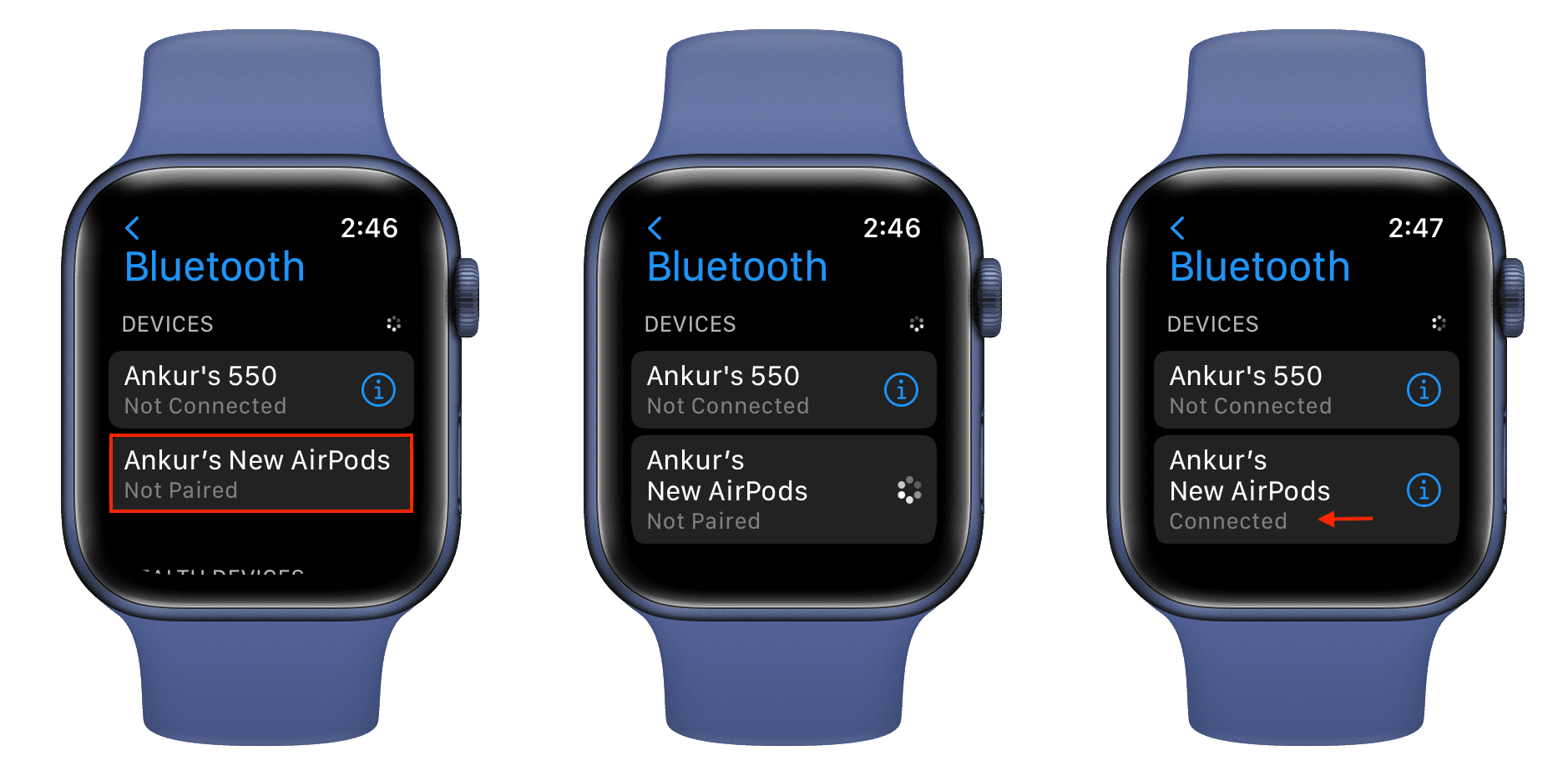
Even with automatic features, sometimes your AirPods don’t connect. A manual pairing process can fix that.
Put AirPods in Pairing Mode
To force a connection:
– Standard AirPods or AirPods Pro: Open the charging case and press and hold the setup button on the back until the status light flashes white.
– AirPods Max: Press and hold the noise control button until the light flashes white.
Keep them close to your watch during pairing.
Connect via Bluetooth Settings
On your Apple Watch:
1. Press the Digital Crown to return to the home screen.
2. Open Settings > Bluetooth.
3. Wait for your AirPods to appear in the Available Devices list.
4. Tap the AirPods name to connect.
Once paired, they’ll appear under My Devices and reconnect automatically in the future.
Pro Tip: You can also tap the AirPlay icon (triangle in a circle) in the Now Playing screen while music is playing to initiate pairing.
Connect Third-Party Bluetooth Earbuds to Apple Watch
Not using AirPods? Most Bluetooth earbuds—from Sony WF-1000XM5, Samsung Galaxy Buds, or Jabra Elite—can still connect directly.
Prepare Your Earbuds for Pairing
Before starting:
– Charge your earbuds fully.
– Turn off Bluetooth on nearby devices (like your phone).
– Place earbuds within 3 feet (1 meter) of your Apple Watch.
To enter pairing mode:
– Power on the earbuds.
– Press and hold the power or pairing button for 5–10 seconds.
– Look for a flashing blue or white light.
– Some models enter pairing mode automatically after a reset—check the manual.
Pair via Apple Watch Bluetooth Menu
- Press the Digital Crown and open Settings.
- Tap Bluetooth and ensure it’s on.
- Wait for your earbuds to appear in the list.
- Tap the device name to connect.
If prompted, enter a PIN—try 0000 or 1234. If that fails, consult your earbuds’ user guide.
After pairing, your earbuds will appear under My Devices and reconnect whenever powered on and nearby.
Switch Audio Output Using AirPlay
Once connected, you can easily switch where your audio plays—especially helpful if multiple devices are linked.
Use the AirPlay Icon to Redirect Audio
To change output:
1. Open Music, Podcasts, or Now Playing.
2. Tap the AirPlay icon (triangle inside a circle).
3. Select your earbuds from the list.
Audio switches instantly—even if your earbuds were previously connected to your phone.
Note: If your earbuds don’t appear, ensure they’re powered on, in range, and not actively playing audio from another device.
Manage Multiple Connected Devices
You can have multiple Bluetooth devices paired, but only one can play audio at a time. The last selected device via AirPlay becomes the default.
Use the AirPlay menu anytime to switch between:
– Earbuds
– Speakers
– Apple Watch speaker
Play Music Without Your iPhone
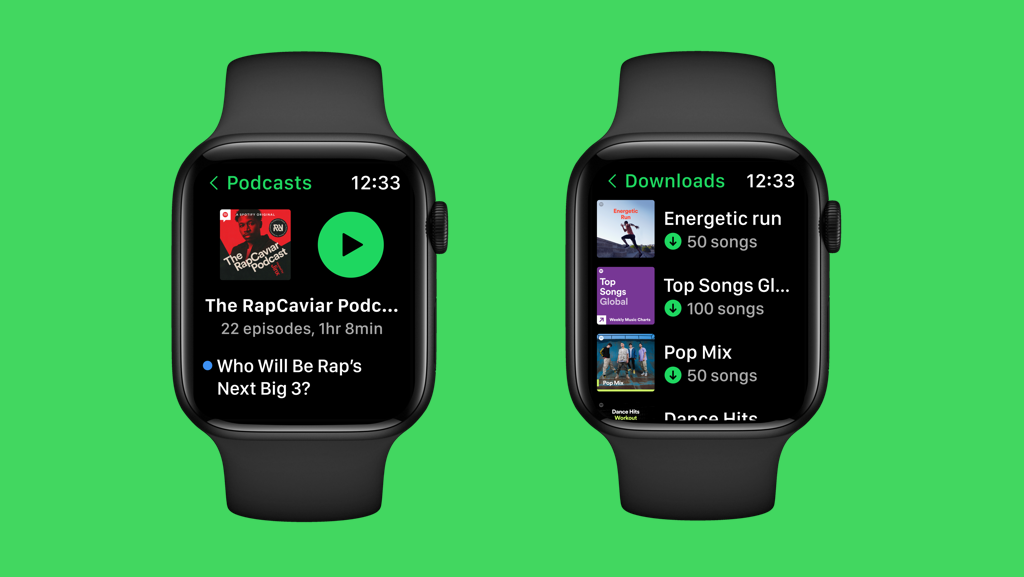
One of the biggest benefits of connecting earbuds to your Apple Watch is going phone-free.
Download Music for Offline Playback
To listen without internet:
1. Open the Watch app on your iPhone.
2. Go to Music > Sync Library or Download to Apple Watch.
3. Select playlists, albums, or songs.
4. Wait for downloads to complete (best done while charging).
Once synced:
– Open the Music app on your Apple Watch.
– Tap play—audio streams directly to your earbuds.
Storage Tip: Free up space by deleting unused downloads in Watch app > Music > Manage Storage.
Stream Music Over Wi-Fi or Cellular
If you prefer streaming:
– Ensure your Apple Watch has Wi-Fi or cellular enabled.
– Open apps like Apple Music, Spotify, or YouTube Music.
– Start playback—audio routes to your connected earbuds.
No iPhone? No problem. As long as your watch has connectivity, you’re good.
Take Calls and Use Siri with Connected Earbuds
Your earbuds turn your Apple Watch into a full communication device.
Answer Calls Hands-Free
When your iPhone receives a call:
– Your Apple Watch rings too (if nearby and unlocked).
– Tap Answer on Apple Watch.
– The call routes through your earbuds.
With a cellular Apple Watch, you can take calls without your iPhone nearby.
Activate Siri Through Earbuds
Say “Hey Siri” (if enabled) or press and hold the Digital Crown. Siri responds through your earbuds.
Try commands like:
– “Play my workout playlist.”
– “Call Mom.”
– “Set a timer for 20 minutes.”
Perfect for running, cooking, or driving.
Protect Your Hearing with Headphone Safety
Listening at high volumes can damage hearing over time. Apple Watch helps you stay safe.
Reduce Loud Sounds Automatically
To set a volume limit:
1. On Apple Watch, go to Settings > Sounds & Haptics > Headphone Safety.
2. Tap Reduce Loud Sounds.
3. Set a max level (e.g., 75 dB, 80 dB, or 85 dB).
If audio exceeds your limit, the watch automatically lowers the volume.
Why It Matters: The WHO warns that exposure above 80 dB for long periods increases hearing loss risk.
Review Headphone Audio History
Apple Watch tracks loud listening sessions.
To view history:
1. Open Settings > Sounds & Haptics > Headphone Safety.
2. Tap Last 6 Months under Headphone Notifications.
Or check the Health app on your iPhone:
– Go to Hearing > Headphone Notifications.
– See charts of your exposure levels.
Use this data to adjust habits and protect your hearing.
Fix Common Connection Issues Fast

Even with proper setup, problems can occur.
Earbuds Won’t Appear in Bluetooth List?
Check:
– Are they in pairing mode? (Flashing light = ready)
– Already connected to another device? Disconnect first.
– Is Bluetooth off on your watch? Turn it on.
– Are earbuds charged?
– Too much wireless interference? Move away from routers or microwaves.
Connection Keeps Dropping?
Solutions:
– Keep watch and earbuds within 3 feet.
– Avoid placing the watch in a pocket.
– Reduce interference from other devices.
– Update software on both devices.
If issues persist, forget and re-pair.
Failed to Pair or Stuck Connecting?
Try these fixes:
– Restart Apple Watch: Hold side button, power off, wait 30 seconds, turn on.
– Toggle Bluetooth: Turn off, wait 10 seconds, turn on.
– Forget Device: In Bluetooth settings, tap “i” > Forget This Device, then re-pair.
– Reset Earbuds: Hold power button for 15+ seconds until lights flash.
For AirPods (Gen 4): Double-tap status light three times until it flashes amber.
Keep Software Updated for Best Performance
Outdated software causes many Bluetooth issues.
Update Apple Watch OS
- Open Watch app on iPhone.
- Go to General > Software Update.
- Install any available updates.
Update Earbud Firmware
- AirPods: Updates install automatically when connected to iPhone and charging.
- Third-party earbuds: Use brand apps like Sony Headphones Connect or Samsung Wearable.
Always keep both devices updated.
Optimize Performance and Battery Life
Best Practices
- Use the same Apple ID across devices.
- Charge earbuds and watch before long outings.
- Minimize Bluetooth congestion in crowded areas.
- Forget unused devices to reduce clutter.
Battery Impact of Audio Streaming
Expect 4–6 hours of continuous playback. Using GPS + music during workouts drains the battery faster.
For longer use:
– Carry a portable charger.
– Use lower volume to extend battery.
Final Note: Connecting earbuds to your Apple Watch unlocks true independence from your iPhone. Whether you’re using AirPods for instant pairing or third-party earbuds for flexibility, the process is simple—and the payoff is huge. With music, calls, Siri, and hearing protection all working seamlessly, your wrist becomes a full-featured audio hub. Follow this guide to pair, troubleshoot, and optimize your setup for a reliable, high-performance experience every time.